Enabling the application log file
To enable the application log file:
Using a browser, navigate to the Cloudera Manager screen.
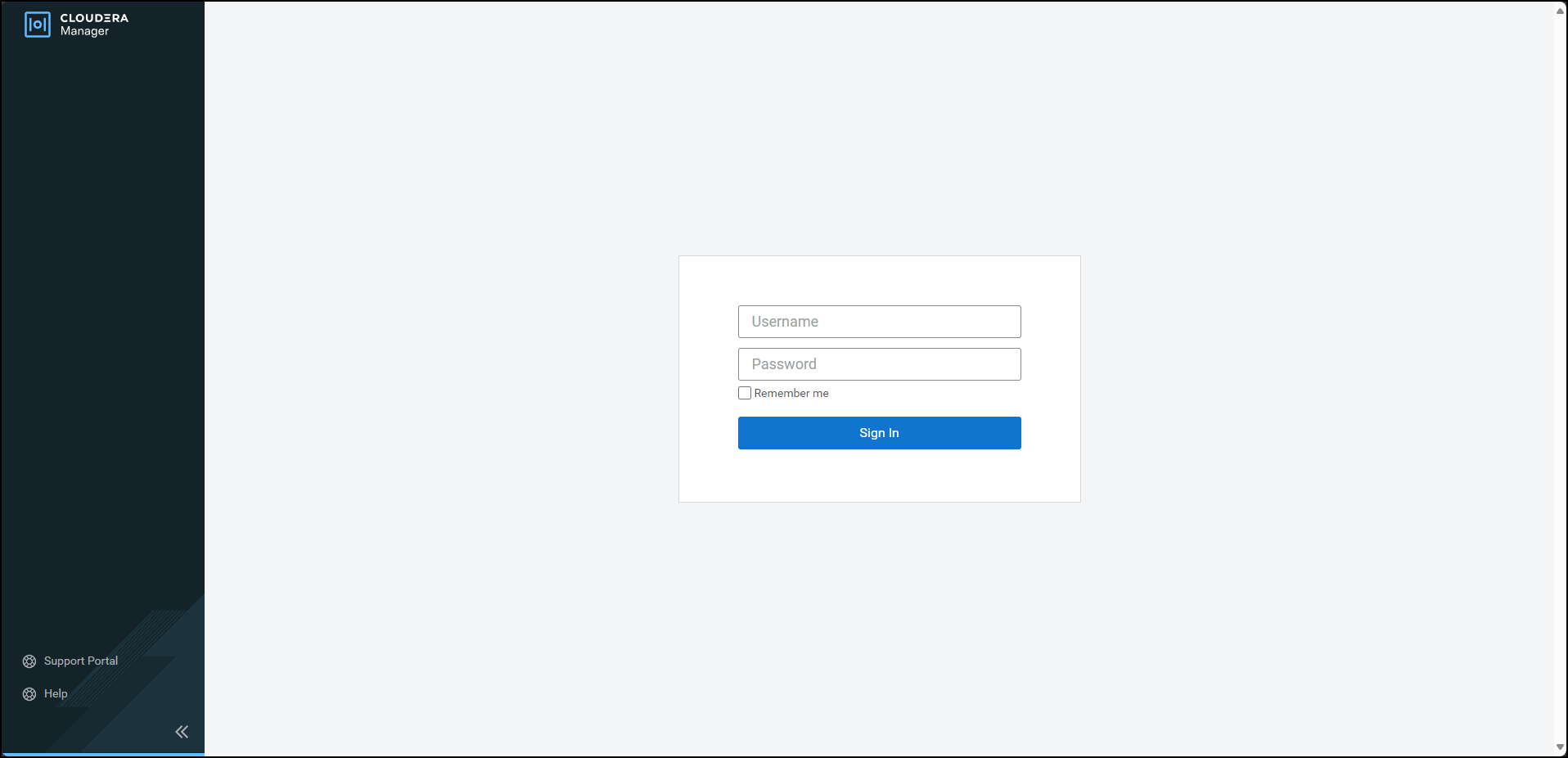
Enter the Username.
Enter the Password.
Click Sign In.
The Cloudera Manager Home page appears.
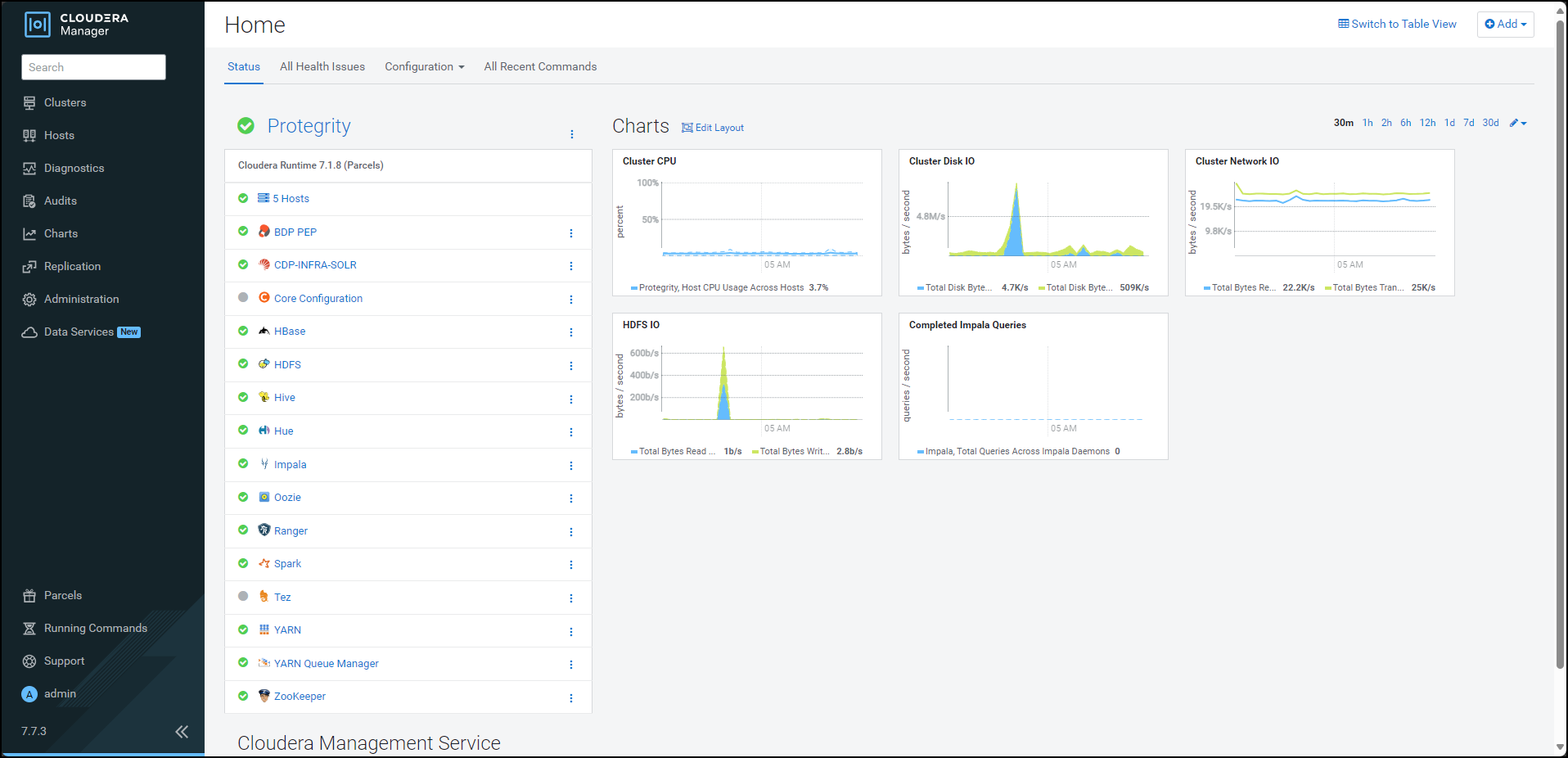
Click BDP PEP. The BDP PEP page appears.
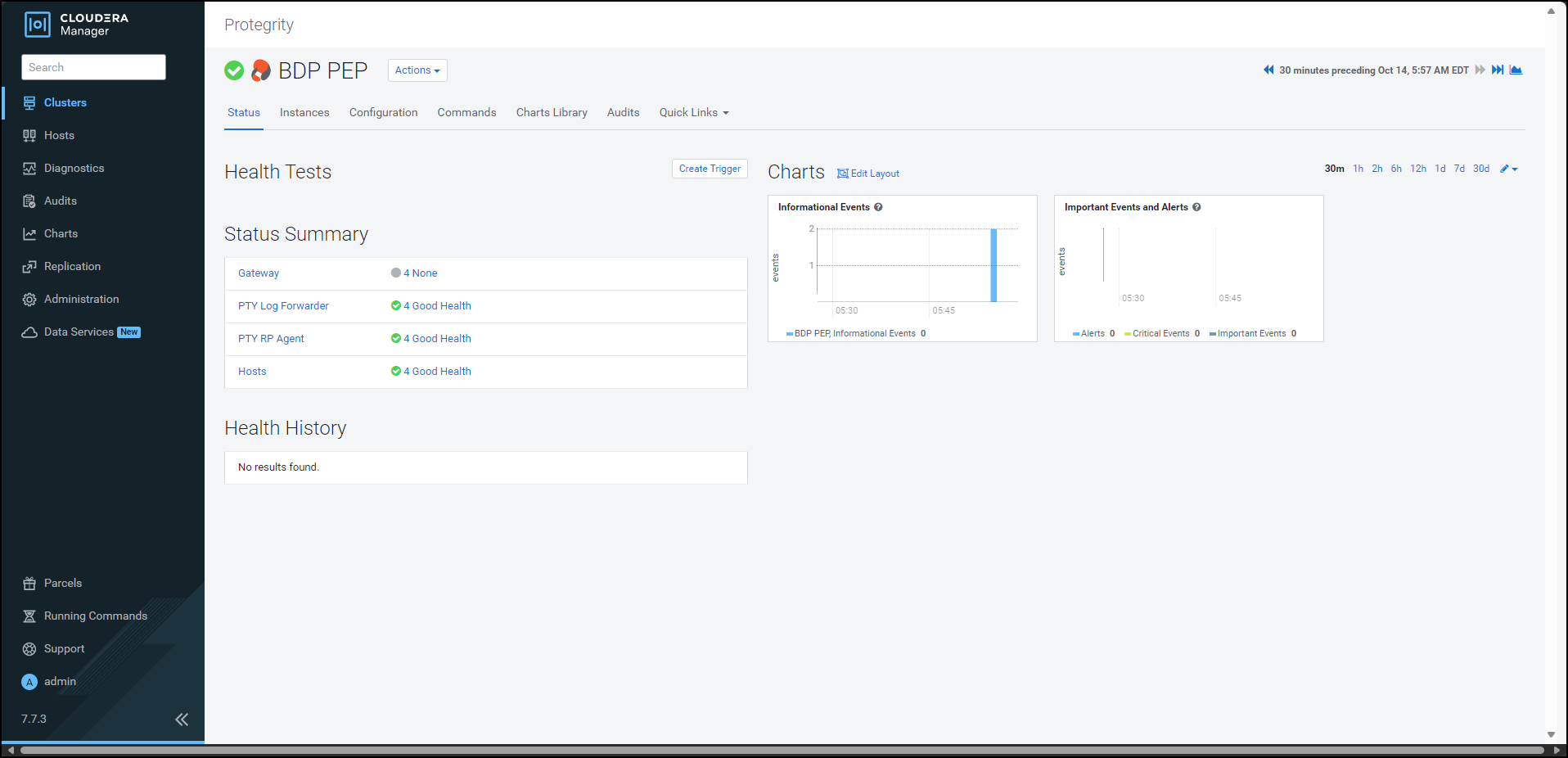
Click the Configuration tab. The Configuration tab appears.
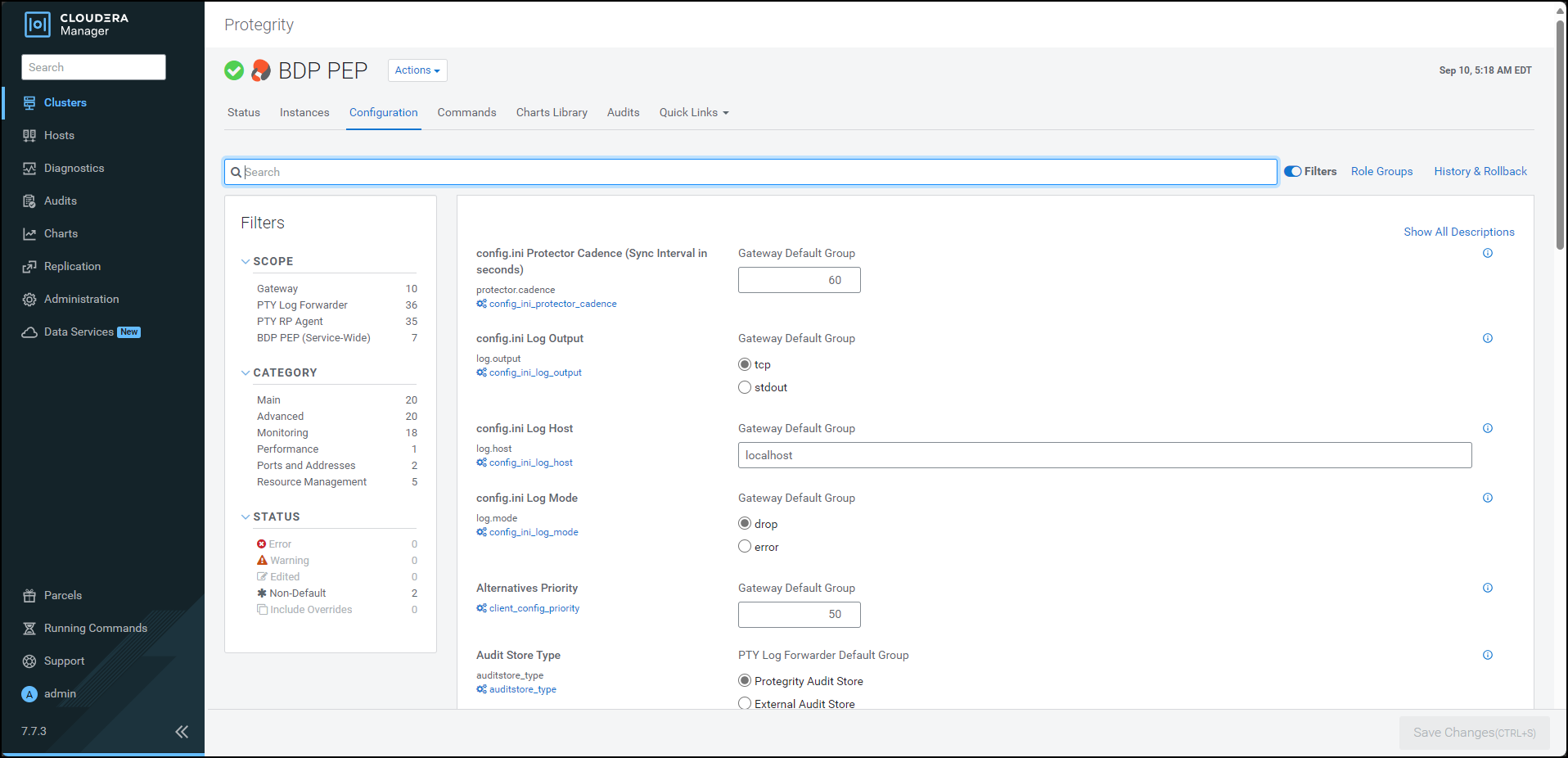
In the Filters pane, under Scope, click PTY Log Forwarder. The options related to the Log Forwarder appear.
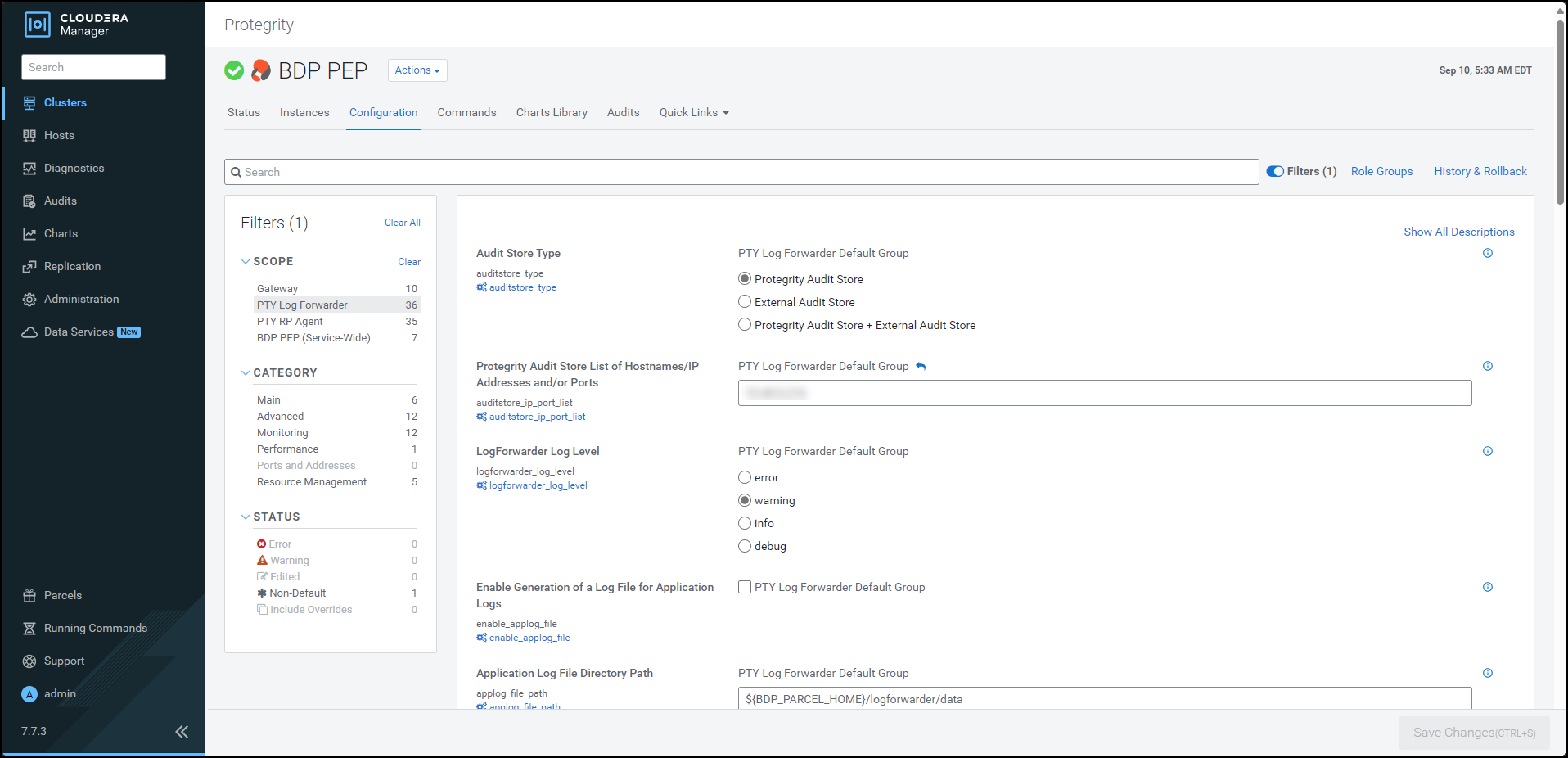
To generate the application log file, under Enable Generation of a Log File for Application Logs, select the PTY Log Forwarder Default Group check box.
To specify a location to generate the log file, in the Application Log File Directory Path box, enter the location where you want to generate the application log file.
To specify a name for the application log file, in the Application Log File Name box, enter a name for the file.
Click Save Changes.
Restart the BDP PEP service.
Feedback
Was this page helpful?