Updating Parameters for the Log Forwarder
To update the configuration parameters for the Log Forwarder:
Using a browser, navigate to the Cloudera Manager screen.
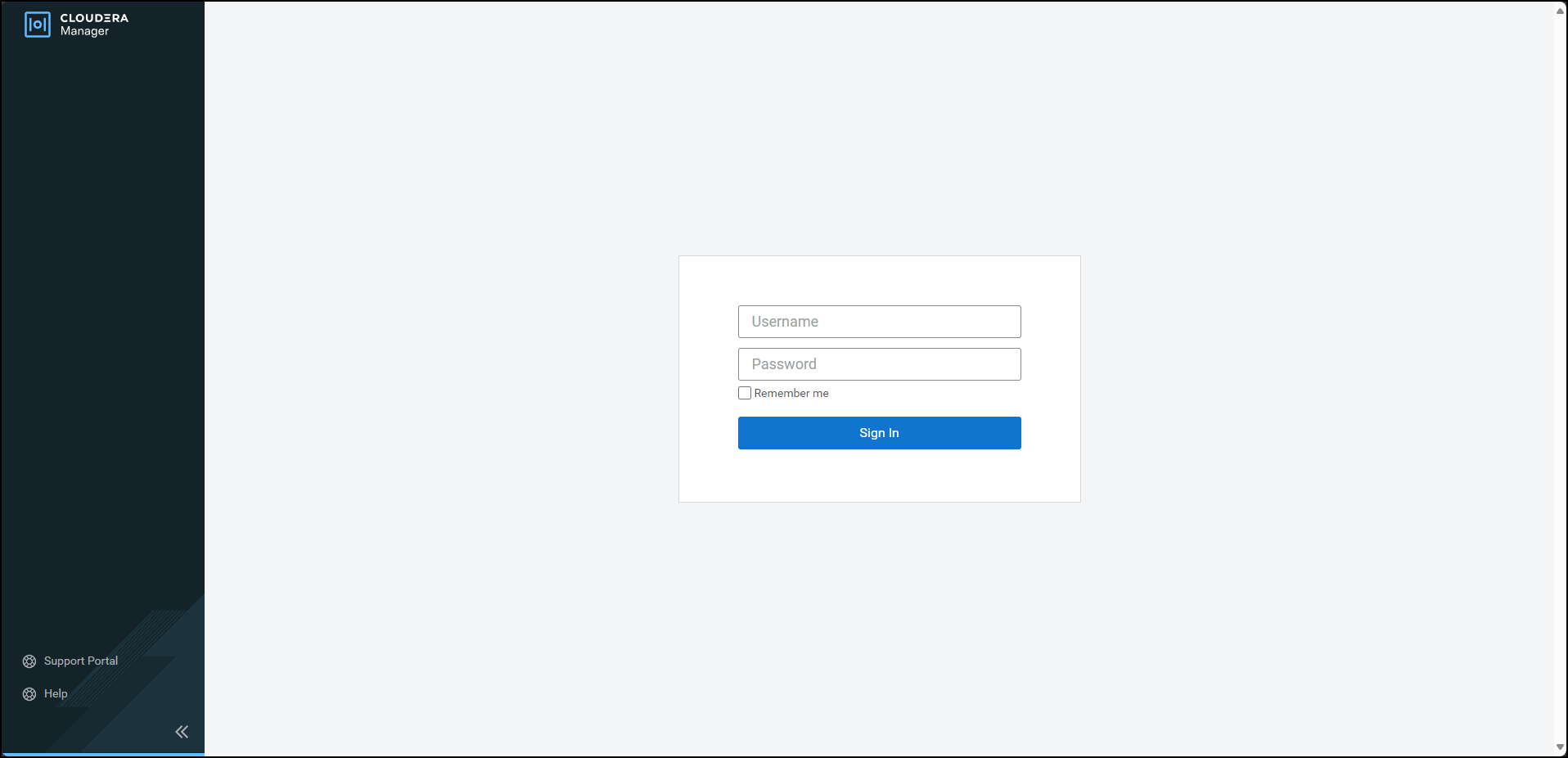
Enter the Username.
Enter the Password.
Click Sign In.
The Cloudera Manager Home page appears.
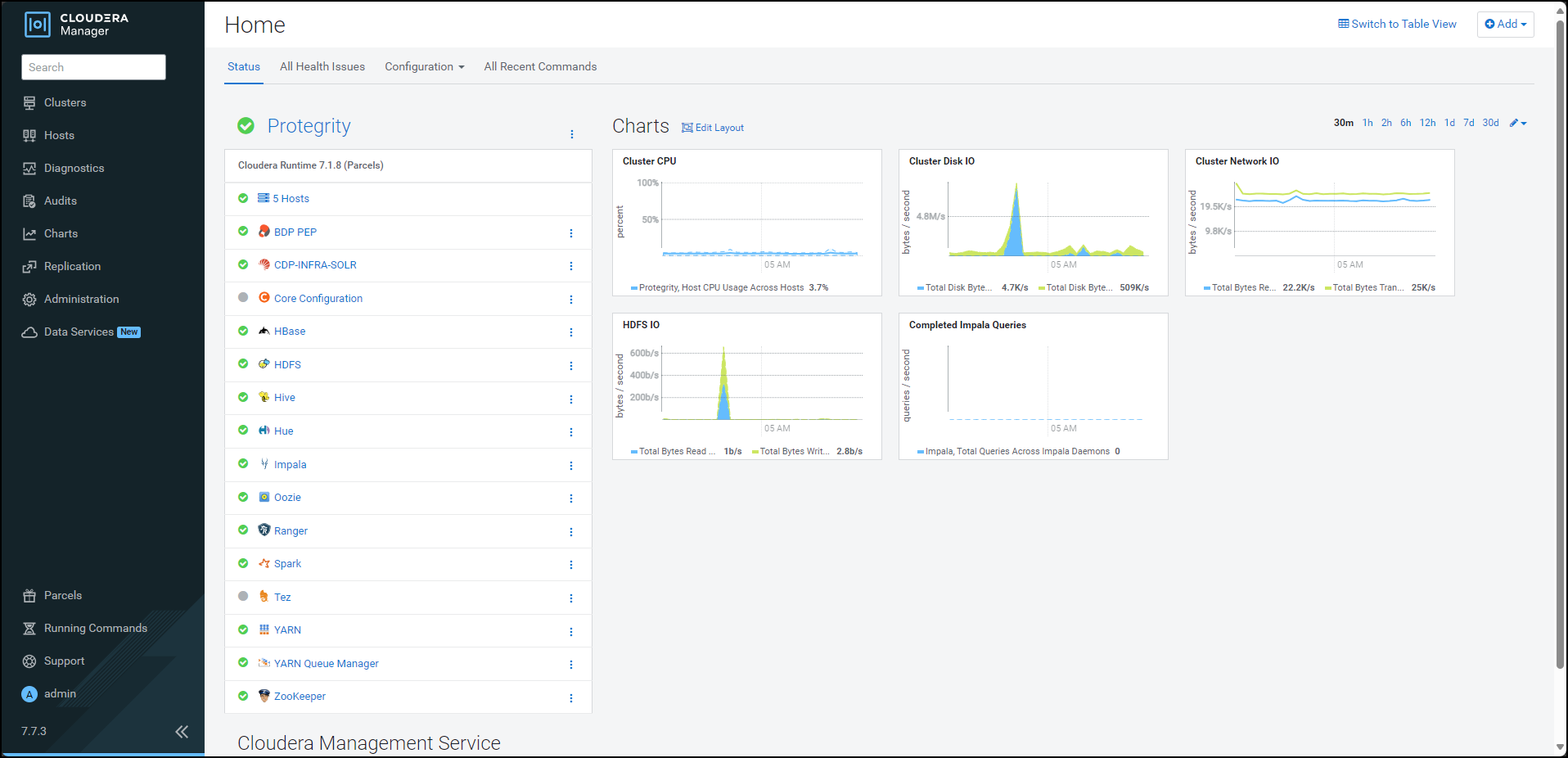
Click BDP PEP. The BDP PEP page appears.
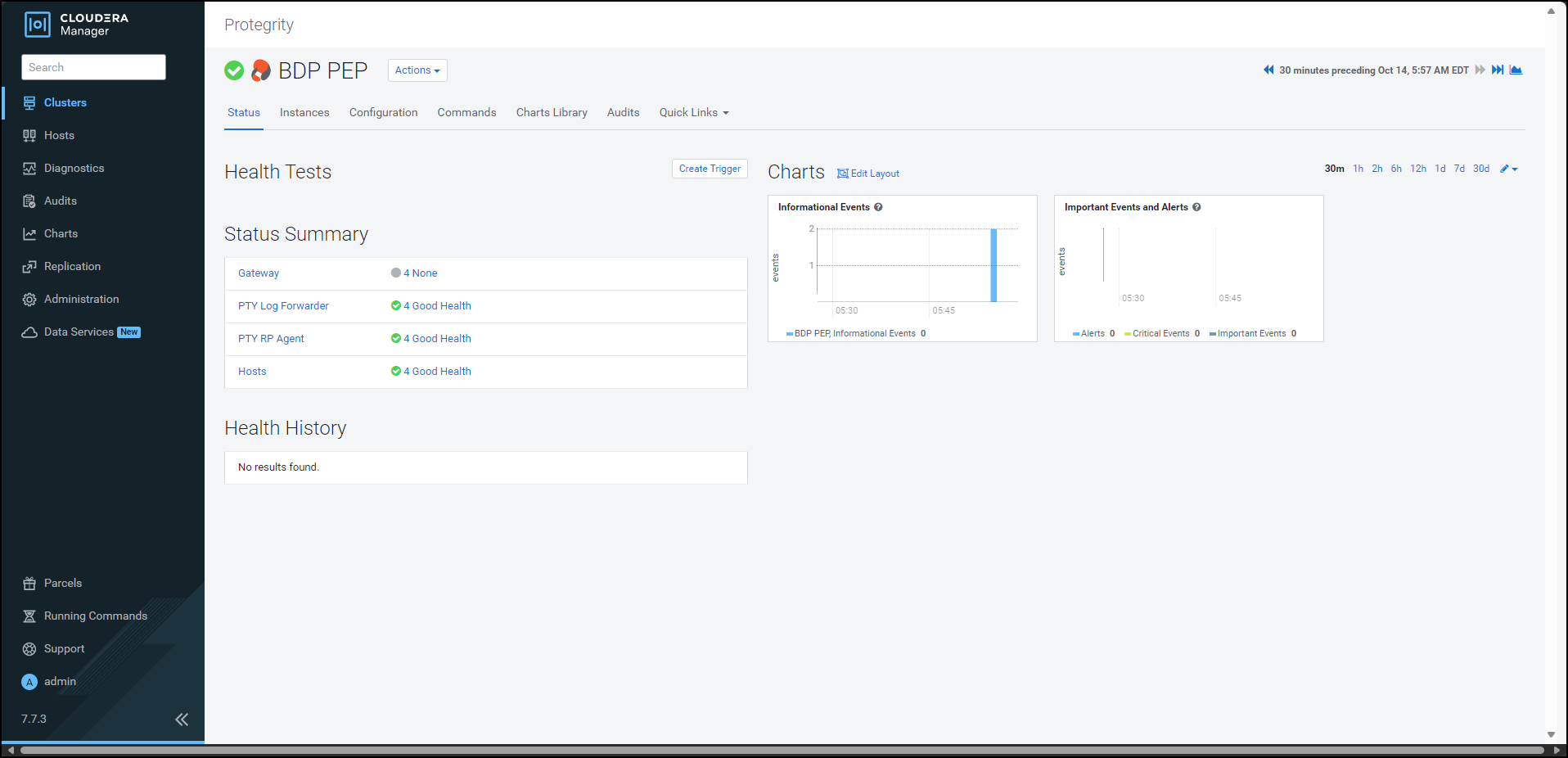
Click the Configuration tab. The Configuration tab appears.
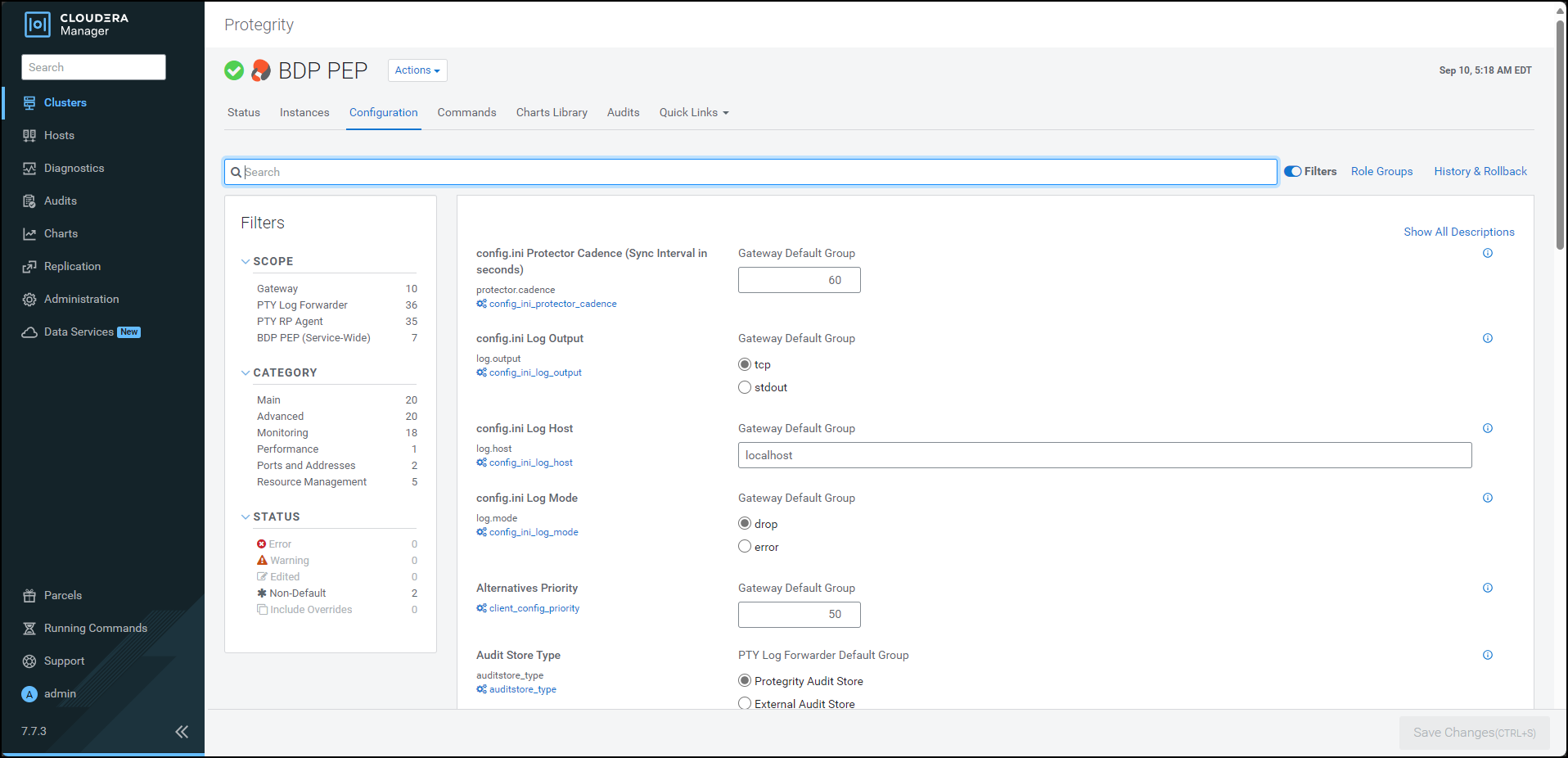
In the Filters pane, under Scope, click PTY Log Forwarder. The options related to the Log Forwarder appear.
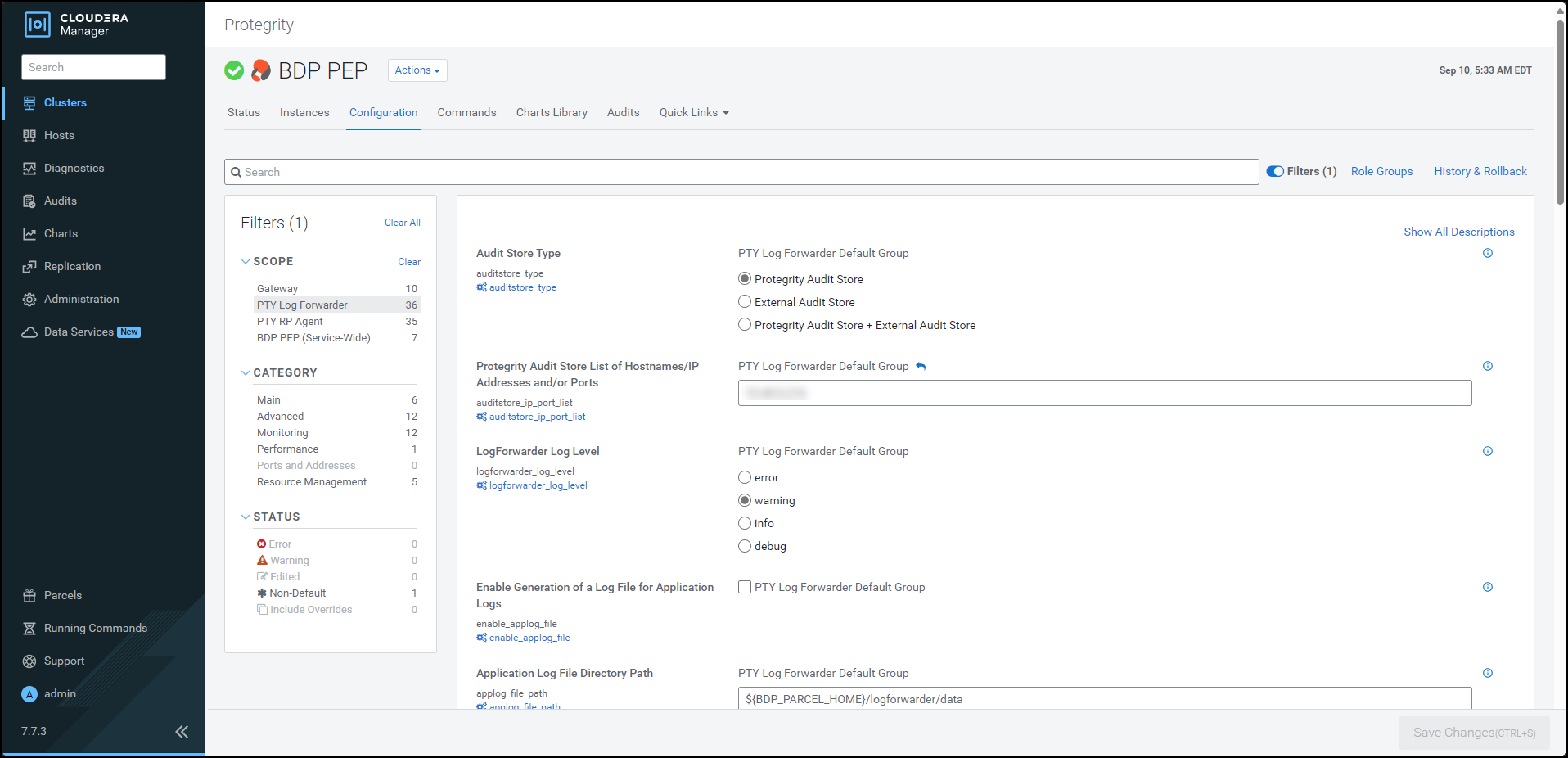
Update the parameters, as per the descriptions, listed in the following table:
| Option | Description |
|---|---|
| Audit Store Type | Specifies the type of Audit Store(s) where PTY LogForwarder sends logs to. |
| Protegrity Audit Store List of Hostnames/IP Addresses and/or Ports | Is the comma-delimited List of Protegrity Audit Store appliances’ Hostnames/IP addresses and/or Ports where LogForwarder sends logs. Allowed Syntax: hostname[:port][,hostname[:port],hostname[:port]…] (By default 9200 is set for empty ports) Examples: auditstore-a:9200,auditstore-b:9201,auditstore-c:9202 hostname-a hostname-a,hostname-b,hostname-c hostname-a:9201,hostname-b,hostname-c,hostname-d When using only External Audit Store, set this to NA. |
| LogForwarder Log Level | Specifies the LogForwarder logging verbosity level. |
| Enable Generation of a Log File for Application Logs | Enables the logforwarder/data/config.d/out_applog_file.conf file to create an Application Log file locally on the Nodes. |
| Application Log File Directory Path | Specifies the directory Path on the Nodes to store Application Log File. This is set as value of ‘Path’ in out_applog_file.conf when ’enable_applog_file’ is true. |
| Application Log File Name | Specifies the name of the Application Log File. This is set as value of ‘File’ in out_applog_file.conf when ’enable_applog_file’ is true. |
Feedback
Was this page helpful?