Updating Parameters for the RP Agent
To update the configuration parameters for the RP Agent:
Using a browser, navigate to the Cloudera Manager screen.
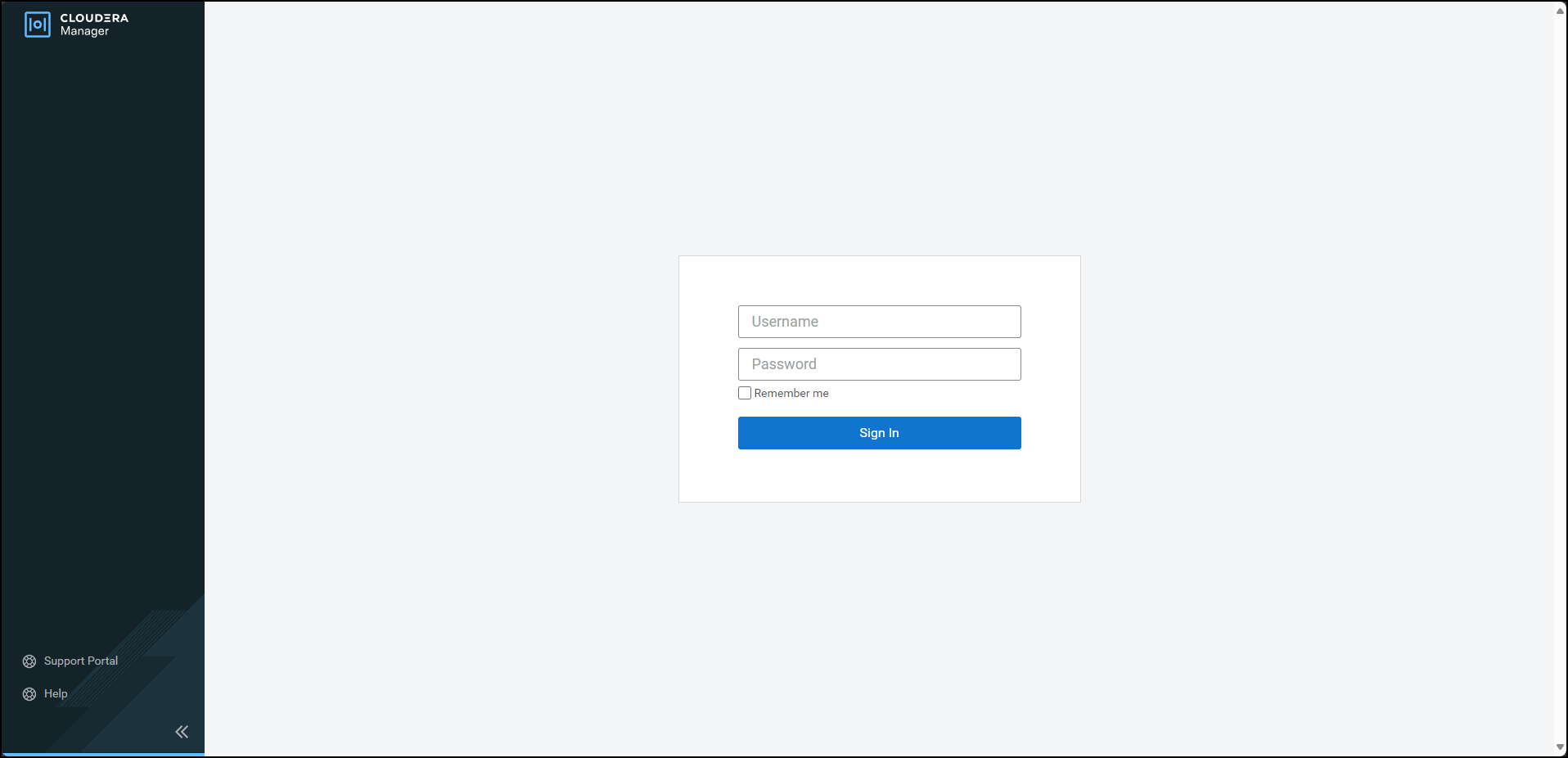
Enter the Username.
Enter the Password.
Click Sign In.
The Cloudera Manager Home page appears.
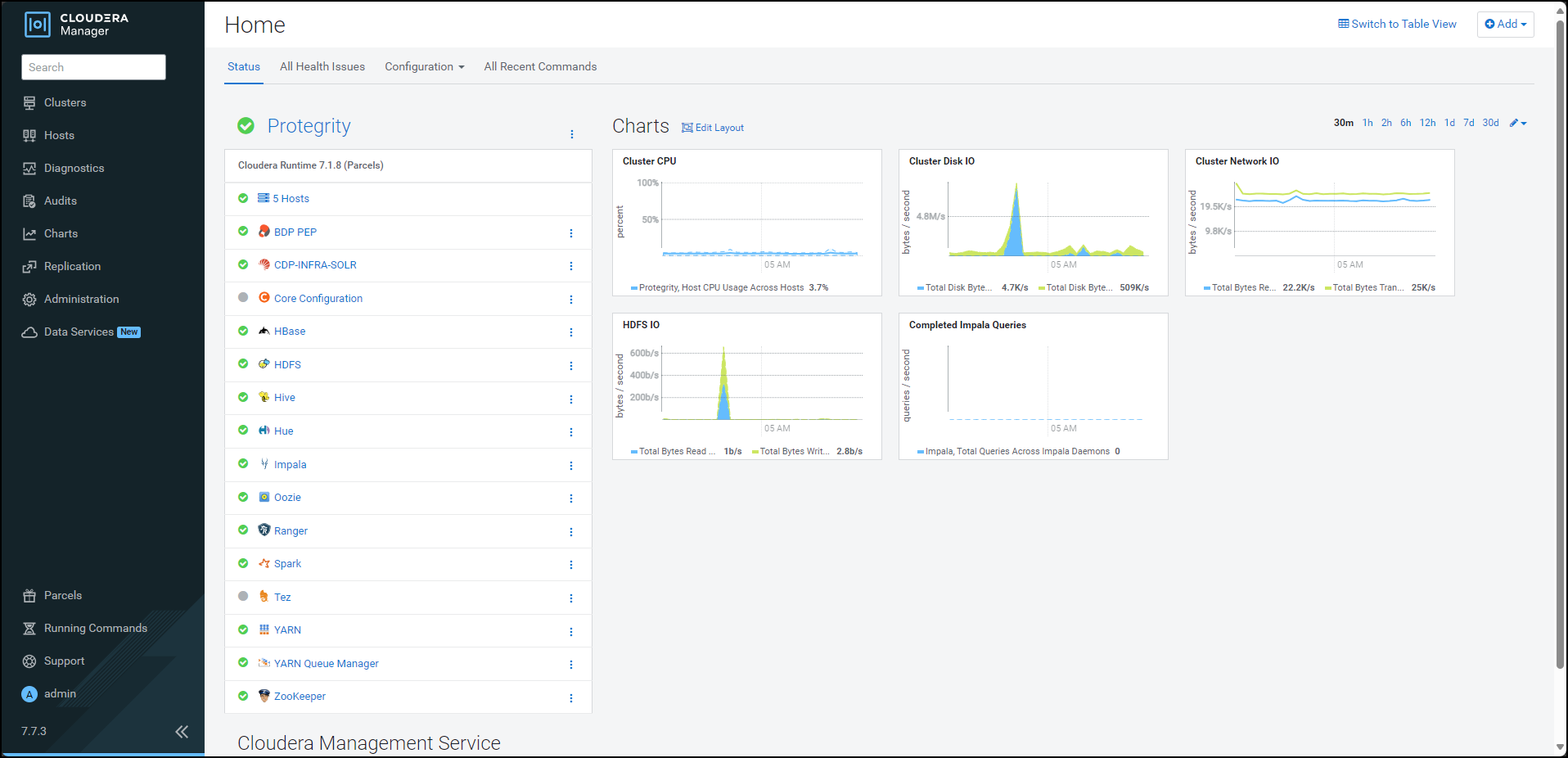
Click BDP PEP. The BDP PEP page appears.
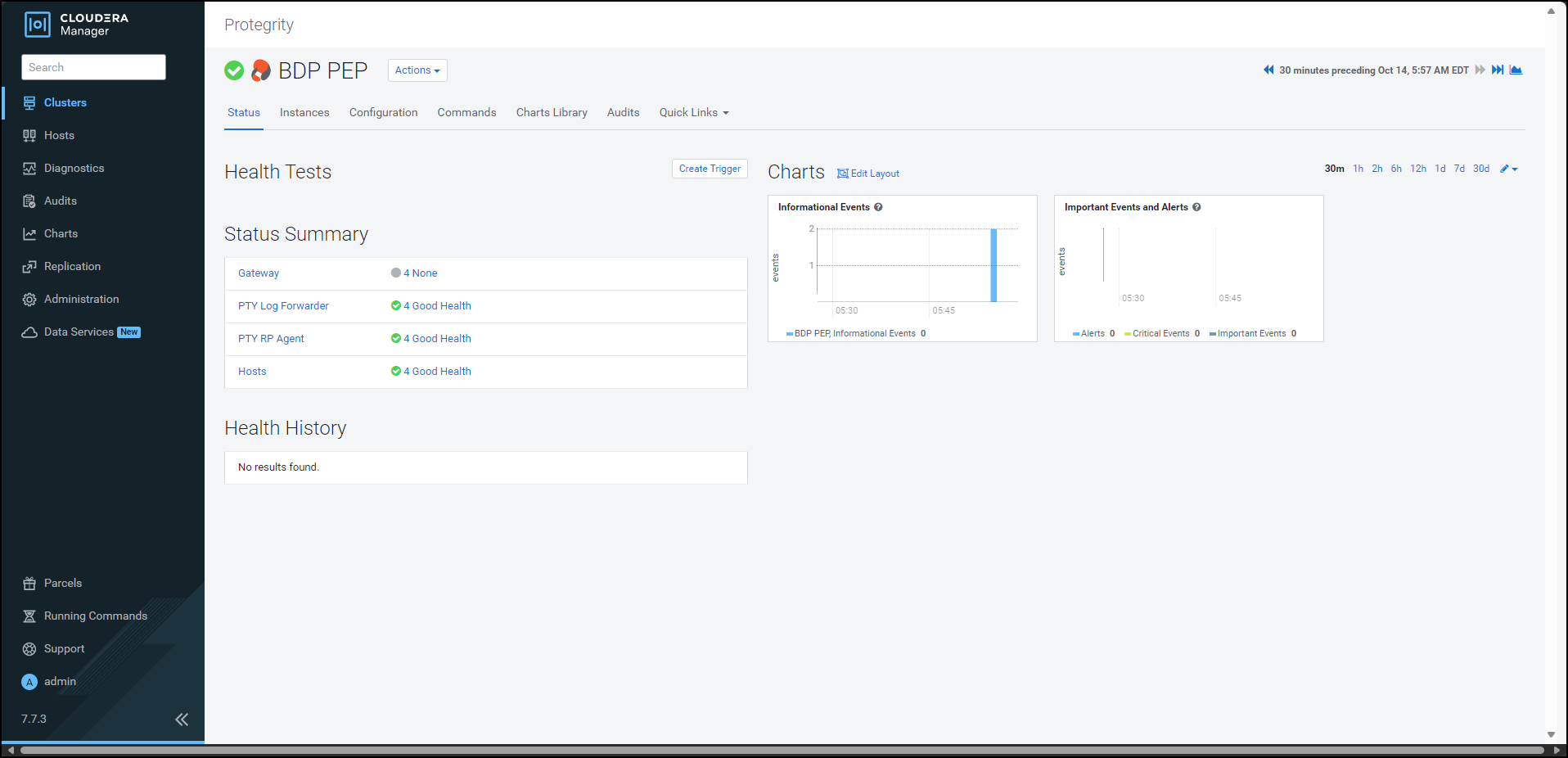
Click the Configuration tab. The Configuration tab appears.
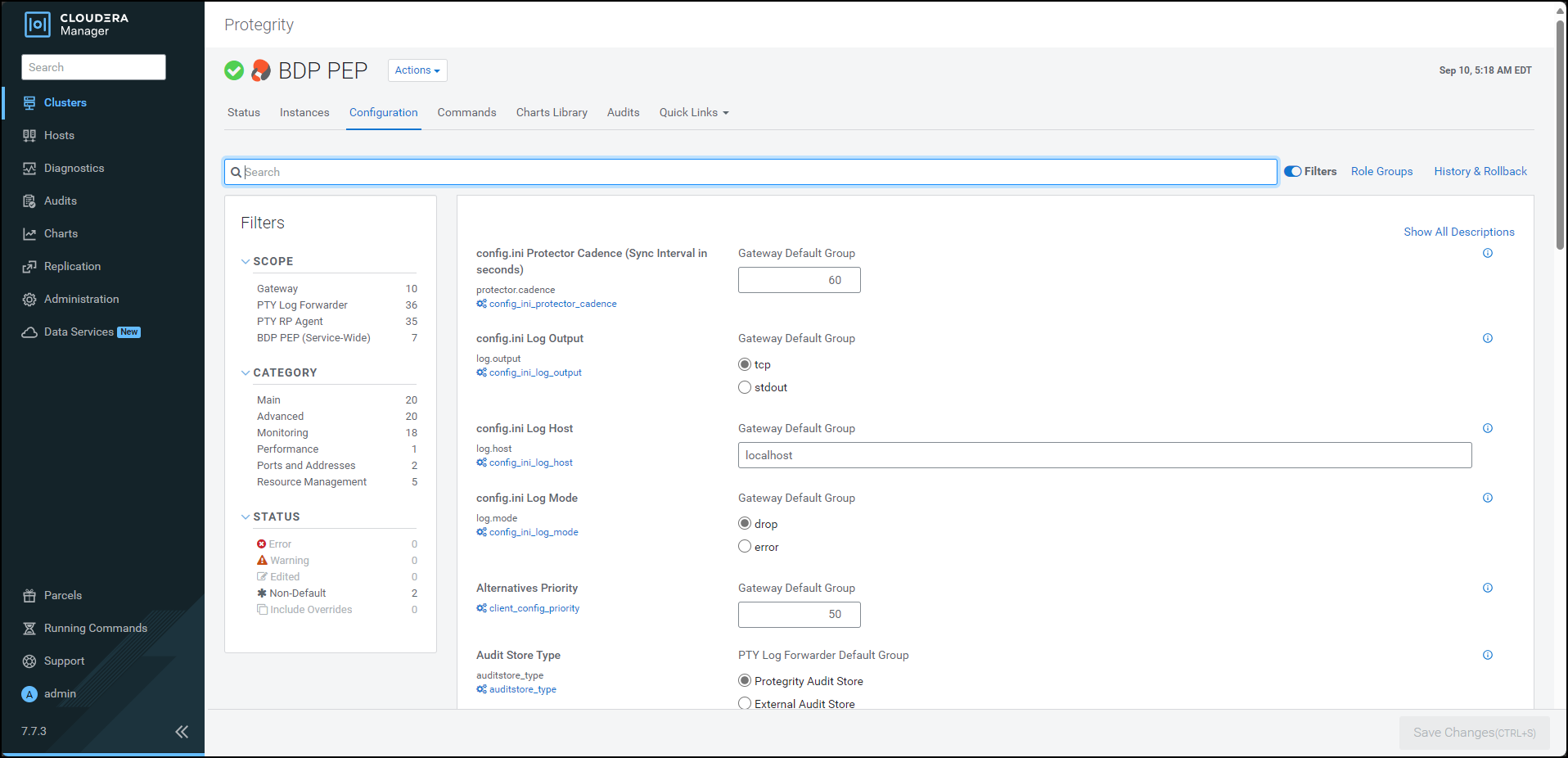
In the Filters pane, under Scope, click PTY RP Agent. The options related to the RP Agent appear.
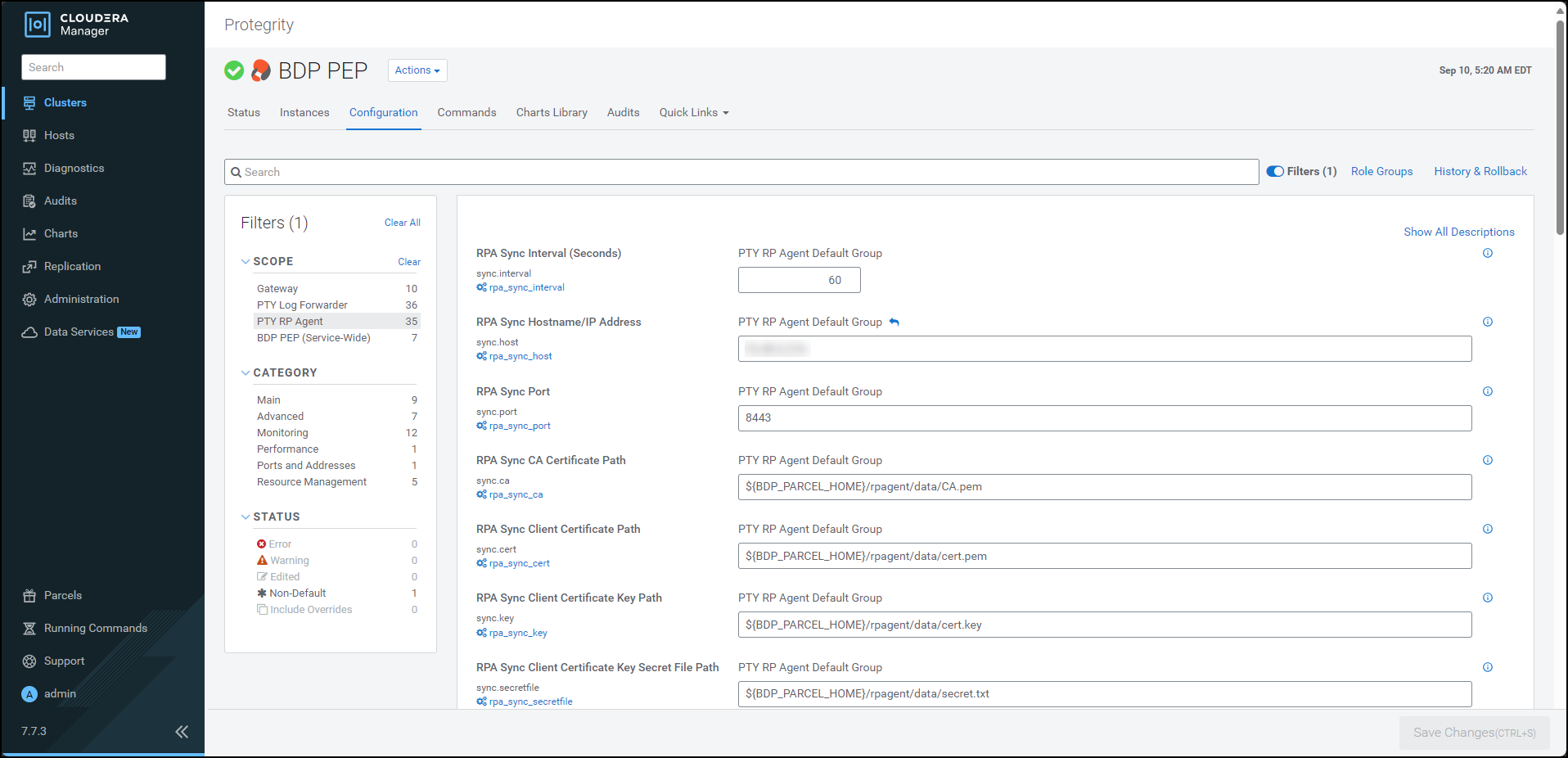
Update the parameters, as per the descriptions, listed in the following table:
| Option | Description |
|---|---|
| RPA Sync Interval (Seconds) | Specifies the frequency at which the RPAgent will fetch the policy from ESA. The minimum value is 1 second and the maximum value is 86400 seconds. |
| RPA Sync Hostname/IP Address | Specifies the hostname/IP Address to the service that provides the resilient packages. |
| RPA Sync Port | Specifies the port to the service that provides the resilient packages. |
| RPA Sync CA Certificate Path | Specfies the path to the CA certificate to validate the server certificate. Note: Do not modify the value of this parameter. |
| RPA Sync Client Certificate Path | Specifies the path to the client certificate. Note: Do not modify the value of this parameter. |
| RPA Sync Client Certificate Key Path | Specifies the path to the client certificate key. Note: Do not modify the value of this parameter. |
| RPA Sync Client Certificate Key Secret File Path | Specifies the path to the secret file used to decrypt the client certificate key. Note: Do not modify the value of this parameter. |
| RPA Log Host | Specifies the LogForwarder Host/IP Address where logs will be forwarded from the RPA. |
| RPA Log Mode | In case that connection to LogForwarder is lost, set how logs are handled. drop = (Default) Protector throws logs away if connection to the logforwarder is lost error = Protector returns error without protecting/unprotecting data if connection to the logforwarder is lost. |
Feedback
Was this page helpful?