Starting the Big Data Protector service
To use the Big Data Protector, start the Big Data Protector PEP service on all the nodes in the cluster.
Before starting the Big Data Protector PEP service, ensure that the following Big Data Protector-related parcels are in the Activated state:
- Big Data Protector parcel: PTY_BDP
- Certificates parcel: PTY_CERT
- Log Forwarder configuration parcel: PTY_LOGFORWARDER_CONF
To start the Big Data Protector PEP Service on the Nodes:
Log in to the Cloudera Manager web interface.
Besides the cluster name, click the kebab menu
 .
.The cluster drop-down list appears.
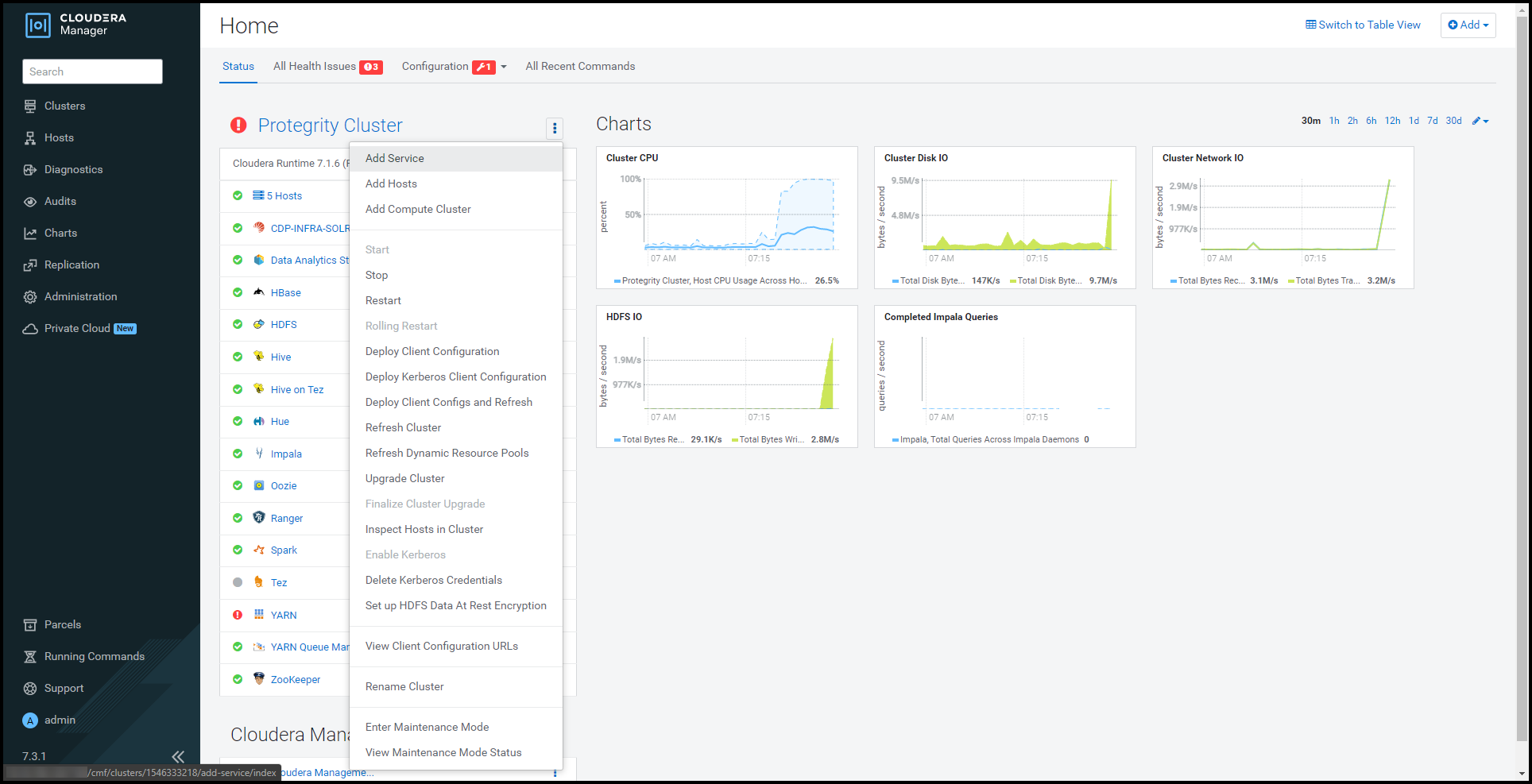
Select Add Service.
The cluster services wizard page appears.
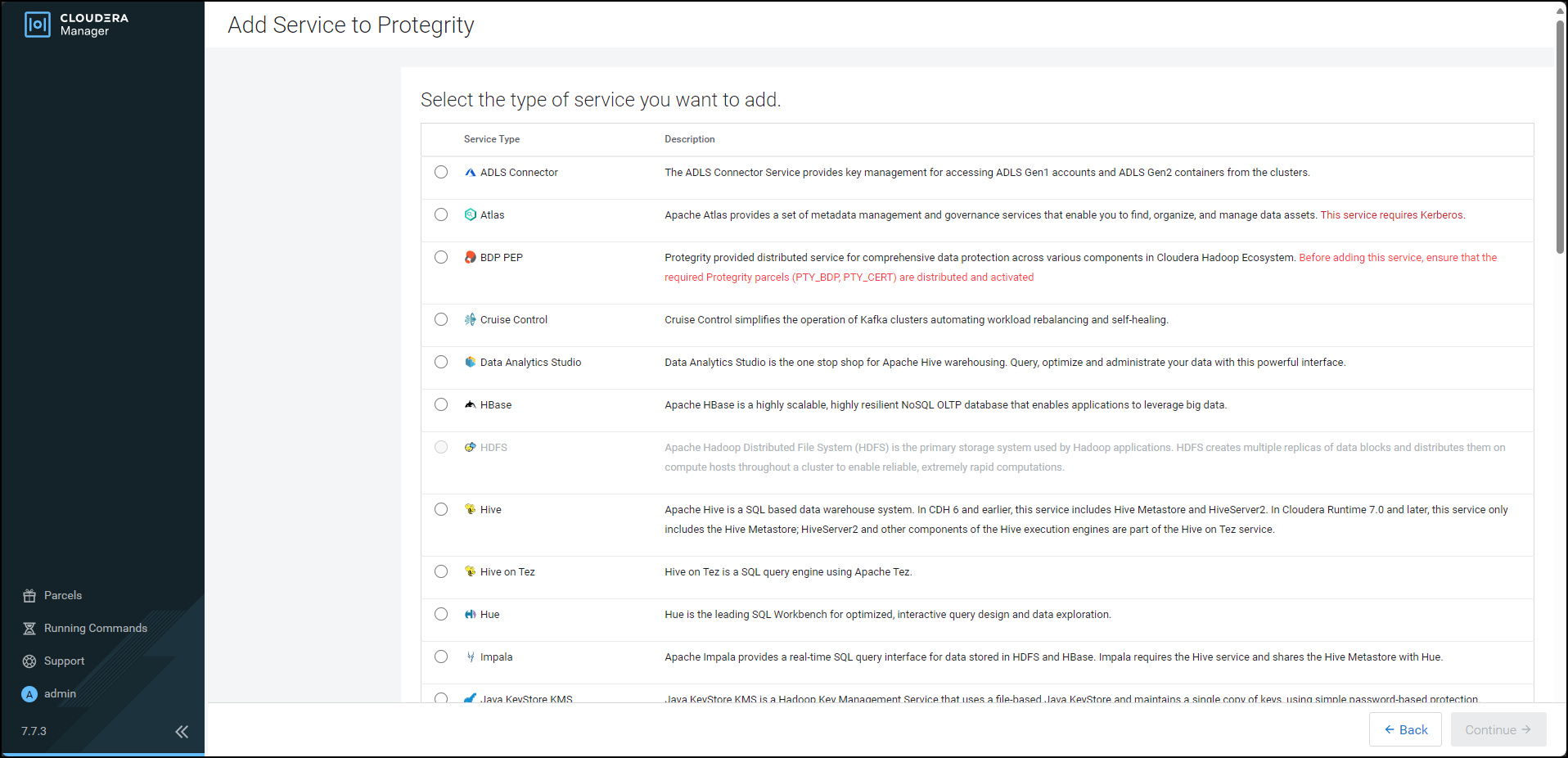
From the Service Type list, select BDP PEP.
When you select the service, Cloudera enables the Continue button.
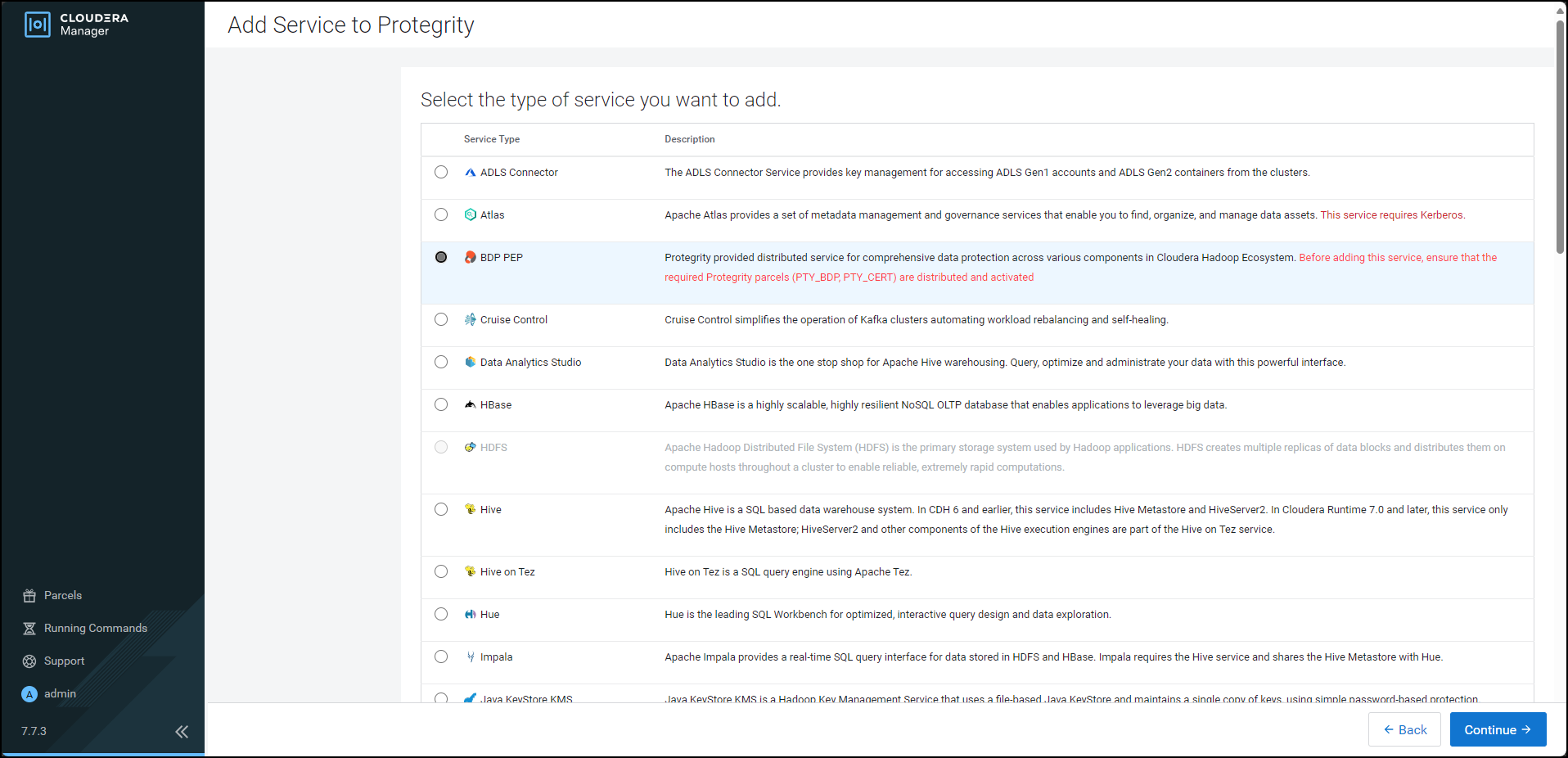
Click Continue.
The Assign Roles page appears.
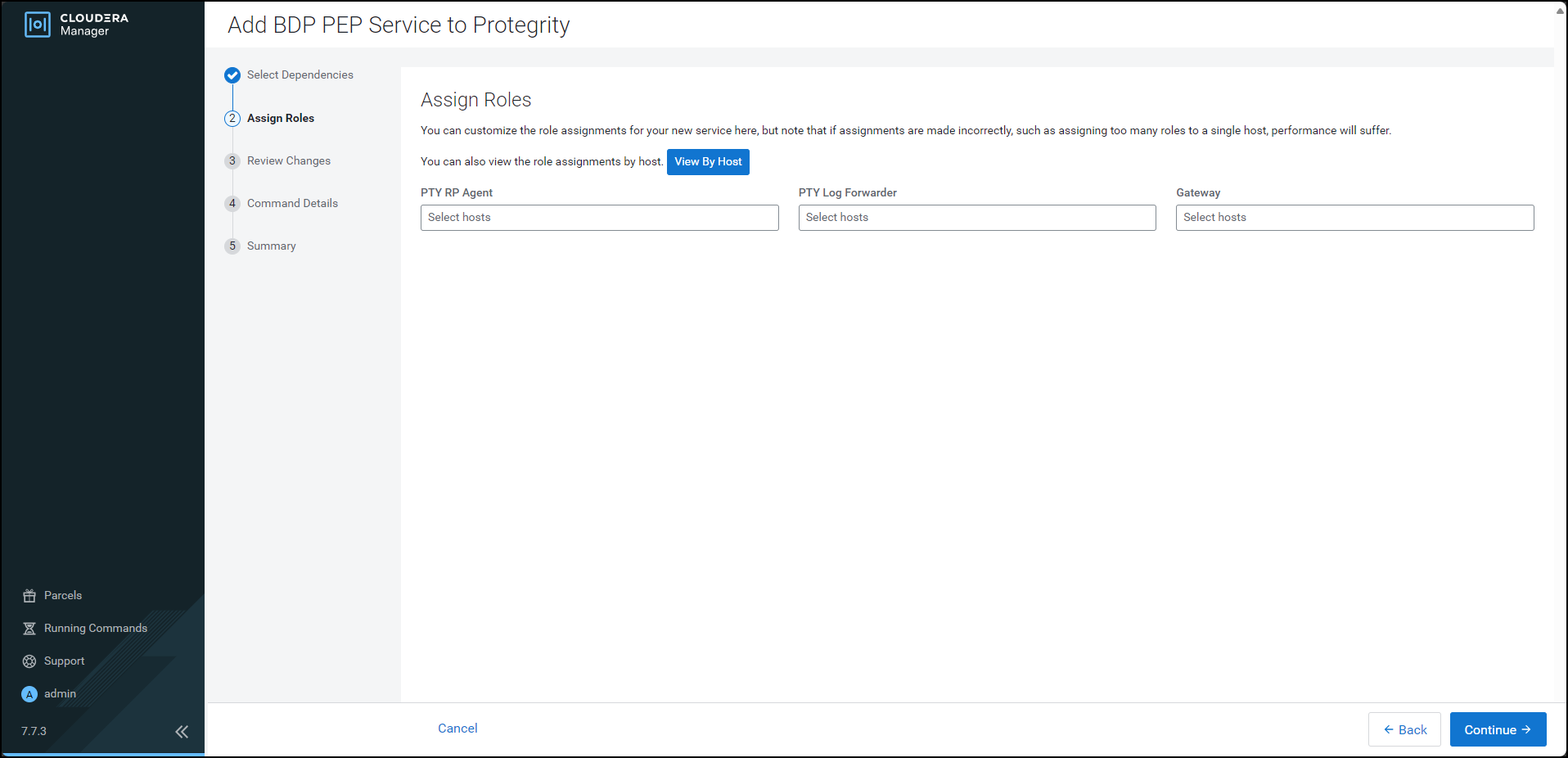
For each of the roles, click the highlighted text box.
The list of nodes in the cluster appear.
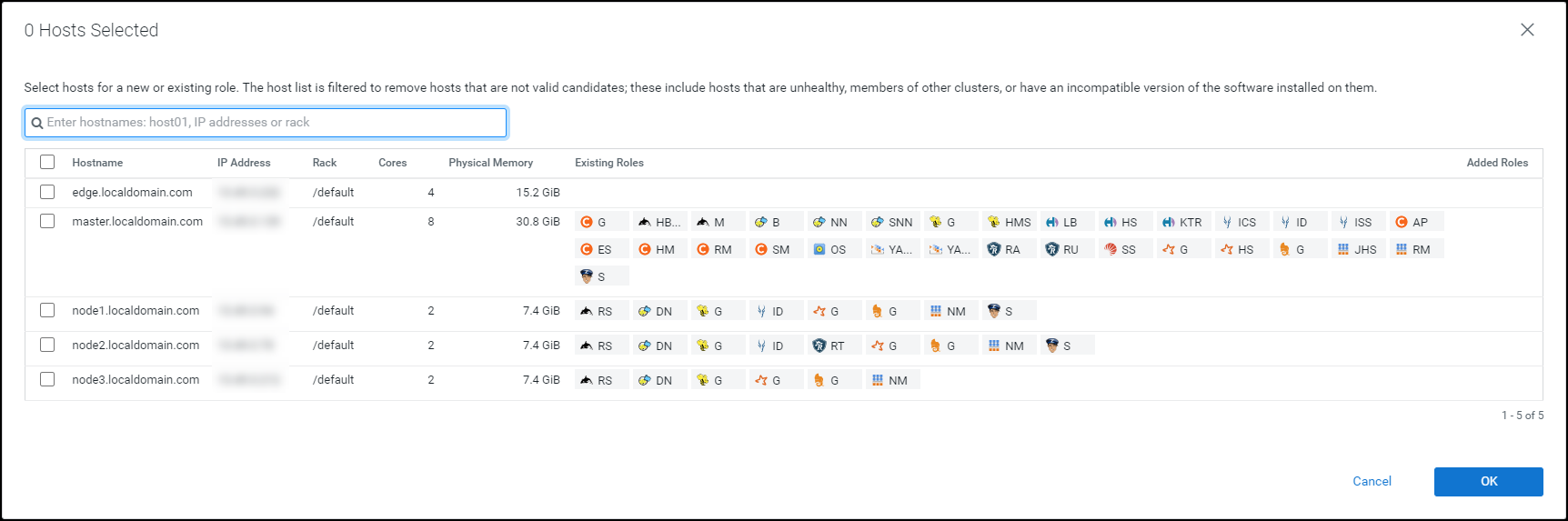
Select the required nodes in the list where you want to install the service.
Note: For more information about installing the BDP PEP service, refer https://my.protegrity.com/knowledge/ka0Ul0000000KYDIA2/.
Cloudera enables the OK button.
Note: The PTY RP Agent, PTY Log Forwarder, and the Gateway roles are installed on the selected node.
Click OK.
The Assign Roles page appears with the nodes in the cluster, which are selected for installing the service.
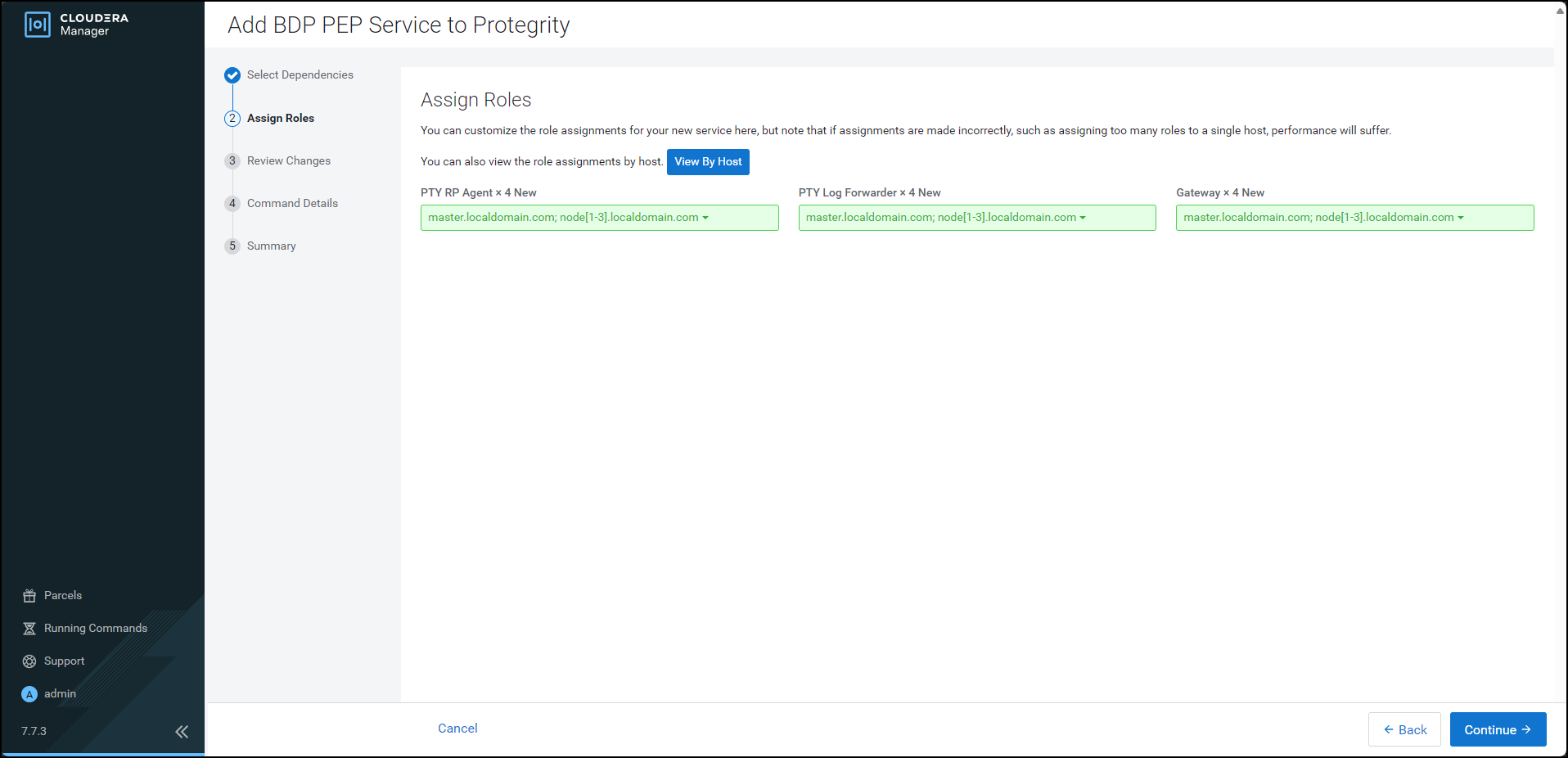
Click Continue.
The Review Changes page appears.
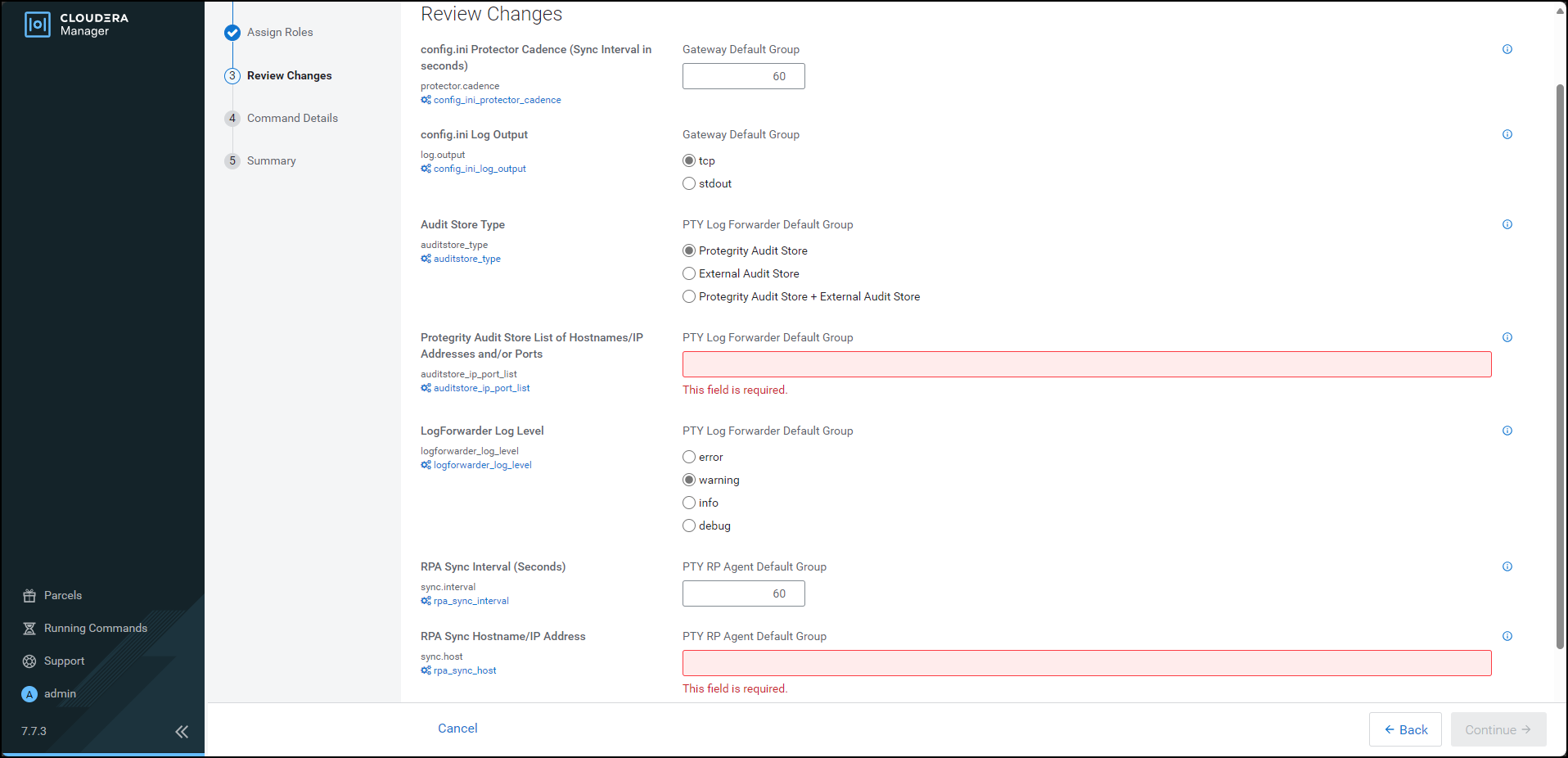
Depending on the Audit Store type, select any one of the following options:
Option Description Protegrity Audit Store To use the default setting select the Protegrity Audit Store option. If you select Protegrity Audit Store, then the default Log Forwarder configuration files are used and Log Forwarder will forward the logs to the Protegrity Audit Store. External Audit Store Enter the comma-separated IP/ports using the accurate syntax in the External Audit Store box. If you select External Audit Store, then enter NA in the Protegrity Audit Store List of Hostnames/IP Address and/or Ports box. Ensure that the PTY_LOGFORWARDER_CONF parcel is distributed and activated. If you select External Audit Store, then the default Log Forwarder configuration files used for Protegrity Audit Store (out.conf and upstream.cfg in the /opt/cloudera/parcels/PTY_BDP/logforwarder/data/config.d/directory) are renamed (out.conf.bkp and upstream.cfg.bkp) so that they will not be used by the Log Forwarder. Additionally, the custom Log Forwarder configuration files for the external Audit Store are copied to the/opt/cloudera/parcels/PTY_BDP/logforwarder/data/config.d/directory.Protegrity Audit Store + External Audit Store To use a combination of the default setting with an external Audit Store, select Protegrity Audit Store + External Audit Store. If you select Protegrity Audit Store + External Audit Store, then the default Log Forwarder configuration files used for the Protegrity Audit Store (out.conf and upstream.cfg in the /opt/cloudera/parcels/PTY_BDP/logforwarder/data/config.d/directory) are not renamed. However, the custom Log Forwarder configuration files for the external audit store are copied to the/opt/cloudera/parcels/PTY_BDP/logforwarder/data/config.d/directory.In the Protegrity Audit Store List of Hostnames/IP Address and/or Ports box, enter the IP address of the Protegrity Audit Store appliance(s) (can be ESA) in the suggested syntax.
In the RPA Sync Hostname/IP Address box, enter the IP address of ESA, in the suggested syntax.
Cloudera Manager enables the Continue button.
Click Continue.
The Summary page appears.
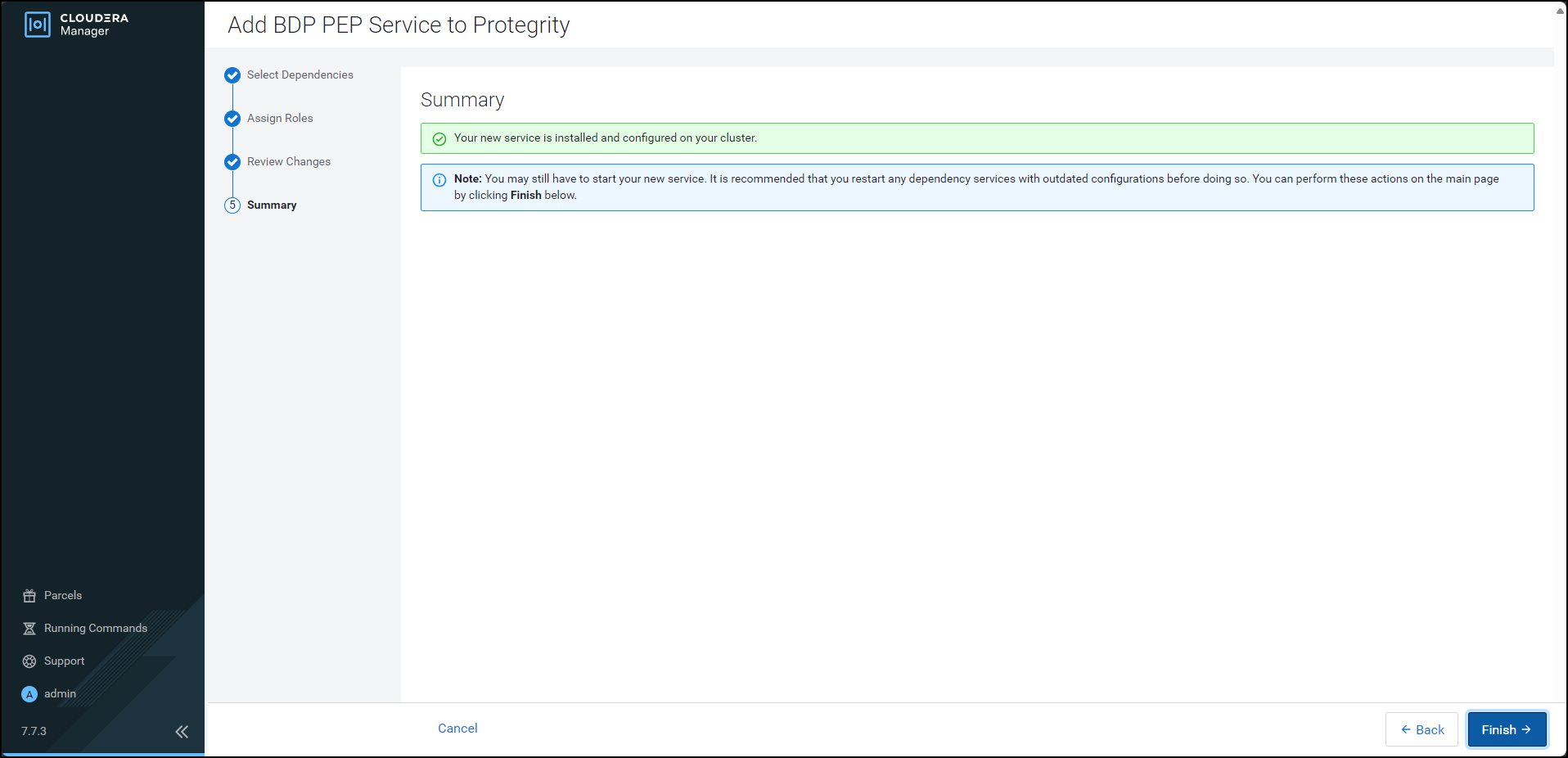
Click Finish.
The Cloudera Manager Home page appears and the PTY_BDP service is added on all the nodes in the cluster.
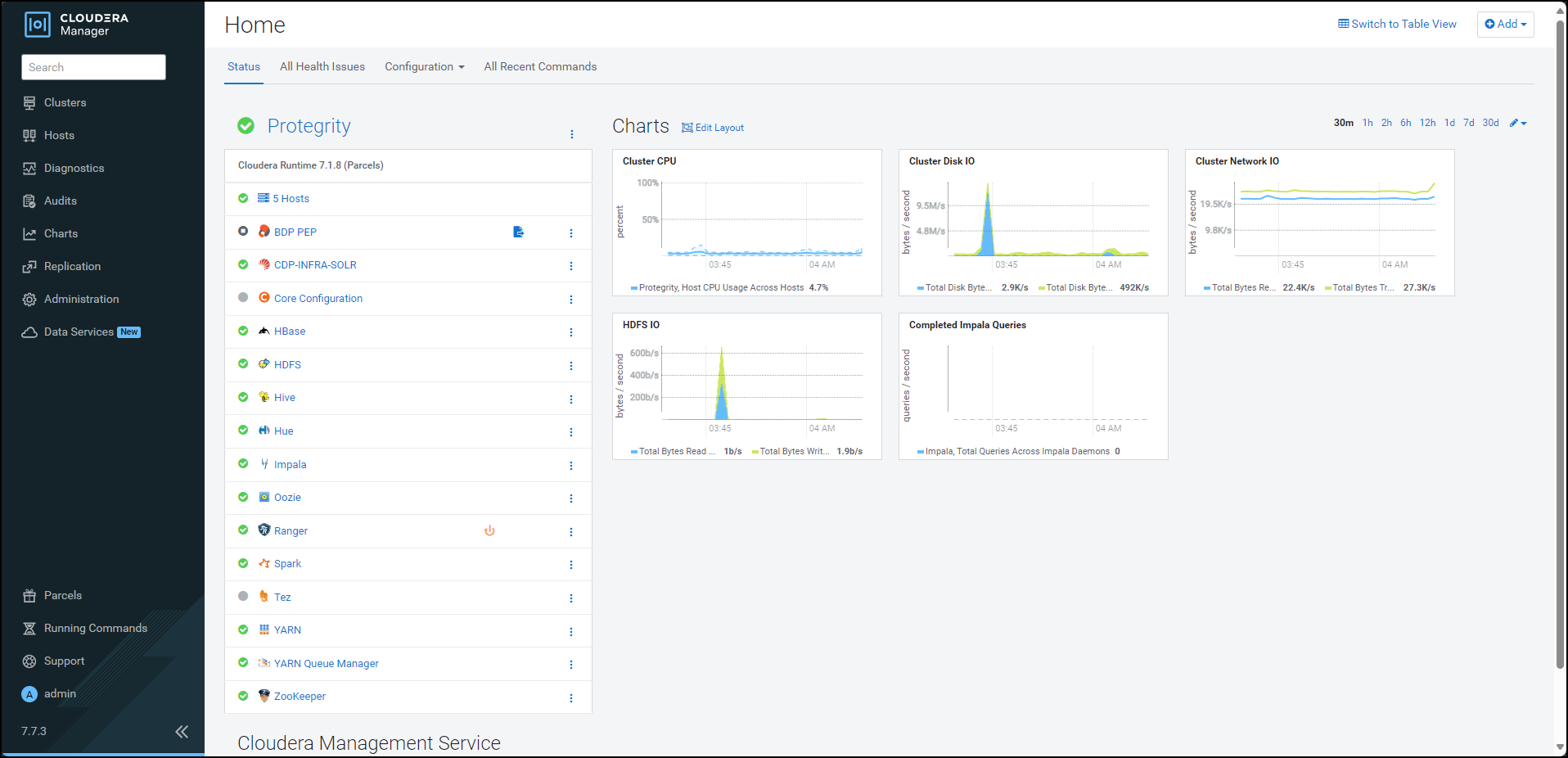
Note: In the Cloudera Manager native installer, there is a caveat in the BDP PEP service. This causes the PTY Log Forwarder and the RP Agent roles to start at the same time on a cluster node. Therefore, some of the initial RP Agent application logs will not be sent to the Log Forwarder. This will result in the logs not being forwarded to the Audit Store. After the Log Forwarder starts up, it will start forwarding the application logs.
By default, the BDP PEP service is in the stopped state.
To start the BDP PEP service, besides BDP PEP, click the kebab menu icon
.The BDP PEP Actions sub-menu appears.
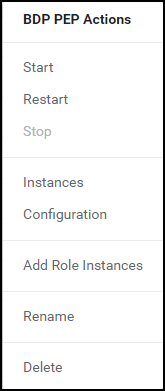
From the sub-menu, select Start.
The prompt to confirm the action appears.
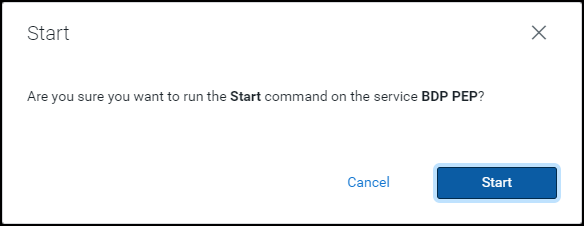
Click Start.
Cloudera Manager starts the BDP PEP service on all the nodes in the cluster.
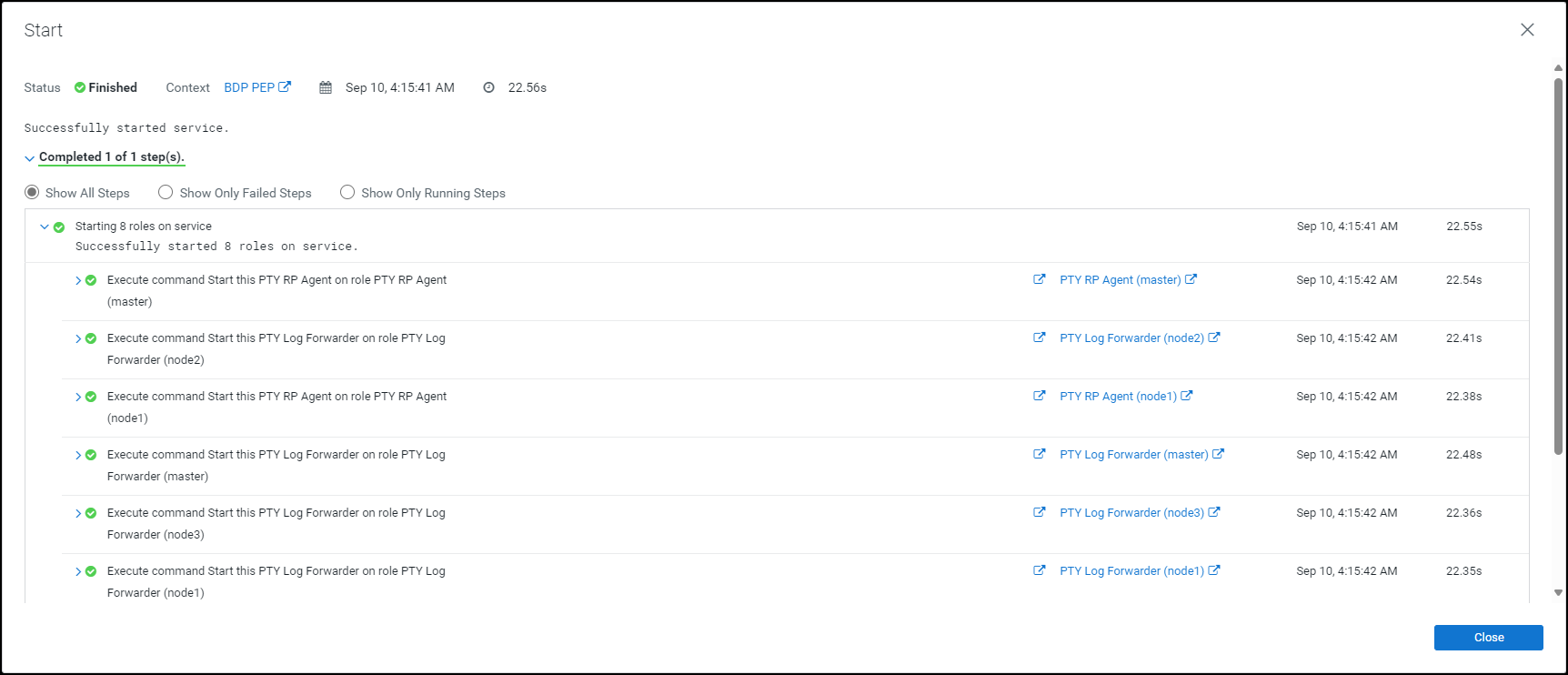
Click Close.
The Cloudera Manager Home page appears.
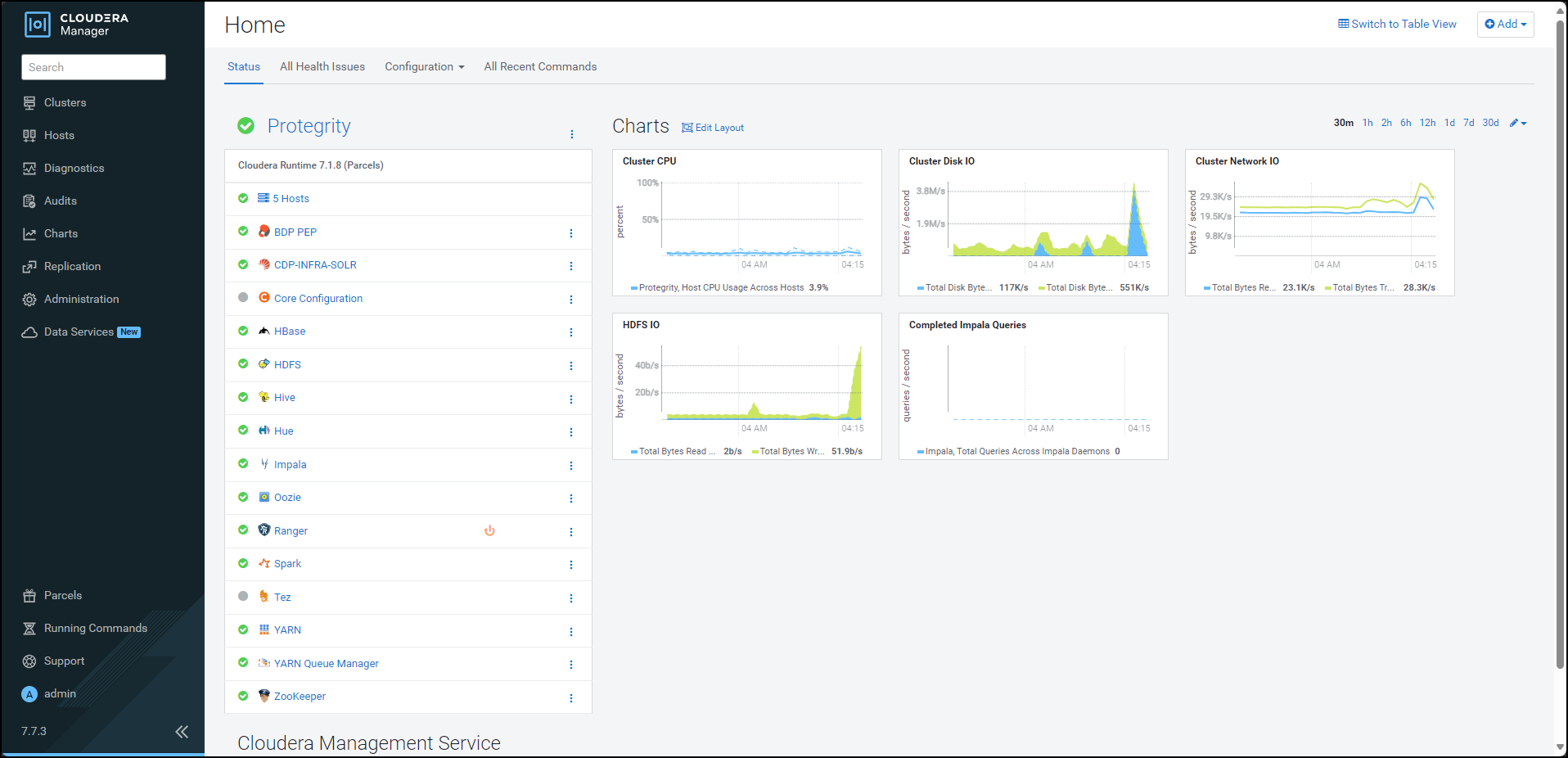
Click BDP PEP. The BDP PEP page appears.
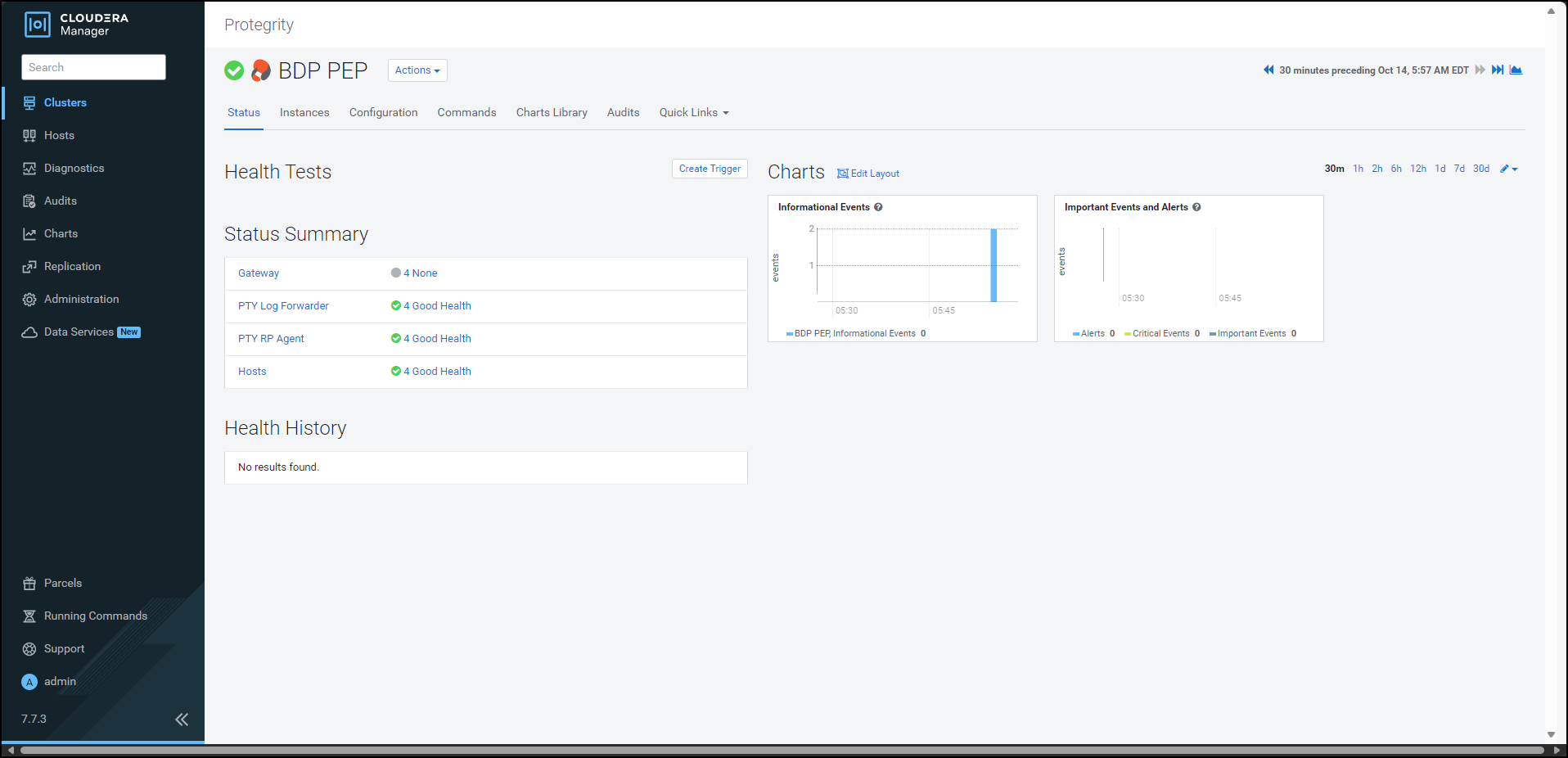
To generate the
config.inifile on the nodes where you have installed the Gateway Role, select Actions » Deploy Client Configuration. The prompt to confirm the action appears.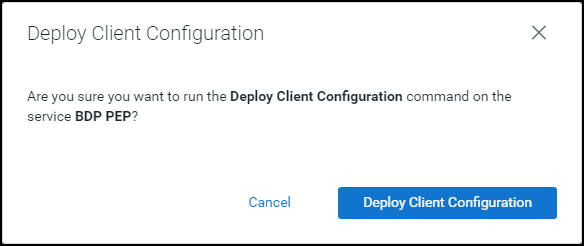
Click Deploy Client Configuration.
Cloudera Manager generates the
config.inifile to all the nodes where the Gateway role is installed.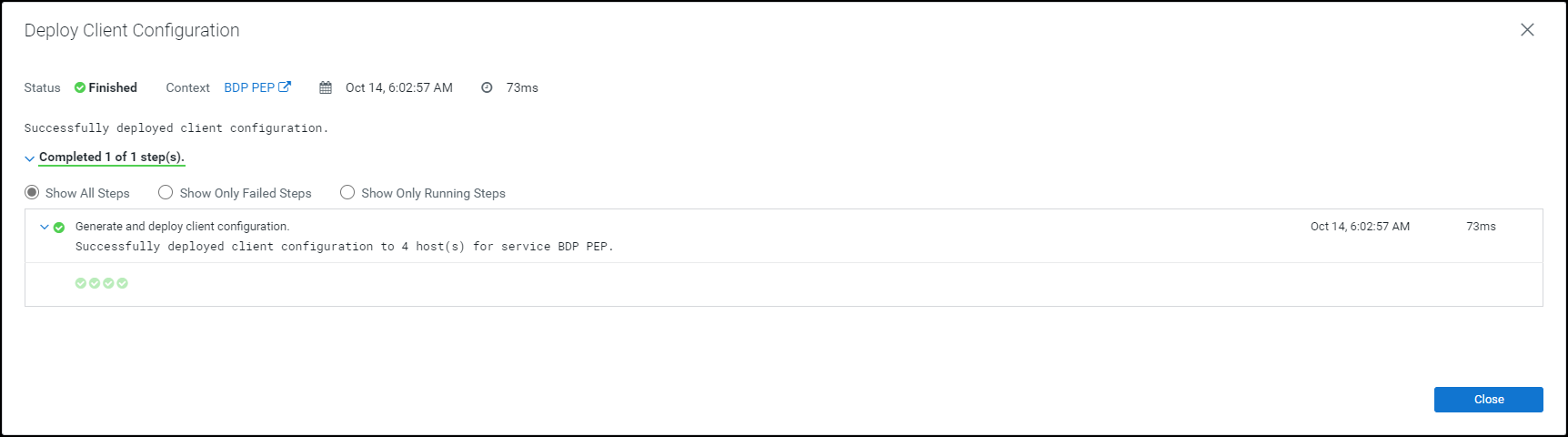
Feedback
Was this page helpful?