This is the multi-page printable view of this section. Click here to print.
Python Iceberg Protector
- 1: Python Iceberg Protector
- 1.1: Introduction
- 1.2: Understanding the Architecture
- 1.3: Understanding the System Requirements
- 1.4: Preparing the Environment
- 1.4.1: For a dynamic policy approach
- 1.4.1.1: For an On-Prem Environment
- 1.4.1.2: For a Docker Environment
- 1.4.1.3: For a Virtual Environment
- 1.4.2: For a static policy approach
- 1.4.2.1: For an On-Prem Environment
- 1.4.2.2: For a Docker Environment
- 1.4.2.3: For a Virtual Environment
- 1.5: Installing the Python Iceberg Protector
- 1.5.1: Using a Static Policy
- 1.5.1.1: In a Docker Environment
- 1.5.1.2: In a Virtual Environment
- 1.5.1.3: In an On-Prem Environment
- 1.5.2: Using a Dynamic Policy
- 1.5.2.1: In an On-Prem Environment
- 1.5.2.2: In a Docker Environment
- 1.5.2.3: In a Virtual Environment
- 2: Python Iceberg Protector on Databricks
- 2.1: Python Iceberg Protector Architecture on Databricks
- 2.2: Python Iceberg Protector System Requirements on Databricks
- 2.3: Preparing the Environment
- 2.4: Installing Python Iceberg Protector on a Databricks Compute
- 3: Python Iceberg Protector on Snowflake
1 - Python Iceberg Protector
1.1 - Introduction
The Python Iceberg Protector enables secure, policy-driven protection of sensitive data processed through Python-native Apache Iceberg workflows. It extends data-centric protection capabilities to Python Iceberg-based pipelines, ensuring that sensitive data remains protected at every stage of the data lifecycle from ingestion and transformation to storage and analytics.
Python Iceberg Protector depends on PyArrow, which is backed by C++, for data operations. It allows applications to read, write, and manage Iceberg tables, while maintaining full compatibility with Iceberg’s table format and metadata model. It operates within a layered Iceberg architecture consisting of catalog, metadata, and storage layers, enabling scalable and ACID-compliant data operations.
The Python Iceberg Protector integrates seamlessly into this architecture by embedding protection directly into Python-based data operations, ensuring that:
- Sensitive data is protected before it is written to Iceberg tables.
- Protection persists at the data layer. For example, within Parquet files.
- Authorized clients can securely access and process protected data without exposing clear-text values unnecessarily.
The protector adopts a data-centric security model, where protection travels with the data regardless of where it is stored or processed. This aligns with modern Lakehouse security principles that enforce fine-grained encryption and policy-based access controls across distributed environments.
Key Capabilities
- Inline Data Protection
- Protects sensitive fields during Python Iceberg write operations.
- Integrates with PyArrow-based data processing pipelines.
- Policy-Driven Enforcement
- Applies protection policies at the column level.
- Enforces role-based decryption and access controls.
- Parquet file format protection
- Works with Iceberg-backed file formats such as Parquet.
- Supports Iceberg-native features such as schema evolution and partitioning.
- Seamless Python Integration.
- Operates within Python Iceberg workflows without requiring changes to Iceberg table definitions.
1.2 - Understanding the Architecture
The architecture of the Iceberg Protector using Python is depicted in the following diagram:
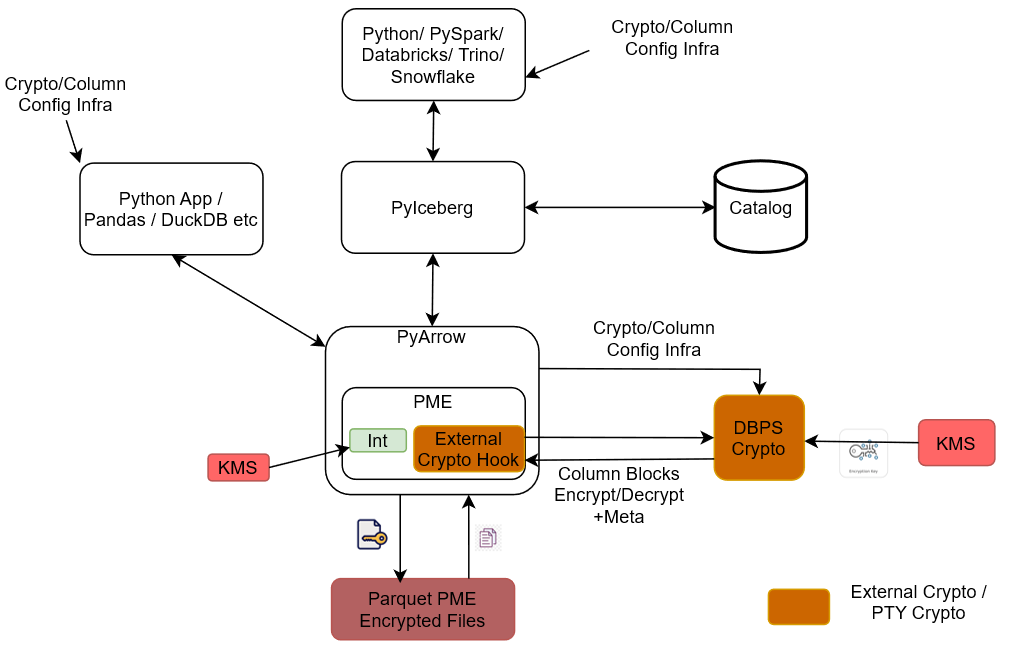
Client Applications Layer: Two entry points access the data.
- Python / PySpark / Databricks / Trino / Snowflake: Query engines and compute frameworks that read/write via Python Iceberg.
- Python App / Pandas / DuckDB, etc.: Lightweight Python-based applications that access data directly through PyArrow.
Python Iceberg: The table-format layer that sits between the query engines and storage. It handles Iceberg table semantics like snapshots, schema, partitions. It also communicates with the Catalog or metadata store to resolve table locations and metadata.
PyArrow: The in-memory columnar data layer used by both Python Iceberg and direct Python apps. It hosts the Parquet Modular Encryption (PME) component, which manages encryption/decryption of Parquet column data in-flight.
Parquet Modular Encryption (PME): Embedded inside PyArrow, it contains:
- Int (Internal crypto): The built-in Parquet encryption path uses a KMS directly for key material.
- External Crypto Hook: A pluggable interface that delegates cryptographic operations to an external provider instead of the internal implementation.
DBPS Crypto (External Crypto / PTY Crypto): The external cryptographic service invoked via the External Crypto Hook. It performs the actual encrypt/decrypt of column blocks plus metadata and retrieves encryption keys from its own KMS.
Crypto / Column Config Infra: A cross-cutting configuration channel that supplies crypto and per-column policy settings to the client apps, PyArrow/PME, and DBPS Crypto, ensuring consistent column-level protection rules across the stack.
Parquet PME Encrypted Files: The physical storage output. Files are written and read as Parquet with PME-encrypted column blocks like data and metadata. This ensures the data remains protected at rest regardless of which client path reads it.
End-to-end flow: The query engines call Python Iceberg → Python Iceberg resolves metadata via the Catalog → data I/O flows through PyArrow → PME intercepts column reads/writes → for external protection, the External Crypto Hook routes column blocks to DBPS Crypto, which uses its KMS → encrypted bytes are written to Parquet PME Encrypted Files. Direct Python apps use the same PyArrow plus PME path, bypassing Python Iceberg/Catalog.
1.3 - Understanding the System Requirements
Ensure that the following prerequisites are available before installing the Python Iceberg Protector:
- Any of the following supported distributions of the Linux operating system is available:
- CentOS/RHEL 8 or later
- Debian v10 or later
- Fedora v29 or later
- Ubuntu v18.10 or later
- Python version 3.12 is installed on the system. The configurator script requires Python.
- The
pipmodule is installed. - The
unzippackage is installed. - A text editor is installed.
- ESA v10.x is installed, configured, and running.
- The PIM is initialized and a policy is created.
- A user with
sudoprivileges is created. The privileges are required to modify the/etc/hostsfile for the dynamic policy approach. - The logged-in user is the same as the ESA policy user.
- Docker is installed and configured. This is required only for installing the build using a Docker image.
- Virtual environment is available. This is required only for installing the build using a virtual environment.
- Windows Subsystem for Linux is available.
1.4 - Preparing the Environment
1.4.1 - For a dynamic policy approach
1.4.1.1 - For an On-Prem Environment
Setting up the environment
Extract the contents of the installation package to access the configurator script. This script generates the required files to install the Python Iceberg Protector.
To extract the files from the installation package:
- Log in to the Linux machine.
- To create a user account
user1, run the following command:useradd -m -s /bin/bash user1 - To navigate to the
/opt/directory, run the following command:cd /opt/ - To create a folder inside /opt/, run the following command:
mkdir protegrity - To create a separate folder for the Python Iceberg protector within the
/opt/directory, run the following command:mkdir pyiceberg_protector - To change the ownership of the
/opt/protegrity/directory, run the following command:chown -R user1:user1 protegrity/ - To change the ownership of the
pyiceberg_protectordirectory, run the following command:chown -R user1:user1 pyiceberg_protector/
Extracting the package
- To navigate to the
pyiceberg_protectordirectory, run the following command:cd pyiceberg_protector/ - To download the installation package made available by Protegrity, run the following command:
wget <https://artifactory.protegrity.com/artifactory/pyiceberg-protector-generic/Release/<release_version>/<protector_version>/PyIcebergProtector_Linux-ALL-64_<arch_type>_Python-<python_version>_<protector_version>.tgz> - To change the ownership of the installation package, run the following command:
chown -R user1:user1 PyIcebergProtector_Linux-ALL-64_x86-64_Python-3.12-64_<protector_version>.tgz - To switch to the user1 account, run the following command:
su user1 - To extract the files from the installation package, run the following command:
tar -xvf PyIcebergProtector_Linux-ALL-64_x86-64_Python-3.12-64_<protector_version>.tgz - Press ENTER.
The command extracts the signature files from the installation package.PyIcebergProtector_Linux-ALL-64_x86-64_Python-3.12-64_<protector_version>.tgz signatures/ signatures/PyIcebergProtector_Linux-ALL-64_x86-64_Python-3.12-64_<protector_version>.tgz_10.0.sigNote: The package contains a
signatures/folder and an inner archive of the same name. Executing thetar -xvfcommand again on the inner archive extracts the configurator script. - To extract the configurator script from the installation package, run the following command:
tar -xvf PyIcebergProtector_Linux-ALL-64_x86-64_Python-3.12-64_<protector_version>.tgz - Press ENTER.
The command extracts the configurator script from the installation package.PyIcebergProtector-Configurator_Linux-ALL-64_x86-64_Python-3.12-64_<protector_version>.sh
1.4.1.2 - For a Docker Environment
Setting up the environment
- To execute the container from the latest Ubuntu image, run the following command:
docker run -dit --name pyiceberg-container ubuntu:latest - To login to the Ubuntu container, run the following command:
docker exec -it pyiceberg-container bash - To navigate to the /opt/ directory, run the following command:
cd /opt/ - To create a directory inside the docker container, run the following command:
mkdir protegrity - To add a user, run the following command:
useradd -m -s /bin/bash user1 - To create a separate folder for the Python Iceberg protector within the /opt/ directory, run the following command:
mkdir pyiceberg_protector - To change the ownership of the /opt/protegrity/ directory, run the following command:
chown -R user1:user1 protegrity/ - To change the ownership of the pyiceberg_protector directory, run the following command:
chown -R user1:user1 pyiceberg_protector/ - To verify the permissions, run the following command:
ls -ltrh - Press ENTER.
The list of files and directories with the correct permissions appear:<docker_instance>:/opt# ls -ltrh total 8.0K drwxr-xr-x 2 user1 user1 4.0K Jun 3 11:12 protegrity drwxr-xr-x 2 user1 user1 4.0K Jun 3 11:13 pyiceberg_protector
Extracting the Package
Extract the contents of the installation package to access the configurator script. This script generates the required files to install the Python Iceberg Protector.
- To navigate to the pyiceberg_protector directory, run the following command:
cd pyiceberg_protector/ - To download the installation package made available by Protegrity, run the following command:
wget <https://artifactory.protegrity.com/artifactory/pyiceberg-protector-generic/Release/<release_version>/<protector_version>/PyIcebergProtector_Linux-ALL-64_<arch_type>_Python-<python_version>_<protector_version>.tgz> - To change the ownership of the installation package, run the following command:
chown -R user1:user1 PyIcebergProtector_Linux-ALL-64_x86-64_Python-3.12-64_<protector_version>.tgz - To switch to the user1 account, run the following command:
su user1 - To extract the files from the installation package, run the following command:
tar -xvf PyIcebergProtector_Linux-ALL-64_x86-64_Python-3.12-64_<protector_version>.tgz - Press ENTER.
The command extracts the signature files from the installation package.PyIcebergProtector_Linux-ALL-64_x86-64_Python-3.12-64_<protector_version>.tgz signatures/ signatures/PyIcebergProtector_Linux-ALL-64_x86-64_Python-3.12-64_<protector_version>.tgz_10.0.sigNote: The package contains a
signatures/folder and an inner archive of the same name. Executing thetar -xvfcommand again on the inner archive extracts the configurator script. - To extract the configurator script from the installation package, run the following command:
tar -xvf PyIcebergProtector_Linux-ALL-64_x86-64_Python-3.12-64_<protector_version>.tgz - Press ENTER.
The command extracts the configurator script from the installation package.PyIcebergProtector-Configurator_Linux-ALL-64_x86-64_Python-3.12-64_<protector_version>.sh
1.4.1.3 - For a Virtual Environment
Setting up the environment
- Log in to the Linux machine.
- To create a folder inside the docker container, run the following command:
mkdir /opt/protegrity - To navigate to the /opt directory, run the following command:
cd /opt - To create a new directory within the /opt/protegrity directory, run the following command:
mkdir pyiceberg_protector - To create a new user, run the following command:
useradd -m -s /bin/bash user1 - To change the ownership of the /opt/protegrity/ directory, run the following command:
chown user1:user1 protegrity - To change the ownership of the pyiceberg_protector directory, run the following command:
chown -R user1:user1 pyiceberg_protector/ - To navigate to the pyiceberg_protector directory, run the following command:
cd pyiceberg_protector/ - To download the installation package made available by Protegrity, run the following command:
wget <https://artifactory.protegrity.com/artifactory/pyiceberg-protector-generic/Release/<release_version>/<protector_version>/PyIcebergProtector_Linux-ALL-64_<arch_type>_Python-<python_version>_<protector_version>.tgz> - To change the ownership of the installation package, run the following command:
chown user1:user1 PyIcebergProtector_Linux-ALL-64_x86-64_Python-3.12-64_<protector_version>.tgz - To switch to the new user, run the following command:
su user1 - To navigate to the protegrity directory, run the following command:
cd /opt/protegrity/ - To create the virtual environment, run the following command:
python3.12 -m venv environment <virtual_environment_name>
Extracting the package
Be sure to execute these commands as user1.
- To navigate to the pyiceberg_protector directory, run the following command:
cd /opt/pyiceberg_protector/ - To extract the files from the installation package, run the following command:
tar -xvf PyIcebergProtector_Linux-ALL-64_x86-64_Python-3.12-64_<protector_version>.tgz - Press ENTER.
The command extracts the signature files from the installation package.PyIcebergProtector_Linux-ALL-64_x86-64_Python-3.12-64_<protector_version>.tgz signatures/ signatures/PyIcebergProtector_Linux-ALL-64_x86-64_Python-3.12-64_<protector_version>.tgz_10.0.sigNote: The package contains a
signatures/folder and an inner archive of the same name. Executing thetar -xvfcommand again on the inner archive extracts the configurator script. - To extract the configurator script from the installation package, run the following command:
tar -xvf PyIcebergProtector_Linux-ALL-64_x86-64_Python-3.12-64_<protector_version>.tgz - Press ENTER.
The command extracts the configurator script from the installation package.PyIcebergProtector-Configurator_Linux-ALL-64_x86-64_Python-3.12-64_<protector_version>.sh
1.4.2 - For a static policy approach
1.4.2.1 - For an On-Prem Environment
Setting up the environment
Extract the contents of the installation package to access the configurator script. This script generates the required files to install the Python Iceberg Protector.
To extract the files from the installation package:
- Log in to the Linux machine.
- To create the superuser as static policy only has superuser, run the following command:
useradd -m -s /bin/bash superuser - To switch to /opt/ directory, run the following command:
cd /opt/ - To create a folder inside /opt/, run the following command:
mkdir protegrity - To create a separate folder for the Python Iceberg protector within the /opt/ directory, run the following command:
mkdir pyiceberg_protector - To change the ownership of the /opt/protegrity/ directory, run the following command:
chown -R superuser:superuser protegrity/ - To change the ownership of the pyiceberg_protector directory, run the following command:
chown -R superuser:superuser pyiceberg_protector/
Extracting the package
- To navigate to the pyiceberg_protector directory, run the following command:
cd pyiceberg_protector/ - To download the installation package made available by Protegrity, run the following command:
wget <https://artifactory.protegrity.com/artifactory/pyiceberg-protector-generic/Release/<release_version>/<protector_version>/PyIcebergProtector_Linux-ALL-64_<arch_type>_Python-<python_version>_<protector_version>.tgz> - To change the ownership of the installation package, run the following command:
chown -R superuser:superuser PyIcebergProtector_Linux-ALL-64_x86-64_Python-3.12-64_<protector_version>.tgz - To switch to the superuser account, run the following command:
su superuser - To extract the files from the installation package, run the following command:
tar -xvf PyIcebergProtector_Linux-ALL-64_x86-64_Python-3.12-64_<protector_version>.tgz - Press ENTER.
The command extracts the signature files from the installation package.PyIcebergProtector_Linux-ALL-64_x86-64_Python-3.12-64_<protector_version>.tgz signatures/ signatures/PyIcebergProtector_Linux-ALL-64_x86-64_Python-3.12-64_<protector_version>.tgz_10.0.sigNote: The package contains a
signatures/folder and an inner archive of the same name. Executing thetar -xvfcommand again on the inner archive extracts the configurator script. - To extract the configurator script from the installation package, run the following command:
tar -xvf PyIcebergProtector_Linux-ALL-64_x86-64_Python-3.12-64_<protector_version>.tgz - Press ENTER.
The command extracts the configurator script from the installation package.PyIcebergProtector-Configurator_Linux-ALL-64_x86-64_Python-3.12-64_<protector_version>.sh
1.4.2.2 - For a Docker Environment
Setting up the environment
- To execute the container from the latest Ubuntu image, run the following command:
docker run -dit --name pyiceberg-container ubuntu:latest - To login to the Ubuntu container, run the following command:
docker exec -it pyiceberg-container bash - To switch to
/opt/directory, run the following command:cd /opt/ - To create a folder inside the docker container, run the following command:
mkdir /opt/protegrity/ - To add a user, run the following command:
useradd -m -s /bin/bash superuser - To create a separate folder for the Python Iceberg protector within the /opt/protegrity/ directory, run the following command:
mkdir pyiceberg_protector - To change the ownership of the
/opt/protegrity/directory, run the following command:chown -R superuser:superuser protegrity/ - To change the ownership of the
pyiceberg_protectordirectory, run the following command:chown -R superuser:superuser pyiceberg_protector/ - To verify the permissions, run the following command:
ls -ltrh - Press ENTER.
The list of files and directories with the correct permissions appear:<docker_instance>:/opt# ls -ltrh total 8.0K drwxr-xr-x 2 superuser superuser 4.0K Jun 3 11:12 protegrity drwxr-xr-x 2 superuser superuser 4.0K Jun 3 11:13 pyiceberg_protector
Extracting the Package
Extract the contents of the installation package to access the configurator script. This script generates the required files to install the Python Iceberg Protector.
- To navigate to the pyiceberg_protector directory, run the following command:
cd pyiceberg_protector/ - To download the installation package made available by Protegrity, run the following command:
wget <https://artifactory.protegrity.com/artifactory/pyiceberg-protector-generic/Release/<release_version>/<protector_version>/PyIcebergProtector_Linux-ALL-64_<arch_type>_Python-<python_version>_<protector_version>.tgz> - To change the ownership of the installation package, run the following command:
chown -R superuser:superuser PyIcebergProtector_Linux-ALL-64_x86-64_Python-3.12-64_<protector_version>.tgz - To switch to the superuser account, run the following command:
su superuser - To extract the files from the installation package, run the following command:
tar -xvf PyIcebergProtector_Linux-ALL-64_x86-64_Python-3.12-64_<protector_version>.tgz - Press ENTER.
The command extracts the signature files from the installation package.PyIcebergProtector_Linux-ALL-64_x86-64_Python-3.12-64_<protector_version>.tgz signatures/ signatures/PyIcebergProtector_Linux-ALL-64_x86-64_Python-3.12-64_<protector_version>.tgz_10.0.sigNote: The package contains a
signatures/folder and an inner archive of the same name. Executing thetar -xvfcommand again on the inner archive extracts the configurator script. - To extract the configurator script from the installation package, run the following command:
tar -xvf PyIcebergProtector_Linux-ALL-64_x86-64_Python-3.12-64_<protector_version>.tgz - Press ENTER.
The command extracts the configurator script from the installation package.PyIcebergProtector-Configurator_Linux-ALL-64_x86-64_Python-3.12-64_<protector_version>.sh
1.4.2.3 - For a Virtual Environment
Setting up the environment
- Log in to the Linux machine.
- To create a folder on the Linux machine, run the following command:
mkdir /opt/protegrity - To navigate to the /opt directory, run the following command:
cd /opt - To create a new directory within the /opt/ directory, run the following command:
mkdir pyiceberg_protector - To create a new user, run the following command:
useradd -m -s /bin/bash superuser - To change the ownership of the /opt/protegrity/ directory, run the following command:
chown superuser:superuser protegrity - To change the ownership of the pyiceberg_protector directory, run the following command:
chown -R superuser:superuser pyiceberg_protector/ - To navigate to the pyiceberg_protector directory, run the following command:
cd pyiceberg_protector/ - Download the installation package made available by Protegrity.
- To change the ownership of the installation package, run the following command:
chown superuser:superuser PyIcebergProtector_Linux-ALL-64_x86-64_Python-3.12-64_<protector_version>.tgz - To switch to the new user, run the following command:
su superuser - To navigate to the protegrity directory, run the following command:
cd /opt/protegrity/ - To create the virtual environment, run the following command:
python3.12 -m venv <virtual_environment_name>
Extracting the package
Note: Be sure to execute the commands, listed in the section, as
superuser.
- To navigate to the pyiceberg_protector directory, run the following command:
cd /opt/pyiceberg_protector/ - To extract the files from the installation package, run the following command:
tar -xvf PyIcebergProtector_Linux-ALL-64_x86-64_Python-3.12-64_<protector_version>.tgz - Press ENTER.
The command extracts the signature files from the installation package.PyIcebergProtector_Linux-ALL-64_x86-64_Python-3.12-64_<protector_version>.tgz signatures/ signatures/PyIcebergProtector_Linux-ALL-64_x86-64_Python-3.12-64_<protector_version>.tgz_10.0.sigNote: The package contains a
signatures/folder and an inner archive of the same name. Executing thetar -xvfcommand again on the inner archive extracts the configurator script. - To extract the configurator script from the installation package, run the following command:
tar -xvf PyIcebergProtector_Linux-ALL-64_x86-64_Python-3.12-64_<protector_version>.tgz - Press ENTER.
The command extracts the configurator script from the installation package.PyIcebergProtector-Configurator_Linux-ALL-64_x86-64_Python-3.12-64_<protector_version>.sh
1.5 - Installing the Python Iceberg Protector
The configurator script is used to install the Python Iceberg protector. The script prompts for certain inputs. Based on the inputs, the script:
- Installs and starts the log forwarder.
- Downloads the certificates from ESA.
- Installs and starts the RPAgent.
The script enables installation using two approaches:
1.5.1 - Using a Static Policy
1.5.1.1 - In a Docker Environment
Installing the Protector
Be sure to follow the instructions mentioned in the section Preparing the Environment.
To start the container, run the following command:
docker start pyiceberg-containerTo login to the pyiceberg container, run the following command:
docker exec -it pyiceberg-container bashTo switch the user account, run the following command:
su superuserTo navigate to the directory containing the configurator script, run the following command:
cd /opt/pyiceberg_protectorTo execute the configurator script, run the following command:
./PyIcebergProtector-Configurator_Linux-ALL-64_x86-64_Python-3.12-64_<protector_version>.shPress ENTER.
The script lists the prerequisites and the prompt to confirm appears.Prerequisites: 1. Linux system, Virtual Machine, Docker container, WSL, or something similar with: a. x86_64 architecture b. OS >= CentOS/RHEL 8, >= Debian 10, >= Fedora 29, or >= Ubuntu 18.10 c. openssl utility d. unzip utility e. Python 3.12 f. any file editor 2. If you want to use dynamic policy, then make sure that PPC or ESA is accessible and Users, Groups, Roles, Data Elements, Data Stores, Policies, Trusted Applications, etc are created. 3. If you want to use your static policy, then make sure that Users, Groups, Roles, Data Elements, Data Stores, Policies, Trusted Applications, static policy, static policy decryption program, and static policy decryption key (optional) is created. Are these prerequisites met? ("yes" or "no"):To confirm the availability of the prerequisites, type
yes.Press ENTER.
The prompt to specify the installation directory appears.Specify absolute installation directory (default: /opt/protegrity):Enter the location to install the protector.
Press ENTER.
The prompt to specify the ESA policy type appears.Specify ESA policy type (either dynamic or static | default: dynamic):To use a static policy, type
static.Press ENTER.
The prompt to use the default static policy appears.Do you want to use Protegrity's static ESA policy? (either "yes" or "no" | default: "yes"):To use the default policy, type
yes.Press ENTER.
The prompt to specify the Python version appears.Specify Python interpreter (example: python3):Enter the version of Python installed on the system.
Press ENTER.
The script completes the installation. The script also lists the commands to:- Set the variables
- Set the table properties
- Execute the sample script
Installing PyIceberg Protector in /opt/protegrity directory... Installed PyIceberg Protector in /opt/protegrity directory. Export following variables: export LD_LIBRARY_PATH=/opt/protegrity/libs:/opt/protegrity/sdk/c/lib:$LD_LIBRARY_PATH && export PTY_APC_CONFIG=/opt/protegrity/sdk/c/data/config.ini && export PYTHONPATH=/opt/protegrity/pty_pyarrow:/opt/protegrity/pty_pyiceberg:$PYTHONPATH Execute sample client: python3.12 /opt/protegrity/samples/client.py To use External Parquet Modular Encryption (EPME): Simply add encryption properties on the iceberg table properties: For Protegrity (external) encryption: "protegrity.encryption.<column_name>": "EXTERNAL_DBPA_V1", "protegrity.key.<column_name>": "<Data Element Name>" Example: "protegrity.encryption.name": "EXTERNAL_DBPA_V1", "protegrity.key.name": "text" For built-in AES encryption: "encryption.algorithm.<column_name>": "AES_GCM_V1" or "AES_GCM_CTR_V1", "encryption.key.<column_name>": "<Master Key Identifier>", "encryption.footer.key": "<Footer Master Key Identifier>" Example: "encryption.algorithm.real_name": "AES_GCM_V1", "encryption.key.real_name": "real_name-master-key", "encryption.footer.key": "footer-master-key" Execute sample client: python3.12 /opt/protegrity/samples/client.pyTo set the path for the variables, run the following command:
export LD_LIBRARY_PATH=/opt/protegrity/libs:/opt/protegrity/sdk/c/lib:$LD_LIBRARY_PATH && export PTY_APC_CONFIG=/opt/protegrity/sdk/c/data/config.ini && export PYTHONPATH=/opt/protegrity/pty_pyarrow:/opt/protegrity/pty_pyiceberg:$PYTHONPATH
Executing the Sample Script
Note: Be sure to execute the commands, listed in the section, as
superuser.
To set the environment variables, run the following command:
export LD_LIBRARY_PATH=/opt/protegrity/libs:/opt/protegrity/sdk/c/lib:$LD_LIBRARY_PATH && export PTY_APC_CONFIG=/opt/protegrity/sdk/c/data/config.ini && export PYTHONPATH=/opt/protegrity/pty_pyarrow:/opt/protegrity/pty_pyiceberg:$PYTHONPATHTo update the client program and set the table properties, run the following command:
vi /opt/protegrity/samples/client.pyUpdate the table properties as follows:
pyiceberg_table = catalog.create_table( identifier="namespace.table", properties={ "parquet.enable.dictionary": "false", "write.parquet.compression-codec": "zstd", "write.parquet.dict-encoding.enabled": "false" "encrypt_block": "true", "protegrity.encryption.bank-account-number": "EXTERNAL_DBPA_V1", "protegrity.key.bank-account-number": "text", "protegrity.encoding.bank-account-number": "UTF-8" }, schema=pyarrow_table.schema )Where,
parquet.enable.dictionary- Enables or disables the Parquet dictionary encoding for all columns in the written file.write.parquet.compression-codec- Compresses the Parquet column data using the codec for a strong size-vs-speed tradeoff.write.parquet.dict-encoding.enabled- Enables or disables Iceberg’s per-column dictionary encoding when writing Parquet files. This is required for column encryption to work correctly.encrypt_block- Applies the Parquet Modular Encryption (PME) on the configured page when the value is set totrue. Otherwise, the encyrption is applied per row.protegrity.encryption.bank-account-number- Identifies the external crypto profile likeDBPSorEXTERNAL_DBPA_V1used to encrypt or decrypt the target column. Alternatively, internal encryption likeAES_GCM_V1orAES_GCM_CTR_V1can be used.protegrity.key.bank-account-number- Specifies the Protegrity data element whose cryptographic material is used to protect the target column when the external encryption is used. In case of internal encryption, the encryption key is used.protegrity.encoding.bank-account-number- Specifies the character encoding used for the encoded input bytes. The supported encoding types include UTF-8, UTF8, UTF-16LE, UTF16LE, UTF-16BE, and UTF16BE.
To execute the sample client program, run the following command:
python3 /opt/protegrity/samples/client.pyPress ENTER.
The output of the sample program appears.Printing original table... pyarrow.Table bank_account_number: string credit_card_number: string customer_name: string social_security_number: string ---- bank_account_number: [["100284935521","489311027684","773290514438","912046738815"]] credit_card_number: [["2811 9146 9639 4756","8285 9611 4035 3992","8866 0087 1920 1284","9933 9122 2872 5786"]] customer_name: [["Ashley Anderson","Brian Brown","Carol Clark","David Davis"]] social_security_number: [["000-12-3456","000-98-7654","000-55-1212","000-44-8888"]] Printed original table. Writing original table into /opt/protegrity/warehouse/namespace/table/data/*.parquet file... None Written original table into /opt/protegrity/warehouse/namespace/table/data/*.parquet file. Reading /opt/protegrity/warehouse/namespace/table/data/*.parquet file into PyArrow table... /opt/protegrity/pty_pyiceberg/pyiceberg/avro/file.py:175: UserWarning: Falling back to pure Python Avro decoder, missing Cython implementation self.decoder = new_decoder(f.read()) /opt/protegrity/pty_pyiceberg/pyiceberg/avro/file.py:204: UserWarning: Falling back to pure Python Avro decoder, missing Cython implementation self.block = Block(reader=self.reader, block_records=block_records, block_decoder=new_decoder(block_bytes)) pyarrow.Table bank_account_number: string credit_card_number: string customer_name: string social_security_number: string ---- bank_account_number: [["100284935521","489311027684","773290514438","912046738815"]] credit_card_number: [["2811 9146 9639 4756","8285 9611 4035 3992","8866 0087 1920 1284","9933 9122 2872 5786"]] customer_name: [["Ashley Anderson","Brian Brown","Carol Clark","David Davis"]] social_security_number: [["000-12-3456","000-98-7654","000-55-1212","000-44-8888"]] Read /opt/protegrity/warehouse/namespace/table/data/*.parquet file into PyArrow table. Printing snapshots... Operation.APPEND: id=5870174703691215742, schema_id=0 Printed snapshots. Adding "last_transaction" column... Added "last_transaction" column. Printing updated table... pyarrow.Table bank_account_number: string credit_card_number: string customer_name: string last_transaction: float social_security_number: string ---- bank_account_number: [["100284935521","489311027684","773290514438","912046738815"]] credit_card_number: [["2811 9146 9639 4756","8285 9611 4035 3992","8866 0087 1920 1284","9933 9122 2872 5786"]] customer_name: [["Ashley Anderson","Brian Brown","Carol Clark","David Davis"]] last_transaction: [[250.75,1840.5,92.25,5000]] social_security_number: [["000-12-3456","000-98-7654","000-55-1212","000-44-8888"]] Printed updated table. Writing updated table into /opt/protegrity/warehouse/namespace/table/data/*.parquet file... None Written updated table into /opt/protegrity/warehouse/namespace/table/data/*.parquet file. Reading /opt/protegrity/warehouse/namespace/table/data/*.parquet file into PyArrow table... pyarrow.Table bank_account_number: string credit_card_number: string last_transaction: float customer_name: string social_security_number: string ---- bank_account_number: [["100284935521","489311027684","773290514438","912046738815"]] credit_card_number: [["2811 9146 9639 4756","8285 9611 4035 3992","8866 0087 1920 1284","9933 9122 2872 5786"]] last_transaction: [[250.75,1840.5,92.25,5000]] customer_name: [["Ashley Anderson","Brian Brown","Carol Clark","David Davis"]] social_security_number: [["000-12-3456","000-98-7654","000-55-1212","000-44-8888"]] Read /opt/protegrity/warehouse/namespace/table/data/*.parquet file into PyArrow table. Printing snapshots... Operation.APPEND: id=5870174703691215742, schema_id=0 Operation.DELETE: id=2940982637465782181, parent_id=5870174703691215742, schema_id=2 Operation.APPEND: id=4680277589130765230, parent_id=2940982637465782181, schema_id=2 Printed snapshots. Adding "total_transactions" column... Added "total_transactions" column. Printing updated table... pyarrow.Table bank_account_number: string credit_card_number: string customer_name: string last_transaction: float social_security_number: string total_transactions: int64 ---- bank_account_number: [["100284935521","489311027684","773290514438","912046738815"]] credit_card_number: [["2811 9146 9639 4756","8285 9611 4035 3992","8866 0087 1920 1284","9933 9122 2872 5786"]] customer_name: [["Ashley Anderson","Brian Brown","Carol Clark","David Davis"]] last_transaction: [[250.75,1840.5,92.25,5000]] social_security_number: [["000-12-3456","000-98-7654","000-55-1212","000-44-8888"]] total_transactions: [[12,47,3,189]] Printed updated table. Writing updated table into /opt/protegrity/warehouse/namespace/table/data/*.parquet file... None Written updated table into /opt/protegrity/warehouse/namespace/table/data/*.parquet file. Reading /opt/protegrity/warehouse/namespace/table/data/*.parquet file into PyArrow table... pyarrow.Table bank_account_number: string credit_card_number: string last_transaction: float customer_name: string social_security_number: string total_transactions: int64 ---- bank_account_number: [["100284935521","489311027684","773290514438","912046738815"]] credit_card_number: [["2811 9146 9639 4756","8285 9611 4035 3992","8866 0087 1920 1284","9933 9122 2872 5786"]] last_transaction: [[250.75,1840.5,92.25,5000]] customer_name: [["Ashley Anderson","Brian Brown","Carol Clark","David Davis"]] social_security_number: [["000-12-3456","000-98-7654","000-55-1212","000-44-8888"]] total_transactions: [[12,47,3,189]] Read /opt/protegrity/warehouse/namespace/table/data/*.parquet file into PyArrow table. Printing snapshots... Operation.APPEND: id=5870174703691215742, schema_id=0 Operation.DELETE: id=2940982637465782181, parent_id=5870174703691215742, schema_id=2 Operation.APPEND: id=4680277589130765230, parent_id=2940982637465782181, schema_id=2 Operation.DELETE: id=1221333118375237499, parent_id=4680277589130765230, schema_id=3 Operation.APPEND: id=6921156972304738597, parent_id=1221333118375237499, schema_id=3 Printed snapshots. Deleting "last_transaction" column... Deleted "last_transaction" column. Printing updated table... pyarrow.Table bank_account_number: string credit_card_number: string customer_name: string social_security_number: string total_transactions: int64 ---- bank_account_number: [["100284935521","489311027684","773290514438","912046738815"]] credit_card_number: [["2811 9146 9639 4756","8285 9611 4035 3992","8866 0087 1920 1284","9933 9122 2872 5786"]] customer_name: [["Ashley Anderson","Brian Brown","Carol Clark","David Davis"]] social_security_number: [["000-12-3456","000-98-7654","000-55-1212","000-44-8888"]] total_transactions: [[12,47,3,189]] Printed updated table. Writing updated table into /opt/protegrity/warehouse/namespace/table/data/*.parquet file... None Written updated table into /opt/protegrity/warehouse/namespace/table/data/*.parquet file. Reading /opt/protegrity/warehouse/namespace/table/data/*.parquet file into PyArrow table... pyarrow.Table bank_account_number: string credit_card_number: string customer_name: string social_security_number: string total_transactions: int64 ---- bank_account_number: [["100284935521","489311027684","773290514438","912046738815"]] credit_card_number: [["2811 9146 9639 4756","8285 9611 4035 3992","8866 0087 1920 1284","9933 9122 2872 5786"]] customer_name: [["Ashley Anderson","Brian Brown","Carol Clark","David Davis"]] social_security_number: [["000-12-3456","000-98-7654","000-55-1212","000-44-8888"]] total_transactions: [[12,47,3,189]] Read /opt/protegrity/warehouse/namespace/table/data/*.parquet file into PyArrow table. Printing snapshots... Operation.APPEND: id=5870174703691215742, schema_id=0 Operation.DELETE: id=2940982637465782181, parent_id=5870174703691215742, schema_id=2 Operation.APPEND: id=4680277589130765230, parent_id=2940982637465782181, schema_id=2 Operation.DELETE: id=1221333118375237499, parent_id=4680277589130765230, schema_id=3 Operation.APPEND: id=6921156972304738597, parent_id=1221333118375237499, schema_id=3 Operation.DELETE: id=365521407692256407, parent_id=6921156972304738597, schema_id=4 Operation.APPEND: id=4540095448248191384, parent_id=365521407692256407, schema_id=4 Printed snapshots.
1.5.1.2 - In a Virtual Environment
Installing the Protector
- Be sure to follow the instructions mentioned in the section Preparing the Environment.
- To activate the environment, run the following command:
source /opt/protegrity/<virtual_environment_name>/bin/activate - Navigate to the directory where the installation files are available.
- To execute the configurator script, run the following command:
./PyIcebergProtector-Configurator_Linux-ALL-64_x86-64_Python-3.12-64_<protector_version>.sh - Press ENTER.
The script lists the prerequisites and the prompt to confirm appears.Prerequisites: 1. Linux system, Virtual Machine, Docker container, WSL, or something similar with: a. x86_64 architecture b. OS >= CentOS/RHEL 8, >= Debian 10, >= Fedora 29, or >= Ubuntu 18.10 c. openssl utility d. unzip utility e. Python 3.12 f. any file editor 2. If you want to use dynamic policy, then make sure that PPC or ESA is accessible and Users, Groups, Roles, Data Elements, Data Stores, Policies, Trusted Applications, etc are created. 3. If you want to use your static policy, then make sure that Users, Groups, Roles, Data Elements, Data Stores, Policies, Trusted Applications, static policy, static policy decryption program, and static policy decryption key (optional) is created. Are these prerequisites met? ("yes" or "no"): - To confirm the availability of the prerequisites, type
yes. - Press ENTER.
The prompt to specify the installation directory appears.Specify absolute installation directory (default: /opt/protegrity): - Enter the location to install the protector.
- Press ENTER.
The prompt to specify the ESA policy type appears.Specify ESA policy type (either dynamic or static | default: dynamic): - To use a static policy, type
static. - Press ENTER.
The prompt to use the default static policy appears.Do you want to use Protegrity's static ESA policy? (either "yes" or "no" | default: "yes"): - To use the default policy, type
yes. - Press ENTER.
The prompt to enter the Python version appears.Specify Python interpreter (example: python3): - Enter the version of Python installed on the system.
- Press ENTER.
The script completes the installation. The script also lists the commands to:- Set the variables
- Set the table properties
- Execute the sample script
Installing PyIceberg Protector in /opt/protegrity... Installed PyIceberg Protector in /opt/protegrity. Export following variables: export LD_LIBRARY_PATH=/opt/protegrity/libs:/opt/protegrity/sdk/c/lib:$LD_LIBRARY_PATH && export PTY_APC_CONFIG=/opt/protegrity/sdk/c/data/config.ini && export PYTHONPATH=/opt/protegrity/pty_pyarrow:/opt/protegrity/pty_pyiceberg:$PYTHONPATH Execute sample client: python3 /opt/protegrity/samples/client.py To use External Parquet Modular Encryption (EPME): Simply add encryption properties on the iceberg table properties: For Protegrity (external) encryption: "protegrity.encryption.<column_name>": "EXTERNAL_DBPA_V1", "protegrity.key.<column_name>": "<Data Element Name>" Example: "protegrity.encryption.social_security_number": "EXTERNAL_DBPA_V1", "protegrity.key.social_security_number": "text" For built-in AES encryption: "encryption.algorithm.<column_name>": "AES_GCM_V1" or "AES_GCM_CTR_V1", "encryption.key.<column_name>": "<Master Key Identifier>", "encryption.footer.key": "<Footer Master Key Identifier>" Example: "encryption.algorithm.bank_account_number": "AES_GCM_V1", "encryption.key.bank_account_number": "bank-account-number-master-key", "encryption.footer.key": "footer-master-key" Execute sample client: python3 /opt/protegrity/samples/client.py
Executing the Sample Script
Note: Be sure to execute the commands, listed in the section, as
superuserand that the virtual environment is activated.
To set the environment variables, run the following command:
export LD_LIBRARY_PATH=/opt/protegrity/libs:/opt/protegrity/sdk/c/lib:$LD_LIBRARY_PATH && export PTY_APC_CONFIG=/opt/protegrity/sdk/c/data/config.ini && export PYTHONPATH=/opt/protegrity/pty_pyarrow:/opt/protegrity/pty_pyiceberg:$PYTHONPATHTo update the sample program, run the following command:
vi /opt/protegrity/samples/client.pyUpdate the table properties as follows:
pyiceberg_table = catalog.create_table( identifier="namespace.table", properties={ "parquet.enable.dictionary": "false", "write.parquet.compression-codec": "zstd", "write.parquet.dict-encoding.enabled": "false" "encrypt_block": "true", "protegrity.encryption.bank-account-number": "EXTERNAL_DBPA_V1", "protegrity.key.bank-account-number": "text", "protegrity.encoding.bank-account-number": "UTF-8" }, schema=pyarrow_table.schema )Where,
parquet.enable.dictionary- Enables or disables the Parquet dictionary encoding for all columns in the written file.write.parquet.compression-codec- Compresses the Parquet column data using the codec for a strong size-vs-speed tradeoff.write.parquet.dict-encoding.enabled- Enables or disables Iceberg’s per-column dictionary encoding when writing Parquet files. This is required for column encryption to work correctly.encrypt_block- Applies the Parquet Modular Encryption (PME) on the configured page when the value is set totrue. Otherwise, the encyrption is applied per row.protegrity.encryption.bank-account-number- Identifies the external crypto profile likeDBPSorEXTERNAL_DBPA_V1used to encrypt or decrypt the target column. Alternatively, internal encryption likeAES_GCM_V1orAES_GCM_CTR_V1can be used.protegrity.key.bank-account-number- Specifies the Protegrity data element whose cryptographic material is used to protect the target column when the external encryption is used. In case of internal encryption, the encryption key is used.protegrity.encoding.bank-account-number- Specifies the character encoding used for the encoded input bytes. The supported encoding types include UTF-8, UTF8, UTF-16LE, UTF16LE, UTF-16BE, and UTF16BE.
To execute the sample script, run the following command:
python3 /opt/protegrity/samples/client.pyPress ENTER.
The output of the sample program appears.Printing original table... pyarrow.Table bank_account_number: string credit_card_number: string customer_name: string social_security_number: string ---- bank_account_number: [["100284935521","489311027684","773290514438","912046738815"]] credit_card_number: [["2811 9146 9639 4756","8285 9611 4035 3992","8866 0087 1920 1284","9933 9122 2872 5786"]] customer_name: [["Ashley Anderson","Brian Brown","Carol Clark","David Davis"]] social_security_number: [["000-12-3456","000-98-7654","000-55-1212","000-44-8888"]] Printed original table. Writing original table into /opt/protegrity/warehouse/namespace/table/data/*.parquet file... None Written original table into /opt/protegrity/warehouse/namespace/table/data/*.parquet file. Reading /opt/protegrity/warehouse/namespace/table/data/*.parquet file into PyArrow table... /opt/protegrity/pty_pyiceberg/pyiceberg/avro/file.py:175: UserWarning: Falling back to pure Python Avro decoder, missing Cython implementation self.decoder = new_decoder(f.read()) /opt/protegrity/pty_pyiceberg/pyiceberg/avro/file.py:204: UserWarning: Falling back to pure Python Avro decoder, missing Cython implementation self.block = Block(reader=self.reader, block_records=block_records, block_decoder=new_decoder(block_bytes)) pyarrow.Table bank_account_number: string credit_card_number: string customer_name: string social_security_number: string ---- bank_account_number: [["100284935521","489311027684","773290514438","912046738815"]] credit_card_number: [["2811 9146 9639 4756","8285 9611 4035 3992","8866 0087 1920 1284","9933 9122 2872 5786"]] customer_name: [["Ashley Anderson","Brian Brown","Carol Clark","David Davis"]] social_security_number: [["000-12-3456","000-98-7654","000-55-1212","000-44-8888"]] Read /opt/protegrity/warehouse/namespace/table/data/*.parquet file into PyArrow table. Printing snapshots... Operation.APPEND: id=5870174703691215742, schema_id=0 Printed snapshots. Adding "last_transaction" column... Added "last_transaction" column. Printing updated table... pyarrow.Table bank_account_number: string credit_card_number: string customer_name: string last_transaction: float social_security_number: string ---- bank_account_number: [["100284935521","489311027684","773290514438","912046738815"]] credit_card_number: [["2811 9146 9639 4756","8285 9611 4035 3992","8866 0087 1920 1284","9933 9122 2872 5786"]] customer_name: [["Ashley Anderson","Brian Brown","Carol Clark","David Davis"]] last_transaction: [[250.75,1840.5,92.25,5000]] social_security_number: [["000-12-3456","000-98-7654","000-55-1212","000-44-8888"]] Printed updated table. Writing updated table into /opt/protegrity/warehouse/namespace/table/data/*.parquet file... None Written updated table into /opt/protegrity/warehouse/namespace/table/data/*.parquet file. Reading /opt/protegrity/warehouse/namespace/table/data/*.parquet file into PyArrow table... pyarrow.Table bank_account_number: string credit_card_number: string last_transaction: float customer_name: string social_security_number: string ---- bank_account_number: [["100284935521","489311027684","773290514438","912046738815"]] credit_card_number: [["2811 9146 9639 4756","8285 9611 4035 3992","8866 0087 1920 1284","9933 9122 2872 5786"]] last_transaction: [[250.75,1840.5,92.25,5000]] customer_name: [["Ashley Anderson","Brian Brown","Carol Clark","David Davis"]] social_security_number: [["000-12-3456","000-98-7654","000-55-1212","000-44-8888"]] Read /opt/protegrity/warehouse/namespace/table/data/*.parquet file into PyArrow table. Printing snapshots... Operation.APPEND: id=5870174703691215742, schema_id=0 Operation.DELETE: id=2940982637465782181, parent_id=5870174703691215742, schema_id=2 Operation.APPEND: id=4680277589130765230, parent_id=2940982637465782181, schema_id=2 Printed snapshots. Adding "total_transactions" column... Added "total_transactions" column. Printing updated table... pyarrow.Table bank_account_number: string credit_card_number: string customer_name: string last_transaction: float social_security_number: string total_transactions: int64 ---- bank_account_number: [["100284935521","489311027684","773290514438","912046738815"]] credit_card_number: [["2811 9146 9639 4756","8285 9611 4035 3992","8866 0087 1920 1284","9933 9122 2872 5786"]] customer_name: [["Ashley Anderson","Brian Brown","Carol Clark","David Davis"]] last_transaction: [[250.75,1840.5,92.25,5000]] social_security_number: [["000-12-3456","000-98-7654","000-55-1212","000-44-8888"]] total_transactions: [[12,47,3,189]] Printed updated table. Writing updated table into /opt/protegrity/warehouse/namespace/table/data/*.parquet file... None Written updated table into /opt/protegrity/warehouse/namespace/table/data/*.parquet file. Reading /opt/protegrity/warehouse/namespace/table/data/*.parquet file into PyArrow table... pyarrow.Table bank_account_number: string credit_card_number: string last_transaction: float customer_name: string social_security_number: string total_transactions: int64 ---- bank_account_number: [["100284935521","489311027684","773290514438","912046738815"]] credit_card_number: [["2811 9146 9639 4756","8285 9611 4035 3992","8866 0087 1920 1284","9933 9122 2872 5786"]] last_transaction: [[250.75,1840.5,92.25,5000]] customer_name: [["Ashley Anderson","Brian Brown","Carol Clark","David Davis"]] social_security_number: [["000-12-3456","000-98-7654","000-55-1212","000-44-8888"]] total_transactions: [[12,47,3,189]] Read /opt/protegrity/warehouse/namespace/table/data/*.parquet file into PyArrow table. Printing snapshots... Operation.APPEND: id=5870174703691215742, schema_id=0 Operation.DELETE: id=2940982637465782181, parent_id=5870174703691215742, schema_id=2 Operation.APPEND: id=4680277589130765230, parent_id=2940982637465782181, schema_id=2 Operation.DELETE: id=1221333118375237499, parent_id=4680277589130765230, schema_id=3 Operation.APPEND: id=6921156972304738597, parent_id=1221333118375237499, schema_id=3 Printed snapshots. Deleting "last_transaction" column... Deleted "last_transaction" column. Printing updated table... pyarrow.Table bank_account_number: string credit_card_number: string customer_name: string social_security_number: string total_transactions: int64 ---- bank_account_number: [["100284935521","489311027684","773290514438","912046738815"]] credit_card_number: [["2811 9146 9639 4756","8285 9611 4035 3992","8866 0087 1920 1284","9933 9122 2872 5786"]] customer_name: [["Ashley Anderson","Brian Brown","Carol Clark","David Davis"]] social_security_number: [["000-12-3456","000-98-7654","000-55-1212","000-44-8888"]] total_transactions: [[12,47,3,189]] Printed updated table. Writing updated table into /opt/protegrity/warehouse/namespace/table/data/*.parquet file... None Written updated table into /opt/protegrity/warehouse/namespace/table/data/*.parquet file. Reading /opt/protegrity/warehouse/namespace/table/data/*.parquet file into PyArrow table... pyarrow.Table bank_account_number: string credit_card_number: string customer_name: string social_security_number: string total_transactions: int64 ---- bank_account_number: [["100284935521","489311027684","773290514438","912046738815"]] credit_card_number: [["2811 9146 9639 4756","8285 9611 4035 3992","8866 0087 1920 1284","9933 9122 2872 5786"]] customer_name: [["Ashley Anderson","Brian Brown","Carol Clark","David Davis"]] social_security_number: [["000-12-3456","000-98-7654","000-55-1212","000-44-8888"]] total_transactions: [[12,47,3,189]] Read /opt/protegrity/warehouse/namespace/table/data/*.parquet file into PyArrow table. Printing snapshots... Operation.APPEND: id=5870174703691215742, schema_id=0 Operation.DELETE: id=2940982637465782181, parent_id=5870174703691215742, schema_id=2 Operation.APPEND: id=4680277589130765230, parent_id=2940982637465782181, schema_id=2 Operation.DELETE: id=1221333118375237499, parent_id=4680277589130765230, schema_id=3 Operation.APPEND: id=6921156972304738597, parent_id=1221333118375237499, schema_id=3 Operation.DELETE: id=365521407692256407, parent_id=6921156972304738597, schema_id=4 Operation.APPEND: id=4540095448248191384, parent_id=365521407692256407, schema_id=4 Printed snapshots.
1.5.1.3 - In an On-Prem Environment
Installing the Protector
- Be sure to follow the instructions mentioned in the section Preparing the Environment.
- Log in to the instance having connectivity to ESA.
- To switch the user account, run the following command:
su superuser - To navigate to the directory containing the configurator script, run the following command:
cd /opt/pyiceberg_protector - To execute the configurator script, run the following command:
./PyIcebergProtector-Configurator_Linux-ALL-64_x86-64_Python-3.12-64_<protector_version>.sh - Press ENTER.
The script lists the prerequisites and the prompt to confirm appears.Prerequisites: 1. Linux system, Virtual Machine, Docker container, WSL, or something similar with: a. x86_64 architecture b. OS >= CentOS/RHEL 8, >= Debian 10, >= Fedora 29, or >= Ubuntu 18.10 c. openssl utility d. unzip utility e. Python 3.12 f. any file editor 2. If you want to use dynamic policy, then make sure that PPC or ESA is accessible and Users, Groups, Roles, Data Elements, Data Stores, Policies, Trusted Applications, etc are created. 3. If you want to use your static policy, then make sure that Users, Groups, Roles, Data Elements, Data Stores, Policies, Trusted Applications, static policy, static policy decryption program, and static policy decryption key (optional) is created. Are these prerequisites met? ("yes" or "no"): - To confirm the availability of the prerequisites, type
yes. - Press ENTER.
The prompt to specify the installation directory appears.Specify absolute installation directory (default: /opt/protegrity): - Enter the location to install the protector.
- Press ENTER.
The prompt to specify the ESA policy type appears.Specify ESA policy's type (either "dynamic" or "static" | default: "dynamic"): - To use a static policy, type
static. - Press ENTER.
The prompt to use the default policy appears.Do you want to use Protegrity's static ESA policy? (either "yes" or "no" | default: "yes"): - To use the default static policy, type
yes. - Press ENTER.
The prompt to specify the Python version appears.Specify Python interpreter (example: python3): - Enter the version of Python installed on the system.
- Press ENTER.
The script completes the installation. The script also lists the commands to:- Set the variables
- Set the table properties
- Execute the sample script
Installing PyIceberg Protector in /opt/protegrity... Installed PyIceberg Protector in /opt/protegrity. Export following variables: export LD_LIBRARY_PATH=/opt/protegrity/libs:/opt/protegrity/sdk/c/lib:$LD_LIBRARY_PATH && export PTY_APC_CONFIG=/opt/protegrity/sdk/c/data/config.ini && export PYTHONPATH=/opt/protegrity/pty_pyarrow:/opt/protegrity/pty_pyiceberg:$PYTHONPATH Execute sample client: python3 /opt/protegrity/samples/client.py To use External Parquet Modular Encryption (EPME): Simply add encryption properties on the iceberg table properties: For Protegrity (external) encryption: "protegrity.encryption.<column_name>": "EXTERNAL_DBPA_V1", "protegrity.key.<column_name>": "<Data Element Name>" Example: "protegrity.encryption.social_security_number": "EXTERNAL_DBPA_V1", "protegrity.key.social_security_number": "text" For built-in AES encryption: "encryption.algorithm.<column_name>": "AES_GCM_V1" or "AES_GCM_CTR_V1", "encryption.key.<column_name>": "<Master Key Identifier>", "encryption.footer.key": "<Footer Master Key Identifier>" Example: "encryption.algorithm.bank_account_number": "AES_GCM_V1", "encryption.key.bank_account_number": "bank-account-number-master-key", "encryption.footer.key": "footer-master-key" Execute sample client: python3 /opt/protegrity/samples/client.py
Executing the Sample Script
Note: Be sure to execute the commands, listed in the section, as
superuser.
To set the environment variable specified during installation, run the following command:
export LD_LIBRARY_PATH=/opt/protegrity/libs:/opt/protegrity/sdk/c/lib:$LD_LIBRARY_PATH && export PTY_APC_CONFIG=/opt/protegrity/sdk/c/data/config.ini && export PYTHONPATH=/opt/protegrity/pty_pyarrow:/opt/protegrity/pty_pyiceberg:$PYTHONPATHTo edit the sample the program, run the following command:
vi /opt/protegrity/samples/client.pyUpdate table properties as follows:
pyiceberg_table = catalog.create_table( identifier="namespace.table", properties={ "parquet.enable.dictionary": "false", "write.parquet.compression-codec": "zstd", "write.parquet.dict-encoding.enabled": "false" "encrypt_block": "true", "protegrity.encryption.bank-account-number": "EXTERNAL_DBPA_V1", "protegrity.key.bank-account-number": "text", "protegrity.encoding.bank-account-number": "UTF-8" }, schema=pyarrow_table.schema )Where,
parquet.enable.dictionary- Enables or disables the Parquet dictionary encoding for all columns in the written file.write.parquet.compression-codec- Compresses the Parquet column data using the codec for a strong size-vs-speed tradeoff.write.parquet.dict-encoding.enabled- Enables or disables Iceberg’s per-column dictionary encoding when writing Parquet files. This is required for column encryption to work correctly.encrypt_block- Applies the Parquet Modular Encryption (PME) on the configured page when the value is set totrue. Otherwise, the encyrption is applied per row.protegrity.encryption.bank-account-number- Identifies the external crypto profile likeDBPSorEXTERNAL_DBPA_V1used to encrypt or decrypt the target column. Alternatively, internal encryption likeAES_GCM_V1orAES_GCM_CTR_V1can be used.protegrity.key.bank-account-number- Specifies the Protegrity data element whose cryptographic material is used to protect the target column when the external encryption is used. In case of internal encryption, the encryption key is used.protegrity.encoding.bank-account-number- Specifies the character encoding used for the encoded input bytes. The supported encoding types include UTF-8, UTF8, UTF-16LE, UTF16LE, UTF-16BE, and UTF16BE.
To execute the sample script, run the following command:
python3 /opt/protegrity/samples/client.pyPress ENTER.
The output of the sample program appears.Printing original table... pyarrow.Table bank_account_number: string credit_card_number: string customer_name: string social_security_number: string ---- bank_account_number: [["100284935521","489311027684","773290514438","912046738815"]] credit_card_number: [["2811 9146 9639 4756","8285 9611 4035 3992","8866 0087 1920 1284","9933 9122 2872 5786"]] customer_name: [["Ashley Anderson","Brian Brown","Carol Clark","David Davis"]] social_security_number: [["000-12-3456","000-98-7654","000-55-1212","000-44-8888"]] Printed original table. Writing original table into /opt/protegrity/warehouse/namespace/table/data/*.parquet file... None Written original table into /opt/protegrity/warehouse/namespace/table/data/*.parquet file. Reading /opt/protegrity/warehouse/namespace/table/data/*.parquet file into PyArrow table... /opt/protegrity/pty_pyiceberg/pyiceberg/avro/file.py:175: UserWarning: Falling back to pure Python Avro decoder, missing Cython implementation self.decoder = new_decoder(f.read()) /opt/protegrity/pty_pyiceberg/pyiceberg/avro/file.py:204: UserWarning: Falling back to pure Python Avro decoder, missing Cython implementation self.block = Block(reader=self.reader, block_records=block_records, block_decoder=new_decoder(block_bytes)) pyarrow.Table bank_account_number: string credit_card_number: string customer_name: string social_security_number: string ---- bank_account_number: [["100284935521","489311027684","773290514438","912046738815"]] credit_card_number: [["2811 9146 9639 4756","8285 9611 4035 3992","8866 0087 1920 1284","9933 9122 2872 5786"]] customer_name: [["Ashley Anderson","Brian Brown","Carol Clark","David Davis"]] social_security_number: [["000-12-3456","000-98-7654","000-55-1212","000-44-8888"]] Read /opt/protegrity/warehouse/namespace/table/data/*.parquet file into PyArrow table. Printing snapshots... Operation.APPEND: id=5870174703691215742, schema_id=0 Printed snapshots. Adding "last_transaction" column... Added "last_transaction" column. Printing updated table... pyarrow.Table bank_account_number: string credit_card_number: string customer_name: string last_transaction: float social_security_number: string ---- bank_account_number: [["100284935521","489311027684","773290514438","912046738815"]] credit_card_number: [["2811 9146 9639 4756","8285 9611 4035 3992","8866 0087 1920 1284","9933 9122 2872 5786"]] customer_name: [["Ashley Anderson","Brian Brown","Carol Clark","David Davis"]] last_transaction: [[250.75,1840.5,92.25,5000]] social_security_number: [["000-12-3456","000-98-7654","000-55-1212","000-44-8888"]] Printed updated table. Writing updated table into /opt/protegrity/warehouse/namespace/table/data/*.parquet file... None Written updated table into /opt/protegrity/warehouse/namespace/table/data/*.parquet file. Reading /opt/protegrity/warehouse/namespace/table/data/*.parquet file into PyArrow table... pyarrow.Table bank_account_number: string credit_card_number: string last_transaction: float customer_name: string social_security_number: string ---- bank_account_number: [["100284935521","489311027684","773290514438","912046738815"]] credit_card_number: [["2811 9146 9639 4756","8285 9611 4035 3992","8866 0087 1920 1284","9933 9122 2872 5786"]] last_transaction: [[250.75,1840.5,92.25,5000]] customer_name: [["Ashley Anderson","Brian Brown","Carol Clark","David Davis"]] social_security_number: [["000-12-3456","000-98-7654","000-55-1212","000-44-8888"]] Read /opt/protegrity/warehouse/namespace/table/data/*.parquet file into PyArrow table. Printing snapshots... Operation.APPEND: id=5870174703691215742, schema_id=0 Operation.DELETE: id=2940982637465782181, parent_id=5870174703691215742, schema_id=2 Operation.APPEND: id=4680277589130765230, parent_id=2940982637465782181, schema_id=2 Printed snapshots. Adding "total_transactions" column... Added "total_transactions" column. Printing updated table... pyarrow.Table bank_account_number: string credit_card_number: string customer_name: string last_transaction: float social_security_number: string total_transactions: int64 ---- bank_account_number: [["100284935521","489311027684","773290514438","912046738815"]] credit_card_number: [["2811 9146 9639 4756","8285 9611 4035 3992","8866 0087 1920 1284","9933 9122 2872 5786"]] customer_name: [["Ashley Anderson","Brian Brown","Carol Clark","David Davis"]] last_transaction: [[250.75,1840.5,92.25,5000]] social_security_number: [["000-12-3456","000-98-7654","000-55-1212","000-44-8888"]] total_transactions: [[12,47,3,189]] Printed updated table. Writing updated table into /opt/protegrity/warehouse/namespace/table/data/*.parquet file... None Written updated table into /opt/protegrity/warehouse/namespace/table/data/*.parquet file. Reading /opt/protegrity/warehouse/namespace/table/data/*.parquet file into PyArrow table... pyarrow.Table bank_account_number: string credit_card_number: string last_transaction: float customer_name: string social_security_number: string total_transactions: int64 ---- bank_account_number: [["100284935521","489311027684","773290514438","912046738815"]] credit_card_number: [["2811 9146 9639 4756","8285 9611 4035 3992","8866 0087 1920 1284","9933 9122 2872 5786"]] last_transaction: [[250.75,1840.5,92.25,5000]] customer_name: [["Ashley Anderson","Brian Brown","Carol Clark","David Davis"]] social_security_number: [["000-12-3456","000-98-7654","000-55-1212","000-44-8888"]] total_transactions: [[12,47,3,189]] Read /opt/protegrity/warehouse/namespace/table/data/*.parquet file into PyArrow table. Printing snapshots... Operation.APPEND: id=5870174703691215742, schema_id=0 Operation.DELETE: id=2940982637465782181, parent_id=5870174703691215742, schema_id=2 Operation.APPEND: id=4680277589130765230, parent_id=2940982637465782181, schema_id=2 Operation.DELETE: id=1221333118375237499, parent_id=4680277589130765230, schema_id=3 Operation.APPEND: id=6921156972304738597, parent_id=1221333118375237499, schema_id=3 Printed snapshots. Deleting "last_transaction" column... Deleted "last_transaction" column. Printing updated table... pyarrow.Table bank_account_number: string credit_card_number: string customer_name: string social_security_number: string total_transactions: int64 ---- bank_account_number: [["100284935521","489311027684","773290514438","912046738815"]] credit_card_number: [["2811 9146 9639 4756","8285 9611 4035 3992","8866 0087 1920 1284","9933 9122 2872 5786"]] customer_name: [["Ashley Anderson","Brian Brown","Carol Clark","David Davis"]] social_security_number: [["000-12-3456","000-98-7654","000-55-1212","000-44-8888"]] total_transactions: [[12,47,3,189]] Printed updated table. Writing updated table into /opt/protegrity/warehouse/namespace/table/data/*.parquet file... None Written updated table into /opt/protegrity/warehouse/namespace/table/data/*.parquet file. Reading /opt/protegrity/warehouse/namespace/table/data/*.parquet file into PyArrow table... pyarrow.Table bank_account_number: string credit_card_number: string customer_name: string social_security_number: string total_transactions: int64 ---- bank_account_number: [["100284935521","489311027684","773290514438","912046738815"]] credit_card_number: [["2811 9146 9639 4756","8285 9611 4035 3992","8866 0087 1920 1284","9933 9122 2872 5786"]] customer_name: [["Ashley Anderson","Brian Brown","Carol Clark","David Davis"]] social_security_number: [["000-12-3456","000-98-7654","000-55-1212","000-44-8888"]] total_transactions: [[12,47,3,189]] Read /opt/protegrity/warehouse/namespace/table/data/*.parquet file into PyArrow table. Printing snapshots... Operation.APPEND: id=5870174703691215742, schema_id=0 Operation.DELETE: id=2940982637465782181, parent_id=5870174703691215742, schema_id=2 Operation.APPEND: id=4680277589130765230, parent_id=2940982637465782181, schema_id=2 Operation.DELETE: id=1221333118375237499, parent_id=4680277589130765230, schema_id=3 Operation.APPEND: id=6921156972304738597, parent_id=1221333118375237499, schema_id=3 Operation.DELETE: id=365521407692256407, parent_id=6921156972304738597, schema_id=4 Operation.APPEND: id=4540095448248191384, parent_id=365521407692256407, schema_id=4 Printed snapshots.
1.5.2 - Using a Dynamic Policy
1.5.2.1 - In an On-Prem Environment
Installing the Protector
- Be sure to follow the instructions mentioned in the section Preparing the Environment.
- Log in to the instance having connectivity to ESA.
- To switch the user account, run the following command:
su user1 - To navigate to the directory containing the configurator script, run the following command:
cd /opt/pyiceberg_protector - To execute the configurator script, run the following command:
./PyIcebergProtector-Configurator_Linux-ALL-64_x86-64_Python-3.12-64_<protector_version>.sh - Press ENTER.
The script lists the prerequisites and the prompt to confirm appears.Prerequisites: 1. Linux system, Virtual Machine, Docker container, WSL, or something similar with: a. x86_64 architecture b. OS >= CentOS/RHEL 8, >= Debian 10, >= Fedora 29, or >= Ubuntu 18.10 c. openssl utility d. unzip utility e. Python 3.12 f. any file editor 2. If you want to use dynamic policy, then make sure that PPC or ESA is accessible and Users, Groups, Roles, Data Elements, Data Stores, Policies, Trusted Applications, etc are created. 3. If you want to use your static policy, then make sure that Users, Groups, Roles, Data Elements, Data Stores, Policies, Trusted Applications, static policy, static policy decryption program, and static policy decryption key (optional) is created. Are these prerequisites met? ("yes" or "no"): - To confirm the availability of the prerequisites, type
yes. - Press ENTER.
The prompt to specify the installation directory appears.Specify absolute installation directory (default: /opt/protegrity): - Enter the location to install the protector.
- Press ENTER.
The prompt to specify the ESA policy type appears.Specify ESA policy type (either dynamic or static | default: dynamic): - To use a dynamic policy, type
dynamic. - Press ENTER.
The prompt to specify ESA IP appears.Specify ESA IP: - Enter ESA IP or hostname.
- Press ENTER.
The prompt to specify the ESA port appears.Specify ESA port (default: 8443): - Enter the ESA port.
- Press ENTER.
The prompt to specify ESA administrator username appears.Specify ESA administrator username: - Enter the ESA administrator’s username.
- Press ENTER.
The prompt to specify ESA administrator password appears.Specify ESA administrator password: - Enter the ESA administrator’s password.
- Press ENTER.
The prompt to specify Logforwarder’s endpoint appears.Specify Logforwarder endpoint (default: <IP_Address>:9200): - Enter the Logforwarder’s endpoint.
- Press ENTER.
The prompt to specify the python version appears.Specify Python interpreter (example: python3): - Enter the Python version installed on the system.
- Press ENTER.
The script completes the installation. The script also lists the commands to:- Set the variables
- Set the table properties
- Execute the sample script
Installing PyIceberg Protector in /opt/protegrity... Unpacking... Extracting files... Protegrity Log Forwarder installed in /opt/protegrity/logforwarder. Fluent Bit v4.2.2-1.5.1+0.gdfa6.fb-4.2 * Copyright (C) 2015-2025 The Fluent Bit Authors * Fluent Bit is a CNCF graduated project under the Fluent organization * https://fluentbit.io ______ _ _ ______ _ _ ___ _____ | ___| | | | | ___ (_) | / | / __ \ | |_ | |_ _ ___ _ __ | |_ | |_/ /_| |_ __ __/ /| | `' / /' | _| | | | | |/ _ \ '_ \| __| | ___ \ | __| \ \ / / /_| | / / | | | | |_| | __/ | | | |_ | |_/ / | |_ \ V /\___ |_./ /___ \_| |_|\__,_|\___|_| |_|\__| \____/|_|\__| \_/ |_(_)_____/ Fluent Bit v4.2 Direct Routes Ahead Celebrating 10 Years of Open, Fluent Innovation! [2026/07/09 09:10:34.592850870] [ info] switching to background mode (PID=1819) Log Forwarder started, PID (1819) written to PID file /opt/protegrity/logforwarder/bin/fluent-bit.pid Unpacking... Extracting files... Certificate validation successful. Obtaining token from <ESA_hostname>:8443... Downloading certificates from <ESA_hostname>:8443... % Total % Received % Xferd Average Speed Time Time Time Current Dload Upload Total Spent Left Speed 100 11264 100 11264 0 0 170.8k 0 0 Extracting certificates... tar: CA.pem: time stamp 2026-07-09 09:10:45 is 0.602749615 s in the future tar: cert.pem: time stamp 2026-07-09 09:10:45 is 0.602342073 s in the future tar: cert.key: time stamp 2026-07-09 09:10:45 is 0.601361212 s in the future tar: secret.txt: time stamp 2026-07-09 09:10:45 is 0.601210703 s in the future Certificates successfully downloaded and stored in /opt/protegrity/rpagent/data Protegrity RPAgent installed in /opt/protegrity/rpagent. Starting rpagent Installed PyIceberg Protector in /opt/protegrity. Export following variables: export LD_LIBRARY_PATH=/opt/protegrity/libs:/opt/protegrity/sdk/c/lib:$LD_LIBRARY_PATH && export PTY_APC_CONFIG=/opt/protegrity/sdk/c/data/config.ini && export PYTHONPATH=/opt/protegrity/pty_pyarrow:/opt/protegrity/pty_pyiceberg:$PYTHONPATH Execute sample client: python3 /opt/protegrity/samples/client.py To use External Parquet Modular Encryption (EPME): Simply add encryption properties on the iceberg table properties: For Protegrity (external) encryption: "protegrity.encryption.<column_name>": "EXTERNAL_DBPA_V1", "protegrity.key.<column_name>": "<Data Element Name>" Example: "protegrity.encryption.social_security_number": "EXTERNAL_DBPA_V1", "protegrity.key.social_security_number": "text" For built-in AES encryption: "encryption.algorithm.<column_name>": "AES_GCM_V1" or "AES_GCM_CTR_V1", "encryption.key.<column_name>": "<Master Key Identifier>", "encryption.footer.key": "<Footer Master Key Identifier>" Example: "encryption.algorithm.bank_account_number": "AES_GCM_V1", "encryption.key.bank_account_number": "bank-account-number-master-key", "encryption.footer.key": "footer-master-key" Execute sample client: python3 /opt/protegrity/samples/client.py
Executing the Sample Script
Note: Be sure to execute the steps, listed in the section, as
user1.
To set the environment variables, run the following command:
export LD_LIBRARY_PATH=/opt/protegrity/libs:/opt/protegrity/sdk/c/lib:$LD_LIBRARY_PATH && export PTY_APC_CONFIG=/opt/protegrity/sdk/c/data/config.ini && export PYTHONPATH=/opt/protegrity/pty_pyarrow:/opt/protegrity/pty_pyiceberg:$PYTHONPATHTo update the sample program, run the following command:
vi /opt/protegrity/samples/client.pyUpdate the table properties as follows:
pyiceberg_table = catalog.create_table( identifier="namespace.table", properties={ "parquet.enable.dictionary": "false", "write.parquet.compression-codec": "zstd", "write.parquet.dict-encoding.enabled": "false" "encrypt_block": "true", "protegrity.encryption.bank-account-number": "EXTERNAL_DBPA_V1", "protegrity.key.bank-account-number": "text", "protegrity.encoding.bank-account-number": "UTF-8" }, schema=pyarrow_table.schema )Where,
parquet.enable.dictionary- Enables or disables the Parquet dictionary encoding for all columns in the written file.write.parquet.compression-codec- Compresses the Parquet column data using the codec for a strong size-vs-speed tradeoff.write.parquet.dict-encoding.enabled- Enables or disables Iceberg’s per-column dictionary encoding when writing Parquet files. This is required for column encryption to work correctly.encrypt_block- Applies the Parquet Modular Encryption (PME) on the configured page when the value is set totrue. Otherwise, the encyrption is applied per row.protegrity.encryption.bank-account-number- Identifies the external crypto profile likeDBPSorEXTERNAL_DBPA_V1used to encrypt or decrypt the target column. Alternatively, internal encryption likeAES_GCM_V1orAES_GCM_CTR_V1can be used.protegrity.key.bank-account-number- Specifies the Protegrity data element whose cryptographic material is used to protect the target column when the external encryption is used. In case of internal encryption, the encryption key is used.protegrity.encoding.bank-account-number- Specifies the character encoding used for the encoded input bytes. The supported encoding types include UTF-8, UTF8, UTF-16LE, UTF16LE, UTF-16BE, and UTF16BE.
To execute the sample program, run the following command:
python3 /opt/protegrity/samples/client.pyPress ENTER.
The output of the sample program appears.Printing original table... pyarrow.Table bank_account_number: string credit_card_number: string customer_name: string social_security_number: string ---- bank_account_number: [["100284935521","489311027684","773290514438","912046738815"]] credit_card_number: [["2811 9146 9639 4756","8285 9611 4035 3992","8866 0087 1920 1284","9933 9122 2872 5786"]] customer_name: [["Ashley Anderson","Brian Brown","Carol Clark","David Davis"]] social_security_number: [["000-12-3456","000-98-7654","000-55-1212","000-44-8888"]] Printed original table. Writing original table into /opt/protegrity/warehouse/namespace/table/data/*.parquet file... None Written original table into /opt/protegrity/warehouse/namespace/table/data/*.parquet file. Reading /opt/protegrity/warehouse/namespace/table/data/*.parquet file into PyArrow table... /opt/protegrity/pty_pyiceberg/pyiceberg/avro/file.py:175: UserWarning: Falling back to pure Python Avro decoder, missing Cython implementation self.decoder = new_decoder(f.read()) /opt/protegrity/pty_pyiceberg/pyiceberg/avro/file.py:204: UserWarning: Falling back to pure Python Avro decoder, missing Cython implementation self.block = Block(reader=self.reader, block_records=block_records, block_decoder=new_decoder(block_bytes)) pyarrow.Table bank_account_number: string credit_card_number: string customer_name: string social_security_number: string ---- bank_account_number: [["100284935521","489311027684","773290514438","912046738815"]] credit_card_number: [["2811 9146 9639 4756","8285 9611 4035 3992","8866 0087 1920 1284","9933 9122 2872 5786"]] customer_name: [["Ashley Anderson","Brian Brown","Carol Clark","David Davis"]] social_security_number: [["000-12-3456","000-98-7654","000-55-1212","000-44-8888"]] Read /opt/protegrity/warehouse/namespace/table/data/*.parquet file into PyArrow table. Printing snapshots... Operation.APPEND: id=5402784325781440283, schema_id=0 Printed snapshots. Adding "last_transaction" column... Added "last_transaction" column. Printing updated table... pyarrow.Table bank_account_number: string credit_card_number: string customer_name: string last_transaction: float social_security_number: string ---- bank_account_number: [["100284935521","489311027684","773290514438","912046738815"]] credit_card_number: [["2811 9146 9639 4756","8285 9611 4035 3992","8866 0087 1920 1284","9933 9122 2872 5786"]] customer_name: [["Ashley Anderson","Brian Brown","Carol Clark","David Davis"]] last_transaction: [[250.75,1840.5,92.25,5000]] social_security_number: [["000-12-3456","000-98-7654","000-55-1212","000-44-8888"]] Printed updated table. Writing updated table into /opt/protegrity/warehouse/namespace/table/data/*.parquet file... None Written updated table into /opt/protegrity/warehouse/namespace/table/data/*.parquet file. Reading /opt/protegrity/warehouse/namespace/table/data/*.parquet file into PyArrow table... pyarrow.Table bank_account_number: string credit_card_number: string last_transaction: float customer_name: string social_security_number: string ---- bank_account_number: [["100284935521","489311027684","773290514438","912046738815"]] credit_card_number: [["2811 9146 9639 4756","8285 9611 4035 3992","8866 0087 1920 1284","9933 9122 2872 5786"]] last_transaction: [[250.75,1840.5,92.25,5000]] customer_name: [["Ashley Anderson","Brian Brown","Carol Clark","David Davis"]] social_security_number: [["000-12-3456","000-98-7654","000-55-1212","000-44-8888"]] Read /opt/protegrity/warehouse/namespace/table/data/*.parquet file into PyArrow table. Printing snapshots... Operation.APPEND: id=5402784325781440283, schema_id=0 Operation.DELETE: id=1999752384122765829, parent_id=5402784325781440283, schema_id=2 Operation.APPEND: id=6858796026471941254, parent_id=1999752384122765829, schema_id=2 Printed snapshots. Adding "total_transactions" column... Added "total_transactions" column. Printing updated table... pyarrow.Table bank_account_number: string credit_card_number: string customer_name: string last_transaction: float social_security_number: string total_transactions: int64 ---- bank_account_number: [["100284935521","489311027684","773290514438","912046738815"]] credit_card_number: [["2811 9146 9639 4756","8285 9611 4035 3992","8866 0087 1920 1284","9933 9122 2872 5786"]] customer_name: [["Ashley Anderson","Brian Brown","Carol Clark","David Davis"]] last_transaction: [[250.75,1840.5,92.25,5000]] social_security_number: [["000-12-3456","000-98-7654","000-55-1212","000-44-8888"]] total_transactions: [[12,47,3,189]] Printed updated table. Writing updated table into /opt/protegrity/warehouse/namespace/table/data/*.parquet file... None Written updated table into /opt/protegrity/warehouse/namespace/table/data/*.parquet file. Reading /opt/protegrity/warehouse/namespace/table/data/*.parquet file into PyArrow table... pyarrow.Table bank_account_number: string credit_card_number: string last_transaction: float customer_name: string social_security_number: string total_transactions: int64 ---- bank_account_number: [["100284935521","489311027684","773290514438","912046738815"]] credit_card_number: [["2811 9146 9639 4756","8285 9611 4035 3992","8866 0087 1920 1284","9933 9122 2872 5786"]] last_transaction: [[250.75,1840.5,92.25,5000]] customer_name: [["Ashley Anderson","Brian Brown","Carol Clark","David Davis"]] social_security_number: [["000-12-3456","000-98-7654","000-55-1212","000-44-8888"]] total_transactions: [[12,47,3,189]] Read /opt/protegrity/warehouse/namespace/table/data/*.parquet file into PyArrow table. Printing snapshots... Operation.APPEND: id=5402784325781440283, schema_id=0 Operation.DELETE: id=1999752384122765829, parent_id=5402784325781440283, schema_id=2 Operation.APPEND: id=6858796026471941254, parent_id=1999752384122765829, schema_id=2 Operation.DELETE: id=8876410118855769075, parent_id=6858796026471941254, schema_id=3 Operation.APPEND: id=6729936791791251896, parent_id=8876410118855769075, schema_id=3 Printed snapshots. Deleting "last_transaction" column... Deleted "last_transaction" column. Printing updated table... pyarrow.Table bank_account_number: string credit_card_number: string customer_name: string social_security_number: string total_transactions: int64 ---- bank_account_number: [["100284935521","489311027684","773290514438","912046738815"]] credit_card_number: [["2811 9146 9639 4756","8285 9611 4035 3992","8866 0087 1920 1284","9933 9122 2872 5786"]] customer_name: [["Ashley Anderson","Brian Brown","Carol Clark","David Davis"]] social_security_number: [["000-12-3456","000-98-7654","000-55-1212","000-44-8888"]] total_transactions: [[12,47,3,189]] Printed updated table. Writing updated table into /opt/protegrity/warehouse/namespace/table/data/*.parquet file... None Written updated table into /opt/protegrity/warehouse/namespace/table/data/*.parquet file. Reading /opt/protegrity/warehouse/namespace/table/data/*.parquet file into PyArrow table... pyarrow.Table bank_account_number: string credit_card_number: string customer_name: string social_security_number: string total_transactions: int64 ---- bank_account_number: [["100284935521","489311027684","773290514438","912046738815"]] credit_card_number: [["2811 9146 9639 4756","8285 9611 4035 3992","8866 0087 1920 1284","9933 9122 2872 5786"]] customer_name: [["Ashley Anderson","Brian Brown","Carol Clark","David Davis"]] social_security_number: [["000-12-3456","000-98-7654","000-55-1212","000-44-8888"]] total_transactions: [[12,47,3,189]] Read /opt/protegrity/warehouse/namespace/table/data/*.parquet file into PyArrow table. Printing snapshots... Operation.APPEND: id=5402784325781440283, schema_id=0 Operation.DELETE: id=1999752384122765829, parent_id=5402784325781440283, schema_id=2 Operation.APPEND: id=6858796026471941254, parent_id=1999752384122765829, schema_id=2 Operation.DELETE: id=8876410118855769075, parent_id=6858796026471941254, schema_id=3 Operation.APPEND: id=6729936791791251896, parent_id=8876410118855769075, schema_id=3 Operation.DELETE: id=7856458206333713130, parent_id=6729936791791251896, schema_id=4 Operation.APPEND: id=1333294105944715872, parent_id=7856458206333713130, schema_id=4 Printed snapshots.
1.5.2.2 - In a Docker Environment
Installing the Protector
- Be sure to follow the instructions mentioned in the section Preparing the Environment.
- To start the container, run the following command:
docker start pyiceberg-container - To login to the pyiceberg container, run the following command:
docker exec -it pyiceberg-container bash - To switch the user account, run the following command:
su user1 - To navigate to the directory containing the configurator script, run the following command:
cd /opt/pyiceberg_protector - To execute the configurator script, run the following command:
./PyIcebergProtector-Configurator_Linux-ALL-64_x86-64_Python-3.12-64_<protector_version>.sh - Press ENTER.
The script lists the prerequisites and the prompt to confirm appears.
Prerequisites: 1. Linux system, Virtual Machine, Docker container, WSL, or something similar with: a. x86_64 architecture b. OS >= CentOS/RHEL 8, >= Debian 10, >= Fedora 29, or >= Ubuntu 18.10 c. openssl utility d. unzip utility e. Python 3.12 f. any file editor 2. If you want to use dynamic policy, then make sure that PPC or ESA is accessible and Users, Groups, Roles, Data Elements, Data Stores, Policies, Trusted Applications, etc are created. 3. If you want to use your static policy, then make sure that Users, Groups, Roles, Data Elements, Data Stores, Policies, Trusted Applications, static policy, static policy decryption program, and static policy decryption key (optional) is created. Are these prerequisites met? ("yes" or "no"): - To confirm the availability of the prerequisites, type
yes. - Press ENTER.
The prompt to specify the installation directory appears.Specify installation directory's absolute path (default: /opt/protegrity): - Enter the location to install the protector.
- Press ENTER.
The prompt to specify the ESA policy type appears.Specify ESA policy's type (either "dynamic" or "static" | default: "dynamic"): - To use a dynamic policy, type
dynamic. - Press ENTER.
The prompt to specify ESA IP appears.Specify ESA's IP: - Enter ESA IP or hostname.
- Press ENTER.
The prompt to specify the ESA port appears.Specify ESA's port (default: 8443): - Enter the ESA port.
- Press ENTER.
The prompt to specify ESA administrator username appears.Specify ESA administrator's username: - Enter the ESA administrator’s username.
- Press ENTER.
The prompt to specify ESA administrator password appears.Specify ESA administrator's password: - Enter the ESA administrator’s password.
- Press ENTER.
The prompt to specify Logforwarder’s endpoint appears.Specify Logforwarder's endpoint (default: <IP_Address>:9200): - Enter the Logforwarder endpoint.
- Press ENTER.
The prompt to specify the python version appears.Specify Python interpreter (example: python3): - Enter the Python version installed on the system.
- Press ENTER.
The script completes the installation. The script also lists the commands to:- Set the variables
- Set the table properties
- Execute the sample script
Installing PyIceberg Protector in /opt/protegrity... Unpacking... Extracting files... Protegrity Log Forwarder installed in /opt/protegrity/logforwarder. Fluent Bit v4.2.2-1.5.1+0.gdfa6.fb-4.2 * Copyright (C) 2015-2025 The Fluent Bit Authors * Fluent Bit is a CNCF graduated project under the Fluent organization * https://fluentbit.io ______ _ _ ______ _ _ ___ _____ | ___| | | | | ___ (_) | / | / __ \ | |_ | |_ _ ___ _ __ | |_ | |_/ /_| |_ __ __/ /| | `' / /' | _| | | | | |/ _ \ '_ \| __| | ___ \ | __| \ \ / / /_| | / / | | | | |_| | __/ | | | |_ | |_/ / | |_ \ V /\___ |_./ /___ \_| |_|\__,_|\___|_| |_|\__| \____/|_|\__| \_/ |_(_)_____/ Fluent Bit v4.2 Direct Routes Ahead Celebrating 10 Years of Open, Fluent Innovation! [2026/07/09 09:10:34.592850870] [ info] switching to background mode (PID=1819) Log Forwarder started, PID (1819) written to PID file /opt/protegrity/logforwarder/bin/fluent-bit.pid Unpacking... Extracting files... Certificate validation successful. Obtaining token from <ESA_hostname>:8443... Downloading certificates from <ESA_hostname>:8443... % Total % Received % Xferd Average Speed Time Time Time Current Dload Upload Total Spent Left Speed 100 11264 100 11264 0 0 170.8k 0 0 Extracting certificates... tar: CA.pem: time stamp 2026-07-09 09:10:45 is 0.602749615 s in the future tar: cert.pem: time stamp 2026-07-09 09:10:45 is 0.602342073 s in the future tar: cert.key: time stamp 2026-07-09 09:10:45 is 0.601361212 s in the future tar: secret.txt: time stamp 2026-07-09 09:10:45 is 0.601210703 s in the future Certificates successfully downloaded and stored in /opt/protegrity/rpagent/data Protegrity RPAgent installed in /opt/protegrity/rpagent. Starting rpagent Installed PyIceberg Protector in /opt/protegrity. Export following variables: export LD_LIBRARY_PATH=/opt/protegrity/libs:/opt/protegrity/sdk/c/lib:$LD_LIBRARY_PATH && export PTY_APC_CONFIG=/opt/protegrity/sdk/c/data/config.ini && export PYTHONPATH=/opt/protegrity/pty_pyarrow:/opt/protegrity/pty_pyiceberg:$PYTHONPATH Execute sample client: python3 /opt/protegrity/samples/client.py To use External Parquet Modular Encryption (EPME): Simply add encryption properties on the iceberg table properties: For Protegrity (external) encryption: "protegrity.encryption.<column_name>": "EXTERNAL_DBPA_V1", "protegrity.key.<column_name>": "<Data Element Name>" Example: "protegrity.encryption.social_security_number": "EXTERNAL_DBPA_V1", "protegrity.key.social_security_number": "text" For built-in AES encryption: "encryption.algorithm.<column_name>": "AES_GCM_V1" or "AES_GCM_CTR_V1", "encryption.key.<column_name>": "<Master Key Identifier>", "encryption.footer.key": "<Footer Master Key Identifier>" Example: "encryption.algorithm.bank_account_number": "AES_GCM_V1", "encryption.key.bank_account_number": "bank-account-number-master-key", "encryption.footer.key": "footer-master-key" Execute sample client: python3 /opt/protegrity/samples/client.py
Executing the Sample Script
Note: Be sure to execute the commands, listed in the section, as
user1.
To set the environment variables, run the following command:
export LD_LIBRARY_PATH=/opt/protegrity/libs:/opt/protegrity/sdk/c/lib:$LD_LIBRARY_PATH && export PTY_APC_CONFIG=/opt/protegrity/sdk/c/data/config.ini && export PYTHONPATH=/opt/protegrity/pty_pyarrow:/opt/protegrity/pty_pyiceberg:$PYTHONPATHTo update the sample program, run the following command:
vi /opt/protegrity/samples/client.pyUpdate the table properties as follows:
pyiceberg_table = catalog.create_table(
    identifier="namespace.table",
    properties={
        "parquet.enable.dictionary": "false",
        "write.parquet.compression-codec": "zstd",
        "write.parquet.dict-encoding.enabled": "false"
        "encrypt_block": "true",
        "protegrity.encryption.bank-account-number": "EXTERNAL_DBPA_V1",
        "protegrity.key.bank-account-number": "text",
        "protegrity.encoding.bank-account-number": "UTF-8"
    },
    schema=pyarrow_table.schema
)
Where,
parquet.enable.dictionary- Enables or disables the Parquet dictionary encoding for all columns in the written file.write.parquet.compression-codec- Compresses the Parquet column data using the codec for a strong size-vs-speed tradeoff.write.parquet.dict-encoding.enabled- Enables or disables Iceberg’s per-column dictionary encoding when writing Parquet files. This is required for column encryption to work correctly.encrypt_block- Applies the Parquet Modular Encryption (PME) on the configured page when the value is set totrue. Otherwise, the encyrption is applied per row.protegrity.encryption.bank-account-number- Identifies the external crypto profile likeDBPSorEXTERNAL_DBPA_V1used to encrypt or decrypt the target column. Alternatively, internal encryption likeAES_GCM_V1orAES_GCM_CTR_V1can be used.protegrity.key.bank-account-number- Specifies the Protegrity data element whose cryptographic material is used to protect the target column when the external encryption is used. In case of internal encryption, the encryption key is used.protegrity.encoding.bank-account-number- Specifies the character encoding used for the encoded input bytes. The supported encoding types include UTF-8, UTF8, UTF-16LE, UTF16LE, UTF-16BE, and UTF16BE.
To execute the sample program, run the following command:
python3 /opt/protegrity/samples/client.pyPress ENTER.
The output of the sample program appears.Printing original table... pyarrow.Table bank_account_number: string credit_card_number: string customer_name: string social_security_number: string ---- bank_account_number: [["100284935521","489311027684","773290514438","912046738815"]] credit_card_number: [["2811 9146 9639 4756","8285 9611 4035 3992","8866 0087 1920 1284","9933 9122 2872 5786"]] customer_name: [["Ashley Anderson","Brian Brown","Carol Clark","David Davis"]] social_security_number: [["000-12-3456","000-98-7654","000-55-1212","000-44-8888"]] Printed original table. Writing original table into /opt/protegrity/warehouse/namespace/table/data/*.parquet file... None Written original table into /opt/protegrity/warehouse/namespace/table/data/*.parquet file. Reading /opt/protegrity/warehouse/namespace/table/data/*.parquet file into PyArrow table... /opt/protegrity/pty_pyiceberg/pyiceberg/avro/file.py:175: UserWarning: Falling back to pure Python Avro decoder, missing Cython implementation self.decoder = new_decoder(f.read()) /opt/protegrity/pty_pyiceberg/pyiceberg/avro/file.py:204: UserWarning: Falling back to pure Python Avro decoder, missing Cython implementation self.block = Block(reader=self.reader, block_records=block_records, block_decoder=new_decoder(block_bytes)) pyarrow.Table bank_account_number: string credit_card_number: string customer_name: string social_security_number: string ---- bank_account_number: [["100284935521","489311027684","773290514438","912046738815"]] credit_card_number: [["2811 9146 9639 4756","8285 9611 4035 3992","8866 0087 1920 1284","9933 9122 2872 5786"]] customer_name: [["Ashley Anderson","Brian Brown","Carol Clark","David Davis"]] social_security_number: [["000-12-3456","000-98-7654","000-55-1212","000-44-8888"]] Read /opt/protegrity/warehouse/namespace/table/data/*.parquet file into PyArrow table. Printing snapshots... Operation.APPEND: id=5402784325781440283, schema_id=0 Printed snapshots. Adding "last_transaction" column... Added "last_transaction" column. Printing updated table... pyarrow.Table bank_account_number: string credit_card_number: string customer_name: string last_transaction: float social_security_number: string ---- bank_account_number: [["100284935521","489311027684","773290514438","912046738815"]] credit_card_number: [["2811 9146 9639 4756","8285 9611 4035 3992","8866 0087 1920 1284","9933 9122 2872 5786"]] customer_name: [["Ashley Anderson","Brian Brown","Carol Clark","David Davis"]] last_transaction: [[250.75,1840.5,92.25,5000]] social_security_number: [["000-12-3456","000-98-7654","000-55-1212","000-44-8888"]] Printed updated table. Writing updated table into /opt/protegrity/warehouse/namespace/table/data/*.parquet file... None Written updated table into /opt/protegrity/warehouse/namespace/table/data/*.parquet file. Reading /opt/protegrity/warehouse/namespace/table/data/*.parquet file into PyArrow table... pyarrow.Table bank_account_number: string credit_card_number: string last_transaction: float customer_name: string social_security_number: string ---- bank_account_number: [["100284935521","489311027684","773290514438","912046738815"]] credit_card_number: [["2811 9146 9639 4756","8285 9611 4035 3992","8866 0087 1920 1284","9933 9122 2872 5786"]] last_transaction: [[250.75,1840.5,92.25,5000]] customer_name: [["Ashley Anderson","Brian Brown","Carol Clark","David Davis"]] social_security_number: [["000-12-3456","000-98-7654","000-55-1212","000-44-8888"]] Read /opt/protegrity/warehouse/namespace/table/data/*.parquet file into PyArrow table. Printing snapshots... Operation.APPEND: id=5402784325781440283, schema_id=0 Operation.DELETE: id=1999752384122765829, parent_id=5402784325781440283, schema_id=2 Operation.APPEND: id=6858796026471941254, parent_id=1999752384122765829, schema_id=2 Printed snapshots. Adding "total_transactions" column... Added "total_transactions" column. Printing updated table... pyarrow.Table bank_account_number: string credit_card_number: string customer_name: string last_transaction: float social_security_number: string total_transactions: int64 ---- bank_account_number: [["100284935521","489311027684","773290514438","912046738815"]] credit_card_number: [["2811 9146 9639 4756","8285 9611 4035 3992","8866 0087 1920 1284","9933 9122 2872 5786"]] customer_name: [["Ashley Anderson","Brian Brown","Carol Clark","David Davis"]] last_transaction: [[250.75,1840.5,92.25,5000]] social_security_number: [["000-12-3456","000-98-7654","000-55-1212","000-44-8888"]] total_transactions: [[12,47,3,189]] Printed updated table. Writing updated table into /opt/protegrity/warehouse/namespace/table/data/*.parquet file... None Written updated table into /opt/protegrity/warehouse/namespace/table/data/*.parquet file. Reading /opt/protegrity/warehouse/namespace/table/data/*.parquet file into PyArrow table... pyarrow.Table bank_account_number: string credit_card_number: string last_transaction: float customer_name: string social_security_number: string total_transactions: int64 ---- bank_account_number: [["100284935521","489311027684","773290514438","912046738815"]] credit_card_number: [["2811 9146 9639 4756","8285 9611 4035 3992","8866 0087 1920 1284","9933 9122 2872 5786"]] last_transaction: [[250.75,1840.5,92.25,5000]] customer_name: [["Ashley Anderson","Brian Brown","Carol Clark","David Davis"]] social_security_number: [["000-12-3456","000-98-7654","000-55-1212","000-44-8888"]] total_transactions: [[12,47,3,189]] Read /opt/protegrity/warehouse/namespace/table/data/*.parquet file into PyArrow table. Printing snapshots... Operation.APPEND: id=5402784325781440283, schema_id=0 Operation.DELETE: id=1999752384122765829, parent_id=5402784325781440283, schema_id=2 Operation.APPEND: id=6858796026471941254, parent_id=1999752384122765829, schema_id=2 Operation.DELETE: id=8876410118855769075, parent_id=6858796026471941254, schema_id=3 Operation.APPEND: id=6729936791791251896, parent_id=8876410118855769075, schema_id=3 Printed snapshots. Deleting "last_transaction" column... Deleted "last_transaction" column. Printing updated table... pyarrow.Table bank_account_number: string credit_card_number: string customer_name: string social_security_number: string total_transactions: int64 ---- bank_account_number: [["100284935521","489311027684","773290514438","912046738815"]] credit_card_number: [["2811 9146 9639 4756","8285 9611 4035 3992","8866 0087 1920 1284","9933 9122 2872 5786"]] customer_name: [["Ashley Anderson","Brian Brown","Carol Clark","David Davis"]] social_security_number: [["000-12-3456","000-98-7654","000-55-1212","000-44-8888"]] total_transactions: [[12,47,3,189]] Printed updated table. Writing updated table into /opt/protegrity/warehouse/namespace/table/data/*.parquet file... None Written updated table into /opt/protegrity/warehouse/namespace/table/data/*.parquet file. Reading /opt/protegrity/warehouse/namespace/table/data/*.parquet file into PyArrow table... pyarrow.Table bank_account_number: string credit_card_number: string customer_name: string social_security_number: string total_transactions: int64 ---- bank_account_number: [["100284935521","489311027684","773290514438","912046738815"]] credit_card_number: [["2811 9146 9639 4756","8285 9611 4035 3992","8866 0087 1920 1284","9933 9122 2872 5786"]] customer_name: [["Ashley Anderson","Brian Brown","Carol Clark","David Davis"]] social_security_number: [["000-12-3456","000-98-7654","000-55-1212","000-44-8888"]] total_transactions: [[12,47,3,189]] Read /opt/protegrity/warehouse/namespace/table/data/*.parquet file into PyArrow table. Printing snapshots... Operation.APPEND: id=5402784325781440283, schema_id=0 Operation.DELETE: id=1999752384122765829, parent_id=5402784325781440283, schema_id=2 Operation.APPEND: id=6858796026471941254, parent_id=1999752384122765829, schema_id=2 Operation.DELETE: id=8876410118855769075, parent_id=6858796026471941254, schema_id=3 Operation.APPEND: id=6729936791791251896, parent_id=8876410118855769075, schema_id=3 Operation.DELETE: id=7856458206333713130, parent_id=6729936791791251896, schema_id=4 Operation.APPEND: id=1333294105944715872, parent_id=7856458206333713130, schema_id=4 Printed snapshots.
1.5.2.3 - In a Virtual Environment
Installing the Protector
- Be sure to follow the instructions mentioned in the section Preparing the Environment.
- To activate the environment, run the following command:
source /opt/protegrity/<virtual_environment_name>/bin/activate - Navigate to the directory where the installation files are available.
- To execute the configurator script, run the following command:
./PyIcebergProtector-Configurator_Linux-ALL-64_x86-64_Python-3.12-64_<protector_version>.sh - Press ENTER.
The script lists the prerequisites and the prompt to confirm appears.Prerequisites: 1. Linux system, Virtual Machine, Docker container, WSL, or something similar with: a. x86_64 architecture b. OS >= CentOS/RHEL 8, >= Debian 10, >= Fedora 29, or >= Ubuntu 18.10 c. openssl utility d. unzip utility e. Python 3.12 f. any file editor 2. If you want to use dynamic policy, then make sure that PPC or ESA is accessible and Users, Groups, Roles, Data Elements, Data Stores, Policies, Trusted Applications, etc are created. 3. If you want to use your static policy, then make sure that Users, Groups, Roles, Data Elements, Data Stores, Policies, Trusted Applications, static policy, static policy decryption program, and static policy decryption key (optional) is created. Are these prerequisites met? ("yes" or "no"): - To confirm the availability of the prerequisites, type
yes. - Press ENTER.
The prompt to specify the installation directory appears.Specify installation directory's absolute path (default: /opt/protegrity): - Enter the location to install the protector.
- Press ENTER.
The prompt to specify the ESA policy type appears.Specify ESA policy's type (either "dynamic" or "static" | default: "dynamic"): - To use a dynamic policy, type
dynamic. - Press ENTER.
The prompt to specify ESA IP appears.Specify ESA's IP: - Enter ESA IP or hostname.
- Press ENTER.
The prompt to specify the ESA port appears.Specify ESA's port (default: 8443): - Enter the ESA port.
- Press ENTER.
The prompt to specify ESA administrator username appears.Specify ESA administrator's username: - Enter the ESA administrator’s username.
- Press ENTER.
The prompt to specify ESA administrator password appears.Specify ESA administrator's password: - Enter the ESA administrator’s password.
- Press ENTER.
The prompt to specify Logforwarder’s endpoint appears.Specify Logforwarder's endpoint (default: <IP_Address>:9200): - Enter the Logforwarder endpoint.
- Press ENTER.
The prompt to specify the python version appears.Specify Python interpreter (example: python3): - Enter the Python version installed on the system.
- Press ENTER.
The script completes the installation. The script also lists the commands to:- Set the variables
- Set the table properties
- Execute the sample script
Installing PyIceberg Protector in /opt/protegrity... Unpacking... Extracting files... Protegrity Log Forwarder installed in /opt/protegrity/logforwarder. Fluent Bit v4.2.2-1.5.1+0.gdfa6.fb-4.2 * Copyright (C) 2015-2025 The Fluent Bit Authors * Fluent Bit is a CNCF graduated project under the Fluent organization * https://fluentbit.io ______ _ _ ______ _ _ ___ _____ | ___| | | | | ___ (_) | / | / __ \ | |_ | |_ _ ___ _ __ | |_ | |_/ /_| |_ __ __/ /| | `' / /' | _| | | | | |/ _ \ '_ \| __| | ___ \ | __| \ \ / / /_| | / / | | | | |_| | __/ | | | |_ | |_/ / | |_ \ V /\___ |_./ /___ \_| |_|\__,_|\___|_| |_|\__| \____/|_|\__| \_/ |_(_)_____/ Fluent Bit v4.2 Direct Routes Ahead Celebrating 10 Years of Open, Fluent Innovation! [2026/07/09 09:10:34.592850870] [ info] switching to background mode (PID=1819) Log Forwarder started, PID (1819) written to PID file /opt/protegrity/logforwarder/bin/fluent-bit.pid Unpacking... Extracting files... Certificate validation successful. Obtaining token from <ESA_hostname>:8443... Downloading certificates from <ESA_hostname>:8443... % Total % Received % Xferd Average Speed Time Time Time Current Dload Upload Total Spent Left Speed 100 11264 100 11264 0 0 170.8k 0 0 Extracting certificates... tar: CA.pem: time stamp 2026-07-09 09:10:45 is 0.602749615 s in the future tar: cert.pem: time stamp 2026-07-09 09:10:45 is 0.602342073 s in the future tar: cert.key: time stamp 2026-07-09 09:10:45 is 0.601361212 s in the future tar: secret.txt: time stamp 2026-07-09 09:10:45 is 0.601210703 s in the future Certificates successfully downloaded and stored in /opt/protegrity/rpagent/data Protegrity RPAgent installed in /opt/protegrity/rpagent. Starting rpagent Installed PyIceberg Protector in /opt/protegrity. Export following variables: export LD_LIBRARY_PATH=/opt/protegrity/libs:/opt/protegrity/sdk/c/lib:$LD_LIBRARY_PATH && export PTY_APC_CONFIG=/opt/protegrity/sdk/c/data/config.ini && export PYTHONPATH=/opt/protegrity/pty_pyarrow:/opt/protegrity/pty_pyiceberg:$PYTHONPATH Execute sample client: python3 /opt/protegrity/samples/client.py To use External Parquet Modular Encryption (EPME): Simply add encryption properties on the iceberg table properties: For Protegrity (external) encryption: "protegrity.encryption.<column_name>": "EXTERNAL_DBPA_V1", "protegrity.key.<column_name>": "<Data Element Name>" Example: "protegrity.encryption.social_security_number": "EXTERNAL_DBPA_V1", "protegrity.key.social_security_number": "text" For built-in AES encryption: "encryption.algorithm.<column_name>": "AES_GCM_V1" or "AES_GCM_CTR_V1", "encryption.key.<column_name>": "<Master Key Identifier>", "encryption.footer.key": "<Footer Master Key Identifier>" Example: "encryption.algorithm.bank_account_number": "AES_GCM_V1", "encryption.key.bank_account_number": "bank-account-number-master-key", "encryption.footer.key": "footer-master-key" Execute sample client: python3 /opt/protegrity/samples/client.py
Executing the Sample Script
Note: Be sure to execute the commands, listed in the section, as
user1.
To set the environment variables, run the following command:
export LD_LIBRARY_PATH=/opt/protegrity/libs:/opt/protegrity/sdk/c/lib:$LD_LIBRARY_PATH && export PTY_APC_CONFIG=/opt/protegrity/sdk/c/data/config.ini && export PYTHONPATH=/opt/protegrity/pty_pyarrow:/opt/protegrity/pty_pyiceberg:$PYTHONPATHTo update the sample program, run the following command:
vi /opt/protegrity/samples/client.pyUpdate the table properties as follows:
pyiceberg_table = catalog.create_table(
    identifier="namespace.table",
    properties={
        "parquet.enable.dictionary": "false",
        "write.parquet.compression-codec": "zstd",
        "write.parquet.dict-encoding.enabled": "false"
        "encrypt_block": "true",
        "protegrity.encryption.bank-account-number": "EXTERNAL_DBPA_V1",
        "protegrity.key.bank-account-number": "text",
        "protegrity.encoding.bank-account-number": "UTF-8"
    },
    schema=pyarrow_table.schema
)
Where,
parquet.enable.dictionary- Enables or disables the Parquet dictionary encoding for all columns in the written file.write.parquet.compression-codec- Compresses the Parquet column data using the codec for a strong size-vs-speed tradeoff.write.parquet.dict-encoding.enabled- Enables or disables Iceberg’s per-column dictionary encoding when writing Parquet files. This is required for column encryption to work correctly.encrypt_block- Applies the Parquet Modular Encryption (PME) on the configured page when the value is set totrue. Otherwise, the encyrption is applied per row.protegrity.encryption.bank-account-number- Identifies the external crypto profile likeDBPSorEXTERNAL_DBPA_V1used to encrypt or decrypt the target column. Alternatively, internal encryption likeAES_GCM_V1orAES_GCM_CTR_V1can be used.protegrity.key.bank-account-number- Specifies the Protegrity data element whose cryptographic material is used to protect the target column when the external encryption is used. In case of internal encryption, the encryption key is used.protegrity.encoding.bank-account-number- Specifies the character encoding used for the encoded input bytes. The supported encoding types include UTF-8, UTF8, UTF-16LE, UTF16LE, UTF-16BE, and UTF16BE.
To execute the sample program, run the following command:
python3 /opt/protegrity/samples/client.pyPress ENTER.
The output of the sample program appears.Printing original table... pyarrow.Table bank_account_number: string credit_card_number: string customer_name: string social_security_number: string ---- bank_account_number: [["100284935521","489311027684","773290514438","912046738815"]] credit_card_number: [["2811 9146 9639 4756","8285 9611 4035 3992","8866 0087 1920 1284","9933 9122 2872 5786"]] customer_name: [["Ashley Anderson","Brian Brown","Carol Clark","David Davis"]] social_security_number: [["000-12-3456","000-98-7654","000-55-1212","000-44-8888"]] Printed original table. Writing original table into /opt/protegrity/warehouse/namespace/table/data/*.parquet file... None Written original table into /opt/protegrity/warehouse/namespace/table/data/*.parquet file. Reading /opt/protegrity/warehouse/namespace/table/data/*.parquet file into PyArrow table... /opt/protegrity/pty_pyiceberg/pyiceberg/avro/file.py:175: UserWarning: Falling back to pure Python Avro decoder, missing Cython implementation self.decoder = new_decoder(f.read()) /opt/protegrity/pty_pyiceberg/pyiceberg/avro/file.py:204: UserWarning: Falling back to pure Python Avro decoder, missing Cython implementation self.block = Block(reader=self.reader, block_records=block_records, block_decoder=new_decoder(block_bytes)) pyarrow.Table bank_account_number: string credit_card_number: string customer_name: string social_security_number: string ---- bank_account_number: [["100284935521","489311027684","773290514438","912046738815"]] credit_card_number: [["2811 9146 9639 4756","8285 9611 4035 3992","8866 0087 1920 1284","9933 9122 2872 5786"]] customer_name: [["Ashley Anderson","Brian Brown","Carol Clark","David Davis"]] social_security_number: [["000-12-3456","000-98-7654","000-55-1212","000-44-8888"]] Read /opt/protegrity/warehouse/namespace/table/data/*.parquet file into PyArrow table. Printing snapshots... Operation.APPEND: id=5402784325781440283, schema_id=0 Printed snapshots. Adding "last_transaction" column... Added "last_transaction" column. Printing updated table... pyarrow.Table bank_account_number: string credit_card_number: string customer_name: string last_transaction: float social_security_number: string ---- bank_account_number: [["100284935521","489311027684","773290514438","912046738815"]] credit_card_number: [["2811 9146 9639 4756","8285 9611 4035 3992","8866 0087 1920 1284","9933 9122 2872 5786"]] customer_name: [["Ashley Anderson","Brian Brown","Carol Clark","David Davis"]] last_transaction: [[250.75,1840.5,92.25,5000]] social_security_number: [["000-12-3456","000-98-7654","000-55-1212","000-44-8888"]] Printed updated table. Writing updated table into /opt/protegrity/warehouse/namespace/table/data/*.parquet file... None Written updated table into /opt/protegrity/warehouse/namespace/table/data/*.parquet file. Reading /opt/protegrity/warehouse/namespace/table/data/*.parquet file into PyArrow table... pyarrow.Table bank_account_number: string credit_card_number: string last_transaction: float customer_name: string social_security_number: string ---- bank_account_number: [["100284935521","489311027684","773290514438","912046738815"]] credit_card_number: [["2811 9146 9639 4756","8285 9611 4035 3992","8866 0087 1920 1284","9933 9122 2872 5786"]] last_transaction: [[250.75,1840.5,92.25,5000]] customer_name: [["Ashley Anderson","Brian Brown","Carol Clark","David Davis"]] social_security_number: [["000-12-3456","000-98-7654","000-55-1212","000-44-8888"]] Read /opt/protegrity/warehouse/namespace/table/data/*.parquet file into PyArrow table. Printing snapshots... Operation.APPEND: id=5402784325781440283, schema_id=0 Operation.DELETE: id=1999752384122765829, parent_id=5402784325781440283, schema_id=2 Operation.APPEND: id=6858796026471941254, parent_id=1999752384122765829, schema_id=2 Printed snapshots. Adding "total_transactions" column... Added "total_transactions" column. Printing updated table... pyarrow.Table bank_account_number: string credit_card_number: string customer_name: string last_transaction: float social_security_number: string total_transactions: int64 ---- bank_account_number: [["100284935521","489311027684","773290514438","912046738815"]] credit_card_number: [["2811 9146 9639 4756","8285 9611 4035 3992","8866 0087 1920 1284","9933 9122 2872 5786"]] customer_name: [["Ashley Anderson","Brian Brown","Carol Clark","David Davis"]] last_transaction: [[250.75,1840.5,92.25,5000]] social_security_number: [["000-12-3456","000-98-7654","000-55-1212","000-44-8888"]] total_transactions: [[12,47,3,189]] Printed updated table. Writing updated table into /opt/protegrity/warehouse/namespace/table/data/*.parquet file... None Written updated table into /opt/protegrity/warehouse/namespace/table/data/*.parquet file. Reading /opt/protegrity/warehouse/namespace/table/data/*.parquet file into PyArrow table... pyarrow.Table bank_account_number: string credit_card_number: string last_transaction: float customer_name: string social_security_number: string total_transactions: int64 ---- bank_account_number: [["100284935521","489311027684","773290514438","912046738815"]] credit_card_number: [["2811 9146 9639 4756","8285 9611 4035 3992","8866 0087 1920 1284","9933 9122 2872 5786"]] last_transaction: [[250.75,1840.5,92.25,5000]] customer_name: [["Ashley Anderson","Brian Brown","Carol Clark","David Davis"]] social_security_number: [["000-12-3456","000-98-7654","000-55-1212","000-44-8888"]] total_transactions: [[12,47,3,189]] Read /opt/protegrity/warehouse/namespace/table/data/*.parquet file into PyArrow table. Printing snapshots... Operation.APPEND: id=5402784325781440283, schema_id=0 Operation.DELETE: id=1999752384122765829, parent_id=5402784325781440283, schema_id=2 Operation.APPEND: id=6858796026471941254, parent_id=1999752384122765829, schema_id=2 Operation.DELETE: id=8876410118855769075, parent_id=6858796026471941254, schema_id=3 Operation.APPEND: id=6729936791791251896, parent_id=8876410118855769075, schema_id=3 Printed snapshots. Deleting "last_transaction" column... Deleted "last_transaction" column. Printing updated table... pyarrow.Table bank_account_number: string credit_card_number: string customer_name: string social_security_number: string total_transactions: int64 ---- bank_account_number: [["100284935521","489311027684","773290514438","912046738815"]] credit_card_number: [["2811 9146 9639 4756","8285 9611 4035 3992","8866 0087 1920 1284","9933 9122 2872 5786"]] customer_name: [["Ashley Anderson","Brian Brown","Carol Clark","David Davis"]] social_security_number: [["000-12-3456","000-98-7654","000-55-1212","000-44-8888"]] total_transactions: [[12,47,3,189]] Printed updated table. Writing updated table into /opt/protegrity/warehouse/namespace/table/data/*.parquet file... None Written updated table into /opt/protegrity/warehouse/namespace/table/data/*.parquet file. Reading /opt/protegrity/warehouse/namespace/table/data/*.parquet file into PyArrow table... pyarrow.Table bank_account_number: string credit_card_number: string customer_name: string social_security_number: string total_transactions: int64 ---- bank_account_number: [["100284935521","489311027684","773290514438","912046738815"]] credit_card_number: [["2811 9146 9639 4756","8285 9611 4035 3992","8866 0087 1920 1284","9933 9122 2872 5786"]] customer_name: [["Ashley Anderson","Brian Brown","Carol Clark","David Davis"]] social_security_number: [["000-12-3456","000-98-7654","000-55-1212","000-44-8888"]] total_transactions: [[12,47,3,189]] Read /opt/protegrity/warehouse/namespace/table/data/*.parquet file into PyArrow table. Printing snapshots... Operation.APPEND: id=5402784325781440283, schema_id=0 Operation.DELETE: id=1999752384122765829, parent_id=5402784325781440283, schema_id=2 Operation.APPEND: id=6858796026471941254, parent_id=1999752384122765829, schema_id=2 Operation.DELETE: id=8876410118855769075, parent_id=6858796026471941254, schema_id=3 Operation.APPEND: id=6729936791791251896, parent_id=8876410118855769075, schema_id=3 Operation.DELETE: id=7856458206333713130, parent_id=6729936791791251896, schema_id=4 Operation.APPEND: id=1333294105944715872, parent_id=7856458206333713130, schema_id=4 Printed snapshots.
2 - Python Iceberg Protector on Databricks
The Pyhon Iceberg Protector on Databricks integrates Protegrity data protection with Apache Iceberg tables managed by the Databricks Lakehouse Platform. The protector is delivered as a PyIceberg-compatible extension that runs inside Databricks clusters and SQL warehouses, and applies column-level protection to Iceberg tables registered in Unity Catalog.
Protection is enforced through Parquet Modular Encryption (PME) using the Apache Arrow and PyIceberg engines. Columns identified in the Column Encryption Config are transformed at write time using Protegrity data elements like tokenization, encryption, masking, or hashing, while non-sensitive columns are written as standard Parquet. Protection is embedded in Parquet footers and column metadata. Protected data remains portable across engines like Snowflake, Trino, and Cloudera, and across storage such as S3, Azure Blob, and Ozone.
At runtime, the protector communicates with the Protegrity Data Security Platform to resolve policy decisions and obtain the keys required to protect or unprotect column values. Policy is evaluated per request against the caller’s identity, role, and other attributes. A single physical copy of an Iceberg table serves multiple entitlement levels, without separate views or datasets.
The Python Iceberg Protector on Databricks provides the following capabilities:
- Column-level protection of Iceberg tables during ingestion from Databricks notebooks, jobs, and Delta Live Tables pipelines that use the PyIceberg APIs.
- Reversible and irreversible protection methods like tokenization, encryption, masking, hashing, selected per column based on the configured data elements.
- Policy-driven unprotection at query time, enforced by the Protegrity policy engine and applied transparently to authorized readers.
- Interoperability with other Iceberg engines that consume the same Parquet files from cloud storage, subject to Protegrity policy and key access.
- Centralized policy management, key management, and audit logging through the Protegrity Enterprise Security Administrator (ESA).
The following sections describe the architecture, system requirements, environment preparation, and installation steps for the Iceberg Protector on Databricks.
2.1 - Python Iceberg Protector Architecture on Databricks
The architecture of the Iceberg Protector using Databricks is depicted in the following diagram:
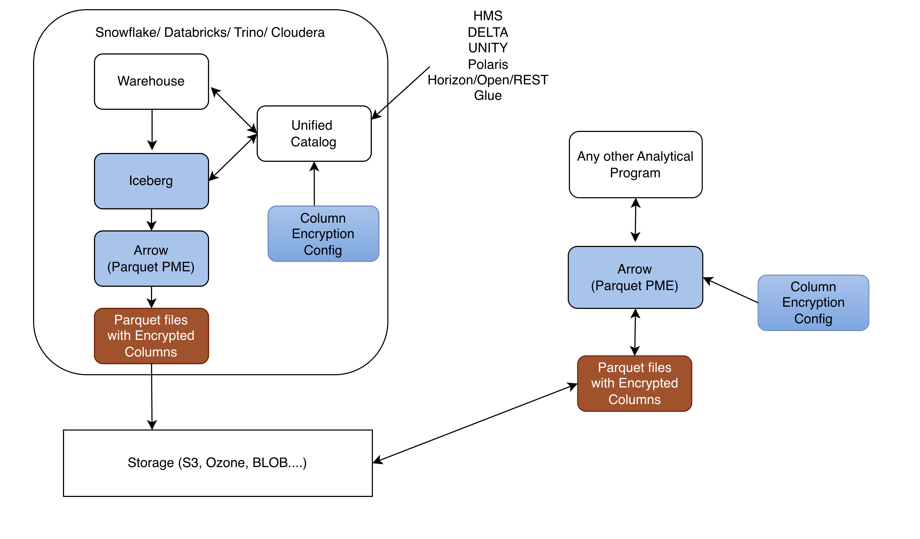
Python Iceberg and Parquet Modular Encryption (PME) Architecture
Write Path in Databricks environment
Warehouse: The data platform like Databricks initiates the data write and interacts with the Unified Catalog to register/manage table metadata.
Unified Catalog: Serves as the central metadata registry. It integrates with catalog providers such as HMS, Delta, Unity, Polaris, Horizon/Open/REST, and Glue, and receives encryption instructions from the Column Encryption Config.
Column Encryption Config: Supplies the policy which columns to encrypt, key references, etc. to the Unified Catalog so encryption is applied consistently at write time.
Iceberg: Consumes data from the Warehouse and coordinates with the Unified Catalog to produce Iceberg-formatted table data with encryption metadata attached.
Arrow (Parquet PME): The Iceberg layer hands data to the Arrow/Parquet PME engine, which performs Parquet Modular Encryption on the specified columns.
Parquet files with Encrypted Columns: The PME engine outputs Parquet files where sensitive columns are encrypted at the column level rather than encrypting the whole file.
Storage (S3, Ozone, BLOB, …): The encrypted Parquet files are persisted to object storage, which is the shared source of truth for readers.
Read Path for external or independent analytics
Storage → Parquet files with Encrypted Columns: Any external consumer reads the same encrypted Parquet files directly from storage.
Arrow (Parquet PME): An independent Arrow/Parquet PME reader decrypts the column data, driven by its own Column Encryption Config (key references and access policy).
Any other Analytical Program: After PME decryption, the analytical tool (outside the Snowflake/Databricks/Trino/Cloudera boundary) can process the plaintext columns it is authorized to see.
Key Design Points
Encryption is column-level, not file-level: enabled by Parquet Modular Encryption, so different consumers can decrypt different subsets of columns based on their key access.
Storage is the interoperability point: both the internal warehouse stack and external analytical programs share the same encrypted Parquet files; access control is enforced by whoever holds the keys defined in the Column Encryption Config.
Catalog-agnostic: the Unified Catalog abstraction lets the same encrypted-Iceberg pattern work across HMS, Delta, Unity, Polaris, Horizon/Open/REST, and Glue.
2.2 - Python Iceberg Protector System Requirements on Databricks
Ensure the following prerequisites are met:
- Databricks Unity Catalog is available with:
- A Terminated Dedicated or Standard Compute.
- A Unity Catalog Volume.
- Service Principal. Ensure that the Service Principal has:
- USE CATALOG, USE SCHEMA, READ VOLUME, and WRITE VOLUME privileges on Unity Catalog Volume.
- MANAGE ALLOWLIST privilege on Unity Catalog Metastore.
- CAN MANAGE privilege on Compute.
2.3 - Preparing the Environment
2.3.1 - Extracting the Installation Package
- Log in to the Linux instance.
- Download the build
PyIcebergProtector_Linux-ALL-64_x86-64_Databricks-18-Python-3.12_<Protector_version>.tgz, made available by Protegrity. - To extract the contents of the package, run the following command:
tar -xvf PyIcebergProtector_Linux-ALL-64_x86-64_Databricks-18-Python-3.12_<Protector_version>.tgz - Press ENTER.
The command extracts the signature files and the installation package.
PyIcebergProtector_Linux-ALL-64_x86-64_Databricks-18-Python-3.12_<Protector_version>.tgz signatures/ signatures/PyIcebergProtector_Linux-ALL-64_x86-64_Databricks-18-Python-3.12_<Protector_version>.tgz_<release_version>.sig - To extract the configurator script, run the following command:
tar -xvf PyIcebergProtector_Linux-ALL-64_x86-64_Databricks-18-Python-3.12_<Protector_version>.tgz - Press ENTER.
The command extracts the configurator script.
PyIcebergProtector-Databricks-Configurator_Linux-ALL-64_x86-64_Databricks-18-Python-3.12_<Protector_version>.sh
2.4 - Installing Python Iceberg Protector on a Databricks Compute
2.4.1 - Executing the Configurator Script
- Log in to the instance where the installation files are extracted.
- To execute the configurator script, run the following command:
./PyIcebergProtector-Databricks-Configurator_Linux-ALL-64_x86-64_Databricks-18-Python-3.12_<Protector_version>.sh - Press ENTER.
The prompt to confirm the prerequisites appears.Prerequisites: 1. Databricks with: a. Service Principal b. Terminated Dedicated or Standard Compute i. Make sure that Service Principal CAN MANAGE privilege on Compute. ii. If you want to use Standard Compute, then make sure that Service Principal has MANAGE ALLOWLIST privilege on Unity Catalog Metastore. c. Volumes or Workspace location i. Volumes location is supported by Dedicated and Standard Compute. ii. If you want to use Volumes location, then make sure that Service Principal has USE CATALOG, USE SCHEMA, READ VOLUME, and WRITE VOLUME privileges on Volumes path. iii. Workspace location is supported by Dedicated Compute. iv. If you want to use Workspace location, then make sure that Service Principal has CAN MANAGE privilege on Workspace path. 2. Make sure that PPC or ESA is accessible and Users, Groups, Roles, Data Elements, Data Stores, Policies, Trusted Applications, etc are created. Are these prerequisites met? ("yes" or "no"): - To confirm the availability of the prerequisites, type
yes. - Press ENTER.
The prompt to enter the Databricks workspace URL appears.Specify Workspace's URL: - Enter the Databricks workspace URL.
- Press ENTER.
The prompt to select the upload location appears.Specify upload location ("Volumes" or "Workspace"): - Enter the upload location.
- Press ENTER.
The prompt to enter the absoulte path appears.Specify upload location's absolute path: - Enter the absolute path of the upload location.
- Press ENTER.
The prompt to enter the cluster or Compute ID appears.Specify Compute's ID: - Enter the Cluster ID.
- Press ENTER.
The prompt to enter the Databricks Service Principal’s application ID appears.Specify Service Principal's application ID: - Enter the Databricks Service Principal’s application ID.
- Press ENTER.
The prompt to enter the OAuth Secret appears.Specify Service Principal's OAuth secret: - Enter the Databricks Service Principal’s OAuth secret.
- Press ENTER.
The script installs the Python Iceberg protector on the Databricks compute. The script also lists the required instructions to complete the installation and execute the sample script.Installing PyIceberg Protector in Compute... Installed PyIceberg Protector in Compute. To complete installation, update following environment variables in Compute's Configuration -> Advanced -> Spark -> Environment variables: PTY_PPC_ESA_IP PTY_PPC_ESA_PORT PTY_PPC_ESA_TOKEN or PTY_PPC_ESA_ADMINISTRATOR_USERNAME and PTY_PPC_ESA_ADMINISTRATOR_PASSWORD PTY_LOGFORWARDER_ENDPOINT To test installation, refer following file: "/Volumes/<catalog_name>/<schema_name>/<volume_name>/pty_pyiceberg_protector/client.txt" To use External Parquet Modular Encryption (EPME), use following table properties: For Protegrity encryption: "encrypt_block": "true" or "false", "protegrity.encryption.<column_name>": "EXTERNAL_DBPA_V1", "protegrity.key.<column_name>": "<data_element_name>", "protegrity.encoding.<column_name>": "UTF-8", "UTF8", "UTF-16LE", "UTF16LE", "UTF-16BE", or "UTF16BE" Example: "encrypt_block": "true", "protegrity.encryption.bank_account_number": "EXTERNAL_DBPA_V1", "protegrity.key.bank_account_number": "bank_account_number_data_element", "protegrity.encoding.bank_account_number": "UTF-8" For built-in encryption: "internal.encryption.<column_name>": "AES_GCM_V1" or "AES_GCM_CTR_V1", "internal.key.<column_name>": "<column_key_identifier>", "internal.footer.key": "<footer_key_identifier>" Example: "internal.encryption.credit_card_number": "AES_GCM_V1", "internal.key.credit_card_number": "credit_card_number_column_key", "internal.footer.key": "footer_key" To test EPME, refer following file: "/Volumes/<catalog_name>/<schema_name>/<volume_name>/pty_pyiceberg_protector/client.txt"
2.4.2 - Editing the Databricks Compute
The process of editing the Databricks Compute involves editing the cluster configuration. After executing the configurator script, update the cluster configuration to include the environment variables.
Ensure that the ESA or PPC is started and in a running state before restarting the Databricks cluster after updating the configurations.
To edit the cluster:
Log in to the Databricks portal.
Edit the required cluster.
Expand the Advanced section.
Click the Spark tab.
Under Environment variables, add the variables, with their values, listed in the following table:
Variable Value PTY_PPC_ESA_IPEnter ESA IP address or PPC FQDN. PTY_PPC_ESA_PORTEnter the port number to connect to ESA or PPC.
For ESA, enter8443.
For PPC, enter25400.PTY_PPC_ESA_TOKENEnter the JWT token to connect to ESA or PPC. PTY_PPC_ESA_ADMINISTRATOR_USERNAMEEnter the username to connect to ESA or PPC. This is required only if a token is not used. PTY_PPC_ESA_ADMINISTRATOR_PASSWORD{{secrets/<scope_name>/<key_name>}}This is required only if a token is not used.PTY_LOGFORWARDER_ENDPOINTEnter the IP address to connect to the Log Forwarder. Note: To store the ESA or PPC password, it is recommended to use Databricks Secrets. For more information about using Databricks Secrets, refer to Secret management.
To save the changes and restart the cluster, click Confirm and restart.
2.4.3 - Validating the Python Iceberg Protector Installation
Validating the Python Iceberg Protector installation involves the execution of the sample script. Verify the installation using any one of the following methods:
- Using External Parquet Modular Encryption (EPME)
- Using built-in AES encryption
Before you begin
To use the encryption methods, modify the client.py file to add code under the create_table().properties: section.
For External Parquet Modular Encryption (EPME)
Log in to the Databricks portal.
Navigate to the volume where the Python Iceberg protector is installed.
Edit the
client.pyfile.In the
create_table().properties:section, add the following lines of code:"parquet.enable.dictionary": "false", "write.parquet.compression-codec": "zstd", "write.parquet.dict-encoding.enabled": "false", "encrypt_block": "true", "protegrity.encryption.bank_account_number": "EXTERNAL_DBPA_V1", "protegrity.key.bank_account_number": "AES256", "protegrity.encoding.bank_account_number": "UTF-8"Where,
parquet.enable.dictionary- Enables or disables the Parquet dictionary encoding for all columns in the written file.write.parquet.compression-codec- Compresses the Parquet column data using the codec for a strong size-vs-speed tradeoff.write.parquet.dict-encoding.enabled- Enables or disables Iceberg’s per-column dictionary encoding when writing Parquet files. This is required for column encryption to work correctly.encrypt_block- Applies the Parquet Modular Encryption (PME) on the configured page when the value is set totrue. Otherwise, the encyrption is applied per row.protegrity.encryption.bank-account-number- Identifies the external crypto profile likeDBPSorEXTERNAL_DBPA_V1used to encrypt or decrypt the target column. Alternatively, internal encryption likeAES_GCM_V1orAES_GCM_CTR_V1can be used.protegrity.key.bank-account-number- Specifies the Protegrity data element whose cryptographic material is used to protect the target column when the external encryption is used. In case of internal encryption, the encryption key is used.protegrity.encoding.bank-account-number- Specifies the character encoding used for the encoded input bytes. The supported encoding types include UTF-8, UTF8, UTF-16LE, UTF16LE, UTF-16BE, and UTF16BE.
Save the changes to the
client.pyfile.
For built-in AES encryption
Log in to the Databricks portal.
Navigate to the location where the Python Iceberg protector is installed.
Edit the
client.pyfile.In the
create_table().properties:section, add the following lines of code:"internal.algorithm.social_security_number": "AES_GCM_V1", "internal.key.social_security_number": "social_security_number_column_key", "internal.footer.key": "footer_key"Where,
parquet.enable.dictionary- Enables or disables the Parquet dictionary encoding for all columns in the written file.write.parquet.compression-codec- Compresses the Parquet column data using the codec for a strong size-vs-speed tradeoff.write.parquet.dict-encoding.enabled- Enables or disables Iceberg’s per-column dictionary encoding when writing Parquet files. This is required for column encryption to work correctly.encrypt_block- Applies the Parquet Modular Encryption (PME) on the configured page when the value is set totrue. Otherwise, the encyrption is applied per row.protegrity.encryption.bank-account-number- Identifies the external crypto profile likeDBPSorEXTERNAL_DBPA_V1used to encrypt or decrypt the target column. Alternatively, internal encryption likeAES_GCM_V1orAES_GCM_CTR_V1can be used.protegrity.key.bank-account-number- Specifies the Protegrity data element whose cryptographic material is used to protect the target column when the external encryption is used. In case of internal encryption, the encryption key is used.protegrity.encoding.bank-account-number- Specifies the character encoding used for the encoded input bytes. The supported encoding types include UTF-8, UTF8, UTF-16LE, UTF16LE, UTF-16BE, and UTF16BE.
Save the changes to the
client.pyfile.
Executing the Sample Script using Python Client on Unity Catalog
Using External Parquet Modular Encryption (EPME)
Log in to the Databricks portal.
Navigate to the compute where the protector is installed.
Attach a notebook to the compute.
Ensure the notebook contains the following code snippet:
from pyarrow import Table
from pyiceberg.catalog import load_catalog
from pyiceberg.exceptions import NoSuchTableError

catalog_name = "<substitute_catalog_name>"
namespace_name = "<substitute_namespace_name>"
service_principal_application_id = "<substitute_service_principal_application_id>"
service_principal_oauth_secret = "<substitute_service_principal_oauth_secret>"
table_name = "<substitute_table_name>"
workspace_url = "<substitute_workspace_url>"

catalog = load_catalog(
   credential=f"{service_principal_application_id}:{service_principal_oauth_secret}",
   name=catalog_name,
   scope="all-apis",
   type="rest",
   uri=f"{workspace_url}/api/2.1/unity-catalog/iceberg-rest",
   warehouse=catalog_name,
   **{
      "oauth2-server-uri": f"{workspace_url}/oidc/v1/token"
   }
)

catalog.create_namespace_if_not_exists(namespace=namespace_name)

try:
   catalog.drop_table(identifier=f"{namespace_name}.{table_name}")
except NoSuchTableError:
   pass
pyarrow_table = Table.from_pydict(mapping={
   "bank_account_number": ["100284935521", "489311027684", "773290514438", "912046738815"],
   "credit_card_number": ["2811 9146 9639 4756", "8285 9611 4035 3992", "8866 0087 1920 1284", "9933 9122 2872 5786"],
   "customer_name": ["Ashley Anderson", "Brian Brown", "Carol Clark", "David Davis"],
   "social_security_number": ["000-12-3456", "000-98-7654", "000-55-1212", "000-44-8888"]
})
pyiceberg_table = catalog.create_table(
   identifier=f"{namespace_name}.{table_name}",
   properties={
      "parquet.enable.dictionary": "false",
      "write.parquet.compression-codec": "zstd",
      "write.parquet.dict-encoding.enabled": "false"
      "encrypt_block": "true",
      "protegrity.encryption.bank-account-number": "EXTERNAL_DBPA_V1",
      "protegrity.key.bank-account-number": "text",
      "protegrity.encoding.bank-account-number": "UTF-8"
   },
   schema=pyarrow_table.schema
)
warehouse_absolute_path = pyiceberg_table.properties["write.data.path"]

print("\nPrinting original table...")
print(pyarrow_table)
print("Printed original table.\n")

print(f"Writing original table into {warehouse_absolute_path}/*/*.parquet...")
pyiceberg_table.append(df=pyarrow_table)
print(f"Written original table into {warehouse_absolute_path}/*/*.parquet.\n")

print(f"Reading {warehouse_absolute_path}/*/*.parquet into PyArrow table...")
print(pyiceberg_table.scan().to_arrow())
print(f"Read {warehouse_absolute_path}/*/*.parquet into PyArrow table.\n")
Note: Be sure to replace the placeholder with the actual values.
Using built-in AES encryption
Log in to the Databricks portal.
Navigate to the compute where the protector is installed.
Attach a notebook to the compute.
Ensure the notebook contains the following code snippet:
from pyarrow import Table
from pyiceberg.catalog import load_catalog
from pyiceberg.exceptions import NoSuchTableError

catalog_name = "<substitute_catalog_name>"
namespace_name = "<substitute_namespace_name>"
service_principal_application_id = "<substitute_service_principal_application_id>"
service_principal_oauth_secret = "<substitute_service_principal_oauth_secret>"
table_name = "<substitute_table_name>"
workspace_url = "<substitute_workspace_url>"

catalog = load_catalog(
   credential=f"{service_principal_application_id}:{service_principal_oauth_secret}",
   name=catalog_name,
   scope="all-apis",
   type="rest",
   uri=f"{workspace_url}/api/2.1/unity-catalog/iceberg-rest",
   warehouse=catalog_name,
   **{
      "oauth2-server-uri": f"{workspace_url}/oidc/v1/token"
   }
)

catalog.create_namespace_if_not_exists(namespace=namespace_name)

try:
   catalog.drop_table(identifier=f"{namespace_name}.{table_name}")
except NoSuchTableError:
   pass
pyarrow_table = Table.from_pydict(mapping={
   "bank_account_number": ["100284935521", "489311027684", "773290514438", "912046738815"],
   "credit_card_number": ["2811 9146 9639 4756", "8285 9611 4035 3992", "8866 0087 1920 1284", "9933 9122 2872 5786"],
   "customer_name": ["Ashley Anderson", "Brian Brown", "Carol Clark", "David Davis"],
   "social_security_number": ["000-12-3456", "000-98-7654", "000-55-1212", "000-44-8888"]
})
pyiceberg_table = catalog.create_table(
   identifier=f"{namespace_name}.{table_name}",
   properties={
     "internal.algorithm.social_security_number": "AES_GCM_V1",
     "internal.key.social_security_number": "social_security_number_column_key"
   },
   schema=pyarrow_table.schema
)
warehouse_absolute_path = pyiceberg_table.properties["write.data.path"]

print("\nPrinting original table...")
print(pyarrow_table)
print("Printed original table.\n")

print(f"Writing original table into {warehouse_absolute_path}/*/*.parquet...")
pyiceberg_table.append(df=pyarrow_table)
print(f"Written original table into {warehouse_absolute_path}/*/*.parquet.\n")

print(f"Reading {warehouse_absolute_path}/*/*.parquet into PyArrow table...")
print(pyiceberg_table.scan().to_arrow())
print(f"Read {warehouse_absolute_path}/*/*.parquet into PyArrow table.\n")
Note: Be sure to replace the placeholder with the actual values.
Executing the Sample Script using Python Client on Glue
Using External Parquet Modular Encryption (EPME)
Log in to the Databricks portal.
Navigate to the compute where the protector is installed.
Attach a notebook to the compute.
Ensure the notebook contains the following code snippet:
from pyarrow import Table
from pyiceberg.catalog import load_catalog
from pyiceberg.exceptions import NoSuchTableError

catalog_name = "<substitute_catalog_name>"
namespace_name = "<substitute_namespace_name>"
table_name = "<substitute_table_name>"
warehouse_absolute_path = "<s3://substitute_bucket/substitute_prefix>"

catalog = load_catalog(

 name=catalog_name,
 {

     "type": "glue",
     "warehouse": warehouse_absolute_path,
     "glue.region": "<substitute_region>",
     "s3.region": "<substitute_region>",
 	"glue.access-key-id": "<substitute_access_key_id>",
     "glue.secret-access-key": "<substitute_secret_access_key>",
     "glue.session-token": "<substitute_session_token>"

 }
)

Store Encrypted data in S3:
catalog_name = "<substitute_catalog_name>"
namespace_name = "<substitute_namespace_name>"
table_name = "<substitute_table_name>"
warehouse_absolute_path = "<s3://substitute_bucket/substitute_prefix>"
catalog = load_catalog(

 name=catalog_name,
 {

     "type": "glue",
     "warehouse": warehouse_absolute_path,
     "glue.region": "<substitute_region>",
     "s3.region": "<substitute_region>"
     "s3.access-key-id": "<substitute_access_key_id>"
     "s3.secret-access-key": "<substitute_secret_access_key>"
     "s3.session-token": "<substitute_session_token>"

 }
)

catalog.create_namespace_if_not_exists(namespace=namespace_name)

try:
   catalog.drop_table(identifier=f"{namespace_name}.{table_name}")
except NoSuchTableError:
   pass
pyarrow_table = Table.from_pydict(mapping={
   "bank_account_number": ["100284935521", "489311027684", "773290514438", "912046738815"],
   "credit_card_number": ["2811 9146 9639 4756", "8285 9611 4035 3992", "8866 0087 1920 1284", "9933 9122 2872 5786"],
   "customer_name": ["Ashley Anderson", "Brian Brown", "Carol Clark", "David Davis"],
   "social_security_number": ["000-12-3456", "000-98-7654", "000-55-1212", "000-44-8888"]
})
pyiceberg_table = catalog.create_table(
   identifier=f"{namespace_name}.{table_name}",
   properties={
      "parquet.enable.dictionary": "false",
      "write.parquet.compression-codec": "zstd",
      "write.parquet.dict-encoding.enabled": "false"
      "encrypt_block": "true",
      "protegrity.encryption.bank-account-number": "EXTERNAL_DBPA_V1",
      "protegrity.key.bank-account-number": "text",
      "protegrity.encoding.bank-account-number": "UTF-8"
   },
   schema=pyarrow_table.schema
)
warehouse_absolute_path = pyiceberg_table.properties["write.data.path"]

print("\nPrinting original table...")
print(pyarrow_table)
print("Printed original table.\n")

print(f"Writing original table into {warehouse_absolute_path}/*/*.parquet...")
pyiceberg_table.append(df=pyarrow_table)
print(f"Written original table into {warehouse_absolute_path}/*/*.parquet.\n")

print(f"Reading {warehouse_absolute_path}/*/*.parquet into PyArrow table...")
print(pyiceberg_table.scan().to_arrow())
print(f"Read {warehouse_absolute_path}/*/*.parquet into PyArrow table.\n")
Note: Be sure to replace the placeholder with the actual values.
Using built-in AES encryption
Log in to the Databricks portal.
Navigate to the compute where the protector is installed.
Attach a notebook to the compute.
Ensure the notebook contains the following code snippet:
from pyarrow import Table
from pyiceberg.catalog import load_catalog
from pyiceberg.exceptions import NoSuchTableError

catalog_name = "<substitute_catalog_name>"
namespace_name = "<substitute_namespace_name>"
service_principal_application_id = "<substitute_service_principal_application_id>"
service_principal_oauth_secret = "<substitute_service_principal_oauth_secret>"
table_name = "<substitute_table_name>"
workspace_url = "<substitute_workspace_url>"

catalog = load_catalog(

 name=catalog_name,
 {

     "type": "glue",
     "warehouse": warehouse_absolute_path,
     "glue.region": "<substitute_region>",
     "s3.region": "<substitute_region>",
 	"glue.access-key-id": "<substitute_access_key_id>",
     "glue.secret-access-key": "<substitute_secret_access_key>",
     "glue.session-token": "<substitute_session_token>"

 }
)

Store Encrypted data in S3:
catalog_name = "<substitute_catalog_name>"
namespace_name = "<substitute_namespace_name>"
table_name = "<substitute_table_name>"
warehouse_absolute_path = "<s3://substitute_bucket/substitute_prefix>"
catalog = load_catalog(

 name=catalog_name,
 {

     "type": "glue",
     "warehouse": warehouse_absolute_path,
     "glue.region": "<substitute_region>",
     "s3.region": "<substitute_region>"
     "s3.access-key-id": "<substitute_access_key_id>"
     "s3.secret-access-key": "<substitute_secret_access_key>"
     "s3.session-token": "<substitute_session_token>"

 }
)
catalog.create_namespace_if_not_exists(namespace=namespace_name)

try:
   catalog.drop_table(identifier=f"{namespace_name}.{table_name}")
except NoSuchTableError:
   pass
pyarrow_table = Table.from_pydict(mapping={
   "bank_account_number": ["100284935521", "489311027684", "773290514438", "912046738815"],
   "credit_card_number": ["2811 9146 9639 4756", "8285 9611 4035 3992", "8866 0087 1920 1284", "9933 9122 2872 5786"],
   "customer_name": ["Ashley Anderson", "Brian Brown", "Carol Clark", "David Davis"],
   "social_security_number": ["000-12-3456", "000-98-7654", "000-55-1212", "000-44-8888"]
})
pyiceberg_table = catalog.create_table(
   identifier=f"{namespace_name}.{table_name}",
   properties={
     "internal.algorithm.social_security_number": "AES_GCM_V1",
     "internal.key.social_security_number": "social_security_number_column_key"
   },
   schema=pyarrow_table.schema
)
warehouse_absolute_path = pyiceberg_table.properties["write.data.path"]

print("\nPrinting original table...")
print(pyarrow_table)
print("Printed original table.\n")

print(f"Writing original table into {warehouse_absolute_path}/*/*.parquet...")
pyiceberg_table.append(df=pyarrow_table)
print(f"Written original table into {warehouse_absolute_path}/*/*.parquet.\n")

print(f"Reading {warehouse_absolute_path}/*/*.parquet into PyArrow table...")
print(pyiceberg_table.scan().to_arrow())
print(f"Read {warehouse_absolute_path}/*/*.parquet into PyArrow table.\n")
Note: Be sure to replace the placeholder with the actual values.
3 - Python Iceberg Protector on Snowflake
The Protegrity Python Iceberg Protector on Snowflake delivers column-level data protection for Apache Iceberg tables. These tables are managed by the Snowflake REST Catalog (Polaris) and stored as Parquet in cloud object storage, such as AWS S3. It enables data engineers and analysts to read from and write to Iceberg tables from Python workloads while sensitive fields are transparently protected. Protection uses the same Protegrity policy that governs the rest of the enterprise data estate.
The protector is delivered as a Custom Runtime Environment (CRE) that runs inside Snowflake Snowpark Container Services (SPCS). The runtime image is built and published through a standard container pipeline like Docker and the Snowflake CLI and deployed to SPCS as a managed container. Inside the CRE, a Snowflake Notebook hosts user code that calls the Protegrity-instrumented Iceberg and Arrow libraries, PTYPyIceberg and PTYPyArrow. These libraries are drop-in replacements for the standard Python Iceberg and PyArrow APIs, so existing Iceberg workloads can adopt protection with minimal code changes.
Protection is enforced by the Application Protector for C (AP-C), which is co-located in the runtime and invoked by PTYPyIceberg and PTYPyArrow on the columns identified by policy. On write, protected column values are encrypted, tokenized, or masked before the Parquet files are persisted to S3. On read, the same operations are reversed in memory based on the caller’s entitlements. Because protection is applied in the client runtime, the Parquet objects that land in the Iceberg table are already protected at rest, independently of the storage layer’s own encryption.
AP-C obtains its policy and key material from the DevOps Policy and Remote Protection Agent (RPAgent) components that ship inside the CRE. Policy is authored and managed centrally on the Protegrity Data Security Platform (ESA) and distributed to the runtime. Data element definitions, protection methods, and role-based access rules remain consistent with the customer’s existing Protegrity deployment.
Access to Iceberg metadata and data is brokered by Snowflake. The runtime authenticates to the Snowflake REST Catalog (Polaris) using a Personal Access Token (PAT) to resolve namespaces, table locations, and snapshots. Polaris then vends short-lived, scoped credentials that PTYPyIceberg and PTYPyArrow use to read and write the underlying Parquet files in S3. This removes the need for long-lived storage credentials in the runtime.
The following sections describe how to prepare the environment, build and deploy the CRE, and configure the Snowflake and Polaris resources. They also show how to use the Python Iceberg Protector from a notebook to read and write protected Iceberg tables.
3.1 - Preparing the Environment
3.1.1 - Extracting the Installation Package
- Log in to the Linux instance.
- Download the build
PyIcebergProtector_Linux-ALL-64_x86-64_Snowflake-SPCS-Python-3.12_<Protector_version>.tgz, made available by Protegrity. - To extract the contents of the package, run the following command:
tar -xvf PyIcebergProtector_Linux-ALL-64_x86-64_Snowflake-SPCS-Python-3.12_<Protector_version>.tgz - Press ENTER.
The command extracts the signature files and the installation package.PyIcebergProtector_Linux-ALL-64_x86-64_Snowflake-SPCS-Python-3.12_<Protector_version>.tgz signatures/ signatures/PyIcebergProtector_Linux-ALL-64_x86-64_Snowflake-SPCS-Python-3.12_<Protector_version>.tgz_<release_version>.sig - To extract the configurator script, run the following command:
tar -xvf PyIcebergProtector_Linux-ALL-64_x86-64_Snowflake-SPCS-Python-3.12_<Protector_version>.tgz - Press ENTER.
The command extracts the configurator script.PyIcebergProtector-Snowflake-Configurator_Linux-ALL-64_x86-64_Snowflake-SPCS-Python-3.12_<Protector_version>.sh
3.1.2 - Downloading the DevOps Policy
- Log in to the instance containing the configurator script.
- Navigate to the directory where the installation package is extracted.
- To generate a new RSA private key and save it to a file, run the following command:
openssl genrsa -out private.pem 4096 - To extract the public key from an existing RSA private key and write it to a separate file, run the following command:
openssl rsa -in private.pem -pubout -out public.pem - Press ENTER.
The command generates a RSA private key and saves it to a file.writing RSA key - To build a JSON request file that embeds the contents of a PEM public key, run the following command:
jq -n \ --arg key "$(sed -z 's/\n$//' public.pem)" \ '{kek:{publicKey:{label:"test_key",algorithm:"RSA-OAEP-256",value:$key}}}' \ > rps_request.json - To verify whether the public-key string embedded in
rps_request.jsonends cleanly, run the following command:jq -r '.kek.publicKey.value' rps_request.json | tail -c 30 | cat -A AQ==$ - To send the JSON payload to a RPS REST endpoint and save the server response to
rps.json, run the following command:curl -k -u <user_name>:<password> \ -X POST \ "https://10.49.0.11/pty/v1/rps/export?version=1&coreversion=1" \ -H "Content-Type: application/json" \ -d @rps_request.json \ -o rps.json - Press ENTER.
The command send the JSON payload to a RPS REST endpoint and saves the server response torps.json.% Total % Received % Xferd Average Speed Time Time Time Current Dload Upload Total Spent Left Speed 100 3089k 100 3088k 100 927 839k 251 0:00:03 0:00:03 --:--:-- 839k
3.2 - Python Iceberg Protector Architecture on Snowflake
The architecture of the Python Iceberg Protector using Snowflake is depicted in the following diagram:
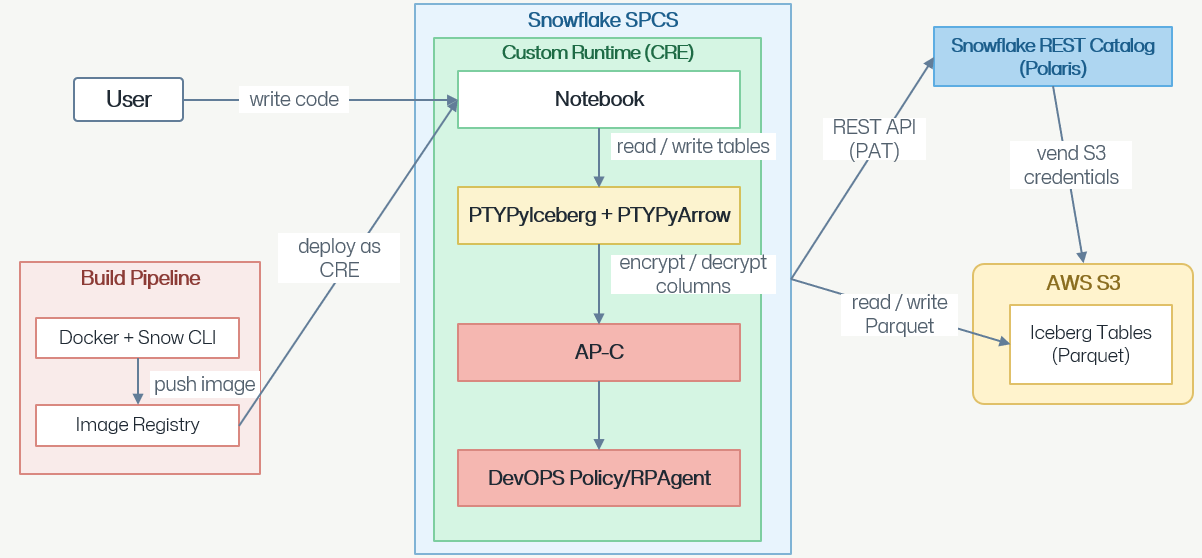
User writes code: A developer/data engineer authors application logic like Python in a Notebook that runs inside Snowflake.
Notebook runs inside a Custom Runtime on Snowflake SPCS: The notebook is hosted in a Custom Runtime Environment, which is also referred to as CRE. The CRE is deployed to Snowflake Snowpark Container Services, which is abbreviated as SPCS. SPCS provides the compute sandbox for the whole stack.
Build pipeline delivers the runtime image: A separate Build Pipeline uses Docker and Snow CLI to build the CRE image and pushes it to an Image Registry. The image is then deployed as CRE into Snowflake SPCS, which is how the Notebook, PTYPyIceberg/PTYPyArrow, AP-C, and DevOps Policy/RPAgent components get installed together.
Notebook reads/writes tables via PTYPyIceberg and PTYPyArrow: When the notebook issues table reads or writes, it calls into the PTYPyIceberg and PTYPyArrow layer, which is the Iceberg/Arrow data-access library used inside the runtime.
PTYPyIceberg and PTYPyArrow encrypts/decrypts columns via AP-C: Sensitive columns are passed to Application Protector – C before the data leaves or after it arrives. Application Protector – C performs the actual field-level encryption on write and decryption on read.
AP-C is driven by DevOps Policy or RPAgent: AP-C uses the DevOps Policy / RPAgent component for its security policy and key material. The policy defines which fields to protect, with which method or key, and for which users. This ensures that protection is consistent and centrally governed.
Data is stored as Parquet Iceberg tables in AWS S3: After encryption, PTYPyIceberg and PTYPyArrow reads/writes Parquet files that make up the Iceberg Tables in AWS S3. Therefore, the data at-rest in S3 is already column-level protected.
Snowflake REST Catalog manages the Iceberg metadata: The Snowflake REST Catalog is also known as Polaris. The runtime talks to Polaris over a REST API authenticated with a Personal Access Token, which is abbreviated as PAT. The API call resolves Iceberg table metadata, such as namespaces, table locations, and snapshots.
Polaris vends S3 credentials for data access: Polaris then vends short-lived S3 credentials to the runtime, which PTYPyIceberg and PTYPyArrow uses to actually read/write the Parquet files in the S3 Iceberg tables. Therefore, S3 access is brokered by the catalog rather than using long-lived static keys.
3.3 - System Requirements for the Python Iceberg Protector on Snowflake
Ensure that the following requirements are available:
- Snowflake CLI installed.
- Snowflake data storage is available. For more information, refer to Data storage.
- A Snowflake CLI connection is configured either with: a. key-pair authentication b. external-browser authentication
- An encrypted static policy is exported from ESA as
rps.json. - The private key matches the public key used for the ESA static policy export.
- Docker is installed and running.
- Utilities like openssl, zip, and unzip are installed.
3.4 - Installing the Protector
- Log in to the Linux instance.
- Navigate to the directory where the installation files are available.
- To install the protector, run the following command:
./PyIcebergProtector-Snowflake-Configurator_Linux-ALL-64_x86-64_Snowflake-SPCS-Python-3.12_<Protector_version>.sh - Press ENTER.
The prompt to confirm the prerequisites appears.
Prerequisites: 1. Snowflake CLI installed. 2. A Snowflake CLI connection configured with either: a. key-pair authentication b. external-browser authentication 3. An encrypted static policy exported from ESA as rps.json. 4. The private key matching the public key used for the ESA static policy export. 5. Docker installed and running. 6. openssl, zip, and unzip utilities installed. Are these prerequisites met? ("yes" or "no"): - To confirm the availability of prerequisites, type
yes. - Press ENTER.
The prompt to enter the absolute path of the policy appears.
Specify ESA-exported static policy's absolute path (example: /tmp/rps.json): - Enter the absolute path of the policy.
- Press ENTER.
The prompt to enter the absolute path for the policy decryption key appears.
Specify ESA static policy decryption private key's absolute path (example: /tmp/private_key.pem): - Enter the static policy decryption private key’s absolute path.
- Press ENTER.
The prompt to enter the Snowflake CLI connection appears.
Specify Snowflake CLI connection (default: protegrity_keypair): - Enter the Snowflake CLI connection details.
- Press ENTER.
The prompt to enter the browser command if the connection uses external-browser authentication appears.
Specify browser command if the connection uses external-browser authentication (optional): - Enter the browser command if the connection uses external-browser authentication.
- Press ENTER.
The prompt to enter the Snowflake image registry appears.
Specify Snowflake image registry (example: account.registry.snowflakecomputing.com): - Enter the Snowflake image registry path.
- Press ENTER.
The prompt to enter the Snowflake image repository appears.
Specify Snowflake image repository (example: database/schema/repository): - Enter the Snowflake image repository path.
- Press ENTER.
The prompt to enter the image tag appears.
Specify image tag: - Enter the image tag.
- Press ENTER.
The script completes the installation.
Preparing Snowflake image with an ESA static policy...
Login Succeeded
[+] Building 5.0s (16/16) FINISHED
docker:default
=> [internal] load build definition from Dockerfile 0.0s
=> => transferring dockerfile: 1.89kB  0.0s
=> [internal] load metadata for protegritypartner-aws-bigdata.registry.snowflakecomputing.com/snowflake/images/snowflake_images/container_runtime/cpu_x86_64:2.8.1-py312         0.0s
=> [internal] load .dockerignore                                  0.0s
=> => transferring context: 2B                                    0.0s
=> CACHED [ 1/11] FROM protegritypartner-aws-bigdata.registry.snowflakecomputing.com/snowflake/images/snowflake_images/container_runtime/cpu_x86_64:2.8.1-py312         0.0s
=> [internal] load build context                                  0.6s
=> => transferring context: 64.26MB                               0.6s
=> [ 2/11] COPY pyiceberg-0.11.0-cp312-cp312-manylinux2014_x86_64.manylinux_2_17_x86_64.manylinux_2_28_x86_64.whl /tmp/wheels/                                                  0.1s
=> [ 3/11] COPY pyarrow-24.0.0+g090aba87f-cp312-cp312-manylinux_2_28_x86_64.whl /tmp/wheels/    0.1s
=> [ 4/11] RUN uv pip install --system --break-system-packages --no-deps         /tmp/wheels/pyiceberg-0.11.0-cp312-cp312-manylinux2014_x86_64.manylinux_2_17_x86_64.manylinux_2_28_x86_64.whl         /t  3.0s
=> [ 5/11] COPY csdk.tgz /tmp/csdk.tgz                             0.0s
=> [ 6/11] RUN mkdir --parents /opt/protegrity/sdk/c &&     tar --extract --file /tmp/csdk.tgz --gzip --directory /opt/protegrity/sdk/c &&     rm --force /tmp/csdk.tgz  0.3s
=> [ 7/11] COPY libs/ /opt/protegrity/libs/                        0.1s
=> [ 8/11] COPY libstaticPolicyDecryptionProgram.so /opt/protegrity/sdk/c/lib/libstaticPolicyDecryptionProgram.so                                                                 0.0s
=> [ 9/11] COPY private_key.pem /opt/protegrity/sdk/c/lib/static_policy_decryption_key.key                                                                0.0s
=> [10/11] COPY rps.json /opt/protegrity/sdk/c/data/policy.json                                                               0.0s
=> [11/11] RUN cp /opt/protegrity/sdk/c/lib/xcpep.plm /opt/protegrity/sdk/c/lib/libxcpep.so &&     sed --in-place 's/\[protector\]/[protector]\nuser = root/' /opt/protegrity/sdk/c/data/config.ini &&     0.2s
=> exporting to image                                               0.5s
=> => exporting layers                                              0.4s
=> => writing image sha256:75186efe31540a3c5ca82ed61d784f7f6209c450e515c93b270e7db1bbc44fbe     0.0s
=> => naming to docker.io/library/pyiceberg-protector:v1            0.0s
The push refers to repository [protegritypartner-aws-bigdata.registry.snowflakecomputing.com/iceberg_tutorial_db/public/pyiceberg_images/pyiceberg-protector]
42ed636049e4: Pushed
8ff292ef175c: Pushed
b3e78f588f4c: Pushed
64a4292cd305: Pushed
69d3f57f53d9: Pushed
14e602bb9494: Pushed
77fe202deebe: Pushed
9705eb8ab870: Pushed
f2991fa3f517: Pushed
5f4af0ec4ca3: Pushed
v1: digest: sha256:5ca92074258c5f35a42841c32b3278cc020a54b0710c8c63d5c8377b69a212e5 size: 8485
Pushed Snowflake image: protegritypartner-aws-bigdata.registry.snowflakecomputing.com/iceberg_tutorial_db/public/pyiceberg_images/pyiceberg-protector:v1

Next steps:
1. Create a Snowflake custom runtime environment for this image.
   Use this image path: /iceberg_tutorial_db/public/pyiceberg_images/pyiceberg-protector:v50

-- CUSTOM RUNTIME ENVIRONMENT
CREATE OR REPLACE CUSTOM RUNTIME ENVIRONMENT <name>
        IMAGE_PATH = '<path>'
        BASE_IMAGE_TYPE = CPU;

2. Configure the Snowflake service that runs your notebook to use this custom image.

3. Run the following sample from a Snowflake notebook attached to that service:

# %% [CELL 1] -- Install/imports
# The notebook must run on a service that uses the custom image created above.

# %% [CELL 2] -- Config
ACCOUNT_URL = "https://<account_identifier>.snowflakecomputing.com"
ROLE = "<snowflake_role>"
DATABASE = "<database_name>"
TABLE_NAME = "<schema_name>.<table_name>"
PAT = open("/secrets/<database_name>/<schema_name>/<secret_name>/secret_string").read().strip()
if not PAT:
        raise RuntimeError("Set PAT with a Snowflake secret mounted in the notebook service.")
print("Config OK.")
Note: The complete script will be displayed in the logs.
3.4.1 - Executing the Sample Script
Validating the PyIceberg Protector installation involves the execution of the sample script. Verify the installation using any one of the following methods:
- Using External Parquet Modular Encryption (EPME)
- Using built-in AES encryption
Before you begin
Create a Snowflake custom runtime environment for the custom image.
CREATE OR REPLACE CUSTOM RUNTIME ENVIRONMENT <name>
    IMAGE_PATH = '<path>'
    BASE_IMAGE_TYPE = CPU;
To use the encryption methods, modify the notebook to add the changes under the properties: section.
For External Parquet Modular Encryption (EPME)
- Log in to the Snowflake portal.
- Navigate to the workspace.
- Edit the service.
- From the Custom Image list, select the image that is created.
- Click Save and Restart.
- Create a Programmatic Access Token.
Note: For more information about creating a Programmatic Access Token, refer to Using programmatic access tokens for authentication.
- Create an external access integration.
Note: For more information about creating an external access integration, refer to Creating and using an external access integration.
- In a notebook, attached to the service, update the values in
CELL 2:# %% [CELL 2] -- Config ACCOUNT_URL = "https://<account_identifier>.snowflakecomputing.com" ROLE = "<snowflake_role>" DATABASE = "<database_name>" TABLE_NAME = "<schema_name>.<table_name>" PAT = open("/secrets/<database_name>/<schema_name>/<secret_name>/secret_string").read().strip() - In a notebook, attached to the service, update the data element in
CELL 4.Where,properties={ "write.parquet.compression-codec": "snappy", "protegrity.encryption.customer_name": "EXTERNAL_DBPA_V1", "protegrity.key.customer_name": "<data_element>", }write.parquet.compression-codec- Compresses the Parquet column data using the codec for a strong size-vs-speed tradeoff.protegrity.encryption.customer_name- Identifies the external crypto profile likeDBPSorEXTERNAL_DBPA_V1used to encrypt or decrypt the target column. Alternatively, internal encryption likeAES_GCM_V1orAES_GCM_CTR_V1can be used.protegrity.key.customer_name- Specifies the Protegrity data element whose cryptographic material is used to protect the target column when the external encryption is used. In case of internal encryption, the encryption key is used.
- Save the changes to the notebook.
For built-in AES Encryption
- Log in to the Snowflake portal.
- Navigate to the workspace.
- Edit the service.
- From the Custom Image list, select the image that is created.
- Click Save and Restart.
- Create a Programmatic Access Token.
Note: For more information about creating a Programmatic Access Token, refer to Using programmatic access tokens for authentication.
- Create an external access integration.
Note: For more information about creating an external access integration, refer to Creating and using an external access integration.
- In a notebook, attached to the service, update the values in
CELL 2:# %% [CELL 2] -- Config ACCOUNT_URL = "https://<account_identifier>.snowflakecomputing.com" ROLE = "<snowflake_role>" DATABASE = "<database_name>" TABLE_NAME = "<schema_name>.<table_name>" PAT = open("/secrets/<database_name>/<schema_name>/<secret_name>/secret_string").read().strip() - In a notebook, attached to the service, update the <column_name> and <column_key_identifier> in
CELL 4.Where,properties={ "internal.encryption.<column_name>": "AES_GCM_V1" or "AES_GCM_CTR_V1", "internal.key.<column_name>": "<column_key_identifier>", }internal.encryption.<column_name>- Specifies the built-in encryption algorithm.internal.key.<column_name>- Specifies the AES encryption key.
- Save the changes to the notebook.