This is the multi-page printable view of this section. Click here to print.

Return to the regular view of this page.

Python Iceberg Protector on Databricks

Introduction to the Python Iceberg Protector on Databricks.

The Pyhon Iceberg Protector on Databricks integrates Protegrity data protection with Apache Iceberg tables managed by the Databricks Lakehouse Platform. The protector is delivered as a PyIceberg-compatible extension that runs inside Databricks clusters and SQL warehouses, and applies column-level protection to Iceberg tables registered in Unity Catalog.

Protection is enforced through Parquet Modular Encryption (PME) using the Apache Arrow and PyIceberg engines. Columns identified in the Column Encryption Config are transformed at write time using Protegrity data elements like tokenization, encryption, masking, or hashing, while non-sensitive columns are written as standard Parquet. Protection is embedded in Parquet footers and column metadata. Protected data remains portable across engines like Snowflake, Trino, and Cloudera, and across storage such as S3, Azure Blob, and Ozone.

At runtime, the protector communicates with the Protegrity Data Security Platform to resolve policy decisions and obtain the keys required to protect or unprotect column values. Policy is evaluated per request against the caller’s identity, role, and other attributes. A single physical copy of an Iceberg table serves multiple entitlement levels, without separate views or datasets.

The Python Iceberg Protector on Databricks provides the following capabilities:

  • Column-level protection of Iceberg tables during ingestion from Databricks notebooks, jobs, and Delta Live Tables pipelines that use the PyIceberg APIs.
  • Reversible and irreversible protection methods like tokenization, encryption, masking, hashing, selected per column based on the configured data elements.
  • Policy-driven unprotection at query time, enforced by the Protegrity policy engine and applied transparently to authorized readers.
  • Interoperability with other Iceberg engines that consume the same Parquet files from cloud storage, subject to Protegrity policy and key access.
  • Centralized policy management, key management, and audit logging through the Protegrity Enterprise Security Administrator (ESA).

The following sections describe the architecture, system requirements, environment preparation, and installation steps for the Iceberg Protector on Databricks.
1 - Python Iceberg Protector Architecture on Databricks

Understand the Architecture to install the Python Iceberg Protector on Databricks.

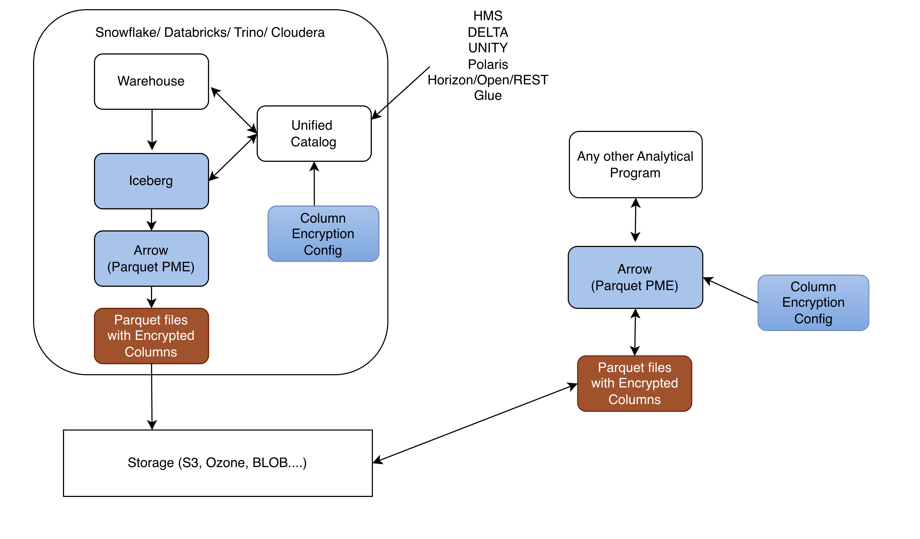
The architecture of the Iceberg Protector using Databricks is depicted in the following diagram:

Python Iceberg and Parquet Modular Encryption (PME) Architecture

Write Path in Databricks environment

  1. Warehouse: The data platform like Databricks initiates the data write and interacts with the Unified Catalog to register/manage table metadata.

  2. Unified Catalog: Serves as the central metadata registry. It integrates with catalog providers such as HMS, Delta, Unity, Polaris, Horizon/Open/REST, and Glue, and receives encryption instructions from the Column Encryption Config.

  3. Column Encryption Config: Supplies the policy which columns to encrypt, key references, etc. to the Unified Catalog so encryption is applied consistently at write time.

  4. Iceberg: Consumes data from the Warehouse and coordinates with the Unified Catalog to produce Iceberg-formatted table data with encryption metadata attached.

  5. Arrow (Parquet PME): The Iceberg layer hands data to the Arrow/Parquet PME engine, which performs Parquet Modular Encryption on the specified columns.

  6. Parquet files with Encrypted Columns: The PME engine outputs Parquet files where sensitive columns are encrypted at the column level rather than encrypting the whole file.

  7. Storage (S3, Ozone, BLOB, …): The encrypted Parquet files are persisted to object storage, which is the shared source of truth for readers.

Read Path for external or independent analytics

  1. Storage → Parquet files with Encrypted Columns: Any external consumer reads the same encrypted Parquet files directly from storage.

  2. Arrow (Parquet PME): An independent Arrow/Parquet PME reader decrypts the column data, driven by its own Column Encryption Config (key references and access policy).

  3. Any other Analytical Program: After PME decryption, the analytical tool (outside the Snowflake/Databricks/Trino/Cloudera boundary) can process the plaintext columns it is authorized to see.

Key Design Points

  1. Encryption is column-level, not file-level: enabled by Parquet Modular Encryption, so different consumers can decrypt different subsets of columns based on their key access.

  2. Storage is the interoperability point: both the internal warehouse stack and external analytical programs share the same encrypted Parquet files; access control is enforced by whoever holds the keys defined in the Column Encryption Config.

  3. Catalog-agnostic: the Unified Catalog abstraction lets the same encrypted-Iceberg pattern work across HMS, Delta, Unity, Polaris, Horizon/Open/REST, and Glue.

2 - Python Iceberg Protector System Requirements on Databricks

Understand the System Requirements to install the Python Iceberg Protector on Databricks.

Ensure the following prerequisites are met:

  1. Databricks Unity Catalog is available with:
    1. A Terminated Dedicated or Standard Compute.
    2. A Unity Catalog Volume.
    3. Service Principal. Ensure that the Service Principal has:
      1. USE CATALOG, USE SCHEMA, READ VOLUME, and WRITE VOLUME privileges on Unity Catalog Volume.
      2. MANAGE ALLOWLIST privilege on Unity Catalog Metastore.
      3. CAN MANAGE privilege on Compute.

3 - Preparing the Environment

Prepare the Environment to Install the Python Iceberg Protector on a Databricks Compute.

3.1 - Extracting the Installation Package

Extract the files from the Installation Package to install the Python Iceberg Protector on Databricks.
  1. Log in to the Linux instance.
  2. Download the build PyIcebergProtector_Linux-ALL-64_x86-64_Databricks-18-Python-3.12_<Protector_version>.tgz, made available by Protegrity.
  3. To extract the contents of the package, run the following command:
    tar -xvf PyIcebergProtector_Linux-ALL-64_x86-64_Databricks-18-Python-3.12_<Protector_version>.tgz
    
  4. Press ENTER. The command extracts the signature files and the installation package.
     PyIcebergProtector_Linux-ALL-64_x86-64_Databricks-18-Python-3.12_<Protector_version>.tgz
     signatures/
     signatures/PyIcebergProtector_Linux-ALL-64_x86-64_Databricks-18-Python-3.12_<Protector_version>.tgz_<release_version>.sig
    
  5. To extract the configurator script, run the following command:
    tar -xvf PyIcebergProtector_Linux-ALL-64_x86-64_Databricks-18-Python-3.12_<Protector_version>.tgz
    
  6. Press ENTER. The command extracts the configurator script.
    PyIcebergProtector-Databricks-Configurator_Linux-ALL-64_x86-64_Databricks-18-Python-3.12_<Protector_version>.sh
    

4 - Installing Python Iceberg Protector on a Databricks Compute

Install the Python Iceberg Protector on a Databricks Compute.

4.1 - Executing the Configurator Script

Execute the Configurator Script to Install the Python Iceberg Protector on Databricks.
  1. Log in to the instance where the installation files are extracted.
  2. To execute the configurator script, run the following command:
    ./PyIcebergProtector-Databricks-Configurator_Linux-ALL-64_x86-64_Databricks-18-Python-3.12_<Protector_version>.sh
    
  3. Press ENTER.
    The prompt to confirm the prerequisites appears.
    Prerequisites:
    1. Databricks with:
          a. Service Principal
          b. Terminated Dedicated or Standard Compute
                i.  Make sure that Service Principal CAN MANAGE privilege on Compute.
                ii. If you want to use Standard Compute, then make sure that Service Principal has MANAGE ALLOWLIST privilege on Unity Catalog Metastore.
          c. Volumes or Workspace location
                i.   Volumes location is supported by Dedicated and Standard Compute.
                ii.  If you want to use Volumes location, then make sure that Service Principal has USE CATALOG, USE SCHEMA, READ VOLUME, and WRITE VOLUME privileges on Volumes path.
                iii. Workspace location is supported by Dedicated Compute.
                iv.  If you want to use Workspace location, then make sure that Service Principal has CAN MANAGE privilege on Workspace path.
    2. Make sure that PPC or ESA is accessible and Users, Groups, Roles, Data Elements, Data Stores, Policies, Trusted Applications, etc are created.
    Are these prerequisites met? ("yes" or "no"):
    
  4. To confirm the availability of the prerequisites, type yes.
  5. Press ENTER.
    The prompt to enter the Databricks workspace URL appears.
    Specify Workspace's URL:
    
  6. Enter the Databricks workspace URL.
  7. Press ENTER.
    The prompt to select the upload location appears.
    Specify upload location ("Volumes" or "Workspace"):
    
  8. Enter the upload location.
  9. Press ENTER.
    The prompt to enter the absoulte path appears.
    Specify upload location's absolute path:
    
  10. Enter the absolute path of the upload location.
  11. Press ENTER.
    The prompt to enter the cluster or Compute ID appears.
    Specify Compute's ID:
    
  12. Enter the Cluster ID.
  13. Press ENTER.
    The prompt to enter the Databricks Service Principal’s application ID appears.
    Specify Service Principal's application ID:
    
  14. Enter the Databricks Service Principal’s application ID.
  15. Press ENTER.
    The prompt to enter the OAuth Secret appears.
    Specify Service Principal's OAuth secret:
    
  16. Enter the Databricks Service Principal’s OAuth secret.
  17. Press ENTER.
    The script installs the Python Iceberg protector on the Databricks compute. The script also lists the required instructions to complete the installation and execute the sample script.
    Installing PyIceberg Protector in Compute...
    Installed PyIceberg Protector in Compute.
    
    To complete installation, update following environment variables in Compute's Configuration -> Advanced -> Spark -> Environment variables:
    PTY_PPC_ESA_IP
    PTY_PPC_ESA_PORT
    PTY_PPC_ESA_TOKEN or PTY_PPC_ESA_ADMINISTRATOR_USERNAME and PTY_PPC_ESA_ADMINISTRATOR_PASSWORD
    PTY_LOGFORWARDER_ENDPOINT
    
    To test installation, refer following file:
    "/Volumes/<catalog_name>/<schema_name>/<volume_name>/pty_pyiceberg_protector/client.txt"
    
    To use External Parquet Modular Encryption (EPME), use following table properties:
    For Protegrity encryption:
    "encrypt_block": "true" or "false",
    "protegrity.encryption.<column_name>": "EXTERNAL_DBPA_V1",
    "protegrity.key.<column_name>": "<data_element_name>",
    "protegrity.encoding.<column_name>": "UTF-8", "UTF8", "UTF-16LE", "UTF16LE", "UTF-16BE", or "UTF16BE"
    Example:
    "encrypt_block": "true",
    "protegrity.encryption.bank_account_number": "EXTERNAL_DBPA_V1",
    "protegrity.key.bank_account_number": "bank_account_number_data_element",
    "protegrity.encoding.bank_account_number": "UTF-8"
    
    For built-in encryption:
    "internal.encryption.<column_name>": "AES_GCM_V1" or "AES_GCM_CTR_V1",
    "internal.key.<column_name>": "<column_key_identifier>",
    "internal.footer.key": "<footer_key_identifier>"
    Example:
    "internal.encryption.credit_card_number": "AES_GCM_V1",
    "internal.key.credit_card_number": "credit_card_number_column_key",
    "internal.footer.key": "footer_key"
    
    To test EPME, refer following file:
    "/Volumes/<catalog_name>/<schema_name>/<volume_name>/pty_pyiceberg_protector/client.txt"
    

4.2 - Editing the Databricks Compute

Edit the Databricks Compute for the Python Iceberg Protector.

The process of editing the Databricks Compute involves editing the cluster configuration. After executing the configurator script, update the cluster configuration to include the environment variables.

Ensure that the ESA or PPC is started and in a running state before restarting the Databricks cluster after updating the configurations.

To edit the cluster:

  1. Log in to the Databricks portal.

  2. Edit the required cluster.

  3. Expand the Advanced section.

  4. Click the Spark tab.

  5. Under Environment variables, add the variables, with their values, listed in the following table:

    VariableValue
    PTY_PPC_ESA_IPEnter ESA IP address or PPC FQDN.
    PTY_PPC_ESA_PORTEnter the port number to connect to ESA or PPC.
    For ESA, enter 8443.
    For PPC, enter 25400.
    PTY_PPC_ESA_TOKENEnter the JWT token to connect to ESA or PPC.
    PTY_PPC_ESA_ADMINISTRATOR_USERNAMEEnter the username to connect to ESA or PPC. This is required only if a token is not used.
    PTY_PPC_ESA_ADMINISTRATOR_PASSWORD{{secrets/<scope_name>/<key_name>}} This is required only if a token is not used.
    PTY_LOGFORWARDER_ENDPOINTEnter the IP address to connect to the Log Forwarder.

    Note: To store the ESA or PPC password, it is recommended to use Databricks Secrets. For more information about using Databricks Secrets, refer to Secret management.

  6. To save the changes and restart the cluster, click Confirm and restart.

4.3 - Validating the Python Iceberg Protector Installation

Validate the Python Iceberg Protector Installation on a Databricks Compute.

Validating the Python Iceberg Protector installation involves the execution of the sample script. Verify the installation using any one of the following methods:

  • Using External Parquet Modular Encryption (EPME)
  • Using built-in AES encryption

Before you begin

To use the encryption methods, modify the client.py file to add code under the create_table().properties: section.

For External Parquet Modular Encryption (EPME)

  1. Log in to the Databricks portal.

  2. Navigate to the volume where the Python Iceberg protector is installed.

  3. Edit the client.py file.

  4. In the create_table().properties: section, add the following lines of code:

       "parquet.enable.dictionary": "false",
       "write.parquet.compression-codec": "zstd",
       "write.parquet.dict-encoding.enabled": "false",
       "encrypt_block": "true",
       "protegrity.encryption.bank_account_number": "EXTERNAL_DBPA_V1",
       "protegrity.key.bank_account_number": "AES256",
       "protegrity.encoding.bank_account_number": "UTF-8"
    

    Where,

    • parquet.enable.dictionary - Enables or disables the Parquet dictionary encoding for all columns in the written file.
    • write.parquet.compression-codec - Compresses the Parquet column data using the codec for a strong size-vs-speed tradeoff.
    • write.parquet.dict-encoding.enabled - Enables or disables Iceberg’s per-column dictionary encoding when writing Parquet files. This is required for column encryption to work correctly.
    • encrypt_block - Applies the Parquet Modular Encryption (PME) on the configured page when the value is set to true. Otherwise, the encyrption is applied per row.
    • protegrity.encryption.bank-account-number - Identifies the external crypto profile like DBPS or EXTERNAL_DBPA_V1 used to encrypt or decrypt the target column. Alternatively, internal encryption like AES_GCM_V1 or AES_GCM_CTR_V1 can be used.
    • protegrity.key.bank-account-number - Specifies the Protegrity data element whose cryptographic material is used to protect the target column when the external encryption is used. In case of internal encryption, the encryption key is used.
    • protegrity.encoding.bank-account-number - Specifies the character encoding used for the encoded input bytes. The supported encoding types include UTF-8, UTF8, UTF-16LE, UTF16LE, UTF-16BE, and UTF16BE.
  5. Save the changes to the client.py file.

For built-in AES encryption

  1. Log in to the Databricks portal.

  2. Navigate to the location where the Python Iceberg protector is installed.

  3. Edit the client.py file.

  4. In the create_table().properties: section, add the following lines of code:

    "internal.algorithm.social_security_number": "AES_GCM_V1",
    "internal.key.social_security_number": "social_security_number_column_key",
    "internal.footer.key": "footer_key"
    

    Where,

    • parquet.enable.dictionary - Enables or disables the Parquet dictionary encoding for all columns in the written file.
    • write.parquet.compression-codec - Compresses the Parquet column data using the codec for a strong size-vs-speed tradeoff.
    • write.parquet.dict-encoding.enabled - Enables or disables Iceberg’s per-column dictionary encoding when writing Parquet files. This is required for column encryption to work correctly.
    • encrypt_block - Applies the Parquet Modular Encryption (PME) on the configured page when the value is set to true. Otherwise, the encyrption is applied per row.
    • protegrity.encryption.bank-account-number - Identifies the external crypto profile like DBPS or EXTERNAL_DBPA_V1 used to encrypt or decrypt the target column. Alternatively, internal encryption like AES_GCM_V1 or AES_GCM_CTR_V1 can be used.
    • protegrity.key.bank-account-number - Specifies the Protegrity data element whose cryptographic material is used to protect the target column when the external encryption is used. In case of internal encryption, the encryption key is used.
    • protegrity.encoding.bank-account-number - Specifies the character encoding used for the encoded input bytes. The supported encoding types include UTF-8, UTF8, UTF-16LE, UTF16LE, UTF-16BE, and UTF16BE.
  5. Save the changes to the client.py file.

Executing the Sample Script using Python Client on Unity Catalog

Using External Parquet Modular Encryption (EPME)

  1. Log in to the Databricks portal.

  2. Navigate to the compute where the protector is installed.

  3. Attach a notebook to the compute.

  4. Ensure the notebook contains the following code snippet:

    from pyarrow import Table
    from pyiceberg.catalog import load_catalog
    from pyiceberg.exceptions import NoSuchTableError
    
    catalog_name = "<substitute_catalog_name>"
    namespace_name = "<substitute_namespace_name>"
    service_principal_application_id = "<substitute_service_principal_application_id>"
    service_principal_oauth_secret = "<substitute_service_principal_oauth_secret>"
    table_name = "<substitute_table_name>"
    workspace_url = "<substitute_workspace_url>"
    
    catalog = load_catalog(
       credential=f"{service_principal_application_id}:{service_principal_oauth_secret}",
       name=catalog_name,
       scope="all-apis",
       type="rest",
       uri=f"{workspace_url}/api/2.1/unity-catalog/iceberg-rest",
       warehouse=catalog_name,
       **{
          "oauth2-server-uri": f"{workspace_url}/oidc/v1/token"
       }
    )
    
    catalog.create_namespace_if_not_exists(namespace=namespace_name)
    
    try:
       catalog.drop_table(identifier=f"{namespace_name}.{table_name}")
    except NoSuchTableError:
       pass
    pyarrow_table = Table.from_pydict(mapping={
       "bank_account_number": ["100284935521", "489311027684", "773290514438", "912046738815"],
       "credit_card_number": ["2811 9146 9639 4756", "8285 9611 4035 3992", "8866 0087 1920 1284", "9933 9122 2872 5786"],
       "customer_name": ["Ashley Anderson", "Brian Brown", "Carol Clark", "David Davis"],
       "social_security_number": ["000-12-3456", "000-98-7654", "000-55-1212", "000-44-8888"]
    })
    pyiceberg_table = catalog.create_table(
       identifier=f"{namespace_name}.{table_name}",
       properties={
          "parquet.enable.dictionary": "false",
          "write.parquet.compression-codec": "zstd",
          "write.parquet.dict-encoding.enabled": "false"
          "encrypt_block": "true",
          "protegrity.encryption.bank-account-number": "EXTERNAL_DBPA_V1",
          "protegrity.key.bank-account-number": "text",
          "protegrity.encoding.bank-account-number": "UTF-8"
       },
       schema=pyarrow_table.schema
    )
    warehouse_absolute_path = pyiceberg_table.properties["write.data.path"]
    
    print("\nPrinting original table...")
    print(pyarrow_table)
    print("Printed original table.\n")
    
    print(f"Writing original table into {warehouse_absolute_path}/*/*.parquet...")
    pyiceberg_table.append(df=pyarrow_table)
    print(f"Written original table into {warehouse_absolute_path}/*/*.parquet.\n")
    
    print(f"Reading {warehouse_absolute_path}/*/*.parquet into PyArrow table...")
    print(pyiceberg_table.scan().to_arrow())
    print(f"Read {warehouse_absolute_path}/*/*.parquet into PyArrow table.\n")
    

    Note: Be sure to replace the placeholder with the actual values.

Using built-in AES encryption

  1. Log in to the Databricks portal.

  2. Navigate to the compute where the protector is installed.

  3. Attach a notebook to the compute.

  4. Ensure the notebook contains the following code snippet:

    from pyarrow import Table
    from pyiceberg.catalog import load_catalog
    from pyiceberg.exceptions import NoSuchTableError
    
    catalog_name = "<substitute_catalog_name>"
    namespace_name = "<substitute_namespace_name>"
    service_principal_application_id = "<substitute_service_principal_application_id>"
    service_principal_oauth_secret = "<substitute_service_principal_oauth_secret>"
    table_name = "<substitute_table_name>"
    workspace_url = "<substitute_workspace_url>"
    
    catalog = load_catalog(
       credential=f"{service_principal_application_id}:{service_principal_oauth_secret}",
       name=catalog_name,
       scope="all-apis",
       type="rest",
       uri=f"{workspace_url}/api/2.1/unity-catalog/iceberg-rest",
       warehouse=catalog_name,
       **{
          "oauth2-server-uri": f"{workspace_url}/oidc/v1/token"
       }
    )
    
    catalog.create_namespace_if_not_exists(namespace=namespace_name)
    
    try:
       catalog.drop_table(identifier=f"{namespace_name}.{table_name}")
    except NoSuchTableError:
       pass
    pyarrow_table = Table.from_pydict(mapping={
       "bank_account_number": ["100284935521", "489311027684", "773290514438", "912046738815"],
       "credit_card_number": ["2811 9146 9639 4756", "8285 9611 4035 3992", "8866 0087 1920 1284", "9933 9122 2872 5786"],
       "customer_name": ["Ashley Anderson", "Brian Brown", "Carol Clark", "David Davis"],
       "social_security_number": ["000-12-3456", "000-98-7654", "000-55-1212", "000-44-8888"]
    })
    pyiceberg_table = catalog.create_table(
       identifier=f"{namespace_name}.{table_name}",
       properties={
         "internal.algorithm.social_security_number": "AES_GCM_V1",
         "internal.key.social_security_number": "social_security_number_column_key"
       },
       schema=pyarrow_table.schema
    )
    warehouse_absolute_path = pyiceberg_table.properties["write.data.path"]
    
    print("\nPrinting original table...")
    print(pyarrow_table)
    print("Printed original table.\n")
    
    print(f"Writing original table into {warehouse_absolute_path}/*/*.parquet...")
    pyiceberg_table.append(df=pyarrow_table)
    print(f"Written original table into {warehouse_absolute_path}/*/*.parquet.\n")
    
    print(f"Reading {warehouse_absolute_path}/*/*.parquet into PyArrow table...")
    print(pyiceberg_table.scan().to_arrow())
    print(f"Read {warehouse_absolute_path}/*/*.parquet into PyArrow table.\n")
    

    Note: Be sure to replace the placeholder with the actual values.

Executing the Sample Script using Python Client on Glue

Using External Parquet Modular Encryption (EPME)

  1. Log in to the Databricks portal.

  2. Navigate to the compute where the protector is installed.

  3. Attach a notebook to the compute.

  4. Ensure the notebook contains the following code snippet:

    from pyarrow import Table
    from pyiceberg.catalog import load_catalog
    from pyiceberg.exceptions import NoSuchTableError
    
    catalog_name = "<substitute_catalog_name>"
    namespace_name = "<substitute_namespace_name>"
    table_name = "<substitute_table_name>"
    warehouse_absolute_path = "<s3://substitute_bucket/substitute_prefix>"
    
    catalog = load_catalog(
    
     name=catalog_name,
     {
    
         "type": "glue",
         "warehouse": warehouse_absolute_path,
         "glue.region": "<substitute_region>",
         "s3.region": "<substitute_region>",
     	"glue.access-key-id": "<substitute_access_key_id>",
         "glue.secret-access-key": "<substitute_secret_access_key>",
         "glue.session-token": "<substitute_session_token>"
    
     }
    )
    
    Store Encrypted data in S3: 
    catalog_name = "<substitute_catalog_name>"
    namespace_name = "<substitute_namespace_name>"
    table_name = "<substitute_table_name>"
    warehouse_absolute_path = "<s3://substitute_bucket/substitute_prefix>"
    catalog = load_catalog(
    
     name=catalog_name,
     {
    
         "type": "glue",
         "warehouse": warehouse_absolute_path,
         "glue.region": "<substitute_region>",
         "s3.region": "<substitute_region>"
         "s3.access-key-id": "<substitute_access_key_id>"
         "s3.secret-access-key": "<substitute_secret_access_key>"
         "s3.session-token": "<substitute_session_token>"
    
     }
    )
    
    catalog.create_namespace_if_not_exists(namespace=namespace_name)
    
    try:
       catalog.drop_table(identifier=f"{namespace_name}.{table_name}")
    except NoSuchTableError:
       pass
    pyarrow_table = Table.from_pydict(mapping={
       "bank_account_number": ["100284935521", "489311027684", "773290514438", "912046738815"],
       "credit_card_number": ["2811 9146 9639 4756", "8285 9611 4035 3992", "8866 0087 1920 1284", "9933 9122 2872 5786"],
       "customer_name": ["Ashley Anderson", "Brian Brown", "Carol Clark", "David Davis"],
       "social_security_number": ["000-12-3456", "000-98-7654", "000-55-1212", "000-44-8888"]
    })
    pyiceberg_table = catalog.create_table(
       identifier=f"{namespace_name}.{table_name}",
       properties={
          "parquet.enable.dictionary": "false",
          "write.parquet.compression-codec": "zstd",
          "write.parquet.dict-encoding.enabled": "false"
          "encrypt_block": "true",
          "protegrity.encryption.bank-account-number": "EXTERNAL_DBPA_V1",
          "protegrity.key.bank-account-number": "text",
          "protegrity.encoding.bank-account-number": "UTF-8"
       },
       schema=pyarrow_table.schema
    )
    warehouse_absolute_path = pyiceberg_table.properties["write.data.path"]
    
    print("\nPrinting original table...")
    print(pyarrow_table)
    print("Printed original table.\n")
    
    print(f"Writing original table into {warehouse_absolute_path}/*/*.parquet...")
    pyiceberg_table.append(df=pyarrow_table)
    print(f"Written original table into {warehouse_absolute_path}/*/*.parquet.\n")
    
    print(f"Reading {warehouse_absolute_path}/*/*.parquet into PyArrow table...")
    print(pyiceberg_table.scan().to_arrow())
    print(f"Read {warehouse_absolute_path}/*/*.parquet into PyArrow table.\n")
    

    Note: Be sure to replace the placeholder with the actual values.

Using built-in AES encryption

  1. Log in to the Databricks portal.

  2. Navigate to the compute where the protector is installed.

  3. Attach a notebook to the compute.

  4. Ensure the notebook contains the following code snippet:

    from pyarrow import Table
    from pyiceberg.catalog import load_catalog
    from pyiceberg.exceptions import NoSuchTableError
    
    catalog_name = "<substitute_catalog_name>"
    namespace_name = "<substitute_namespace_name>"
    service_principal_application_id = "<substitute_service_principal_application_id>"
    service_principal_oauth_secret = "<substitute_service_principal_oauth_secret>"
    table_name = "<substitute_table_name>"
    workspace_url = "<substitute_workspace_url>"
    
    catalog = load_catalog(
    
     name=catalog_name,
     {
    
         "type": "glue",
         "warehouse": warehouse_absolute_path,
         "glue.region": "<substitute_region>",
         "s3.region": "<substitute_region>",
     	"glue.access-key-id": "<substitute_access_key_id>",
         "glue.secret-access-key": "<substitute_secret_access_key>",
         "glue.session-token": "<substitute_session_token>"
    
     }
    )
    
    Store Encrypted data in S3: 
    catalog_name = "<substitute_catalog_name>"
    namespace_name = "<substitute_namespace_name>"
    table_name = "<substitute_table_name>"
    warehouse_absolute_path = "<s3://substitute_bucket/substitute_prefix>"
    catalog = load_catalog(
    
     name=catalog_name,
     {
    
         "type": "glue",
         "warehouse": warehouse_absolute_path,
         "glue.region": "<substitute_region>",
         "s3.region": "<substitute_region>"
         "s3.access-key-id": "<substitute_access_key_id>"
         "s3.secret-access-key": "<substitute_secret_access_key>"
         "s3.session-token": "<substitute_session_token>"
    
     }
    )
    catalog.create_namespace_if_not_exists(namespace=namespace_name)
    
    try:
       catalog.drop_table(identifier=f"{namespace_name}.{table_name}")
    except NoSuchTableError:
       pass
    pyarrow_table = Table.from_pydict(mapping={
       "bank_account_number": ["100284935521", "489311027684", "773290514438", "912046738815"],
       "credit_card_number": ["2811 9146 9639 4756", "8285 9611 4035 3992", "8866 0087 1920 1284", "9933 9122 2872 5786"],
       "customer_name": ["Ashley Anderson", "Brian Brown", "Carol Clark", "David Davis"],
       "social_security_number": ["000-12-3456", "000-98-7654", "000-55-1212", "000-44-8888"]
    })
    pyiceberg_table = catalog.create_table(
       identifier=f"{namespace_name}.{table_name}",
       properties={
         "internal.algorithm.social_security_number": "AES_GCM_V1",
         "internal.key.social_security_number": "social_security_number_column_key"
       },
       schema=pyarrow_table.schema
    )
    warehouse_absolute_path = pyiceberg_table.properties["write.data.path"]
    
    print("\nPrinting original table...")
    print(pyarrow_table)
    print("Printed original table.\n")
    
    print(f"Writing original table into {warehouse_absolute_path}/*/*.parquet...")
    pyiceberg_table.append(df=pyarrow_table)
    print(f"Written original table into {warehouse_absolute_path}/*/*.parquet.\n")
    
    print(f"Reading {warehouse_absolute_path}/*/*.parquet into PyArrow table...")
    print(pyiceberg_table.scan().to_arrow())
    print(f"Read {warehouse_absolute_path}/*/*.parquet into PyArrow table.\n")
    

    Note: Be sure to replace the placeholder with the actual values.