Protegrity AWS EC2 Protector
Overview of the Protegrity AWS EC2 Protector, which is a security operations cluster based on AWS EC2 instances.
The following sections outline the business problems faced by customers in protecting their data in a native cloud environment. It then lists the Protegrity solution to this business problem using security operations cluster based on AWS EC2 instances.
Business Problem
This section identifies the problems that a company faces while protecting data:
- Protegrity customers are moving to the cloud. This includes data and workloads in support of transactional application and analytical systems.
- Native Cloud capabilities can be used to solve this problem and deliver the agility and scalability required to keep up with the customers’ business.
- AWS EC2 instances can be configured with Protegrity data security components that can leverage the auto scaling capabilities to scale.
Protegrity Solution
The Protegrity AWS EC2 Protector leverages cloud native capabilities to deliver a Protegrity data security operations cluster with the following characteristics:
- Cloud standard Application Protector Java (AP Java):
- The AP Java is integrated with a custom application and is deployed on an Auto Scaling Group on an EC2 instance.
- Customers can integrate their applications with the AP Java libraries and then deploy the application on an Auto Scaling Group.
- Support for Dynamic deployment:
- Dynamic deployment: The dynamic term refers to runtime updates to policy changes that are applied to the cluster. Dynamic updates are managed by RPSync. RPSync is connected to the ESA and applies the policy changes to the Protegrity AWS EC2 Protectors.
- Changes to Policy or the Sample Application itself happen through special deployment strategies available through CloudFormation templates.
- Auto Scalability:
- EC2 Auto Scaling Groups can be set up to auto scale based on setting a configuration on network loads.
- Auto Scaling Groups will start with an initial set of EC2 instances. These will increase when the network load is passed, and they will shrink when the network load is under the acceptable limits. This is automatic and hence gives the agility and scalability that is desired with cloud solutions.
For more information about the Application Java Protector, refer to the section Application Protector Java.
1 - Understanding the Architecture
Overview of the AWS EC2 Container architecture.
This section describes the Protegrity AWS EC2 Protector architecture for EC2 Linux deployment using dynamic deployment of policies.
Key features of a dynamic-based deployment include:
- The deployments can be used in use cases where policy updates need to be available on the cluster continuously.
- The RPSync component is synchronized with the ESA for policy updates at a predefined rate.
- The dynamic deployment requires the ESA to be always connected to support the policy updates.
The following figure represents the architecture for deploying the Protegrity AWS EC2 Protector with RPSync on an EC2 instance.
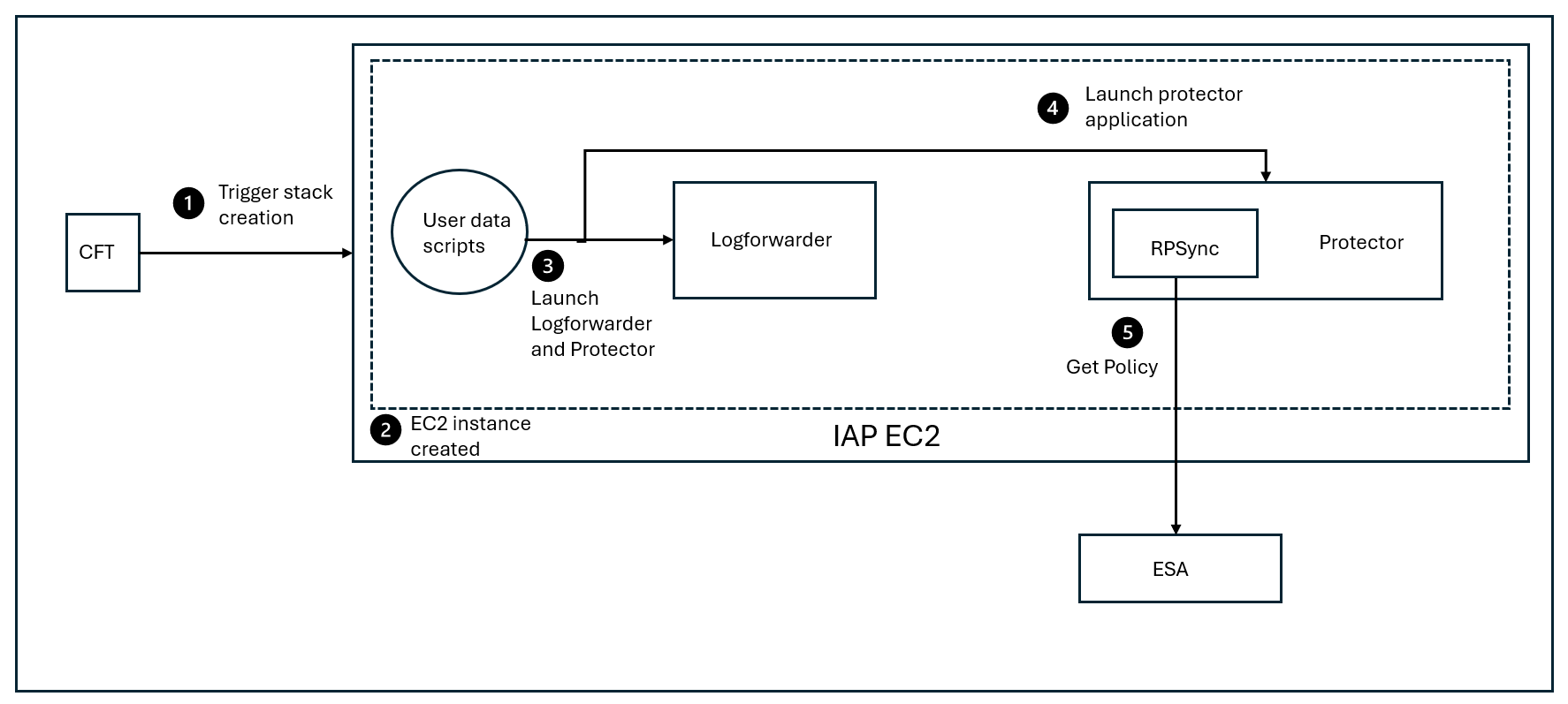
Deployment Steps:
Trigger the stack creation using the CloudFormation template.
The AWS EC2 instance is created.
Launch the Log Forwarder and the AWS EC2 protector using the user data scripts.
Start the AWS EC2 protector.
At periodic intervals, the RPSync component tries to pull the new policy package from the ESA.
2 - System Requirements
Overview of the system requirements.
This section provides an overview of the software and hardware requirements needed for deploying the Protegrity AWS EC2 Protector.
Software Requirements
Ensure that the following prerequisites are met for deploying the Protegrity AWS EC2 Protector package ApplicationProtector_Linux-64_x86-64_AWS.EC2.JRE-<JRE_Version>_<Version>.tgz.
ESA prerequisites
Policy: Ensure that you have defined the security policy in the ESA.
For more information about defining a security policy, refer to the section Policy Management.
Datastore: Attach the policy to a datastore in the ESA or to a range of allowed servers that are added to a datastore.
The IP address range of the allowed servers must be the same as that of the EC2 instance on which the CloudFormation template is deployed.
For more information about datastores, refer to the section Data Stores.
Trusted Application: Created a Trusted Application with the name as com.protegrity.sample.apjavarest.APJavaSpringApp and username as ptyitusr.
For more information about setting up a Trusted Application, refer to the section Trusted Applications.
User application: For example, Banking application, which contains the customer data that you want to protect using the Application Protector Java.
Non-admin ESA user: Create a non-admin ESA user that will be used by the CloudFormation Template to retrieve the security policy and the certificates from the ESA. Ensure that the user is assigned the Export Certificates and the Appliance CLI Viewer roles.
For more information about assigning roles, refer to the section Managing Roles.
Linux Instance Configuration
The following prerequisites are required for installing the Sample Application:
Linux instance - This instance can be used to communicate with the AWS EC2 Auto Scaling Group. This instance can be on-premise or on AWS.
EC2 Linux instance - This instance is used to create the AMI by integrating the Sample Application with the Application Protector Java.
You can choose to create a custom AMI by integrating your own application with the Application Protector Java.
Important: Ensure that the EC2 instance is created using a valid volume type. For example, GP3.
Sample Application Configuration
Install Maven version 3.9.6, or later, on the EC2 Linux instance on which you are creating the JAR file for the Sample Application.
For more information about installing Maven, refer to the Apache Maven documentation.
Install OpenJDK 1.8 on the EC2 Linux instance on which you are creating the JAR file for the Sample Application..
For more information about installing OpenJDK, refer to the OpenJDK documentation.
If you are using a custom image for the EC2 instance, then install the cloud-init library to initialize the instance.
For more information about the cloud-init library, refer to the cloud-init documentation.
Cloud or AWS prerequisites
You need access to an AWS account. You also need access to the following AWS resources.
AWS S3 buckets for uploading the logs.
Permissions to create a bucket in AWS S3.
Permission to deploy and manage CloudFormation Templates.
Instance Profile - This IAM role is attached to both EC2 instances that are launched using the CloudFormation template. This role requires that the EC2 instance must have read and write access to AWS S3.
For more information adding an IAM role to the instance profile, refer to the add-role-to-instance-profile command in the AWS CLI Command Reference documentation.
IAM User - The IAM User needs to upload the server certificates to the AWS Identity and Access Management (IAM). This is required if you are using TLS authentication between the client application and the AWS Load Balancer. This user requires the UploadServerCertificate permission.
For more information about creating an IAM user, refer to Creating an IAM User in Your AWS Account in the AWS documentation. Contact your system administrator for creating the IAM users.
For more information about the UploadServerCertificate permissions, refer to the section UploadServerCertificate in the AWS documentation.
In this reference implementation, the server certificates have been uploaded to the IAM service. However, you can also choose to upload the certificates to the AWS Certificate Manager.
For more information about uploading certificates to the IAM, refer to the section Managing Server Certificates in IAM.
For more information about uploading certificates to the AWS Certificate Manager, refer to the AWS Certificate Manager User Guide.
Hardware Requirements
The following table lists the minimum hardware configurations.
| Hardware Components | Configuration |
|---|
| CPU | Depends on the application. |
| Disk Space | Under 400 MB - including LogForwarder, RPSync, and AP Java. |
| RAM | For more information about memory usage, refer to AP Java. |
| EC2 instance | Depends on the CPU and memory usage.
The minimum instance type required for running the Protegrity AWS EC2 Protector is t2.micro instance type. |
3 - Preparing the Environment
Preparing the environment for deploying the protector.
This section provides an overview of the steps required to prepare the environment for deploying the Protegrity AWS EC2 Protector product.
3.1 - Initializing the Jump Box
Initialize the Linux instance.
The Linux instance should be connected to the AWS EC2 cluster. The following is the minimum system requirements to be configured for a Linux instance.
3.2 - Extracting the Installation Package
Extract the Linux installation package.
This section describes the steps to download and extract the installation package for the Protegrity AWS EC2 Protector.
To download the installation package:
Download the ApplicationProtector_Linux-64_x86-64_AWS.EC2.JRE-<JRE_Version>_<Version>.tgz file on the Linux instance.
Run the following command to extract the files from the ApplicationProtector_Linux-64_x86-64_AWS.EC2.JRE-<JRE_Version>_<Version>.tgz file.
tar -xvf ApplicationProtector_Linux-64_x86-64_AWS.EC2.JRE-<JRE_Version>_<Version>.tgz
The following files are extracted:
- ASG-APJAVA-RPSYNC-EC2-CFT_AWS_<Build_version>.json: AWS CloudFormation template used to launch an EC2 instance. This instance is used to run the script for fetching the ESA policy.
- ApplicationProtector-SAMPLE-APP_SRC_<Build_version>.tgz: Package containing the sample application that should be deployed on the AWS EC2 instance.
- APJAVA-RPSYNC-USERDATA-SCRIPTS_EC2_AWS_<Build_version>.tgz: Sample user data script that you can specify in the
UserData property of the CloudFormation template. This script contains the bash commands to launch an EC2 instance. - RPSyncConfig_Linux-ALL-64_x86-64_JRE-_<Build_version>.tgz: Contains the RPSync configuration file and the script for setting up the certificates between the protector and the ESA.
- ApplicationProtector_Linux-ALL-64_x86-64_JRE-_<Build_version>.tgz: AP Java installation package.
3.3 - Creating a JAR for the Sample Application
Create JAR file for the Sample Application.
This section describes the typical steps required to create a JAR file for the Sample Application.
Ensure that Maven 3.6 or later and Open JDK 1.8 are installed on the machine on which you are creating the JAR file.
To create a JAR file for the Sample Application:
Extract the installation package.
For more information about extract the installation package, refer to the section Extracting the Linux Installation Package.
Run the following command to extract the files from the ApplicationProtector-SAMPLE-APP_SRC_<Build_version>.tgz file to a directory.
tar -xvf ApplicationProtector-SAMPLE-APP\_SRC\_<Build\_version>.tgz -C <dir>
Switch to the directory where you have extracted the ApplicationProtector-SAMPLE-APP_SRC_<Build_version>.tgz package.
Execute the following command in the directory.
mvn clean install
The apjava-springboot-0.1.0.jar file appears in the ./target directory.
You need to copy the apjava-springboot-0.1.0.jar file to the /opt/protegrity directory in step 7 of the section Creating a Linux AMI for the Sample Application.
3.4 - Creating a Linux AMI for the Sample Application
Create a Linux AMI for the Sample Application.
This section describes the typical steps required to create a Linux AMI for the Sample Application. This AMI is then used to deploy the Sample Application on the EC2 Auto Scaling Group.
Important: The Sample Application is used for demonstrating how the Application Protector Java can be set up with an application, which in this case is a Spring Boot application. You can choose to create a custom AMI by integrating your custom application with the Application Protector Java libraries.
Important: Red Hat Linux and Amazon Linux instances are supported, because the user data scripts in the CloudFormation template use yum as the package manager. If you want to use a different distribution of Linux, then ensure that you modify the UserData section in the CloudFormation template to use another package manager that is compatible with the specific distribution.
To create a Linux AMI:
Create an EC2 Linux instance and ensure that you have installed the latest version of Java on the Linux instance.
Ensure that yum is the default package manager for the EC2 instance.
For more information about how to create an EC2 Linux instance on AWS, refer to the section Getting Started with Amazon EC2 Linux Instances.
Connect to your EC2 Linux instance using SSH.
For more information about how to connect to an EC2 Linux instance using SSH, refer to the section Connecting to Your Linux Instance Using SSH.
Switch to the root user using the following command.
sudo su
Run the following command to create the directory structure.
mkdir -p /opt/protegrity/app
Run the following command to add a new user.
useradd -ms /bin/bash ptyitusr
Navigate to the protegrity directory by running the following command.
cd /opt/protegrity
Copy the apjava-springboot-0.1.0.jar file from step 4 of the section Creating a JAR File for the Sample Application to the /opt/protegrity directory.
Copy the ApplicationProtector_Linux-ALL-64_x86-64_JRE-_<Build_version>.tgz file from step 2 of the section Extracting the Linux Installation Package to the /opt/protegrity directory.
Run the following command to setup and install the Sample Application.
# Install the Sample Application
cp apjava-springboot-0.1.0.jar app.jar
jar -xf app.jar && \
mv BOOT-INF/lib app/lib && \
mv META-INF app/META-INF && \
mv BOOT-INF/classes/* app && \
rm -rf app/lib/ApplicationProtectorJava.jar app/lib/jna*4.1.0.jar app/ApplicationProtectorJava.properties BOOT-INF app.jar org
Run the following command to change the owner of the the /opt/protegrity directory to the ptyitusr user.
chown -R ptyitusr:ptyitusr /opt/protegrity
Perform the following steps to create an AMI from the running EC2 instance.
Navigate to the Instances screen in the AWS Management Console.
Right-click your running EC2 instance, and then click Image > Create Image.
The Create Image screen appears.
Enter the required details in the Create Image screen.
Click Create Image.
For more information about creating an AMI from a running EC2 instance, refer to the section Create an AMI from an Amazon EC2 Instance.
3.5 - Creating Certificates and Keys for TLS Authentication
Create certificates and keys for establishing a secure communication between the client and the load balancer.
If you already have a server certificate that has been signed by a trusted third-party Certificate Authority (CA), then you do not need create a self-signed server and client certificate.
Ensure that OpenSSL is installed on the Linux instance to create the required certificates.
To create the certificates and keys:
On the Linux instance, run the following command to create a CA certificate and a private key for the certificate.
openssl req -x509 -sha256 -newkey rsa:2048 -keyout iap-ca.key -out iap-ca.crt -days 356 -nodes -subj '/CN=IAP Certificate Authority'
Note: If you already have a CA certificate and a private key, then you can skip this step.
On the Linux instance, create a server certificate and a private key that have been signed using the private key of the CA created in step 1.
openssl req -new -newkey rsa:2048 -keyout iap-wildcard.key -out iap-wildcard.csr -nodes -subj '/CN=*.example.com'
openssl x509 -req -sha256 -days 365 -in iap-wildcard.csr -CA iap-ca.crt -CAkey iap-ca.key -set_serial 04 -out iap-wildcard.crt
Ensure that you specify a wildcard character as the subdomain name in the Common Name (CN) of the server certificate. This ensures that the same server certificate is valid for all the subdomains of the given domain name.
For example, consider that you have separate hostnames for the production and staging environments, prod.example.com and staging.example.com. By specifying a wildcard character in the Common Name of the server certificate, you can use the same server certificate to authenticate prod.example.com and staging.example.com.
Copy all the certificates to a common directory.
For example, create a directory named iap-certs and copy all the certificates that have been created to this directory.
3.6 - Uploading the Server Certificates to the AWS Identity and Access Management
Upload server certificates to the AWS IAM service.
This section describes the typical steps required to upload the server certificates that you have created in the section Creating Certificates and Keys for TLS Authentication to the AWS IAM service.
To upload the server certificate, takes a single command. On the Linux instance, run the following command to upload the server certificate to the AWS IAM service.
aws iam upload-server-certificate --server-certificate-name CertificateName --certificate-body file://path/to/server-certs --certificate-chain file://path/to/ca-certs --private-key file://path/to/server-key
For example:
aws iam upload-server-certificate --server-certificate-name CertificateName --certificate-body file://path/to/iap-wildcard.crt --certificate-chain file://path/to/iap-ca.crt --private-key file://path/to/iap-wildcard.key
The command returns the metadata of the uploaded certificate as an output. The metadata contains the Amazon Resource Name (ARN) for the certificate. You must specify this ARN in the SSLCertificate parameter of the CloudFormation template that you use to create the Auto Scaling Group.
For more information about uploading a server certificate to the AWS IAM, refer to the section Uploading a Server Certificate (AWS API).
For more information about the upload-server-certificate command, refer to the section upload-server-certificate in the AWS CLI Command Reference documentation.
3.7 - Uploading the RPSyncConfig Package to the AWS S3 Bucket
Upload the RPSyncConfig package to the AWS S3 bucket.
The RPSyncConfig package contains the configuration file for configuring the Application Protector Java. It also contains the certificates required to communicate between the ESA and the protector.
To upload the RPSyncConfig package:
Navigate to the location where you have extracted the installation package for the AWS EC2 Protector.
For more information about the extracted installation package, refer to the section Extracting the Installation Package.
Upload the RPSyncConfig_Linux-ALL-64_x86-64_JRE-_<Build_version>.tgz: package to the AWS S3 bucket that you have created in the section Creating an AWS S3 Bucket.
3.8 - Preparing the AWS Requirements
Overview of preparing the AWS requirements.
This section describes how to prepare the AWS runtime environment.
Prerequisites
Before creating the runtime environment on AWS, ensure that you have a valid AWS account and the following information:
- Login URL for the AWS account
- Authentication credentials for the AWS account
Audience
It is recommended that you have working knowledge of AWS and knowledge of the following concepts:
- Introduction to AWS S3
- Introduction to AWS Cloud Security
Creating an AWS S3 Bucket
To create an AWS S3 bucket:
- Login to the AWS environment.
Navigate to Services.
A list of AWS services appears.
In Storage, click S3.
The S3 buckets screen appears.
Click Create bucket.
The Create bucket screen appears.
In the General configuration screen, specify the following details.
In the Bucket name field, enter a unique name for the bucket.
In the AWS Region field, choose the same region in which you want to create your EC2 instance.
If you want to configure your bucket or set any specific permissions, then you can specify the required values in the remaining sections of the screen. Otherwise, you can go directly to the next step to create a bucket.
Click Create bucket.
The bucket is created.
4 - Installing the Protector
Deploying the CloudFormation template.
This section provides an overview of the steps required to install the Protegrity AWS EC2 Protector by deploying the CloudFormation template.
To deploy the CloudFormation template:
Log in to the AWS environment.
Navigate to Services.
A list of AWS services appears.
Navigate to CloudFormation > Stacks.
The Stacks screen appears.
Click Create Stack.
A drop-down list appears that prompts you to create a stack with new resources or existing resources.
Select the option With new resources (standard).
The Create stack screen appears.
In the Specify template section, click Choose file.
Navigate to the location where you have extracted the CloudFormation template ASG-APJAVA-RPSYNC-EC2-CFT_AWS_<Build_version>.json, select the template, and then click Open.
The Specify stack details screen appears.
In the Stack Name field, type a name for the stack that you want to create.
Enter the following stack parameters.
| Parameters | Description |
|---|
| Stack name | Name of the CloudFormation stack. |
| AmiId | ID of the AMI that you want to use to launch the EC2 instance.
By default, the ID of the Amazon Linux 2 AMI is specified. You can use a different AMI.
Important: Red Hat Linux and Amazon Linux instances are supported, because the user data scripts in the CloudFormation template use yum as the package manager. If you want to use a different distribution of Linux, then ensure that you modify the UserData section in the CloudFormation template to use another package manager that is compatible with the specific distribution. |
| Instance Type | Type of the AWS EC2 instance that you want to launch using the CloudFormation template.
For example, t3.medium. |
| Instance Profile | Name of the Instance Profile to be attached to the EC2 instance that you want to create using the CloudFormation template. The Instance Profile must have read access to AWS S3. |
| VpcId | The virtual private cloud in which you want to launch your EC2 instance. |
| SubnetId | The subnet in which you want to launch your EC2 instance. |
| SecurityGroups | The security group in your Virtual Private Cloud (VPC) in which you want to launch your EC2 instance. |
| Key Pair Name | Name of the EC2 Key Pair that enables you to access the EC2 instance using SSH. |
| Desired instance count | Desired number of nodes in the AutoScaling Group. |
| Certificate for SSL termination | ARN of the SSL certificate ARN to terminate the SSL on Load balancer. This is the same server certificate that you have uploaded in the section Uploading the Server Certificates to the AWS Identity and Access Management. |
| BucketPath | Path in S3 bucket where the RPSyncConfig package is uploaded and the log file will be uploaded. |
| StartCommand | Command used to start the application that is integrated with the Application Protector Java.
You also need to redirect the output logs to the /opt/protegrity/$applog file, as shown in the following snippet.
[application startup command]»/opt/protegrity/$applog
The $applog variable refers to the ip-<EC2 IP address>-appLog file, which stores the application logs.
If you are using the Sample Application that is provided by Protegrity, then ensure that you leave this field as blank. |
| ESA host/ip | IP address of the ESA from where you want to fetch the policy. |
| ESA admin User | Name of the ESA user that is used to login to the ESA for fetching the policy. |
| ESA admin Password | Password of the ESA user that is used to login to the ESA for fetching the policy. |
- Click Next.
The Configure stack options screen appears.
- Click Next.
The Review and create screen appears.
- Verify all the parameters, and then click Submit.
The Events tab for the selected stack appears. It displays the status of the stack that you have created. The default status is CREATE_IN_PROGRESS.
Click the Refresh icon to check whether the status is refreshed.
After the stack is created, the status changes to CREATE_COMPLETE.
In addition, a directory /log/ is created in the AWS S3 bucket. This directory contains the user data logs, which are a result of executing the user data scripts in the CloudFormation template. The logs are generated in the /log/ directory in both success and failure scenarios.
You can use the logs in the AWS S3 bucket to troubleshoot any issue. If the logs are not available, then you can connect to the EC2 instance to troubleshoot the issue.
If the EC2 instance is created and the /log/ directory is not created in the AWS S3 bucket, then you can troubleshoot the issue by performing the following steps.
Connect to the EC2 instance using the key pair that you have created.
Navigate to the /opt/protegrity directory to access the user data logs.
The user data logs are included in the $(StackName)-UserDataLog file. StackName is the name of the stack that you have provided in the CloudFormation template parameters while launching the EC2 instance.
- Navigate to the /var/lib/cloud/instance/scripts/part-001 directory to view the user data script.
You can view the contents of the script or execute the script using root user permissions for troubleshooting the issue.
5 - Running Security Operations
Describes how to run the security operations using the EC2 instances.
This section describes how you can use the Sample Application instances running on the Auto Scaling Group on the EC2 instance to protect the data that is sent by a REST API client.
To run security operations:
If you are not using TLS authentication between the Sample Application instance and the REST API client, then send the following cURL request from the Linux instance:
curl <DNS name or IP address of the AWS Load Balancer>/protect -H 'Content-Type: application/json' --data-raw '{"dataElement": "Alpha", "policyUser": "user1", "input": ["protegrity1234", "helloworld"]}'
The Sample Application instance internally sends this request to the Application Protector Java and returns the protected value.
If you want to unprotect the data, then you can run the following command:
curl <Host name of the AWS Load Balancer>/unprotect -H 'Content-Type: application/json' --data-raw '{"dataElement": "Alpha", "policyUser": "user1", "input": [ "iaDDNBdH6EI8U", "9jB7cRSuk98B" ] }'
If you want to reprotect the data, then you can run the following command:
curl <Host name of the AWS Load Balancer>/reprotect -H 'Content-Type: application/json' --data-raw '{ "dataElement": "Alphanum", "newDataElement": "Alphanum1", "policyUser": "user1", "input": [ "iaDDNBdH6EI8U", "9jB7cRSuk98B" ] }'
For more information about the AP Java APIs, refer to the following section Application Protector Java APIs.
For more information about the AP Java API return codes, refer to the section Application Protector API Return Codes.
Access the audit logs from the Insights Dashboard.
For more information about accessing the audit logs, refer to the section Working with Discover.
6 - Upgrading the Protector from Version 9.x to 10.x
Explains how to upgrade the protector from version 9.x to 10.x.
This section explains the steps and procedure to upgrade the AWS EC2 protector from version 9.x to 10.x. This method is used for a major release upgrade. For example, this upgrade procedure is used in case of architectural changes.
Upgrade Approach
The 9.x and 10.x versions include different components and resource requirements as part of the deployment. As a result, the approach uses the following steps:
- Create a 10.x setup in a different Auto Scaling Group.
- Run test traffic to the 10.x setup to verify that the security operations are working.
- Stop the traffic to the 9.x setup and make changes to point the traffic to the 10.x setup.
- Switch the production traffic from the 9.x deployment to the 10.x deployment.
Before you begin
- Ensure that you have access to the EC2 instance with appropriate permissions. For more information about the required permissions, refer to the section Software Requirements.
- Ensure that the required security policy is available on the 10.x ESA.
Upgrading the Protector
Perform the following steps to upgrade the protector from 9.x to 10.x.
Install the 10.x AWS EC2 protector.
For more information about installing the protector, refer to the section Installing the Protector.
Run test protect and unprotect operations and verify functionality.
For more information about running security operations, refer to the section Running Security Operations.
Validate the Audit logs on the ESA.
a. Login to ESA and navigate to Audit Store > Dashboard.
b. Navigate to Logs > Eventexplorer.
c. Change the logs search to DQL.
d. Refresh the page to sync up the logs.
e. Verify that the logs for the security operations performed in step 10 are displayed.
If the 10.x deployment is working, then switch the production traffic to 10.x and monitor the traffic and auto scaling instance. If everything is working, then bring down the 9.x deployment by deleting the 9.x CloudFormation templates.
Rolling Back the Upgrade Procedure
Perform the following steps to roll back any failed upgrade procedure:
Ensure the 9.x deployment is running succesfully.
Ensure that the IP address of the 9.x service is updated in the hosts file or the Client configuration and switch traffic back to 9.x.
Delete the failing 10.x deployment by deleting the CloudFormation stack.
7 - Upgrading the Protector from Version 10.x to 10.y
Explains how to perform rolling upgrades and roll backs for the AWS EC2 protector.
This section explains the steps and procedure for performing a rolling upgrade and roll back for AWS EC2 protector. This method is useful for maintenance releases such as bug fixes and CVE updates. In this method, the protector is upgraded from version 10.x to version 10.y.
Before you begin
- Ensure that you have access to the EC2 instance with appropriate permissions. For more information about the required permissions, refer to the section Software Requirements.
- Ensure that the required security policy is available on the 10.y ESA.
Upgrading the Protector
Perform the following steps to upgrade the protector from 10.x to 10.y.
Install the 10.y AWS EC2 protector.
For more information about installing the protector, refer to the section Installing the Protector.
Run test protect and unprotect operations and verify functionality.
For more information about running security operations, refer to the section Running Security Operations.
Validate the Audit logs on the ESA.
a. Login to ESA and navigate to Audit Store > Dashboard.
b. Navigate to Logs > Eventexplorer.
c. Change the logs search to DQL.
d. Refresh the page to sync up the logs.
e. Verify that the logs for the security operations performed in step 10 are displayed.
If the 10.y deployment is working, then switch the production traffic to 10.y and monitor the traffic and auto scaling instance. If everything is working, then bring down the 10.x deployment by deleting the 10.x CloudFormation templates.
Rolling Back the Upgrade Procedure
Perform the following steps to roll back any failed upgrade procedure:
Ensure the 10.x deployment is running succesfully.
Ensure that the IP address of the 10.x service is updated in the hosts file or the Client configuration and switch traffic back to 10.x.
Delete the failing 10.y deployment by deleting the CloudFormation stack.