Amazon Elastic MapReduce Protector
Amazon EMR Protector
The Big Data Protector on Amazon Elastic MapReduce (EMR) is a cloud-based protector that allows users to process data efficiently. The EMR cluster is a collection of Amazon EC2 instances that collaborate to process data using popular Big Data frameworks, such as, Apache Hadoop, Apache Spark, Apache HBase, and others.
The Big Data Protector on EMR utilizes the following components to process and protect data:
- HBase
- Pig
- MapReduce
- Hive
- Spark
- SparkSQL
1 - Understanding the architecture
The architecture for the protector.
1.1 - Bootstrap installer architecture
Understanding the architecture for the bootstrap installer
The architecture for the EMR distribution of the Big Data Protector is depicted in the image below.
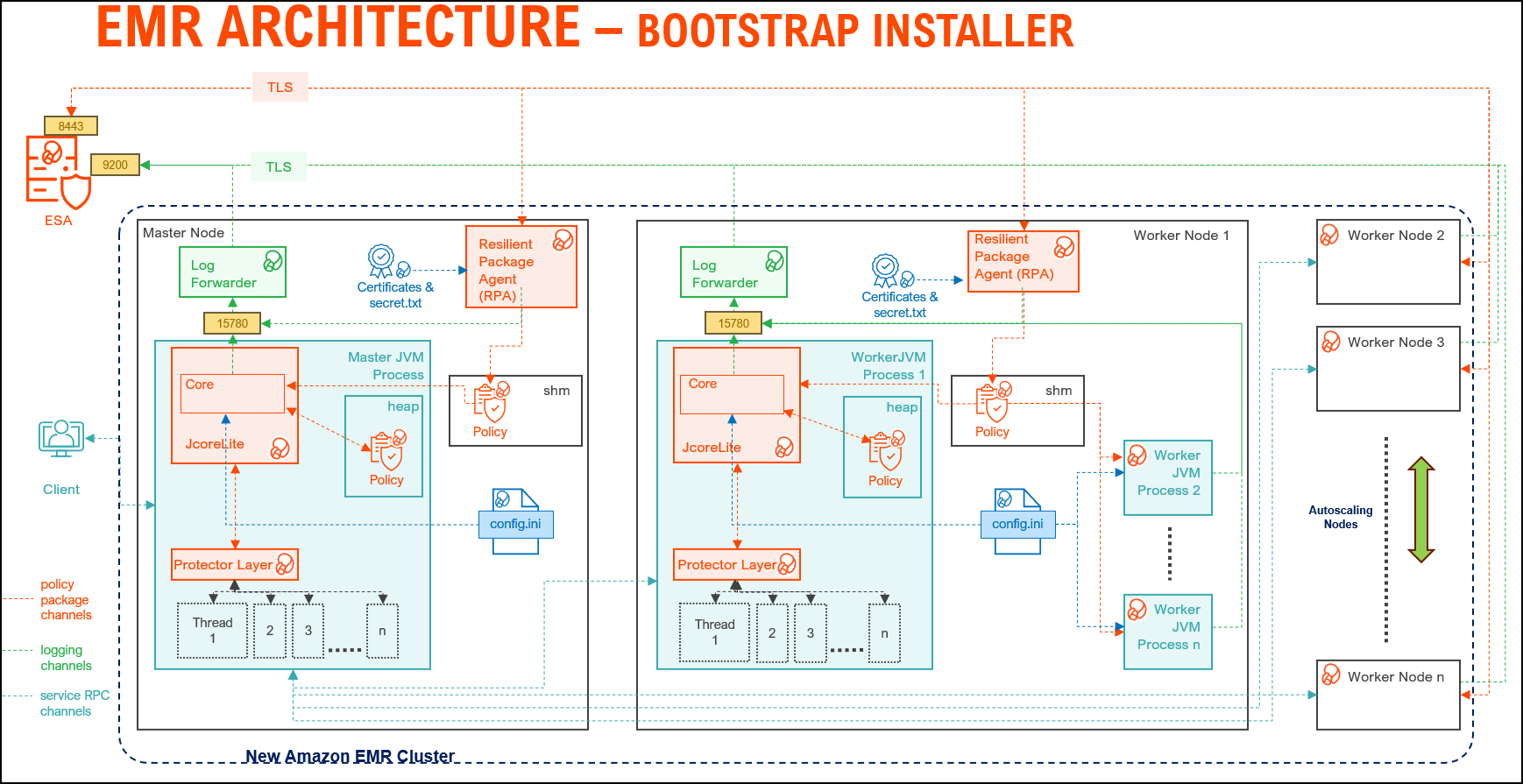
| Component | Description |
|---|
| RPAgent | A daemon running on each node that downloads the package from ESA/PPC over a TLS channel using the installed Certificates. |
| Log Forwarder | A daemon running on each node that routes the audit logs and application logs to ESA/Audit Store. |
| config.ini | A file on each node containing the set of configuration parameters to modify the protector behavior. |
| BDP Layer | Contains the Big Data Protector UDFs and APIs executing in CDP service processes. |
| JcoreLite | The JNI library that provides a Java API layer to the Core libraries. |
| Core | The set of various libraries that provide the Protegrity Core functionality. |
1.2 - Static installer architecture
Understanding the architecture for the static installer
The architecture for the EMR distribution of the Big Data Protector is depicted in the image below.
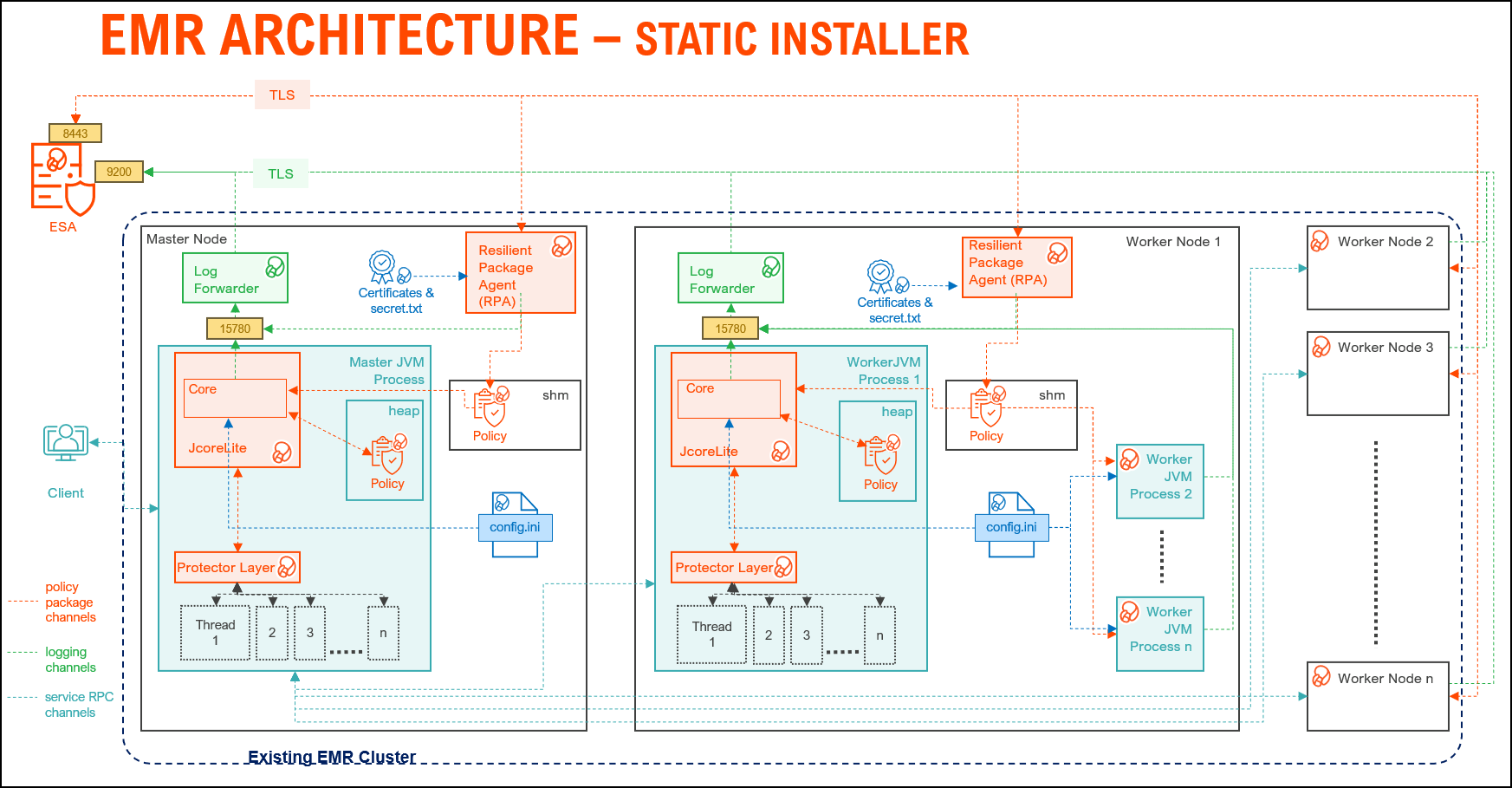
| Component | Description |
|---|
| RPAgent | A daemon running on each node that downloads the package from the ESA/PPC over a TLS channel using the installed Certificates. |
| Log Forwarder | A daemon running on each node that routes the audit logs and application logs to the ESA/Audit Store. |
| config.ini | A file on each node containing the set of configuration parameters to modify the protector behavior. |
| BDP Layer | Contains the Big Data Protector UDFs and APIs executing in CDP service processes. |
| JcoreLite | The JNI library that provides a Java API layer to the Core libraries. |
| Core | The set of various libraries that provide the Protegrity Core functionality. |
1.3 - EMR Serverless architecture
Understanding the architecture for the EMR Serverless installer
Amazon EMR Serverless is a modern, on-demand data processing architecture designed to eliminate the complexity of managing clusters for big data workloads. Unlike traditional EMR deployments, EMR Serverless dynamically provisions compute resources based on job requirements, enabling cost efficiency and scalability without manual intervention.
At its core, the architecture for EMR Serverless leverages containerized executors to run Spark or Hive applications in an isolated, secure environment. These containers are orchestrated by AWS, ensuring optimal resource utilization and fault tolerance. The design supports Protegrity data protection integration, making it suitable for enterprise-grade deployments where compliance and security are critical.
Key components include:
- Serverless Runtime: Supports Spark and Hive for analytics and ETL.
- Dynamic Scaling: Automatically adjusts resources to workload demands.
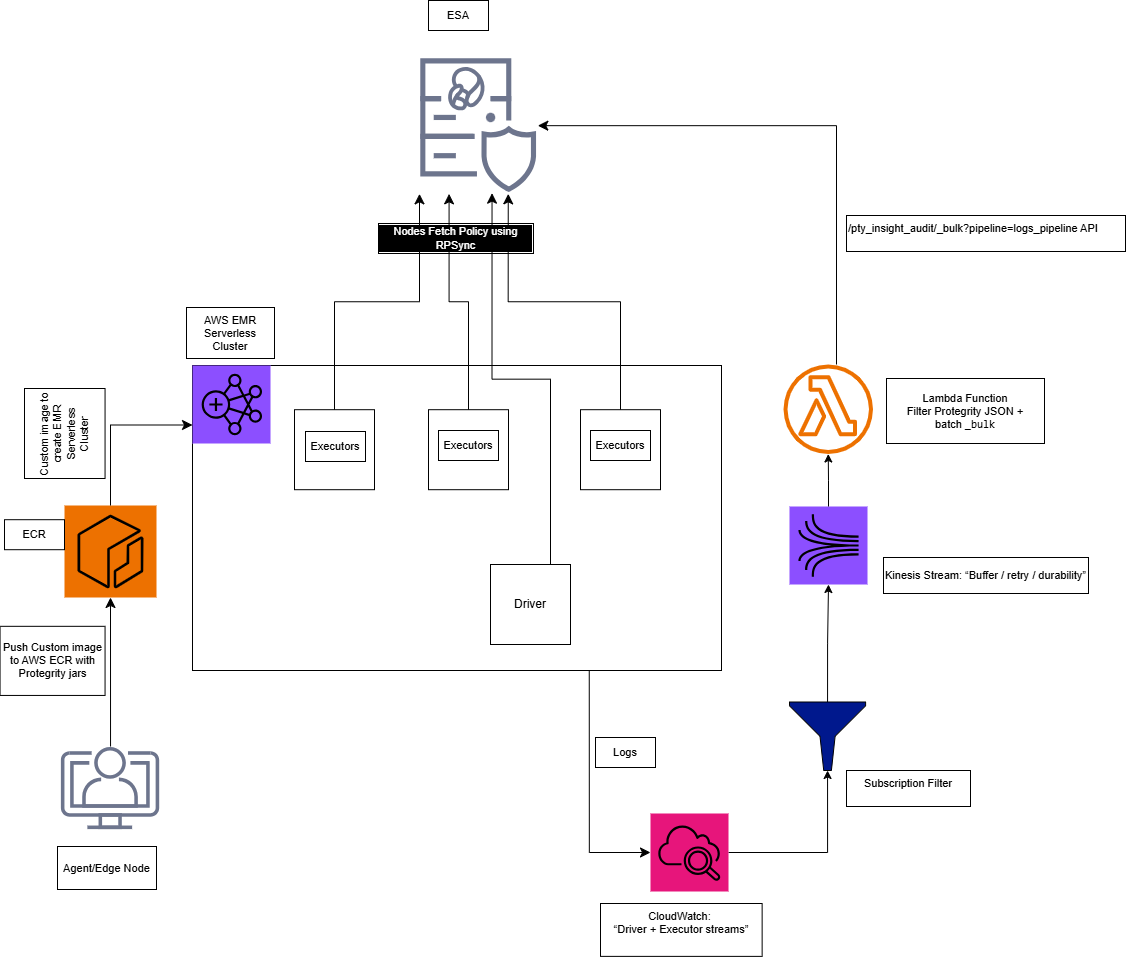
- Logging and Monitoring: Driver and executor logs are streamed to CloudWatch, with optional forwarding to external systems via Kinesis and Lambda for near real-time insights.
- Deployment Workflow: Applications are packaged as Docker images, stored in AWS ECR, and executed in EMR Serverless environments for consistent and reproducible runs.
The architecture for the EMR Serverless distribution of the Big Data Protector is depicted in the image below.
The overall process of installing the Big Data Protector in the EMR Serverless environment is outlined below.
Step 1: Executing the Configurator Script
- Interactive prompt collects all the configuration parameters.
- Input: ESA host/ports, AWS account/region, EMR Serverless application type, and ECR repository names.
- Output:
Installation_Files/ directory with config.json and all the required files. - Files created:
config.json, copied JARs, scripts, and the certificate scripts.
Note: For more information, refer to Executing the Configurator Script.
Step 2: Deploying the BDP Image
python3 emr_serverless_setup_cli.py --config ../config.json deploy
Note: For more information, refer to EMR Serverless Setup CLI
Substep: Validating the Prerequisites
The script:
- Checks Docker, AWS CLI, credentials
- Verifies ECR repository exists
- Confirms all source files present
Substep: Preparing the Assets
The script:
- Reads
config.json and config.ini.template - Generates
config.ini with:- [sync] section: ESA policy server connection (host:8443)
- [log] section: output=stdout
- Updates the
GetCertificates.sh script with ESA host/port
Note: After preparing the assets, if required, modify the config.ini file as per requirements.
Substep: Generating the Dockerfile
The script:
- Generates the Dockerfile using the values from the
config.json file.
Note: After generating the dockerfile, if needed, modify the dockerfile as per requirements.
Substep: Building the Docker Image
The script:
- Prompts for ESA credentials (username/password or JWT token)
- Downloads the certificates from ESA:8443
- Builds the Docker image
Step 3: Pushing the Image to ECR
The script:
- Logs in to ECR using AWS CLI
- Pushes image to ECR repository
The Big Data Protector build provides an automated script to execute the above-mentioned steps. For more information, refer EMR Serverless Setup CLI.
Understanding the Logging Architecture
- The driver/executor logs are written into the CloudWatch Log group.
- The CloudWatch Logs Subscription filter streams the matching log lines into Kinesis Data Streams.
- The Lambda function consumes the Kinesis batches, extracts only the Protegrity audit JSON lines, builds OpenSearch Bulk (_bulk) payload and invokes the ESA endpoint.
Note: For the CloudWatch subscription filter, provide a filter according to the type of logs that are generated.
Note: For more information, refer Setting up the Log Forwarder
2 - Preparing the environment
Completing the requirements for installing the protector.
2.1 - Setting up for the Bootstrap Installer
Prepare the system for using the Bootstrap Installer
The procedures mentioned in this section are applicable only for the Bootstrap installer approach to prepare the environment for the Big Data Protector.
2.1.1 - Verifying the prerequisites
Verify the Prerequisites for Installing the Big Data Protector using the Bootstrap Installer.
The content mentioned in this section is applicable only for the Bootstrap approach to install the Big Data Protector.
Ensure that the following prerequisites are met, before installing the Big Data Protector on an Amazon EMR cluster:
- It is recommended to be familiar with the following parts:
- The Amazon EMR environment
- Storage bucket, used to store the Big Data Protector installation files
- Bootstrap Action, used to invoke the installation of Big Data Protector
- Amazon Virtual Private Cloud (VPC)
- A ESA appliance v10.x.x or PPC is installed and running.
- A host machine on the x86-64 architecture is available to execute the configurator script.
- A host machine on the ARM64 architecture is available to execute the configurator script.
Note: The host machine on the ARM64 architecture is required to install the build on ARM64 architecture.
- EMR instance types supporting the Graviton architecture are available for the master, core, and task nodes. For example, m6g, r6g, or c6g.
- An S3 bucket is available to copy the Big Data Protector installation files, which are created using the Configurator script.
Note: For more information about creating an S3 bucket, refer to Create your first S3 bucket.
- The following table depicts the list of ports that are configured on ESA/PPC and the nodes in the cluster, which will run the Big Data Protector:
8443 | TCP | RPAgent on the Big Data Protector cluster node | ESA | The RPAgent communicates with ESA through port
8443 to download a Policy. |
9200 | Log Forwarder on the Big Data Protector cluster
node | Protegrity Audit Store appliance | The Log Forwarder sends all the logs to the Protegrity
Audit Store appliance through port
9200. |
15780 | Protector on the Big Data Protector cluster node | Log Forwarder on the Big Data Protector cluster
node | The Big Data Protector writes Audit Logs to localhost
through port 15780. The RPAgent
Application Logs are also written to localhost through port
15780. The Log Forwarder reads the logs from
that socket. |
25400 | Protector on the Big Data Protector cluster node | PPC | The RPAgent communicates with PPC through port
25400 to download a Policy. |
2.1.2 - Extracting the Big Data Protector Package
Extract the Files from the Installation Package for the EMR Bootstrap Installer.
The steps mentioned in this section are applicable only for the Bootstrap approach to install the Big Data Protector.
After receiving the Big Data Protector installation package from Protegrity, copy it to any Amazon EC2 instance or any node that
has connectivity to the ESA.
After downloading the Big Data Protector package, extract it to:
- Access the Configurator script and
- Install the Big Data Protector on all the nodes on an Amazon EMR cluster.
To extract the Configurator script from the installation package:
Log in to the CLI on a machine or an Amazon EC2 node that has connectivity to ESA/PPC.
Copy the Big Data Protector package to any directory.
For example, /opt/protegrity/.
BigDataProtector_Linux-ALL-64_x86-64_EMR-<EMR_version>-64_<BDP_version>.tgz
BigDataProtector_Linux-ALL-64_ARM64_EMR-<EMR_version>-64_<BDP_version>.tgz
To extract the contents of the package, run the following command:
tar -xvf BigDataProtector_Linux-ALL-64_x86-64_EMR-<EMR_version>-64_<BDP_version>.tgz
tar -xvf BigDataProtector_Linux-ALL-64_ARM64_EMR-<EMR_version>-64_<BDP_version>.tgz
Press ENTER.
The command extracts the installer package and the signature files.
BigDataProtector_Linux-ALL-64_x86-64_EMR-<EMR_version>-64_<BDP_version>.tgz
signatures/
signatures/BigDataProtector_Linux-ALL-64_x86-64_EMR-<EMR_version>-64_<release_version>.tgz_<BDP_version>.sig
BigDataProtector_Linux-ALL-64_ARM64_EMR-<EMR_version>-64_<BDP_version>.tgz
signatures/
signatures/BigDataProtector_Linux-ALL-64_ARM64_EMR-<EMR_version>-64_<release_version>.tgz_<BDP_version>.sig
Note: Verify the authenticity of the build using the signatures folder. For more information, refer to Verification of Signed Protector Build.
To extract the configurator script, run the following command:
tar –xvf BigDataProtector_Linux-ALL-64_x86-64_EMR-<EMR_version>-64_<BDP_version>.tgz
tar –xvf BigDataProtector_Linux-ALL-64_ARM64_EMR-<EMR_version>-64_<BDP_version>.tgz
Press ENTER.
The command extracts the configurator script.
BDP_Configurator_EMR-<EMR_version>_<BDP_version>.sh
2.1.3 - Executing the Configurator Script
Executing the Configurator Script
The steps mentioned in this section are applicable only for the Bootstrap approach to install the Big Data Protector.
Execute the configurator script to create the installation files for installing the Big Data Protector on an Amazon EMR
cluster. You can install the Big Data Protector on an Amazon EMR cluster in any one of the following methods:
- New EMR cluster: The configurator script will:
- Download the certificates and key encryption files from ESA/PPC.
- Create the Big Data Protector installation files for a new EMR cluster.
- Create the bootstrap installer and classpath configurator script for a new EMR cluster.
- Copy the Big Data Protector installation files, bootstrap installer, and the classpath configurator script to the S3 bucket.
- Existing EMR cluster: The configurator script will generate the installation package to install the Big Data Protector on an existing EMR cluster.
Before you begin
- Log in to the PPC staging instance through SSH.
- To extract the CA certificate, run the following command:
kubectl -n api-gateway get secret ingress-certificate-secret -o jsonpath='{.data.ca\.crt}' | base64 -d > /tmp/ProtegrityCA.pem
- Log in to the staging instance having connectivity to PPC.
- To create a folder inside the
/opt/ directory, run the following command: - To create a folder inside the
/opt/esa/ directory, run the following command: - To copy the CA certificate, run the following command:
scp <ppc-staging_instance>:/tmp/ProtegrityCA.pem /opt/esa/certs/ProtegrityCA.pem
- To validate the authenticity of the certificate, run the following command:
head -1 /opt/esa/certs/ProtegrityCA.pem
- Press ENTER.
The output of the command appears.
Note: Ensure the output starts with BEGIN CERTIFICATE, as listed below.
-----BEGIN CERTIFICATE-----
- To fetch the FQDN from the certificate’s SAN, run the following command:
openssl s_client -connect <ppc-ip>:<port> -servername <ppc-ip> </dev/null2> | openssl x509 -noout -ext subjectAltName
- To map the IP address with the FQDN in the
/etc/hosts file, run the following command:echo "<ppc-ip> <fqdn>" | sudo tee -a /etc/hosts
- Open the
ProtegrityCA.pem file. - Encode the
ProtegrityCA.pem with base64 (single line) and store that value. - To set the environment variable, run the following command:
export SSL_CERT_FILE=/opt/esa/certs/ProtegrityCA.pem
- To verify the changes, run the following command:
openssl s_client -connect <fqdn>:<port> -servername <fqdn> -CAfile "$SSL_CERT_FILE" </dev/null2> | grep "Verify return code"
Important:
- Use the
base64 -d encoded value for the certificate. Pasting the raw data returns the Certificate validation failed error message.
- Extract the certificates only during installation. A stale certificate returns the
Verify return code: 21 error message.
- Ensure the output of the command to verify the changes returns
0 (ok).
Execute the Configurator Script
Log in to the staging environment having connectivity to ESA/PPC.
Navigate to the directory that contains the BDP_Configurator_EMR-<EMR_version>_<BDP_version>.sh script.
To execute the configurator script, run the following command:
./BDP_Configurator_EMR-<EMR_version>_<BDP_version>.sh
Press ENTER.
The prompt to continue the installation of the Big Data Protector appears.
***********************************************************************
     Welcome to the Big Data Protector Configurator Wizard
***********************************************************************
This will create the Big Data Protector Installation files for AWS EMR.
Do you want to continue? [yes or no]:
To continue, type yes.
Press ENTER.
The prompt to create the Big Data Protector installation package, depending on the EMR cluster, appears.
Protegrity Big Data Protector Configurator started...

Enter the EMR cluster for which the Big Data Protector installation package needs to be created:
[ 1 ] : New EMR Cluster
[ 2 ] : Existing EMR cluster
[ 1 or 2 ]:
Depending on your requirement, select any one of the following options:
- To create the Big Data Protector installation package for a new EMR cluster, type
1. - To generate the Big Data Protector installation package, in a local directory, for an existing EMR cluster, type
2.
For more information about installing the Big Data Protector on an existing EMR cluster, refer Using the Static Installer.
To create the Big Data Protector installation package for a new EMR cluster, type 1.
Press ENTER.
The prompt to enter the S3 URI to upload the Big Data Protector installation files appears.
Generating Big Data Protector for a new EMR cluster......
Enter the S3 URI where the BDP Installation files are to be uploaded.
(E.g. s3://examplebucket/folder):
Type the path of the S3 storage bucket.
Note: Ensure that the path of the S3 storage bucket is in the following format:
s3://<bucket_name>/<folder_in_the_bucket>
Where,
- <bucket_name> - specifies the name of the storage bucket.
- <folder_in_the_bucket> - specifies the directory within the bucket.
Press ENTER.
The prompt to either upload the installation files to the S3 bucket or generate them locally appears.
Choose one option among the following for BDP Installation files:
[1] -> Upload files to 's3://<bucket_name>/<folder_in_the_bucket>' S3 URI.
[2] -> Generate files locally to current working directory. (You would have to manually upload the files to the specified S3 URI)
[ 1 or 2 ]:
To upload the installation files to the S3 storage bucket, type 1.
Press ENTER.
The prompt to select the type of AWS access key appears.
Choose the Type of AWS Access Keys from the following options:
[1] -> IAM User Access Keys (Permanent access key id & secret access key)
[2] -> Temporary Security Credentials (Temporary access key id, secret access key & session token)
[ 1 or 2 ]:
Depending on the type of AWS Access Keys you want to use, type 1 or 2. For example, to use the temporary security credentials, type 2.
Press ENTER.
The prompt to enter the access key ID appears.
Enter the access key ID.
Press ENTER.
The prompt to enter the secret access key appears.
Enter the Secret Access Key:
Enter the secret access key.
Press ENTER.
The prompt to enter the security session token appears.
Enter the Security Session Token:
Enter the Security Session Token.
Press ENTER.
The prompt to enter ESA hostname or IP address appears.
Enter the ESA Hostname/IP Address:
Enter ESA Hostname (FQDN, e.g. protegrity-esa.example.com):
Enter the hostname or the IP address of ESA.
Press ENTER.
The prompt to enter the listening port for ESA appears.
Enter ESA host listening port [8443]:
Using ESA_IP from environment: <ESA_IP_Address>
Enter ESA host listening port:
Enter the listening port for ESA.
Alternatively, to use the default listening port, press ENTER.
Press ENTER.
The prompt to enter the JWT token appears.
If you have an existing ESA JSON Web Token (JWT) with Export Certificates role, enter it otherwise enter 'no':
Enter the JWT token.
Press ENTER.
The prompt to select the audit store type appears.
Select the Audit Store type where Log Forwarder(s) should send logs to.

[ 1 ] : Protegrity Audit Store
[ 2 ] : External Audit Store
[ 3 ] : Protegrity Audit Store + External Audit Store

Enter the no.:
Depending on the Audit Store type, select any one of the following options:
| Option | Description |
|---|
1 | To use the default setting using the Protegrity Audit Store appliance, type 1. If you enter 1, then the default Fluent Bit configuration files are used, and Fluent Bit will forward the logs to the Protegrity Audit Store appliances. |
2 | To use an external audit store, type 2. If you enter 2, then the default Fluent Bit configuration files used for the External Audit Store are renamed. The out.conf and upstream.cfg files in the /opt/protegrity/fluent-bit/data/config.d/ directory are renamed to out.conf.bkp and upstream.cfg.bkp respectively. The renaming ensures these files will not be used by Fluent Bit. Additionally, the custom Fluent Bit configuration files for the external audit store are copied to the /opt/protegrity/fluent-bit/data/config.d/ directory. |
3 | To use a combination of the default setting with an external audit store, type 3. If you enter 3, then the default Fluent Bit configuration files used for the Protegrity Audit Store are not renamed. The out.conf and upstream.cfg files in the /opt/protegrity/fluent-bit/data/config.d/ directory retain the original name. However, the custom Fluent Bit configuration files for the external audit store are copied to the /opt/protegrity/fluent-bit/data/config.d/ directory. |
Press ENTER.
The prompt to enter the comma separated list of hostname or IP addresses appears.
Enter comma-separated list of Hostnames/IP Addresses and/or Ports of Protegrity Audit Store.
Allowed Syntax: hostname[:port][,hostname[:port],hostname[:port]...] (Default Value - <ESA_IP_Address>:9200)
Enter the list:
Enter the comma-separated IP addresses/ports in the correct syntax.
Press ENTER.
The prompt to enter the local directory path that stores the custom Fluent Bit configuration file appears.
Enter the local directory path on this node that stores the custom Fluent-Bit configuration files for External Audit Store:
Note: The configurator script will display this prompt only if you select option 2 or 3 in step 28. When you select option 2 or 3 in step 28, the custom configuration files are copied to the /<installation_directory>/fluent-bit/data/config.d/ directory during the execution of bootstrap script on the EMR nodes.
Enter the local directory path that stores the custom Fluent Bit configuration files.
Press ENTER.
The prompt to generate the application logs for the RPAgent appears.
Do you want RPAgent's log to be generated in a file? [yes or no]:
To generate the logs in a file, type yes.
Press ENTER.
The script generates the installation files and uploads them to the specified S3 bucket.
RPAgent's log will be generated in a file.
************************************************************************************
                    Welcome to the RPAgent Setup Wizard.
************************************************************************************

Unpacking...................
Extracting files...
Unpacked rpagent compressed file...
Temporarily setting up rpagent directory structure on current node...
Unpacking...
Extracting files...
Downloading certificates from <ESA_IP_Address>:8443...
% Total    % Received % Xferd  Average Speed   Time    Time     Time  Current
                                Dload  Upload   Total   Spent    Left  Speed
100 11264  100 11264    0     0   163k      0 --:--:-- --:--:-- --:--:--  164k

Extracting certificates...
Certificates successfully downloaded and stored in /<installation_dir>/rpagent/data

Protegrity RPAgent installed in /<installation_dir>/rpagent.


Retrieving the S3 bucket's AWS Region via AWS S3 REST API...
Successfully retrieved S3 bucket's AWS region: <AWS_region_name>


Started Uploading the generated installation files via AWS S3 REST API......

Uploading bdp_bootstrap_installer.sh to the S3 bucket.
File uploaded to s3://<bucket_name>/<folder_in_the_bucket>/bdp_bootstrap_installer.sh

Uploading bdp_classpath_configurator.py to the S3 bucket.
File uploaded to s3://<bucket_name>/<folder_in_the_bucket>/bdp_classpath_configurator.py

Uploading BigDataProtector_Linux-ALL-64_x86-64_EMR-7.9-64_<BDP_version>.tgz to the S3 bucket.
File uploaded to s3://<bucket_name>/<folder_in_the_bucket>/BigDataProtector_Linux-ALL-64_x86-64_EMR-<EMR_version>-64_<BDP_version>.tgz

Successfully Uploaded BigDataProtector_Linux-ALL-64_x86-64_EMR-<EMR_version>-64_<BDP_version>.tgz, bdp_bootstrap_installer.sh, bdp_classpath_configurator.py to S3 bucket 's3://<bucket_name>/<folder_in_the_bucket>'

Successfully Generated installation files at ./Installation_Files/ directory.

Successfully configured Big Data Protector for a new EMR cluster..
RPAgent's log will be generated in a file.
************************************************************************************
                    Welcome to the RPAgent Setup Wizard.
************************************************************************************

Unpacking...................
Extracting files...
Unpacked rpagent compressed file...
Temporarily setting up rpagent directory structure on current node...
Unpacking...
Extracting files...
Certificate validation successful.
Obtaining token from <ESA_FQDN>:8443...
Downloading certificates from <ESA_FQDN>:8443...
% Total    % Received % Xferd  Average Speed   Time    Time     Time  Current
                                Dload  Upload   Total   Spent    Left  Speed
100 11264  100 11264    0     0   163k      0 --:--:-- --:--:-- --:--:--  164k

Extracting certificates...
Certificates successfully downloaded and stored in /<installation_dir>/rpagent/data

Protegrity RPAgent installed in /<installation_dir>/rpagent.

Retrieving the S3 bucket's AWS Region via AWS S3 REST API...
Successfully retrieved S3 bucket's AWS region: <AWS_region_name>

Started Uploading the generated installation files via AWS S3 REST API......

Uploading bdp_bootstrap_installer.sh to the S3 bucket.
File uploaded to s3://<bucket_name>/<folder_in_the_bucket>/bdp_bootstrap_installer.sh

Uploading bdp_classpath_configurator.py to the S3 bucket.
File uploaded to s3://<bucket_name>/<folder_in_the_bucket>/bdp_classpath_configurator.py

Uploading BigDataProtector_Linux-ALL-64_ARM64_EMR-<EMR_version>-64_<BDP_version>.tgz to the S3 bucket.
File uploaded to s3://<bucket_name>/<folder_in_the_bucket>/BigDataProtector_Linux-ALL-64_ARM64_EMR-<EMR_version>-64_<BDP_version>.tgz

Successfully Uploaded BigDataProtector_Linux-ALL-64_ARM64_EMR-<EMR_version>-64_<BDP_version>.tgz, bdp_bootstrap_installer.sh, bdp_classpath_configurator.py to S3 bucket 's3://<bucket_name>/<folder_in_the_bucket>'

Successfully Generated installation files at ./Installation_Files/ directory.

Successfully configured Big Data Protector for a new EMR cluster..
2.2 - Setting up for the Static Installer
Prepare the system for using the Static Installer
The procedures mentioned in this section are applicable only for the Static installer approach to prepare the environment for the Big Data Protector.
2.2.1 - Verifying the prerequisites for Static Installer
Verify the Prerequisites for Installing the Big Data Protector using the Static Installer.
The content mentioned in this section is applicable only for the Static installer approach to install the Big Data Protector.
Ensure that the following prerequisites are met, before installing the Big Data Protector:
The EMR cluster is installed, configured, and running.
A ESA appliance v10.x.x or PPC is installed and running.
A host machine on the x86-64 architecture is available to execute the configurator script.
A host machine on the ARM64 architecture is available to execute the configurator script.
Note: The host machine on the ARM64 architecture is required to install the build on ARM64 architecture.
EMR instance types supporting the Graviton architecture are available for the master, core, and task nodes. For example, m6g, r6g, or c6g.
The static installer for EMR uses utilities, such as, pssh (parallel ssh) and pscp (parallel scp). These utilities require Python to
be installed on the Primary node. To verify whether Python is installed on the Primary node, run the following command:
/usr/bin/env python --version
The command returns the version of Python installed on the system.
If you are unable to detect Python on the Primary node, then ensure that you have a compatible version of Python installed on the lead node (preferably Python 3.x). Ensure that the utilities are able to detect the version of Python using the following command:
A sudoer user account with privileges to perform the following tasks:
- Update the system by modifying the configuration, permissions, or ownership of directories and files.
- Perform third party configuration.
- Create directories and files.
- Modify the permissions and ownership for the created directories and files.
- Set the required permissions to the create directories and files for the Protegrity Service Account.
- Permissions for using the SSH service.
The following user accounts are present to perform the required tasks:
ADMINISTRATOR_USER: The sudoer user account that is responsible for installing and uninstalling the Big Data Protector.
on the cluster. This user account must have sudo access to install the product.EXECUTOR_USER: A user that has ownership of all Protegrity files, directories, and services.OPERATOR_USER: Responsible for performing tasks, such as, starting or stopping tasks, monitoring services, updating the configuration, and maintaining the cluster while the Big Data Protector is installed. If you want to start, stop, or restart the Protegrity services, then you require sudoer privileges for this user to impersonate the EXECUTOR_USER.- Depending on the requirements, a single user on the system may perform multiple roles. If a single user is performing multiple roles, then ensure that the following conditions are met:
- The user has the required permissions and privileges to impersonate the other user accounts, for performing their roles, and perform tasks as the impersonated user.
- The user is assigned the highest set of privileges, from the required roles that it needs to perform, to execute the required tasks. For example, if a single user is performing tasks as
ADMINISTRATOR_USER, EXECUTOR_USER, and OPERATOR_USER,
then ensure that the user is assigned the privileges of the ADMINISTRATOR_USER.
A Private Key file (.pem file) is available for the sudoer user on the Master node. The file is used for enabling key-based authentication, and for communicating with all the nodes in the EMR cluster.
Ensure that the ADMINISTRATOR_USER or OPERATOR_USER have the value of the NOPASSWD parameter set to ALL in the sudoer’s file. This is required for installing and using Big Data Protector on the EMR cluster because a key-based authentication for the sudoer user is provided.
The management scripts provided by the installer in the cluster_utils directory should be run only by the user
(OPERATOR_USER) having privileges to impersonate the EXECUTOR_USER.
- If the value of
AUTOCREATE_PROTEGRITY_IT_USR is set to No, ensure a service group containing a user for running Protegrity services on all the cluster nodes already exists. - If the Hadoop cluster is configured with AD or LDAP, ensure that the
AUTOCREATE_PROTEGRITY_IT_USR parameter, in the BDP.config file, is set to No. Ensure the required service account user is created on all the nodes in the cluster.
The table lists the ports required for the EMR cluster.
8443 | TCP | RPAgent on the Big Data Protector cluster node | ESA | The RPAgent communicates with ESA through port
8443 to download a Policy. |
9200 | Log Forwarder on the Big Data Protector cluster
node | Protegrity Audit Store appliance | The Log Forwarder sends all the logs to the Protegrity
Audit Store appliance through port
9200. |
15780 | Protector on the Big Data Protector cluster node | Log Forwarder on the Big Data Protector cluster
node | The Big Data Protector writes Audit Logs to localhost
through port 15780. The RPAgent
Application Logs are also written to localhost through port
15780. The Log Forwarder reads the logs from
that socket. |
25400 | Protector on the Big Data Protector cluster node | PPC | The RPAgent communicates with PPC through port
25400 to download a Policy. |
2.2.2 - Executing the Configurator Script
Executing the Configurator Script for the Static Installer.
Before you begin
- Log in to the PPC staging instance through SSH.
- To extract the CA certificate, run the following command:
kubectl -n api-gateway get secret ingress-certificate-secret -o jsonpath='{.data.ca\.crt}' | base64 -d > /tmp/ProtegrityCA.pem
- Log in to the staging instance having connectivity to PPC.
- To create a folder inside the
/opt/ directory, run the following command: - To create a folder inside the
/opt/esa/ directory, run the following command: - To copy the CA certificate, run the following command:
scp <ppc-staging_instance>:/tmp/ProtegrityCA.pem /opt/esa/certs/ProtegrityCA.pem
- To validate the authenticity of the certificate, run the following command:
head -1 /opt/esa/certs/ProtegrityCA.pem
- Press ENTER.
The output of the command appears.
Note: Ensure the output starts with BEGIN CERTIFICATE, as listed below.
-----BEGIN CERTIFICATE-----
- To fetch the FQDN from the certificate’s SAN, run the following command:
openssl s_client -connect <ppc-ip>:<port> -servername <ppc-ip> </dev/null2> | openssl x509 -noout -ext subjectAltName
- To map the IP address with the FQDN in the
/etc/hosts file, run the following command:
echo "<ppc-ip> <fqdn>" | sudo tee -a /etc/hosts
- Open the
ProtegrityCA.pem file. - Encode the
ProtegrityCA.pem with base64 (single line) and store that value. - To set the environment variable, run the following command:
export SSL_CERT_FILE=/opt/esa/certs/ProtegrityCA.pem
- To verify the changes, run the following command:
openssl s_client -connect <fqdn>:<port> -servername <fqdn> -CAfile "$SSL_CERT_FILE" </dev/null2> | grep "Verify return code"
Important:
- Use the
base64 -d encoded value for the certificate. Pasting the raw data returns the Certificate validation failed error message.
- Extract the certificates only during installation. A stale certificate returns the
Verify return code: 21 error message.
- Ensure the output of the command to verify the changes returns
0 (ok).
Execute the Configurator Script
Log in to the staging environment having connectivity to ESA/PPC.
Note: The instance to execute the configurator script must be on the ARM64 architecture.
Navigate to the directory that contains the BDP_Configurator_EMR-<EMR_version>_<BDP_version>.sh script.
To execute the configurator script, run the following command:
./BDP_Configurator_EMR-<EMR_version>_<BDP_version>.sh
Press ENTER.
The prompt to continue the installation of the Big Data Protector appears.
***********************************************************************
         Welcome to the Big Data Protector Configurator Wizard
***********************************************************************
This will create the Big Data Protector Installation files for AWS EMR.
Do you want to continue? [yes or no]:
To continue, type yes.
Press ENTER.
The prompt to create the Big Data Protector installation package, depending on the EMR cluster, appears.
Protegrity Big Data Protector Configurator started...

Enter the EMR deployment type for Big Data Protector:
[ 1 ] : New EMR Cluster (Bootstrap)
[ 2 ] : Existing EMR Cluster (Static)
[ 3 ] : EMR Serverless (Containerized)
[ 1, 2, or 3 ]:
To create the Big Data Protector installation package for an existing EMR cluster, type 2.
Press ENTER.
The script generates the installation files to install the Big Data Protector on an existing EMR cluster.
Generating Big Data Protector for an existing EMR cluster.....

Successfully configured Big Data Protector for an existing EMR cluster..

Use the ./Installation_Files/BigDataProtector_Linux-ALL-64_x86-64_EMR-<EMR_version>-64_<BDP_version>.tgz file to continue the installation.
Generating Big Data Protector for an existing EMR cluster.....

Successfully configured Big Data Protector for an existing EMR cluster..

Use the ./Installation_Files/BigDataProtector_Linux-ALL-64_ARM64_EMR-<EMR_version>-64_<BDP_version>.tgz file to continue the installation.
2.2.3 - Extracting the Installation Package
Extract the Files from the Installation Package for the EMR Static Installer.
The steps mentioned in this section are applicable only for the Static installer approach to install the Big Data Protector.
To extract the files from the installation package:
Ensure that the installation package BigDataProtector_Linux-ALL-64_<Architecture>_EMR-<emr_version>-64_<BDP_version>.tgz is copied to the Master node on the EMR cluster in any temporary directory, such as /opt/protegrity/.
To extract the files from the installation package, run the following command:
tar -xvf BigDataProtector_Linux-ALL-64_x86-64_EMR-<emr_version>-64_<BDP_version>.tgz
tar -xvf BigDataProtector_Linux-ALL-64_ARM64_EMR-<emr_version>-64_<BDP_version>.tgz
Press ENTER.
The command extracts the following files:
uninstall.sh
ptyLogAnalyzer.sh
ptyLog_Consolidator.sh
PepHbaseProtector<HBase_version>Setup_Linux_emr-<emr_version>_<BDP_version>.sh
bdp_classpath_deconfigurator.py
PepSpark<Spark_version>Setup_Linux_emr-<emr_version>_<BDP_version>.sh
JcoreLiteSetup_Linux_x64_<JcoreLite_version>.gadcc.release-<BDP_version>.sh
PepPig<pig_version>Setup_Linux_emr-<emr_version>_<BDP_version>.sh
bdp_common/
bdp_common/bdp.properties.template
bdp_common/config.ini.template
Logforwarder_Setup_Linux_x64_<core_version>.sh
node_uninstall.sh
bdp_classpath_configurator.py
RPAgent_Setup_Linux_x64_<core_version>.sh
PepMapreduce<MapReduce_version>Setup_Linux_emr-<emr_version>_<BDP_version>.sh
PepHive<Hive_version>Setup_Linux_emr-<emr_version>_<BDP_version>.sh
BDP.config
BdpInstallx.x.x_Linux_<BDP_version>.sh
JcoreLiteSetup_Linux_arm64_<JcoreLite_version>.sh
ptyLogAnalyzer.sh
bdp_classpath_configurator.py
RPAgent_Setup_Linux_arm64_<core_version>.sh
PepMapreduce<MapReduce_version>Setup_Linux_emr-<emr_version>_<BDP_version>.sh
uninstall.sh
bdp_common/
bdp_common/bdp.properties.template
bdp_common/config.ini.template
Logforwarder_Setup_Linux_arm64_<core_version>.sh
node_uninstall.sh
ptyLog_Consolidator.sh
BDP.config
PepSpark<Spark_version>Setup_Linux_emr-<emr_version>_<BDP_version>.sh
PepHive<Hive_version>Setup_Linux_emr-<emr_version>_<BDP_version>.sh
bdp_classpath_deconfigurator.py
PepHbaseProtector<HBase_version>Setup_Linux_emr-<emr_version>_<BDP_version>.sh
PepPig<pig_version>Setup_Linux_emr-<emr_version>_<BDP_version>.sh
BdpInstallx.x.x_Linux_<BDP_version>.sh
2.2.4 - Updating the BDP.Config File
Update the BDP.Config File for the Static Installer.
The steps mentioned in this section are applicable only for the Static Installer approach to install the Big Data Protector.
Note: Ensure that the BDP.config file is updated before the Big Data Protector is installed.
Do not update the BDP.config file when the installation of the Big Data Protector is in progress.
To update the BDP.config file:
Create a hosts file containing the IP addresses of all the nodes in the cluster, except the Lead node, and specify them in the BDP.config file.
The installation script uses this file to install the Big Data Protector on the nodes.
Open the BDP.config file in any text editor and modify the following parameter values:
HADOOP_DIR – is the installation home directory for the Hadoop distribution.
PROTEGRITY_DIR – is the directory where the Big Data Protector will be installed.
The examples used in this document assume that the Big Data Protector is installed in the /opt/protegrity/ directory.
CLUSTERLIST_FILE – This file contains the host name or IP addresses all the nodes in the cluster, except the Lead node, listing one host name and IP address per line.
Ensure that you specify the file name with the complete path.
SPARK_PROTECTOR – Specifies one of the following values, as required:
Yes – Specifies to install the Spark protector. Set the value of this parameter to Yes, to run Hive UDFs with Spark SQL. Alternatively, use the Spark protector samples if the INSTALL_DEMO parameter is set to Yes.No – Specifies to skip installing the Spark protector.
AUTOCREATE_PROTEGRITY_IT_USR – Determines the Protegrity service account. The service group and service username specified in the PROTEGRITY_IT_USR_GROUP and PROTEGRITY_IT_USR parameters respectively will be created if this parameter is set to Yes. One of the following values can be specified, as required:
Yes – Instructs the installer to create the service group PROTEGRITY_IT_USR_GROUP containing the user PROTEGRITY_IT_USR for executing the Protegrity services on all the nodes in the cluster.
If the service group or service user are already present, then the installer exits.
If you uninstall the Big Data Protector, then the service group and the service user are deleted.
No – Instructs the installer to skip creating a service group PROTEGRITY_IT_USR_GROUP with the service user PROTEGRITY_IT_USR for executing the Protegrity services on all the nodes in the cluster.
PROTEGRITY_IT_USR_GROUP – is the service group required for running the Protegrity services on all the nodes in the cluster. All the Protegrity installation directories are owned by this service group.
PROTEGRITY_IT_USR – is the service account user required for running the Protegrity services on all the nodes in the cluster and is a part of the group PROTEGRITY_IT_USR_GROUP. All the Protegrity installation directories are owned by this service user.
2.3 - Setting up for the EMR Serverless Installer
Prepare the system for using the EMR Serverless Installer
The procedures mentioned in this section are applicable only for the Serverless approach to prepare the environment for the Big Data Protector.
2.3.1 - Extracting the Big Data Protector Package
Extract the Files from the Installation Package for the EMR Serverless Installer.
The steps mentioned in this section are applicable only for the Serverless approach to install the Big Data Protector.
After receiving the Big Data Protector installation package from Protegrity, copy it to any Amazon EC2 instance or any node that has connectivity to ESA.
To extract the Configurator script from the installation package:
Log in to the CLI on a machine or an Amazon EC2 node that has connectivity to ESA/PPC.
Copy the Big Data Protector package to any directory.
For example, /opt/protegrity/.
BigDataProtector_Linux-ALL-64_x86-64_EMR-<EMR_version>-64_<BDP_version>.tgz
BigDataProtector_Linux-ALL-64_ARM64_EMR-<EMR_version>-64_<BDP_version>.tgz
To extract the contents of the package, run the following command:
tar -xvf BigDataProtector_Linux-ALL-64_x86-64_EMR-<EMR_version>-64_<BDP_version>.tgz
tar -xvf BigDataProtector_Linux-ALL-64_ARM64_EMR-<EMR_version>-64_<BDP_version>.tgz
Press ENTER.
The command extracts the installer package and the signature files.
BigDataProtector_Linux-ALL-64_x86-64_EMR-<EMR_version>-64_<BDP_version>.tgz
signatures/
signatures/BigDataProtector_Linux-ALL-64_x86-64_EMR-<EMR_version>-64_<release_version>.tgz_<BDP_version>.sig
BigDataProtector_Linux-ALL-64_ARM64_EMR-<EMR_version>-64_<BDP_version>.tgz
signatures/
signatures/BigDataProtector_Linux-ALL-64_ARM64_EMR-<EMR_version>-64_<release_version>.tgz_<BDP_version>.sig
Note: Verify the authenticity of the build using the signatures folder. For more information, refer to Verification of Signed Protector Build.
To extract the configurator script, run the following command:
tar –xvf BigDataProtector_Linux-ALL-64_x86-64_EMR-<EMR_version>-64_<BDP_version>.tgz
tar –xvf BigDataProtector_Linux-ALL-64_ARM64_EMR-<EMR_version>-64_<BDP_version>.tgz
Press ENTER.
The command extracts the configurator script.
BDP_Configurator_EMR-<EMR_version>_<BDP_version>.sh
2.3.2 - Executing the Configurator Script
Execute the configurator script for the EMR Serverless installer.
Before you begin
- Log in to the PPC staging instance through SSH.
- To extract the CA certificate, run the following command:
kubectl -n api-gateway get secret ingress-certificate-secret -o jsonpath='{.data.ca\.crt}' | base64 -d > /tmp/ProtegrityCA.pem
- Log in to the staging instance having connectivity to PPC.
- To create a folder inside the
/opt/ directory, run the following command: - To create a folder inside the
/opt/esa/ directory, run the following command: - To copy the CA certificate, run the following command:
scp <ppc-staging_instance>:/tmp/ProtegrityCA.pem /opt/esa/certs/ProtegrityCA.pem
- To validate the authenticity of the certificate, run the following command:
head -1 /opt/esa/certs/ProtegrityCA.pem
- Press ENTER.
The output of the command appears.
Note: Ensure the output starts with BEGIN CERTIFICATE, as listed below.
-----BEGIN CERTIFICATE-----
- To fetch the FQDN from the certificate’s SAN, run the following command:
openssl s_client -connect <ppc-ip>:<port> -servername <ppc-ip> </dev/null2> | openssl x509 -noout -ext subjectAltName
- To map the IP address with the FQDN in the
/etc/hosts file, run the following command:
echo "<ppc-ip> <fqdn>" | sudo tee -a /etc/hosts
- Open the
ProtegrityCA.pem file. - Encode the
ProtegrityCA.pem with base64 (single line) and store that value. - To set the environment variable, run the following command:
export SSL_CERT_FILE=/opt/esa/certs/ProtegrityCA.pem
- To verify the changes, run the following command:
openssl s_client -connect <fqdn>:<port> -servername <fqdn> -CAfile "$SSL_CERT_FILE" </dev/null2> | grep "Verify return code"
Important:
- Use the
base64 -d encoded value for the certificate. Pasting the raw data returns the Certificate validation failed error message.
- Extract the certificates only during installation. A stale certificate returns the
Verify return code: 21 error message.
- Ensure the output of the command to verify the changes returns
0 (ok).
Execute the Configurator Script
The steps mentioned in this section are applicable only for the Serverless approach to install the Big Data Protector.
The Big Data Protector configurator script:
- Generates the
config.json file. - Generates the EMR Serverless deployment scripts.
- Provides the runtime artifacts and common utilities.
To execute the configurator script:
Log in to the CLI on a machine or an Amazon EC2 node that has connectivity to the ESA/PPC.
Navigate to the directory where the installation files are extracted.
To execute the script, run the following command:
./BDP_Configurator_EMR-<EMR_version>_<BDP_version>.sh
Press ENTER.
The Big Data Protector Configurator Wizard with the prompt to continue appears.
***********************************************************************
     Welcome to the Big Data Protector Configurator Wizard
***********************************************************************
This will create the Big Data Protector Installation files for AWS EMR.

Do you want to continue? [yes or no]:
To continue, type yes.
Press ENTER.
The prompt to select the deployment type appears.
Protegrity Big Data Protector Configurator started...
Enter the EMR deployment type for Big Data Protector:
[ 1 ] : New EMR Cluster (Bootstrap)
[ 2 ] : Existing EMR Cluster (Static)
[ 3 ] : EMR Serverless (Containerized)
[ 1, 2, or 3 ]:
To install the Big Data Protector using the Serverless approach, type 3.
Press ENTER.
The prompt to select the configuration mode appears.
Generating Big Data Protector for EMR Serverless......

================================================================
    EMR Serverless - Configuration Setup
================================================================

The EMR Serverless deployment requires configuration values to be
stored in a config.json file. This file is used by Python scripts to:

- Generate the Dockerfile with BDP components
- Build and tag the Docker image
- Push the image to AWS ECR
- Configure certificate downloads from ESA

You have two options to provide this configuration:

================================================================
OPTION 1: Interactive Mode (Recommended)
================================================================
- Guided prompts will collect all required information
- Values are validated during input
- config.json is automatically generated
- Faster and less error-prone

================================================================
OPTION 2: Silent Mode
================================================================
- A template config.json file with placeholders is created
- You manually edit the file and replace all placeholders
- Useful if you prefer to script or automate configuration
- Requires careful attention to JSON syntax

================================================================

Select configuration mode:
[ 1 ] : Interactive Mode (Guided prompts)
[ 2 ] : Silent Mode (Edit config.json template)
Enter your choice [1 or 2]:
To use the interactive configuration mode, type 1.
Press ENTER.
The prompt to verify the prerequisites appears.
[OK] Selected: Interactive Mode
================================================================
    EMR Serverless - Prerequisites Checklist
================================================================

Before proceeding, please ensure you have the following information ready:

[OK] ESA Configuration:
- ESA Server Host/IP
- ESA Port (default: 25400)
- GetCertificates Port (default: 25400)
- ESA Admin Username & Password (prompted during build)

[OK] EMR Serverless Configuration:
[1/6] EMR Release Label (e.g., emr-6.15.0, emr-7.0.0)
[2/6] Runtime Selection (Spark or Hive)
[3/6] AWS Account ID (12-digit number)
[4/6] AWS Region (e.g., us-east-1, us-west-2)
[5/6] ECR Repository Name (where Docker image will be stored)
[6/6] Docker Image Tag (e.g., latest, v1.0.0)

================================================================

Do you have all the required information to proceed? [yes/no]:
[OK] Selected: Interactive Mode

================================================================
    EMR Serverless - Prerequisites Checklist
================================================================

Before proceeding, please ensure you have the following information ready:

[OK] ESA Configuration:
- ESA Server FQDN (matching cert CN; used to fetch certs on build host)
- ESA Server private IP (used as runtime [sync] host inside the image)
- ESA Port (default: 8443)
- ESA Admin Username & Password (prompted during build)

[OK] EMR Serverless Configuration:
[1/6] EMR Release Label (e.g., emr-6.15.0, emr-7.0.0)
[2/6] Runtime Selection (Spark or Hive)
[3/6] AWS Account ID (12-digit number)
[4/6] AWS Region (e.g., us-east-1, us-west-2)
[5/6] ECR Repository Name (where Docker image will be stored)
[6/6] Docker Image Tag (e.g., latest, v1.0.0)

================================================================

Do you have all the required information to proceed? [yes/no]:
If all the prerequisites are available, type yes.
Press ENTER.
The prompt to enter the ESA hostname appears.
[OK] Proceeding with interactive configuration...
Enter the ESA Hostname/IP Address:
[OK] Proceeding with interactive configuration...
Enter ESA Hostname (FQDN, e.g. protegrity-esa.example.com):
For x86-64 architecture, enter the ESA Hostname.
For ARM64 architecture, a prompt to enter ESA IP appears.
Enter the ESA private IP address (used as runtime [sync] host):
For ARM64 architecture, enter ESA IP.
Press ENTER.
The prompt to enter the ESA listening port appears.
Enter ESA host listening port [25400]:
Enter ESA host listening port [8443]:
Enter the listening port.
Press ENTER.
The prompt to enter the EMR release label appears.
================================================================
    EMR Serverless Configuration - Step by Step
================================================================

ESA Server: <ESA_IP_Address>:<ESA_Port>
GetCertificates Port: <ESA_Port>

[1/6] EMR Release Label
------------------------------------------------------
Specify the EMR release version you want to use.
Note: Not all EMR versions have serverless images available.
For available versions, visit AWS EMR Serverless documentation.
Enter EMR Release Label (e.g., emr-7.12.0):
================================================================
EMR Serverless Configuration - Step by Step
================================================================

ESA Server: <ESA_FQDN>:8443 (runtime IP: <ESA_IP_Address>)

[1/6] EMR Release Label
------------------------------------------------------
Specify the EMR release version you want to use.
Note: Not all EMR versions have serverless images available.
For available versions, visit AWS EMR Serverless documentation.
Enter EMR Release Label (e.g., emr-7.13.0):
Enter the EMR version.
Press ENTER.
The prompt to select the processing engine appears.
[2/6] Runtime Selection
------------------------------------------------------
Choose the processing engine for your EMR Serverless application.
Spark: For data processing, ETL, and analytics
Hive:  For SQL queries on large datasets

Select Runtime:
[ 1 ] : Spark
[ 2 ] : Hive
Enter your choice [1 or 2]:
Depending on the requirements, type 1 or 2.
Press ENTER.
The prompt to enter the AWS Account ID appears.
[3/6] AWS Account ID
------------------------------------------------------
Your 12-digit AWS Account ID is required to:
• Access AWS ECR (Elastic Container Registry)
• Identify your AWS resources

Find it at: AWS Console > Account (top-right) > My Account
Enter AWS Account ID (12 digits):
Enter the AWS Account ID.
Press ENTER.
The prompt to enter the AWS region where the EMR Serverless resources will be deployed appears.
[4/6] AWS Region
------------------------------------------------------
Specify the AWS region where your EMR Serverless resources
will be deployed (e.g., us-east-1, us-west-2, eu-west-1).

Note:
• Your ECR repository and EMR Serverless application must be in same region.

Enter AWS Region (e.g., us-east-1):
Enter the region name.
Press ENTER.
The prompt to enter the ECR Repository Name appears.
[5/6] ECR Repository Name
------------------------------------------------------
AWS ECR (Elastic Container Registry) repository where the
BDP Docker image will be stored and pulled from.

Repository naming rules:
• Lowercase letters, numbers, hyphens, underscores, forward slashes
• 2-256 characters long
Enter ECR Repository Name:
Enter the ECR repository name.
Press ENTER.
The prompt to enter the docker image tag appears.
[6/6] Docker Image Tag
------------------------------------------------------
Tag for the Docker image in ECR. This helps identify
different versions of your BDP image.
Enter Docker Image Tag [default: latest]:
Enter the docker image tag.
Press ENTER.
The script completes the EMR Serverless configuration.
================================================================
[OK] EMR Serverless configuration completed successfully!
================================================================

Generated config.json file successfully at /bdp/build/BigDataProtector/BigDataProtector/Installation_Files/config.json

================================================================
[OK] Successfully configured Big Data Protector for EMR Serverless!
================================================================

Generated Files in ./Installation_Files/ directory:
- config.json                    - EMR Serverless configuration
- scripts/                       - Python deployment CLIs
    +-- emr_serverless_setup_cli.py    - Main deployment CLI
    +-- lambda_function.py             - Lambda for ESA audit log forwarding
- runtime/                       - BDP JAR files (Spark/Hive)
- common/                        - JcoreLite, config.ini, GetCertificates.sh
- BigDataProtector_Linux-ALL-64_x86-64_EMR-<EMR_version>-64_<BDP_version>.tgz       - Complete package tarball

================================================================
Using emr_serverless_setup_cli.py - Main Deployment Tool
================================================================

This Python CLI provides commands to build and deploy BDP Docker images:

AVAILABLE COMMANDS:
validate            - Check prerequisites (Docker, AWS CLI, config.json)
prepare-assets      - Update config.ini and GetCertificates.sh with ESA details
generate-dockerfile - Create Dockerfile from config.json
build               - Build Docker image locally (preserves manual edits)
push                - Push existing image to AWS ECR
deploy              - Full pipeline: validate -> prepare -> generate -> build -> push

USAGE:
cd ./Installation_Files/scripts
python3 emr_serverless_setup_cli.py --config ../config.json <COMMAND>

TYPICAL WORKFLOW:
# Option 1: Full automated deployment
python3 emr_serverless_setup_cli.py --config ../config.json deploy

# Option 2: Step-by-step with manual edits
python3 emr_serverless_setup_cli.py --config ../config.json validate
python3 emr_serverless_setup_cli.py --config ../config.json prepare-assets
python3 emr_serverless_setup_cli.py --config ../config.json generate-dockerfile
# Manually edit Dockerfile if needed
python3 emr_serverless_setup_cli.py --config ../config.json build
python3 emr_serverless_setup_cli.py --config ../config.json push

NOTES:
- During 'deploy' or 'build', you'll be prompted for ESA credentials
- Credentials are used during build only, NOT stored in image layers
- ECR authentication is handled automatically by AWS CLI
- Use 'build' command to preserve manual Dockerfile edits

================================================================
Audit Logging Configuration
================================================================

IMPORTANT: EMR Serverless uses stdout for audit log output.

- All audit logs are written to standard output (stdout)
- Logs are automatically captured by AWS CloudWatch Logs
- CloudWatch logs are stored in your configured S3 bucket

To access audit logs:
1. Via CloudWatch: AWS Console -> CloudWatch -> Log Groups
2. Via S3 Bucket: Check your EMR Serverless application's S3 logs location

================================================================
lambda_function.py - ESA Audit Log Forwarder
================================================================

For centralized audit log forwarding to ESA Audit Store, use the provided
lambda_function.py - a ready-to-deploy AWS Lambda function.

LOG FLOW:
EMR Serverless (stdout) → CloudWatch Logs → Subscription Filter →
Kinesis Data Stream → Lambda Function → ESA OpenSearch Endpoint

LAMBDA FUNCTION FEATURES:
- Triggered by Kinesis Data Stream events
- Decodes and parses CloudWatch log data from Kinesis records
- Forwards logs to ESA using OpenSearch bulk API
- TLS encryption with certificate-based authentication
- Automatic batching, retries, and error recovery

REQUIRED ENVIRONMENT VARIABLES:
ESA_BULK_URL          - Full OpenSearch bulk API endpoint
                        Example: https://<ESA_IP_Address>:9200/pty_insight_audit/_bulk?pipeline=logs_pipeline
ESA_CA_SECRET_ID      - AWS Secrets Manager ARN for CA certificate
ESA_CA_SECRET_JSON_KEY- JSON key name in secret (default: ca_pem)
HTTP_TIMEOUT_SEC      - HTTP timeout in seconds (default: 120)
BULK_MAX_BYTES        - Max bulk request size (default: 5242880)
ONLY_MATCH_SUBSTRING  - Filter logs by substring (e.g., "logtype")

For detailed deployment steps, refer to the EMR Serverless documentation.

================================================================
The directory structure of the artifacts, after executing the configurator script, is listed below.
Installation_Files/
├── config.json
├── scripts/
│   ├── emr_serverless_setup_cli.py
|   ├── lambda_function.py
├── runtime/
│   ├── pephive-3.1.3_v<BDP_version>.jar
│   └── pepspark-3.5.6_v<BDP_version>.jar
├── common/
│   ├── jcorelite.jar
│   ├── jcorelite.plm
│   ├── GetCertificates.sh
│   ├── config.ini.template
└── BigDataProtector_Linux-ALL-64_x86-64_EMR.Serverless-<EMR_version>-64_<BDP_version>.tgz
Installation_Files/
├── config.json
├── scripts/
│   ├── emr_serverless_setup_cli.py
|   ├── lambda_function.py
├── runtime/
│   ├── pephive-3.1.3_v<BDP_version>.jar
│   └── pepspark-3.5.6_v<BDP_version>.jar
├── common/
│   ├── jcorelite.jar
│   ├── jcorelite.plm
│   ├── GetCertificates.sh
│   ├── config.ini.template
└── BigDataProtector_Linux-ALL-64_ARM64_EMR.Serverless-<EMR_version>-64_<BDP_version>.tgz
A sample output of the config.json file is listed for reference.
{
    "_comment": "EMR Serverless Big Data Protector Configuration - Generated by configurator.sh",
    "runtime": "spark",
    "region": "<region_name>",
    "registryHostname": "<AWS_Account_ID>.dkr.ecr.<region_name>.amazonaws.com",
    "defaults": {
        "syncHost": "<ESA_IP>",
        "syncPort": "25400",
        "syncProtocol": "https",
        "syncCAFile": "/opt/esacert/CA.pem",
        "syncCertFile": "/opt/esacert/cert.pem",
        "syncKeyFile": "/opt/esacert/cert.key",
        "syncSecretFile": "/opt/esacert/secret.txt",
        "syncRequestTimeout": 60,
        "certResource": "pty/v1/cert",
        "repositoryName": "protegrity-emr-rest",
        "imageTag": "sparkv66",
        "commonCopy": [
        {
            "source": "common/jcorelite.jar",
            "destSpark": "/usr/lib/spark/jars/jcorelite.jar",
            "destHive": "/usr/lib/hive/lib/jcorelite.jar"
        },
        {
            "source": "common/jcorelite.plm",
            "destSpark": "/usr/lib/spark/jars/jcorelite.plm",
            "destHive": "/usr/lib/hive/lib/jcorelite.plm"
        },
        {
            "source": "common/GetCertificates.sh",
            "destSpark": "/opt/esacert/GetCertificates",
            "destHive": "/opt/esacert/GetCertificates"
        },
        {
            "source": "common/config.ini",
            "destSpark": "/usr/lib/spark/data/config.ini",
            "destHive": "/usr/lib/hive/data/config.ini"
        }
        ]
    },
    "runtimes": {
        "spark": {
        "baseImage": "public.ecr.aws/emr-serverless/spark/emr-7.12.0:latest",
        "contextDir": ".",
        "yumPackages": ["curl", "vim", "wget", "tar", "gzip"],
        "copy": [
            {
            "source": "runtime/pepspark-*.jar",
            "dest": "/usr/lib/spark/jars/"
            }
        ],
        "chown": [
            "/usr/lib/spark/jars",
            "/usr/lib/spark/lib",
            "/usr/lib/spark/data",
            "/opt/esacert"
        ],
        "user": "hadoop:hadoop"
        },
        "hive": {
        "baseImage": "public.ecr.aws/emr-serverless/hive/emr-7.12.0:latest",
        "contextDir": ".",
        "yumPackages": ["curl", "vim", "wget", "tar", "gzip"],
        "copy": [
            {
            "source": "runtime/pephive-*.jar",
            "dest": "/usr/lib/hive/lib/"
            }
        ],
        "chown": [
            "/usr/lib/hive/lib",
            "/usr/lib/hive/data",
            "/opt/esacert"
        ],
        "user": "hadoop:hadoop"
        }
    }
}
For the ARM64 architecture, set the following environment variables:
export AWS_ACCESS_KEY_ID="<AWS_ACCESS_KEY_ID>"
export AWS_SECRET_ACCESS_KEY="<AWS_SECRET_ACCESS_KEY>"
export AWS_SESSION_TOKEN="<AWS_SESSION_TOKEN>"
3 - Installing the protector
Steps for installing the protector.
3.1 - Using the Bootstrap Installer
Installing the Big Data Protector using the Bootstrap Installer
The Big Data Protector on Amazon EMR enables cluster creation using a bootstrap action. This action enables:
- Configuration of cluster instances
- Installation of custom and additional software
- Setting up of the environment variables
Bootstrap actions are scripts that run on cluster instances after they are launched. These scripts installs the specified applications during cluster creation and before the cluster nodes start processing data. To create a bootstrap action, can specify the script when creating the cluster in any one of the following methods:
- Amazon EMR console - pass the location of the script in the Bootstrap actions section.
- AWS CLI - pass the location of the script to the
--bootstrap-actions parameter. - API
In this method of cluster creation, the nodes are automatically scaled depending on the workload. In case of instances where the workloads are minimal for a node, Amazon decommissions the node to balance the workload optimally.
3.1.1 - Creating a Cluster
Create a EMR Cluster for the Bootstrap Installer
The procedures mentioned in this section are applicable only for the Bootstrap approach to install the Big Data Protector.
Perform the following steps to create an EMR cluster on AWS and install Big Data Protector on all the nodes in the EMR cluster.
To install Big Data Protector on a New EMR Cluster:
On the AWS services screen, click EMR under the Analytics section.
The Amazon EMR screen appears.
Click Create cluster.
The Create Cluster - Quick Options screen appears.
Type the name of the cluster in the Cluster name box.
Depending on the requirements, enter the sum of the master and core nodes in the Number of instances box.
Click Create cluster.
The Software and Steps tab on the Create Cluster - Advanced Options screen appears.
Depending on the requirements, select the components under the Software Configuration section.
Click Next.
The Hardware tab on the Create Cluster - Advanced Options screen appears.
On the Hardware tab, if required, add or reduce the number of instances of the Master, Core, and Task nodes.
Click Next.
The General Cluster Settings tab on the Create Cluster - Advanced Options screen appears.
Type the name of the cluster in the Cluster name box.
Under the Bootstrap Actions area, in the Add bootstrap action drop-down list, click Custom action.
The Add Bootstrap Action dialog box appears.
Enter the name of the bootstrap action in the Name box.
To select the location of the bootstrap script, click the icon besides the Script location box.
The Select S3 File dialog box appears.
Enter the path of the S3 bucket in the URL box.
The contents of the S3 bucket appear.
Select the bdp_bootstrap_installer.sh file from the S3 bucket.
Click Select.
The Big Data Protector bootstrap script file is selected, and the Add Bootstrap Action dialog box appears.
To specify the installation directory on the nodes in the cluster, provide the directory path in the Optional arguments box.
If an installation directory for the Big Data Protector is not specified, then /opt/protegrity/ is considered as the default directory.
Click Add.
The General Cluster Settings tab on the Create Cluster - Advanced Options screen appears and the Bootstrap actions are updated.
Click Next.
The Security tab on the Create Cluster - Advanced Options screen appears.
Select the required EC2 key pair for the EMR cluster from the EC2 key pair drop-down list.
Click Create Cluster.
The EMR cluster is created, Big Data Protector is installed on all the nodes in the cluster, and the required Big Data Protector parameters are configured.
Alternatively, create a new EMR cluster and install Big Data Protector on the nodes using the CLI:
aws emr create-cluster --auto-scaling-role EMR_AutoScaling_DefaultRole --termination-protected --applications Name=Hadoop Name=Hive Name=Pig Name=Hue Name=Spark Name=Tez Name=HBase --bootstrap-actions '[{"Path":"<S3_Path_For_BootstrapInstaller>","Name":"<Script_Name>"}]' --ec2-attributes '{"KeyName":"<KEY_NAME>","InstanceProfile":"EMR_EC2_DefaultRole","EmrManagedSlaveSecurityGroup":"sg-c8ef00de","EmrManagedMasterSecurityGroup":"sg-2deb043b"}' --service-role EMR_DefaultRole --enable-debugging --release-label emr-<EMR_Version> --log-uri 's3n://aws-logs-406396743807-<region_name>/elasticmapreduce/' --name '<Cluster_Name>' --instance-groups '[{"InstanceCount":2,"InstanceGroupType":"CORE","InstanceType":"m3.xlarge","Name":"Core - 2"},{"InstanceCount":1,"InstanceGroupType":"MASTER","InstanceType":"m3.xlarge","Name":"Master - 1"}]' –
scale-down-behavior TERMINATE_AT_INSTANCE_HOUR --region <region_name>
Where:
S3_Path_For_BootstrapInstaller: Specifies the S3 bucket path containing the Big Data Protector bootstrap installer script.Script_Name: Specifies the name of the Big Data Protector installation script.KEY_NAME: Specifies the Private Key file on the Master node in the EMR cluster, which is used to communicate with the other nodes in the cluster.Cluster_Name: Specifies the name of the new EMR cluster.
3.1.2 - Managing the Cluster Nodes
Manage the Nodes in the Cluster for the Bootstrap Installer.
The steps mentioned in this section are applicable only for the Bootstrap approach to install the Big Data Protector.
Depending on the workload on the EMR cluster, you can add or remove the Big Data Protector nodes. You can either set the
cluster to automatically scale or manually add or remove nodes in the EMR cluster. You can add or remove nodes in the EMR
cluster either while you create the cluster or after you have created the cluster. Before you add or remove the nodes from the
cluster, ensure that you save all your data to S3, as standard practice, to avoid any data loss.
This section covers the procedure to add or remove nodes from an Amazon EMR cluster after you have created it.
To add or remove nodes from an Amazon EMR cluster:
On the AWS management console, expand Services and click Analytics.
The sub-menu appears.
From the sub-menu, click EMR.
The Amazon EMR page appears.
Click the required cluster.
The Properties tab of the cluster appears.
Click the Instances tab.
To add an instance, perform the following steps:
- Under Instance groups, click Add task instance group.
The Add task instance group page appears.
- In the Name box, enter the name to identify the node.
- From the Choose EC2 instance type list, select the required storage type.
- In the Instance group size box, enter the required number of instances.
- Click Add task instance group. The new instance is added to the node and appears on the Instances tab.
To resize an instance, perform the following steps:
- Under Instance groups, select the required instance that you want to resize.
- Click Resize instance group. The Resize page appears.
- In the Instance group size box, enter the required number of instances.
- Click Resize. The instance is resized as per the inputs and appears on the Instances tab.
3.1.3 - Verifying the Parameters
Verify the Parameters for the Bootstrap Installer.
The content mentioned in this section is applicable only for the Bootstrap approach to install the Big Data Protector.
Before using Big Data Protector, configure the required Protegrity-related parameters in EMR. The Big Data Protector configuration parameters are set for the EMR cluster when it is installed on all the nodes in the cluster.
The following table provides the parameters that are set for the existing Amazon EMR cluster before using the Big Data Protector:
| Component | Configuration File | Updated Classpath Parameter |
|---|
| MapReduce | /etc/hadoop/conf/mapred-site.xml | mapreduce.application.classpath : /opt/protegrity/pepmapreduce/lib/*
/opt/protegrity/pephive/lib/*
/opt/protegrity/bdp_version/
mapreduce.admin.user.env : LD_LIBRARY_PATH=/opt/protegrity/jcorelite/lib |
| Hive | /etc/hive/conf/hive-site.xml
/etc/tez/conf/tez-site.xml
/etc/hive/conf/hive-env.sh | hive.exec.pre.hooks : com.protegrity.hive.PtyHiveUserPreHook
tez.cluster.additional.classpath.prefix:/opt/protegrity/pephive/lib/:/opt/protegrity/bdp_version/
tez.am.launch.env: LD_LIBRARY_PATH=/opt/protegrity/jcorelite/lib/
export HIVE_CLASSPATH=${HIVE_CLASSPATH}:/opt/protegrity/pephive/lib/:/opt/protegrity/bdp_version/
export JAVA_LIBRARY_PATH=${JAVA_LIBRARY_PATH}:/opt/protegrity/jcorelite/lib/ |
| Pig | /etc/pig/conf/pig-env.sh | PIG_CLASSPATH="/opt/protegrity/peppig/lib/*:/opt/protegrity/bdp_version/"
export JAVA_LIBRARY_PATH=${JAVA_LIBRARY_PATH}:/opt/protegrity/jcorelite/lib/ |
| HBase | /etc/hbase/conf/hbase-site.xml
/etc/hbase/conf/hbase-env.sh | hbase.coprocessor.region.classes:com.protegrity.hbase.PTYRegionObserver
export HBASE_CLASSPATH=${HBASE_CLASSPATH}:/opt/protegrity/pephbase/lib/*:/opt/protegrity/bdp_version/
export JAVA_LIBRARY_PATH=${JAVA_LIBRARY_PATH}:/opt/protegrity/jcorelite/lib/ |
| Spark | /etc/spark/conf/spark-defaults.conf | spark.driver.extraClassPath=/opt/protegrity/pephive/lib/:/opt/protegrity/pepspark/lib/:/opt/protegrity/bdp_version/
spark.executor.extraClassPath=/opt/protegrity/pephive/lib/:/opt/protegrity/pepspark/lib/:/opt/protegrity/bdp_version/
spark.executor.extraLibraryPath= /opt/protegrity/jcorelite/lib
spark.driver.extraLibraryPath= /opt/protegrity/jcorelite/lib |
3.2 - Using the Static Installer
Installing the Big Data Protector using the Static Installer
The static installer method of installation is applicable where the Big Data Protector must be installed on an existing EMR cluster. Using the Static Installer, users can enforce data protection policies at a granular level. This feature helps organizations to define specific rules for data protection based on sensitivity and usage.
The nodes in the cluster created using the static installer are do not have auto-scaling enabled. The nodes must be manually added or decommissioned depending upon the usage. The installation provides additional scripts to monitor and control the cluster behavior. These scripts are available in the <installation_directory>/cluster_utils/ directory after installation.
3.2.1 - Installing the Protector on all the Nodes
Installing the Protector on all the Nodes using the Static Installer
The steps mentioned in this section are applicable only for the Static Installer approach to install the Big Data Protector.
Log in to the Master or Lead node of the EMR cluster.
Navigate to the directory that contains the BdpInstallx.x.x_Linux_<BDP_version>.sh script.
To run the installer, execute the following script:
./BdpInstallx.x.x_Linux_<BDP_version>.sh
Press ENTER.
The prompt to continue the installation of the Big Data Protector appears.
 ************************************************************************************
            Welcome to the Hadoop Big Data Protector Setup Wizard
 ************************************************************************************
 This will install the Hadoop Big Data Protector on your system.

 This installation requires a Private Key file for communicating with other nodes in the cluster.

 Do you want to continue? [yes or no]:
To continue, type yes.
Press ENTER.
The prompt to enter path of the Private Key file (.pem file) appears.
Big Data Protector installation started
Enter the path of the Private Key (.PEM) file:
Enter the path of the .PEM file.
Press ENTER.
The prompt to enter the ESA hostname appears.
libhadoop.so located in directory '/usr/lib/hadoop/lib/native'
Unpacking...
Extracting files...

Preparing for cluster deploy, Wait...

Enter ESA Hostname or IP Address:
libhadoop.so located in directory '/usr/lib/hadoop/lib/native'
Unpacking...
Extracting files...

Preparing for cluster deploy, Wait...

Enter ESA Hostname (FQDN, e.g. protegrity-esa.example.com):
If you have installed a proxy, then enter the IP address of the proxy node. Alternatively, enter the IP Address of ESA.
Press ENTER.
The prompt to enter the listening port for ESA appears.
Enter ESA host listening port [8443]:
Using ESA_IP from environment: <ESA_IP_Address>

Enter ESA host listening port:
Enter the port for ESA.
Press ENTER.
The prompt to enter the JWT token appears.
If you have an existing ESA JSON Web Token (JWT) with Export Certificates role, enter it otherwise enter 'no':
Enter the JWT token.
Press ENTER.
Note: In case of failure to provide a JWT token, the script will prompt to enter the username and password for ESA.
JWT was not provided. Script will now prompt for ESA username and password.

Enter ESA Username:
Enter the username for ESA.
Press ENTER.
The prompt to enter the password appears.
************************************************************************************
                Welcome to the RPAgent Setup Wizard.
************************************************************************************

Unpacking...................
Extracting files...
Unpacked rpagent compressed file...
RPAgent Installing in Lead Node...
Please enter the password for downloading certificates[]:
Enter the password.
Press ENTER.
The script retrieves the JWT token from ESA, installs the RPAgent, and the prompt to select the Audit Store type appears.
```
Unpacking...
Extracting files...
Obtaining token from <ESA_IP_Address>:8443...
Downloading certificates from <ESA_IP_Address>:8443...
  % Total    % Received % Xferd  Average Speed   Time    Time     Time  Current
                                Dload  Upload   Total   Spent    Left  Speed
100 11264  100 11264    0     0  12124      0 --:--:-- --:--:-- --:--:-- 12111

Extracting certificates...
Certificates successfully downloaded and stored in /opt/protegrity/rpagent/data

Protegrity RPAgent installed in /opt/protegrity/rpagent.


RPAgent installed on Lead node at location /opt/protegrity/rpagent.

Performing install on other nodes...

RPAgent installed on other nodes at location /opt/protegrity/rpagent.

Check the status in /opt/protegrity/logs/rpagent_setup.log


Select the Audit Store type where Log Forwarder(s) should send logs to.

[ 1 ] : Protegrity Audit Store
[ 2 ] : External Audit Store
[ 3 ] : Protegrity Audit Store + External Audit Store

Enter the no.:
```
Running RPAgent setup...
Running RPAgentSetup against <ESA_FQDN>:8443 ...
Unpacking...
Extracting files...
Certificate validation successful.
Obtaining token from <ESA_FQDN>:8443...
Downloading certificates from <ESA_FQDN>:8443...
% Total    % Received % Xferd  Average Speed  Time    Time    Time   Current
                                Dload  Upload  Total   Spent   Left   Speed
100  11264 100  11264   0      0 230.4k      0                              0

Extracting certificates...
Certificates successfully downloaded and stored in /opt/protegrity/rpagent/data

Protegrity RPAgent installed in /opt/protegrity/rpagent.

------------------------------------------------------------

RPAgent installed on Lead node at location /opt/protegrity/rpagent.

Performing install on other nodes...

RPAgent installed on other nodes at location /opt/protegrity/rpagent.

Check the status in /opt/protegrity/logs/rpagent_setup.log


Select the Audit Store type where Log Forwarder(s) should send logs to.

[ 1 ] : Protegrity Audit Store
[ 2 ] : External Audit Store
[ 3 ] : Protegrity Audit Store + External Audit Store

Enter the no.:
Depending on the Audit Store type, select any one of the following options:
| Option | Description |
|---|
1 | To use the default setting using the Protegrity Audit Store appliance, type 1. If you enter 1, then the default Fluent Bit configuration files are used, and Fluent Bit will forward the logs to the Protegrity Audit Store appliances. |
2 | To use an external audit store, type 2. If you enter 2, then the default Fluent Bit configuration files used for the External Audit Store are renamed. The out.conf and upstream.cfg files in the /opt/protegrity/fluent-bit/data/config.d/ directory are renamed to out.conf.bkp and upstream.cfg.bkp respectively. The renaming ensures these files will not be used by Fluent Bit. Additionally, the custom Fluent Bit configuration files for the external audit store are copied to the /opt/protegrity/fluent-bit/data/config.d/ directory. |
3 | To use a combination of the default setting with an external audit store, type 3. If you enter 3, then the default Fluent Bit configuration files used for the Protegrity Audit Store are not renamed. The out.conf and upstream.cfg files in the /opt/protegrity/fluent-bit/data/config.d/ directory retain the original name. However, the custom Fluent Bit configuration files for the external audit store are copied to the /opt/protegrity/fluent-bit/data/config.d/ directory. |
Press ENTER.
The prompt to enter the comma separated list of hostnames/IP addresses appears.
Enter comma-separated list of Hostnames/IP Addresses and/or Ports of Protegrity Audit Store.
Allowed Syntax: hostname[:port][,hostname[:port],hostname[:port]...] (Default Value - <ESA_IP_Address>:9200)
Enter the list:
Enter comma-separated list of Hostnames/IP Addresses and/or Ports of Protegrity Audit Store.
Allowed Syntax: hostname[:port][,hostname[:port],hostname[:port]...] (Default Value - <ESA_FQDN>:9200)
Enter the list:
To use the default value, press ENTER.
The prompt to enter the location of the Fluent Bit configuration file appears.
Enter the local directory path on this node that stores the custom Fluent-Bit configuration files for External Audit Store:
Note: The script will display this prompt only if you select option 2 in step 19. When you select option 2 in step 19, the custom configuration files are copied to the /<Installation directory>/fluent-bit/data/config.d/ directory on all the EMR nodes selected for installation.
Enter the path that contains the Fluent Bit configuration file.
Press ENTER.
The prompt to save the RPAgent’s log in a file appears.
Do you want RPAgent's log to be generated in a file? [yes or no]:
To generate the logs in a file, type yes.
Press ENTER.
The script installs the protector on all the nodes in the cluster.
RPAgent's log will be generated in a file.
************************************************************************************
                Welcome to the LogForwarder Setup Wizard.
************************************************************************************

Unpacking...................
Extracting files...
Unpacked logforwarder compressed file...
Logforwarder Installing in Lead Node...
Unpacking...
Extracting files...

Protegrity Log Forwarder installed in /opt/protegrity/logforwarder.


LogForwarder installed on Lead node at location /opt/protegrity/logforwarder.

Performing install on other nodes...

Logforwarder installed on other nodes at location /opt/protegrity/logforwarder.

Check the status in /opt/protegrity/logs/logforwarder_setup.log
************************************************************************************
                    Welcome to the JcoreLite Setup Wizard.
************************************************************************************

Unpacking...................
Extracting files...
Unpacked jcorelite compressed file...
Installing JcoreLite ....

JcoreLite installed on lead node at location /opt/protegrity/bdp/lib.

Performing install on other nodes...

JcoreLite installed on other nodes at location /opt/protegrity/bdp/lib.

Check the status in /opt/protegrity/logs/jcorelite_setup.log
************************************************************************************
                Welcome to the Hive Protector Setup Wizard.
************************************************************************************

Unpacking...................
Extracting files...
Unpacked pephive compressed file...

Hive Big Data Protector installed on lead node at location /opt/protegrity/bdp/lib/ and /opt/protegrity/pephive/scripts/.

Performing install on other nodes...

Hive Big Data Protector installed on other nodes at location /opt/protegrity/bdp/lib/ and /opt/protegrity/pephive/scripts/.

Check the status in /opt/protegrity/logs/pephive_setup.log
************************************************************************************
                    Welcome to the Pig Protector Setup Wizard.
************************************************************************************

Unpacking...................
Extracting files...
Unpacked peppig compressed file...

Pig Big Data Protector installed on lead node at location /opt/protegrity/bdp/lib/ and /opt/protegrity/peppig.

Performing install on other nodes...

Pig Big Data Protector installed on other nodes at location /opt/protegrity/bdp/lib/ and /opt/protegrity/peppig.

Check the status in /opt/protegrity/logs/peppig_setup.log
************************************************************************************
                Welcome to the MapReduce Protector Setup Wizard.
************************************************************************************

Unpacking...................
Extracting files...
Unpacked pepmapreduce compressed file...

Mapreduce Big Data Protector installed on lead node at location /opt/protegrity/bdp/lib/.

Performing install on other nodes...

Mapreduce Big Data Protector installed on other nodes at location /opt/protegrity/bdp/lib/.

Check the status in /opt/protegrity/logs/pepmapreduce_setup.log
************************************************************************************
                    Welcome to the Hbase Protector Setup Wizard.
************************************************************************************

Unpacking...................
Extracting files...
Unpacked pephbase compressed file...

Hbase Big Data Protector installed on lead node at location /opt/protegrity/bdp/lib/.

Performing install on other nodes...

Hbase Big Data Protector installed on other nodes at location /opt/protegrity/bdp/lib/.

Check the status in /opt/protegrity/logs/pephbase_setup.log
************************************************************************************
                Welcome to the Spark Protector Setup Wizard.
************************************************************************************

Unpacking...................
Extracting files...
Unpacked pepspark compressed file...

Spark Big Data Protector installed on lead node at location /opt/protegrity/bdp/lib/ and /opt/protegrity/pepspark/scripts/.

Performing install on other nodes...

Spark Big Data Protector installed on other nodes at location /opt/protegrity/bdp/lib/ and /opt/protegrity/pepspark/scripts/.

Check the status in /opt/protegrity/logs/pepspark_setup.log

Starting Logforwarder on lead node...

Starting Logforwarder on other nodes...

Starting RPAgent on lead node...

Starting RPAgent on other nodes...

Hadoop Big Data Protector installed in /opt/protegrity.

Generating Big Data Protector installation status report ...

Clearing previous logs files ...

Installation Status report generated in /opt/protegrity/cluster_utils/installation_report.txt
RPAgent's log will be generated in a file.
************************************************************************************
                Welcome to the LogForwarder Setup Wizard.
************************************************************************************

Unpacking...................
Extracting files...
Unpacked logforwarder compressed file...
Logforwarder Installing in Lead Node...
Unpacking...
Extracting files...

Protegrity Log Forwarder installed in /opt/protegrity/logforwarder.

LogForwarder installed on Lead node at location /opt/protegrity/logforwarder.

Performing install on other nodes...

Logforwarder installed on other nodes at location /opt/protegrity/logforwarder.

Check the status in /opt/protegrity/logs/logforwarder_setup.log
************************************************************************************
                    Welcome to the JcoreLite Setup Wizard.
************************************************************************************

Unpacking...................
Extracting files...
Unpacked jcorelite compressed file...
Installing JcoreLite ....

JcoreLite installed on lead node at location /opt/protegrity/bdp/lib.

Performing install on other nodes...

JcoreLite installed on other nodes at location /opt/protegrity/bdp/lib.

Check the status in /opt/protegrity/logs/jcorelite_setup.log
************************************************************************************
                Welcome to the Hive Protector Setup Wizard.
************************************************************************************

Unpacking...................
Extracting files...
Unpacked pephive compressed file...

Hive Big Data Protector installed on lead node at location /opt/protegrity/bdp/lib/ and /opt/protegrity/pephive/scripts/.

Performing install on other nodes...

Hive Big Data Protector installed on other nodes at location /opt/protegrity/bdp/lib/ and /opt/protegrity/pephive/scripts/.

Check the status in /opt/protegrity/logs/pephive_setup.log
************************************************************************************
                    Welcome to the Pig Protector Setup Wizard.
************************************************************************************

Unpacking...................
Extracting files...
Unpacked peppig compressed file...

Pig Big Data Protector installed on lead node at location /opt/protegrity/bdp/lib/ and /opt/protegrity/peppig.

Performing install on other nodes...

Pig Big Data Protector installed on other nodes at location /opt/protegrity/bdp/lib/ and /opt/protegrity/peppig.

Check the status in /opt/protegrity/logs/peppig_setup.log
************************************************************************************
                Welcome to the MapReduce Protector Setup Wizard.
************************************************************************************

Unpacking...................
Extracting files...
Unpacked pepmapreduce compressed file...

Mapreduce Big Data Protector installed on lead node at location /opt/protegrity/bdp/lib/.

Performing install on other nodes...

Mapreduce Big Data Protector installed on other nodes at location /opt/protegrity/bdp/lib/.

Check the status in /opt/protegrity/logs/pepmapreduce_setup.log
************************************************************************************
                    Welcome to the Hbase Protector Setup Wizard.
************************************************************************************

Unpacking...................
Extracting files...
Unpacked pephbase compressed file...

Hbase Big Data Protector installed on lead node at location /opt/protegrity/bdp/lib/.

Performing install on other nodes...

Hbase Big Data Protector installed on other nodes at location /opt/protegrity/bdp/lib/.

Check the status in /opt/protegrity/logs/pephbase_setup.log
************************************************************************************
                Welcome to the Spark Protector Setup Wizard.
************************************************************************************

Unpacking...................
Extracting files...
Unpacked pepspark compressed file...

Spark Big Data Protector installed on lead node at location /opt/protegrity/bdp/lib/ and /opt/protegrity/pepspark/scripts/.

Performing install on other nodes...

Spark Big Data Protector installed on other nodes at location /opt/protegrity/bdp/lib/ and /opt/protegrity/pepspark/scripts/.

Check the status in /opt/protegrity/logs/pepspark_setup.log

Starting Logforwarder on lead node...

Starting Logforwarder on other nodes...

Starting RPAgent on lead node...

Seeding /etc/hosts with <ESA_IP_Address> <ESA_FQDN> on other nodes...

Starting RPAgent on other nodes...

Hadoop Big Data Protector installed in /opt/protegrity.

Generating Big Data Protector installation status report ...

Clearing previous logs files ...

Installation Status report generated in /opt/protegrity/cluster_utils/installation_report.txt

Restarting Hadoop services to apply 'ptyitusrgroup' group membership...
Hadoop service restart completed successfully.
Starting refreshed shell ('ptyitusrgroup' group active). Type 'exit' to return.

EEEEEEEEEEEEEEEEEEEE MMMMMMMM           MMMMMMMM RRRRRRRRRRRRRRR
E::::::::::::::::::E M:::::::M         M:::::::M R::::::::::::::R
EE:::::EEEEEEEEE:::E M::::::::M       M::::::::M R:::::RRRRRR:::::R
E::::E       EEEEE M:::::::::M     M:::::::::M RR::::R      R::::R
E::::E             M::::::M:::M   M:::M::::::M   R:::R      R::::R
E:::::EEEEEEEEEE   M:::::M M:::M M:::M M:::::M   R:::RRRRRR:::::R
E::::::::::::::E   M:::::M  M:::M:::M  M:::::M   R:::::::::::RR
E:::::EEEEEEEEEE   M:::::M   M:::::M   M:::::M   R:::RRRRRR::::R
E::::E             M:::::M    M:::M    M:::::M   R:::R      R::::R
E::::E       EEEEE M:::::M     MMM     M:::::M   R:::R      R::::R
EE:::::EEEEEEEE::::E M:::::M             M:::::M   R:::R      R::::R
E::::::::::::::::::E M:::::M             M:::::M RR::::R      R::::R
EEEEEEEEEEEEEEEEEEEE MMMMMMM             MMMMMMM RRRRRRR      RRRRRR
Restart the Hadoop, Hive, and HBase service daemon processes to start using the updated configuration.
3.2.2 - Installing the Protector on Specific Nodes
Installing the Protector on Specific Nodes using the Static Installer
The steps mentioned in this section are applicable only for the Static Installer approach to install the Big Data Protector.
Protegrity provides the BdpInstallx.x.x_Linux_<arch>_<BDP_version>.sh script to install the Big Data Protector on the new nodes that you add to an existing EMR cluster.
Note: Ensure to install the Big Data Protector from an account having full sudoer privileges.
- Log in to the Lead Node on the EMR cluster.
- Navigate to the
<PROTEGRITY_DIR>/cluster_utils directory. - In the
NEW_HOSTS_FILE file, add an additional entry for each new node in the EMR cluster, on which you want to install the Big Data Protector. The new nodes from the NEW_HOSTS_FILE file will be appended to the CLUSTERLIST_FILE. - To install the Big Data Protector on the new nodes, run the following command:
./BdpInstallx.x.x_Linux_<arch>_<BDP_version>.sh –a <NEW_HOSTS_FILE>
- Press ENTER.
The prompt to enter the path of the Private Key file (.pem file) appears. - Enter the path of the Private Key file.
- Press ENTER.
The script installs the Big Data Protector on the new nodes in the EMR cluster.
3.2.3 - Verifying the Parameters
Verifying the Parameters for the Static Installer.
The content in this section is applicable only for the Static installer approach to install the Big Data Protector.
Before using the Big Data Protector, configure the required Protegrity-related parameters in EMR. The Big Data Protector configuration parameters are set for the EMR cluster when it is installed on all the nodes in the cluster.
The following table provides the parameters that are set for the existing Amazon EMR cluster before using the Big Data Protector:
| Component | Configuration File | Updated Classpath Parameter |
|---|
| MapReduce | /etc/hadoop/conf/mapred-site.xml | mapreduce.application.classpath : /opt/protegrity/pepmapreduce/lib/*
/opt/protegrity/pephive/lib/*
/opt/protegrity/bdp_version/
mapreduce.admin.user.env : LD_LIBRARY_PATH=/opt/protegrity/jcorelite/lib |
| Hive | /etc/hive/conf/hive-site.xml
/etc/tez/conf/tez-site.xml
/etc/hive/conf/hive-env.sh | hive.exec.pre.hooks : com.protegrity.hive.PtyHiveUserPreHook
tez.cluster.additional.classpath.prefix:/opt/protegrity/pephive/lib/:/opt/protegrity/bdp_version/
tez.am.launch.env: LD_LIBRARY_PATH=/opt/protegrity/jcorelite/lib/
export HIVE_CLASSPATH=${HIVE_CLASSPATH}:/opt/protegrity/pephive/lib/:/opt/protegrity/bdp_version/
export JAVA_LIBRARY_PATH=${JAVA_LIBRARY_PATH}:/opt/protegrity/jcorelite/lib/ |
| Pig | /etc/pig/conf/pig-env.sh | PIG_CLASSPATH="/opt/protegrity/peppig/lib/*:/opt/protegrity/bdp_version/"
export JAVA_LIBRARY_PATH=${JAVA_LIBRARY_PATH}:/opt/protegrity/jcorelite/lib/ |
| HBase | /etc/hbase/conf/hbase-site.xml
/etc/hbase/conf/hbase-env.sh | hbase.coprocessor.region.classes:com.protegrity.hbase.PTYRegionObserver
export HBASE_CLASSPATH=${HBASE_CLASSPATH}:/opt/protegrity/pephbase/lib/*:/opt/protegrity/bdp_version/
export JAVA_LIBRARY_PATH=${JAVA_LIBRARY_PATH}:/opt/protegrity/jcorelite/lib/ |
| Spark | /etc/spark/conf/spark-defaults.conf | spark.driver.extraClassPath=/opt/protegrity/pephive/lib/:/opt/protegrity/pepspark/lib/:/opt/protegrity/bdp_version/
spark.executor.extraClassPath=/opt/protegrity/pephive/lib/:/opt/protegrity/pepspark/lib/:/opt/protegrity/bdp_version/
spark.executor.extraLibraryPath= /opt/protegrity/jcorelite/lib
spark.driver.extraLibraryPath= /opt/protegrity/jcorelite/lib |
3.3 - Using the EMR Serverless Installer
Install the Big Data Protector using the Serverless Installer.
The overall process of installing the Big Data Protector are explained in the following sections:
- Installing the EMR Serverless protector
- Setting up the Log Forwarder
3.3.1 - EMR Serverless Setup CLI
Installing the Big Data Protector using the Serverless Installer
The instructions mentioned in the section are applicable only for the Serverless approach to install the Big Data Protector.
The EMR Serverless Setup CLI automates the complete Docker image build and deployment pipeline for the Big Data Protector. It validates the environment, prepares the configuration files, generates the Docker files, builds images with ESA/PPC certificate injection, and pushes the artifacts to AWS ECR.
To facilitate the installation, the configurator script generates a set of python3 scripts within the ./Installation_Files/ directory. The script and the arguments are listed below.
python3 scripts/emr_serverless_setup_cli.py <argument>
| Argument | Purpose |
|---|
validate | Verifies the working directory and config.json schema. Also validates AWS CLI connectivity and docker presence. |
prepare-assets | Updates the config.ini file and the GetCertificates.sh script with ESA/PPC details. |
prefetch-certs | Retrieve ESA/PPC certificates. This step is applicable only for the ARM64 architecture. |
generate-dockerfile | Creates the runtime-specific Dockerfile (Spark/Hive). |
build | Builds the Docker image with ESA/PPC certificate injection. |
push | Pushes the custom image to AWS ECR. |
deploy | Run the full pipeline together from validation to push in a single command, if required. |
Note: Execute the individual commands to accommodate custom modifications at any step.
Validating the Environment
In the Python script, the validate argument:
- Validates the
config.json schema and the required parameters. - Verifies the Docker installation and the daemon status.
- Verifies the AWS CLI configuration and credentials.
- Tests ECR repository connectivity.
- Validates the presence of BDP artifacts, such as,
.jar and configuration files. - Tests ESA connectivity on the configured port.
To validate the environment:
Log in to the CLI on a machine or an Amazon EC2 node that has connectivity to ESA/PPC.
Navigate to the directory where the installation files are extracted.
To execute the Python script, run the following command:
python3 scripts/emr_serverless_setup_cli.py validate
Press ENTER.
The script performs the required validations, and the status of each step appears.
[Validation]
============================================================
[OK] config.json schema valid
+ docker info
+ docker buildx version
+ aws sts get-caller-identity --output json
+ aws ecr describe-repositories --repository-names <repository_name> --region <region_name>

Summary:
[OK] Working directory
[OK] Config schema
[OK] Docker installed
[OK] Docker daemon
[OK] BuildKit support
[OK] AWS CLI installed
[OK] AWS credentials
[OK] Assets prepared
[OK] Dockerfile exists
[OK] COPY sources exist
[OK] ECR repo exists

[VALIDATION PASSED]
[Validation]
============================================================
[OK] config.json schema valid
+ docker info
+ docker buildx version
+ aws sts get-caller-identity --output json
+ aws ecr describe-repositories --repository-names <repository_name> --region <region_name>

Summary:
[OK] Working directory
[OK] Host architecture (ARM64)
[OK] Config schema
[OK] Docker installed
[OK] Docker daemon
[OK] BuildKit support
[OK] AWS CLI installed
[OK] AWS credentials
[OK] Assets prepared
[OK] Dockerfile exists
[OK] COPY sources exist
[OK] ECR repo exists

[VALIDATION PASSED]
Preparing the Assets
In the Python script, the prepare-assets argument:
- Reads the
common/config.ini template. - Appends the [sync] section in the
config.ini file with ESA/PPC connection settings from the config.json file. - Appends the [log] section in the
config.ini file with output = stdout. - Updates the
/common/GetCertificates.sh file with the ESA/PPC host/port.
To prepare the assets:
Log in to the CLI on a machine or an Amazon EC2 node that has connectivity to the ESA/PPC.
Navigate to the directory where the installation files are extracted.
To execute the Python script, run the following command:
python3 scripts/emr_serverless_setup_cli.py prepare-assets
Press ENTER.
The script performs the required actions and a confirmation appears.
[Phase 1: Prepare Assets]
============================================================
[INFO] Runtime: SPARK
[INFO] Log Output: stdout (audit logs will be sent to stdout)

[OK] inserted [sync] after [protector] and updated [log] section (output=stdout, mode=drop) -> ../common/config.ini
[OK] updated GetCertificates.sh -> ../common/GetCertificates.sh

generate-dockerfile console output
[INFO] defaults.runtimeHost = 'ESA_IP_Address'

[Phase 1: Prepare Assets]
============================================================
[INFO] Runtime: SPARK
[INFO] Log Output: stdout (audit logs will be sent to stdout)

[OK] updated jni.jcorelite.path in [protector] and inserted [sync] after [protector] and updated [log] section (output=stdout, mode=drop) -> ../common/config.ini
[OK] updated GetCertificates.sh -> ../common/GetCertificates.sh
Retrieving the Certificates
In the Python script, the prefetch-certs argument:
- Executes the
GetCertificates.sh script on the build host. - Copies the certificates under the
/common/prefetched_certs/ directory.
Note: The instructions to retrieve the certificates apply only for the ARM64 architecture.
To retrieve the certificates:
- Log in to the CLI on a machine or an Amazon EC2 node that has connectivity to ESA/PPC.
- Navigate to the directory where the installation files are extracted.
- To execute the Python script, run the following command:
python3 scripts/emr_serverless_setup_cli.py prefetch-certs
- Press ENTER.
The prompt to select the authentication method appears.
============================================================
Pre-fetch ESA certificates on build host
============================================================

============================================================
      ESA Authentication Required
============================================================
Credentials needed to fetch certificates during Docker build.
NOT stored in config files or image layers.
Passed securely via Docker BuildKit secrets.

Authentication Method:
[1] Username/Password
[2] JWT Token

Select authentication method (1 or 2):
- To use the credentials, type
1. - Press ENTER.
The prompt to enter username appears.
- Enter the username.
- Press ENTER.
The prompt to enter the password appears.
- Enter the password.
- Press ENTER.
The script downloads the certificates. [prefetch-certs] ESA FQDN : protegrity-esa464.ec2.internal
[prefetch-certs] ESA port : 25400
[prefetch-certs] certResource : pty/v1/cert
[prefetch-certs] dest dir : /tmp/arm64/Installation_Files/common/prefetched_certs
[prefetch-certs] SSL_CERT_FILE: /tmp/arm64/certs/ProtegrityCA.pem
[prefetch-certs] esaDeployment: ppc
[prefetch-certs] running GetCertificates.sh (credentials redacted) ...
+ bash /tmp/arm64/Installation_Files/common/GetCertificates.sh -h protegrity-esa464.ec2.internal --port 25400 -r pty/v1/cert -d /tmp/arm64/Installation_Files/common/prefetched_certs -u admin -p ***
Obtaining token from protegrity-esa464.ec2.internal:25400...
Downloading certificates from protegrity-esa464.ec2.internal:25400...
Extracting certificates...
Certificates successfully downloaded and stored in /tmp/arm64/Installation_Files/common/prefetched_certs
[OK] Pre-fetched certs staged at /tmp/arm64/Installation_Files/common/prefetched_certs (4 files)
[NEXT] Run 'generate-dockerfile' / 'build' / 'push' (or 'deploy').
To remove the staged certs from this host: run 'clean-prefetched-certs'.
Generating the Dockerfile
In the Python script, the generate-dockerfile argument:
- Reads the runtime configuration from the
config.json file for the spark or hive application. - Generates multi-stage Dockerfile optimized for EMR Serverless.
- Configures BuildKit secrets for secure ESA credential handling.
- Stores the
config.ini file in both Spark and Hive locations to ensure runtime interoperability. - Sets up certificate fetch during build time and not during runtime.
- Configures the required permissions for the
hadoop:hadoop user.
To generate the DockerFile:
Log in to the CLI on a machine or an Amazon EC2 node that has connectivity to the ESA/PPC.
Navigate to the directory where the installation files are extracted.
To execute the Python script, run the following command:
python3 scripts/emr_serverless_setup_cli.py generate-dockerfile
Press ENTER.
The script performs the required actions and a confirmation appears.
[Phase 2: Generate Dockerfile]
============================================================
+ which docker 2>/dev/null
+ docker info 2>/dev/null | grep -i 'docker root dir' || true
[INFO] traditional Docker - using BuildKit secrets (secure)
[OK] Generated /home/ubuntu/serverless/final_build/spark/Installation_Files/Dockerfile
[Phase 2: Generate Dockerfile]
============================================================
[OK] Generated /tmp/arm64/Installation_Files/Dockerfile
Building the Docker Image
In the Python script, the build argument:
- Prompts for ESA credentials, such as, username and password.
- Executes the Docker build with BuildKit secrets.
- Cleans up the temporary credential files immediately after building the image.
To build the docker image:
Log in to the CLI on a machine or an Amazon EC2 node that has connectivity to the ESA/PPC.
Navigate to the directory where the installation files are extracted.
To execute the Python script, run the following command:
python3 scripts/emr_serverless_setup_cli.py build
Press ENTER.
The script starts the build process and the prompt to select the authentication method appears.
============================================================
EMR Serverless BDP Image Builder (Build Only)
============================================================

Runtime: spark
+ docker info
+ docker buildx version

[INFO] Using existing config.ini and Dockerfile
[INFO] If you need to regenerate them, use 'prepare-assets' command first

============================================================
      ESA Authentication Required
============================================================
Credentials needed to fetch certificates during Docker build.
NOT stored in config files or image layers.
Passed securely via Docker BuildKit secrets.

Authentication Method:
[1] Username/Password
[2] JWT Token

Select authentication method (1 or 2):
[INFO] defaults.runtimeHost = 'ESA_IP_Address'
============================================================
EMR Serverless BDP Image Builder (Build Only)
============================================================

Runtime: spark
+ docker info
+ docker buildx version

[INFO] Using existing config.ini and Dockerfile
[INFO] If you need to regenerate them, use 'prepare-assets' command first

[Phase 2.5] Staging ESA certs on the build host ...

============================================================
       ESA Authentication Required
============================================================
Credentials needed to fetch certificates during Docker build.
NOT stored in config files or image layers.
Passed securely via Docker BuildKit secrets.

Authentication Method:
[1] Username/Password
[2] JWT Token

Select authentication method (1 or 2):
To use the credentials, type 1.
Press ENTER.
The prompt to enter the ESA username appears.
Enter the username.
Press ENTER.
The prompt to enter the password appears.
Enter the password.
Press ENTER.
The script resumes and completes the build process.
[Phase 3: Build]
============================================================
+ aws ecr describe-repositories --repository-names <repository_name> --region <region_name>
+ aws ecr get-login-password --region <region_name> | docker login --username AWS --password-stdin <Account_ID>.dkr.ecr.<region_name>.amazonaws.com
+ which docker 2>/dev/null
+ docker info 2>/dev/null | grep -i 'docker root dir' || true

[BUILD] traditional Docker - using BuildKit secrets (secure)
+ cd /home/ubuntu/serverless/final_build/spark/Installation_Files && DOCKER_BUILDKIT=1 docker build --secret id=esa_user,src=/tmp/tmpoyvdsake.secret --secret id=esa_password,src=/tmp/tmpq6l9mn8v.secret -t <repository_name>:tag_spark -f Dockerfile .

[OK] Built local image <repository_name>:tag_spark for runtime 'spark'


============================================================
[SUCCESS] Image built locally
Use 'push' command to push to ECR
============================================================
[prefetch-certs] ESA FQDN     : <ESA_FQDN>
[prefetch-certs] ESA port     : 25400
[prefetch-certs] certResource : pty/v1/cert
[prefetch-certs] dest dir     : /tmp/arm64/Installation_Files/common/prefetched_certs
[prefetch-certs] SSL_CERT_FILE: /tmp/arm64/certs/ProtegrityCA.pem
[prefetch-certs] esaDeployment: ppc
[prefetch-certs] running GetCertificates.sh (credentials redacted) ...
+ bash /tmp/arm64/Installation_Files/common/GetCertificates.sh -h <ESA_FQDN> --port 25400 -r pty/v1/cert -d /tmp/arm64/Installation_Files/common/prefetched_certs -u admin -p ***
Obtaining token from <ESA_FQDN>:25400...
Downloading certificates from <ESA_FQDN>:25400...

Extracting certificates...
Certificates successfully downloaded and stored in /tmp/arm64/Installation_Files/common/prefetched_certs

[OK] Pre-fetched certs staged at /tmp/arm64/Installation_Files/common/prefetched_certs (4 files)
[INFO] Re-generating Dockerfile so it picks up the staged certs ...

[Phase 2: Generate Dockerfile]
============================================================
[OK] Generated /tmp/arm64/Installation_Files/Dockerfile


[Phase 3: Build]
============================================================
+ aws ecr describe-repositories --repository-names <repository_name> --region <region_name>
+ aws ecr get-login-password --region <region_name> | docker login --username AWS --password-stdin <Account_ID>.dkr.ecr.<region_name>.amazonaws.com
+ which docker 2>/dev/null
+ docker info 2>/dev/null | grep -i 'docker root dir' || true

[BUILD] traditional Docker (no credentials passed -- certs are pre-fetched)
+ cd /tmp/arm64/Installation_Files && DOCKER_BUILDKIT=1 docker build --platform linux/arm64  -t <repository_name>:sparkarm64123455 -f Dockerfile .

[OK] Built local image <repository_name>:sparkarm64123455 for runtime 'spark'


============================================================
[SUCCESS] Image built locally
Use 'push' command to push to ECR
============================================================
Pushing the Image to ECR
In the Python script, the push argument:
- Authenticates with AWS ECR using aws ecr get-login-password.
- Tags the local image with full ECR URI.
- Pushes all image layers to ECR.
- Verifies the image exists in ECR after push.
To push the image to ECR:
Log in to the CLI on a machine or an Amazon EC2 node that has connectivity to the ESA/PPC.
Navigate to the directory where the installation files are extracted.
To execute the Python script, run the following command:
python3 scripts/emr_serverless_setup_cli.py push
Press ENTER.
The script pushes the image to ECR and a confirmation appears.
[Push Image to ECR]
============================================================
+ aws sts get-caller-identity --output json
+ aws ecr describe-repositories --repository-names <repository_name> --region <region_name>
+ docker info
+ docker images --format '{{.Repository}}:{{.Tag}}'
+ aws ecr get-login-password --region <region_name> | docker login --username AWS --password-stdin <Account_ID>.dkr.ecr.<region_name>.amazonaws.com
[OK] Logged in to ECR: <Account_ID>.dkr.ecr.<region_name>.amazonaws.com
+ docker tag <repository_name>:tag_spark <Account_ID>.dkr.ecr.<region_name>.amazonaws.com/<repository_name>:tag_spark
[OK] Tagged image <repository_name>:tag_spark -> <Account_ID>.dkr.ecr.<region_name>.amazonaws.com/<repository_name>:tag_spark
+ docker push <Account_ID>.dkr.ecr.<region_name>.amazonaws.com/<repository_name>:tag_spark
[OK] Pushed image <Account_ID>.dkr.ecr.<region_name>.amazonaws.com/<repository_name>:tag_spark

[SUCCESS] Image pushed to ECR
[Push Image to ECR]
============================================================
+ aws sts get-caller-identity --output json
+ aws ecr describe-repositories --repository-names <repository_name> --region <region_name>
+ docker info
+ docker images --format '{{.Repository}}:{{.Tag}}'
+ aws ecr get-login-password --region <region_name> | docker login --username AWS --password-stdin <Account_ID>.dkr.ecr.<region_name>.amazonaws.com
[OK] Logged in to ECR: <Account_ID>.dkr.ecr.<region_name>.amazonaws.com
+ docker tag <repository_name>:sparkarm64123455 <Account_ID>.dkr.ecr.<region_name>.amazonaws.com/<repository_name>:sparkarm64123455
[OK] Tagged image <repository_name>:sparkarm64123455 -> <Account_ID>.dkr.ecr.<region_name>.amazonaws.com/<repository_name>:sparkarm64123455
+ docker push <Account_ID>.dkr.ecr.<region_name>.amazonaws.com/<repository_name>:sparkarm64123455
[OK] Pushed image <Account_ID>.dkr.ecr.<region_name>.amazonaws.com/<repository_name>:sparkarm64123455

[SUCCESS] Image pushed to ECR
Deploying the Image
In the Python script, the deploy argument enables the execution of the complete pipeline starting from validation to deployment in a single command.
Note: This is an optional step.
To deploy the image:
Log in to the CLI on a machine or an Amazon EC2 node that has connectivity to ESA/PPC.
Navigate to the directory where the installation files are extracted.
To execute the Python script, run the following command:
python3 scripts/emr_serverless_setup_cli.py deploy
Press ENTER.
The script deploys the image and a confirmation appears. For deployment on the ARM64 architecture, the script prompts for the authentication method. Select either the JWT Token or username/password method. Depending on the selection, enter the details on the prompt to proceed with deployment.
============================================================
EMR Serverless BDP Image Deployment (Full Pipeline)
============================================================

Runtime: spark
+ docker info
+ docker buildx version
+ aws sts get-caller-identity --output json
+ aws ecr describe-repositories --repository-names <repository_name> --region <region_name>

[Phase 1/3] Preparing assets...

[Phase 1: Prepare Assets]
============================================================
[INFO] Runtime: SPARK
[INFO] Log Output: stdout (audit logs will be sent to stdout)

[OK] replaced [sync] and updated [log] section (output=stdout, mode=drop) -> ../common/config.ini
[OK] updated GetCertificates.sh -> ../common/GetCertificates.sh


[Phase 2/3] Generating Dockerfile...

[Phase 2: Generate Dockerfile]
============================================================
+ which docker 2>/dev/null
+ docker info 2>/dev/null | grep -i 'docker root dir' || true
[INFO] traditional Docker - using BuildKit secrets (secure)
[OK] Generated /home/ubuntu/serverless/final_build/spark/Installation_Files/Dockerfile


[Phase 3/3] Building and pushing image...

============================================================
      ESA Authentication Required
============================================================
Credentials needed to fetch certificates during Docker build.
NOT stored in config files or image layers.
Passed securely via Docker BuildKit secrets.

Authentication Method:
[1] Username/Password
[2] JWT Token

Select authentication method (1 or 2): 1
Enter ESA Username: admin
Enter ESA Password:

[Phase 3: Build]
============================================================
+ aws ecr describe-repositories --repository-names <repository_name> --region <region_name>
+ aws ecr get-login-password --region <region_name> | docker login --username AWS --password-stdin <Account_ID>.dkr.ecr.<region_name>.amazonaws.com
+ which docker 2>/dev/null
+ docker info 2>/dev/null | grep -i 'docker root dir' || true

[BUILD] traditional Docker - using BuildKit secrets (secure)
+ cd /home/ubuntu/serverless/final_build/spark/Installation_Files && DOCKER_BUILDKIT=1 docker build --secret id=esa_user,src=/tmp/tmphax6dcg9.secret --secret id=esa_password,src=/tmp/tmpzgrig1jz.secret -t <repository_name>:tag_spark -f Dockerfile .

[OK] Built local image <repository_name>:tag_spark for runtime 'spark'

+ docker tag <repository_name>:tag_spark <Account_ID>.dkr.ecr.<region_name>.amazonaws.com/<repository_name>:tag_spark
+ docker push <Account_ID>.dkr.ecr.<region_name>.amazonaws.com/<repository_name>:tag_spark

[OK] Pushed <Account_ID>.dkr.ecr.<region_name>.amazonaws.com/<repository_name>:tag_spark


============================================================
[SUCCESS] All phases completed
============================================================
[INFO] defaults.runtimeHost = '<ESA_IP_Address>'

============================================================
EMR Serverless BDP Image Deployment (Full Pipeline)
============================================================

Runtime: spark
+ docker info
+ docker buildx version
+ aws sts get-caller-identity --output json
+ aws ecr describe-repositories --repository-names <repository_name> --region <region_name>

[Phase 1/3] Preparing assets...

[Phase 1: Prepare Assets]
============================================================
[INFO] Runtime: SPARK
[INFO] Log Output: stdout (audit logs will be sent to stdout)

[OK] updated jni.jcorelite.path in [protector] and inserted [sync] after [protector] and updated [log] section (output=stdout, mode=drop) -> ../common/config.ini
[OK] updated GetCertificates.sh -> ../common/GetCertificates.sh


[Phase 1.5/3] Staging ESA certs on the build host ...

============================================================
      ESA Authentication Required
============================================================
Credentials needed to fetch certificates during Docker build.
NOT stored in config files or image layers.
Passed securely via Docker BuildKit secrets.

Authentication Method:
[1] Username/Password
[2] JWT Token

Select authentication method (1 or 2):

Enter ESA Username:

Enter ESA Password:

[prefetch-certs] ESA FQDN     : <ESA_FQDN>
[prefetch-certs] getCertPort  : 8443
[prefetch-certs] certResource : pty/v1/cert
[prefetch-certs] dest dir     : /<install_dir>/Installation_Files/common/prefetched_certs
[prefetch-certs] SSL_CERT_FILE: /<install_dir>/certs/ProtegrityCA.pem
[prefetch-certs] running GetCertificates.sh (credentials redacted) ...
+ bash /<install_dir>/Installation_Files/common/GetCertificates.sh -h <ESA_FQDN> --port 8443 -r pty/v1/cert -d /<install_dir>/Installation_Files/common/prefetched_certs -u admin -p ***
Obtaining token from <ESA_FQDN>:8443...
Downloading certificates from <ESA_FQDN>:8443...

Extracting certificates...
Certificates successfully downloaded and stored in /<install_dir>/Installation_Files/common/prefetched_certs

[OK] Pre-fetched certs staged at /<install_dir>/Installation_Files/common/prefetched_certs (4 files)

[Phase 2/3] Generating Dockerfile...

[Phase 2: Generate Dockerfile]
============================================================
[OK] Generated /<install_dir>/Installation_Files/Dockerfile


[Phase 3/3] Building and pushing image...

[Phase 3: Build]
============================================================
+ aws ecr describe-repositories --repository-names <repository_name> --region <region_name>
+ aws ecr get-login-password --region <region_name> | docker login --username AWS --password-stdin <AWS_Account_ID>.dkr.ecr.<region_name>.amazonaws.com
+ which docker 2>/dev/null
+ docker info 2>/dev/null | grep -i 'docker root dir' || true

[BUILD] traditional Docker (no credentials passed -- certs are pre-fetched)
+ cd /<install_dir>/Installation_Files && DOCKER_BUILDKIT=1 docker build --platform linux/arm64  -t <repository_name>:<image_name> -f Dockerfile .

[OK] Built local image <repository_name>:<image_name> for runtime 'spark'

+ docker tag <repository_name>:<image_name> <AWS_Account_ID>.dkr.ecr.<region_name>.amazonaws.com/<repository_name>:<image_name>
+ docker push <AWS_Account_ID>.dkr.ecr.<region_name>.amazonaws.com/<repository_name>:<image_name>

[OK] Pushed <AWS_Account_ID>.dkr.ecr.<region_name>.amazonaws.com/<repository_name>:<image_name>


============================================================
[SUCCESS] All phases completed
============================================================
3.3.2 - Setting up the Log Forwarder
Configuring the Log Forwarder for the EMR Serverless Installer
The instructions mentioned in the section are applicable only for the Serverless approach to install the Big Data Protector.
In the native EMR setup, Protegrity processes could be managed directly within the cluster nodes. However, in the containerized EMR Serverless environment, this level of control is limited. As a result, logs must be redirected to either Amazon S3 or CloudWatch. Using a CloudWatch Logs subscription filter, relevant log entries are streamed into Amazon Kinesis Data Streams. A Lambda function then processes these Kinesis batches, extracts the Protegrity audit JSON lines, constructs an OpenSearch Bulk (_bulk) payload, and sends it to the ESA/PPC endpoint.
Note: CloudWatch log lines are not always “instant”. Some delay is observed. This is an expected behavior.
Important: The logging functionality will only work when the jobs are submitted using the AWS CLI with aws emr-serverless start-job-run command. A sample command is listed below.
aws emr-serverless start-job-run \
  --region <region_name> \
  --application-id <application_id> \
  --execution-role-arn arn:aws:iam::<Account_ID>:role/EMR-Servlerless-Execution-Role \
  --job-driver '{
    "sparkSubmit": {
      "entryPoint": "s3://<script_path>/<script_name>.py"
    }
  }' \
  --configuration-overrides '{
    "monitoringConfiguration": {
      "cloudWatchLoggingConfiguration": {
        "enabled": true,
        "logGroupName": "<log_group_name>",
        "logStreamNamePrefix": "emrs",
        "logTypes": {
          "SPARK_DRIVER": ["STDOUT","STDERR"],
          "SPARK_EXECUTOR": ["STDOUT","STDERR"]
        }
      }
    }
  }'
Note: Only driver logs will be generated when a job is executed from the AWS Web UI. Therefore, execute the jobs only through the AWS CLI to generate both the driver and the executor logs in the CloudWatch Log group.
Prerequisites
The Lambda function is able to reach ESA/PPC
The ESA/PPC is configured in a private network. Therefore, the Lambda function must run in a VPC/subnet that have network route to that IP (VPN/TGW/peering/inside same network). Ensure the following:
- The Lambda function is attached to the VPC subnet that can route to the ESA/PPC IP address.
- The Security Group egress allows TCP 9200 to the ESA IP address.
- NACLs allow it.
- The TLS CA cert is available to the Lambda function.
The Lambda function is able to access the Kinesis Stream
The Lambda function reading from Kinesis must be able to reach the Kinesis API endpoints. If NAT is available, skip the endpoints.
The Kinesis Stream is able to retrieve the Logs from the CloudWatch Log group
The Kinesis Stream must be able to retrieve the Logs from the CloudWatch Log group.
EMR Serverless is able to send the logs to the CloudWatch Log group
The EMR Serverless cluster must be able to send the logs to the CloudWatch Log group.
Creating the Kinesis Data Stream
Log in to the AWS console.
Navigate to the Amazon Kinesis page.
Click Data streams.
Click Create Data stream.
In the Data stream name box, enter a name to identify the stream.
Under Capacity mode, select the required mode.
Note: In case of Provisioned mode, start with 1 shard. This can be increased later.
Click Create data stream.
After the data stream is created, open the data stream.
Note the ARN.
Note: The default retention period is 24 hours. To increase the retention period, set the required duration in the Retention period box under the Configuration tab.
Creating the IAM Role
CloudWatch requires permissions to write the logs into the Kinesis stream. Create an IAM role that grants the required permissions to CloudWatch for writing the logs into the Kinesis stream.
- To create the role, log in to the AWS console.
- Navigate to IAM > Roles > Create role.
- Set the Trusted entity as AWS service.
- Set the Use case as CloudWatch Events.
- Set a Name for the role.
- Include permissions for the policy. A sample is listed below.
{
"Version": "2012-10-17",
"Statement": [
 {
   "Sid": "AllowPutToKinesis",
   "Effect": "Allow",
   "Action": [
     "kinesis:PutRecord",
     "kinesis:PutRecords"
   ],
   "Resource": "arn:aws:kinesis:<region_name>:<Account_ID>:stream/emr-protegrity-audit-stream"
 }
   ]
}
- Ensure the trust policy allows logs service.
{
"Version": "2012-10-17",
"Statement": [
 {
   "Effect": "Allow",
   "Principal": { "Service": "logs.<region_name>.amazonaws.com" },
   "Action": "sts:AssumeRole"
 }
]
}
Creating the CloudWatch Log group
- Log in to the AWS console.
- Navigate to the CloudWatch page.
- Navigate to Logs > Log management.
- Click Create log group.
- In the Log group name box, enter a name to identify the group in the following syntax:
- From the Retention setting list, select the required option.
- From the Log class list, select the required option.
- Click Create.
Note: Ensure to assign the required IAM permissions to the Log group. The EMR Serverless application execution role must have permissions to access the above-created CloudWatch Log group.
Creating the CloudWatch Logs Subscription Filter
- Log in to the AWS console.
- Navigate to the CloudWatch page.
- Navigate to Logs > Log management.
- Select the CloudWatch log group name that is created.
- Select Actions > Create subscription filter.
- Select the required Destination account.
- Under Kinesis data stream, select the stream name that is created.
- Under IAM role, select the role that was created for the CloudWatch Log group.
- If the Protegrity JSON lines contain “logtype”, specify the filter pattern as logtype.
Note: If the JSON is embedded in other text, filter on a unique token, such as, correlationid or protection.
- Click Start streaming.
Note: CloudWatch Logs allows only a limited number of subscription filters per log group. The common limit is 2 subscription filters per log group.
Creating the Lambda Function
The Lambda function is responsible for sending the logs from the Kinesis stream to ESA/PPC.
- Log in to the AWS console.
- Navigate to the Lambda page.
- To create a function, click Create function.
- Select the Author from scratch option.
- In the Function name box, enter a name to identify the function.
- From the Runtime list, select the required language, such as Python.
- Under Execution role, select the Create a new role with basic Lambda permissions option.
- Click Create function.
Note: Ensure that the Lambda function must have access to the Kinesis stream, SQS access. The function must also have the LambdaBasicExecutionRole permissions and LambdaVPCAccessExecutionRole permissions.
Attaching a VPC to the Lambda Function
- To edit the function and attach a VPC, on the Lambda page, click the function name.
- Click the Configuration tab.
- From the left pane, click VPC.
- To modify the configuration, click Edit.
- From the VPC list, select the required VPC.
- From the Subnets list, select the required subnet.
Note: Ensure the subnet can connect to the ESA/PPC IP address.
- From the Security groups list, select the group that allows egress to the ESA/PPC IP address.
- To persist the changes, click Save.
Note: Attaching a Lambda function to a VPC without any NAT or endpoints can result in the Lambda function being unable to call the AWS APIs including the Kinesis stream.
Adding a Trigger to the Kinesis Stream
- To add a trigger to the Kinesis stream, click the Triggers tab.
- Click Add trigger.
- From the Trigger configuration list, select the source as Kinesis.
- From the Kinesis stream list, select the required stream.
- In the Batch size box, enter 200.
- In the Batch window box, enter any value between 1 and 5.
- Click Add.
- To configure the retry behavior, navigate to the Lambda page.
- Click Event source mappings.
- Click the required Kinesis trigger.
- Click the Configuration tab.
- Enable the Bisect batch on function error feature.
- Set the Maximum retry attempts to 10 or more.
- Set the Maximum record age to a longer duration.
Providing the CA.pem File to the Lambda Function
The CA.pem file must be provided to the Lambda function. The Curl component requires these certificates for TLS verification. The optimal and secure approach is to store the CA.pem file in the Secrets Manager.
Downloading the CA.pem File
Log in to the ESA through a terminal having the required permissions.
Navigate to the /etc/ksa/certificates/plug/ directory.
Download the CA.pem file from this directory.
After certificate is downloaded, open the PEM file in any text editor.
Replace all new lines with escaped new line: \n.
To escape new lines from command line, use one of the following commands depending on the operating system:
For Linux:
awk 'NF {printf "%s\\n",$0;}' CA.pem > output.txt
For Windows PowerShell:
(Get-Content '.\CA.pem') -join '\n' | Set-Content 'output.txt'
Storing the Certificates
- Log in to the AWS console.
- Navigate to the Secrets Manager page.
- Click Store a new secret.
- Under Secret type, select Other type of secret.
- In the Key box, enter ca_pem.
- In the value box, enter the contents of the
CA.pem file. - Click Next.
- Enter a name to identify the secret.
- Click Next.
- Click Store.
- Note the Secret ARN.
Setting up the Lambda Function
To set up the Lambda function:
- Log in to the AWS console.
- Navigate to the Lambda page.
- Click the required function.
- Click the Code tab.
- Click the
lambda_function.py function. - Paste the code from the
lambda_function.py file that was generated after executing the configurator script. - Click Deploy.
- Click the Configuration tab.
- From the left pane, click Permissions.
- Click the Role name to open the Role page.
- From the Add permissions list, select Create inline policy.
- Under Policy editor, select JSON.
- Paste the following policy:
{
  "Version": "2012-10-17",
  "Statement": [
	{
		"Sid": "AllowGetSpecificSecret",
		"Effect": "Allow",
		"Action": [
			"secretsmanager:GetSecretValue",
			"secretsmanager:DescribeSecret"
		],
		"Resource": "arn:aws:secretsmanager:<region_name>:<Account_ID>:secret:<secret_name>"
     }
  ]
}
- Click Next.
- In the Policy name box, enter a name for the policy.
- Click Create.
- Navigate to the Lambda page.
- Click the required function.
- From the left pane, click Environment variables.
- Click Edit and add the following variables in the
key:value format:
ESA_BULK_URL = https://<ESA_IP_Address>:9200/pty_insight_audit/_bulk?pipeline=logs_pipeline
ESA_CA_SECRET_ID = <ARN_of_the_Secret_from_Secret_Manager>
ESA_CA_SECRET_JSON_KEY = ca_pem
ONLY_MATCH_SUBSTRING = "logtype" (optional extra filter)
BULK_MAX_BYTES = 5242880 (5MB)
HTTP_TIMEOUT_SEC = 120
- To persist the changes, click Save.
Troubleshooting
Validate each hop before moving to the next. Most issues are isolated to one hop.
Verify logs are reaching CloudWatch (EMR → CloudWatch)
Where to check:
- CloudWatch Logs → Log groups → /aws/<log_group_name>
- Open the latest log stream.
What to check:
- New log events should appear while the EMR Serverless job is running.
- If you do not see new events, the problem is upstream (EMR monitoring config or EMR execution role permissions).
If this fails:
- Confirm the EMR Serverless job run has CloudWatch logging enabled.
- Confirm the execution role attached to the job/application has permissions to write to the log group/streams.
Where to check:
- CloudWatch Logs → Log groups → /aws/<log_group_name> → Subscription filters
What to check:
- A subscription filter exists.
- Destination is the correct Kinesis Data Stream.
- The filter pattern matches your logs.
Recommended test:
- Temporarily set a permissive filter (for testing):
- Match all: ""
- Or minimal match: “logtype”
- Save and observe whether data begins flowing into Kinesis.
If this fails:
- Most common cause is IAM permissions for CloudWatch Logs to write records into Kinesis (destination access role / resource policy).
Verify Kinesis is receiving events (Kinesis ingestion)
Where to check:
- Kinesis → Data streams → → Monitoring
What to check:
- IncomingRecords should be greater than 0 during active logging.
- IncomingBytes should also increase.
If this fails:
- CloudWatch subscription filter is not delivering. Possible causes can include incorrect stream, incorrect filter pattern, or missing permissions.
Verify Lambda Function is triggered (Kinesis → Lambda)
Where to check:
- Lambda → → Configuration → Triggers
- Lambda → Monitor
What to check:
- Kinesis trigger exists and is Enabled.
- Monitor metrics:
- Invocations should increase.
- Errors should be 0 (or very low).
If this fails:
- Trigger/event source mapping may be disabled, misconfigured, or pointing to the wrong stream.
Validate Lambda processing and payload (Lambda internal validation)
Where to check:
- CloudWatch Logs → Log groups → /aws/lambda/
What to check:
- Confirm Lambda is actually parsing events:
- docs_seen= should be > 0
- bulk_calls= should be >= 1 when data exists
- Confirm outbound calls:
- Log should show ESA HTTP status=200
- ESA bulk response should not show errors:true
Common failure patterns:
- TLS/CA errors
- NO_CERTIFICATE - indicates the
CA.pem file loaded from Secrets Manager is empty/malformed. - CERTIFICATE_VERIFY_FAILED - indicates incorrect CA chain or wrong certificate for the ESA endpoint.
- Filtering too strict
- If docs_seen=0, your ONLY_MATCH_SUBSTRING or JSON-line parsing is skipping everything.
Validate ESA ingestion (Lambda → ESA)
Where to check:
- Lambda log output for ESA bulk response.
- ESA/OpenSearch logs (if accessible).
- Index / pipeline configuration.
What to check:
- Bulk response should show:
- errors: false
- Successful item status (2xx)
- If errors: true, inspect first error item:
- Strict mapping exceptions indicate you are sending fields that are not allowed by index mapping.
- Pipeline errors indicate ingest pipeline expects different fields or types.
Quick Diagnosis Rules
- CloudWatch log streams have events, but Kinesis IncomingRecords=0
→ Subscription filter / IAM permissions / wrong destination stream.
- Kinesis has IncomingRecords>0, but Lambda Invocations=0
→ Kinesis trigger (event source mapping) disabled/misconfigured.
- Lambda invokes, but ESA is not receiving logs:
→ TLS/CA issue, ESA bulk endpoint issue, pipeline/mapping errors, or filter logic dropping events.
3.3.3 - Performing URP Operations
Perform Protect and Unprotect Operations using the Serverless Installer.
The instructions mentioned in the section are applicable only for the Serverless approach.
The Big Data Protector on the EMR Serverless architecture provides the following approaches to perform URP operations:
- AWS Web UI - operations using this approach returns only the driver logs.
- AWS CLI - operations using this approach returns both the driver and executor logs.
Creating the EMR Serverless Application for Spark
- Log in to the AWS console.
- Navigate to the EMR page.
- From the left pane, click EMR Serverless.
- Under Manage applications, select the required EMR studio.
- Click Manage applications.
- Click Create application.
- Under Application settings, specify a value for the following:
- Name
- Type
- Release version
- Under Application setup options, select the Use custom settings option.
- Under Custom image settings, select the Use the custom image with this application check box.
- Browse and select the required image from the Elastic Container Repository.
- Under Application logs and metrics, select the Deliver logs to Amazon CloudWatch check box.
- In the Log group name box, enter the name for the CloudWatch Log group. The name must be the same as that of the group created to fetch logs from the application.
- Under Interactive endpoint, select the Enable endpoint for EMR studio check box to analyze data in Jupyter notebooks on EMR Serverless. This is optional.
- Under Network connections, from the Virtual private cloud (VPC) list, select the required VPC.
- Select the required Subnets and the Security groups.
- Under Application behavior, set the required time to stop the application.
- Click Create and start application.
Submitting a Spark Job
- Create a Spark script using Protegrity functions.
- Upload the Spark script to the S3 bucket.
- Using the AWS CLI/CloudShell, submit the job.
A sample command is listed below.
aws emr-serverless start-job-run \
--region <region_name> \
--application-id <application_id> \
--execution-role-arn arn:aws:iam::<Account_ID>:role/EMR-Servlerless-Execution-Role \
--job-driver '{
    "sparkSubmit": {
    "entryPoint": "s3://<script_path>/<script_name>.py"
    }
}' \
--configuration-overrides '{
    "monitoringConfiguration": {
    "cloudWatchLoggingConfiguration": {
        "enabled": true,
        "logGroupName": "<log_group_name>",
        "logStreamNamePrefix": "emrs",
        "logTypes": {
        "SPARK_DRIVER": ["STDOUT","STDERR"],
        "SPARK_EXECUTOR": ["STDOUT","STDERR"]
        }
    }
    }
}'
4 - Configuring the protector
Updating the Configuration Parameters
The Big Data Protector provides the following files that contain different parameters to control the protector behavior:
config.ini - provides parameters to control the protector behavior.rpagent.cfg - provides parameters to control the RPAgent behavior.
The procedure to access the configuration files and update the parameters is the same. However, the stage in which the modification is to be done differs between the bootstrap and the static installer.
- Bootstrap installer - modify the parameters after executing the configurator script and before uploading the files to the S3 bucket to create the cluster.
- Static installer - modify the parameters after installing the Big Data Protector.
Updating the parameters for the bootstrap installer
- Log in to the staging server.
- Navigate to the
/Installation_Files/ directory, where the files are generated using the configurator script. - To create a directory to store the extracted files, run the following command:
- To extract the contents of the Big Data Protector archive, run the following command:
tar -xf BDP_Package_<version>_<tag>.tgz -C extraction_dir/
- Navigate to the directory that contains the
config.ini file. - Using an editor, open the
config.ini file. - Update the parameters as per requirements.
For more information about the parameters in the config.ini, refer here. - Save the changes to the
config.ini file. - Navigate to the directory that contains the
rpagent.cfg file. - Using an editor, open the
rpagent.cfg file. - Update the parameters as per requirements.
For more information about the parameters in the config.ini, refer here. - Save the changes to the
rpagent.cfg file. - To recreate the Big Data Protector package, run the following command:
tar -zcf BDP_Package_<version>_<tag>.tgz -C extraction_dir/ $(ls extraction_dir) --owner=0 --group=0
- Manually upload the updated installation package to the S3 bucket. This location must be the same from where the cluster will retrieve the artifacts.
Updating the parameters in the config.ini file:
Log in to the master node.
Navigate to the /opt/protegrity/bdp/data directory.
To open the config.ini file, run the following command:
Press ENTER.
The command opens the config.ini file.
###############################################################################
# Protector configuration
###############################################################################
[protector]

# Cadence determines how often the protector connects with ESA / proxy to fetch the policy updates in background.
# Default is 60 seconds. So by default, every 60 seconds protector tries to fetch the policy updates.
# If the cadence is set to "0", then the protector will get the policy only once.
#
# Default 60.
cadence = 60


###############################################################################
# Log Provider Config
###############################################################################
[log]

# In case that connection to fluent-bit is lost, set how audits/logs are handled
#
# drop  : (default) Protector throws logs away if connection to the fluentbit is lost
# error : Protector returns error without protecting/unprotecting
#         data if connection to the fluentbit is lost
mode = drop

# Host/IP to fluent-bit where audits/logs will be forwarded from the protector
#
# Default localhost
host = localhost
Update the parameters, as per the description in the table.
| Parameter | Description |
|---|
cadence | Specifies the frequency at which the protector connects to the ESA to fetch the policy. The default value is 60 seconds. If the cadence is set to “0”, then the protector will get the policy only once. |
mode | Specifies the approach of handling logs when the connection to the Log Forwarder is lost. |
Save the changes to the config.ini file.
For the static installer, use the sync_config_ini.sh script to load the changes to the configuration files in all the cluster nodes.
For more information about using the helper script, refer Sync Config.ini
Updating the parameters in the rpagent.cfg file:
Log in to the master node.
Navigate to the /opt/protegrity/rpagent/data directory.
To open the rpagent.cfg file, run the following command:
Press ENTER.
The command opens the rpagent.cfg file.
###############################################################################
# Resilient Package Sync Config
###############################################################################
[sync]

# Protocol to use when communicating with the service providing Resilient Packages.
# Use 'https' for ESA or 'shmem' for local shared memory.
protocol = https

# Host/IP to the service providing Resilient Packages
host = <IP_address>
port = 8443

# Path to CA certificate
ca = /opt/protegrity/rpagent/data/CA.pem

# Path to client certificate
cert = /opt/protegrity/rpagent/data/cert.pem

# Path to client certificate key
key = /opt/protegrity/rpagent/data/cert.key

# Path to a secret file that is used to decrypt the client certificate key.
# When using a custom certificate bundle, the 'secretcommand' can instead be
# used to execute an external command that obtains the secret.
secretfile = /opt/protegrity/rpagent/data/secret.txt

###############################################################################
# Log Provider Config
###############################################################################
[log]

# In case that connection to fluent-bit is lost, set how audits/logs are handled
#
# drop  : (default) Protector throws logs away if connection to the fluentbit is lost
# error : Protector returns error without protecting/unprotecting
#         data if connection to the fluentbit is lost
mode = drop

# Host/IP to fluent-bit where audits/logs will be forwarded from the protector
#
# Default localhost
host = localhost
Update the parameters, as per the description in the table.
| Parameter | Description |
|---|
| interval | Specifies the frequency at which the RPAgent will fetch the policy from the ESA. The minimum value is 1 second and the maximum value is 86400 seconds. This is an optional parameter and must be included in the Sync section of the rpagent.cfg file. |
| protocol | Specifies the protocol to use when communicating with the service providing Resilient Packages. |
| host | Specifies the hostname to the service providing the Resilient packages. |
| port | Specifies the port to the service providing the Resilient packages. |
| ca | Specifies the path to the CA certificate. |
| cert | Specifies the path to the client certificate. |
| key | Specifies the path to the client certificate key. |
| secretfile | Specifies the path to the secret file that is used to decrypt the client certificate key. |
| mode | Specifies the approach of handling logs when the connection to the Log Forwarder is lost. |
| host | Specifies the hostname or the IP address to where the Log Forwarder will forward the audit logs from the protector. |
Save the changes to the rpagent.cfg file.
For the static installer, use the sync_config_ini.sh script to load the changes to the configuration files in all the cluster nodes.
For more information about using the helper script, refer Sync RPAgent Configuration.
5 - Working with Cluster Utilities
Perform operations on the EMR cluster using the utility scripts.
The Big Data Protector package provides utility scripts to perform different operations on the EMR cluster. The scripts and their usage is listed in the table.
| Script | Description |
|---|
| RPAgent Control | Manages the RPAgent service across the cluster. |
| Log Forwarder Control | Manages the Log Forwarder service across the cluster. |
| Sync Configuration | Updates the configuration from the config.ini file across the nodes in the cluster. |
| RPAgent Configuration | Updates the RPAgent configuration from the rpagent.cfg file across the nodes in the cluster. |
| Log Forwarder Configuration | Updates the Log Forwarder configuration across the nodes in the cluster. |
5.1 - RPAgent Control Script
Perform operations on the EMR cluster using the RPAgent Control Script.
The cluster_rpagentctrl.sh script, in the <installation_directory>/cluster_utils directory, manages the RPAgent services on all
the nodes in the cluster that are listed in the BDP hosts file.
The utility provides the following options:
- Start – Starts the RPAgent on all the nodes in the cluster.
- Stop – Stops the RPAgent on all the nodes in the cluster.
- Restart – Restarts the RPAgent on all the nodes in the cluster.
- Status – Reports the status of the RPAgent on all the nodes in the cluster.
Note: While executing the RPAgent Control utility, the script will prompt for the path of the SSH private key file to securely login into the cluster nodes.
Verifying the Status of RPAgent
To verify the status of the RPAgent on all the nodes in the cluster:
Log in to the lead or Primary node.
Navigate to the <installation_directory>/cluster_utils directory.
Run the following command:
Press ENTER.
The prompt to enter the path of the private key file appears.
Enter the path of the Private Key (.PEM) file:
Enter the location of the Private Key (.PEM) file.
Press ENTER.
The script verifies the connectivity on the cluster nodes and the options appear.
Checking connectivity of cluster nodes...

Select option:
    1) Start
    2) Stop
    3) Restart
    4) Status
Option(1-4):
To verify the status of the RPAgent on all the nodes, type 4.
Press ENTER.
The script checks the status of the RPAgent on all the nodes and appends the event details to a log file.
Checking status of RPAgent on current node...

Checking status of RPAgent on all nodes...

The script's logs and operation results are logged in /opt/protegrity/logs/cluster_rpagentctrl.log
Starting the RPAgent
To start the RPAgent on all the nodes in the cluster:
Log in to the lead or Primary node.
Navigate to the <installation_directory>/cluster_utils directory.
Run the following command:
Press ENTER.
The prompt to enter the path of the private key file appears.
Enter the path of the Private Key (.PEM) file:
Enter the location of the Private Key (.PEM) file.
Press ENTER.
The script verifies the connectivity on the cluster nodes and the options appear.
Checking connectivity of cluster nodes...

Select option:
    1) Start
    2) Stop
    3) Restart
    4) Status
Option(1-4):
To start the RPAgent on all the nodes, type 1.
Press ENTER.
The script starts the RPAgent on all the nodes and appends the event details to a log file.
Starting RPAgent on current node...

RPAgent started on current node

Starting RPAgent on all nodes...

RPAgent started on all nodes

The script's logs and operation results are logged in /opt/protegrity/logs/cluster_rpagentctrl.log
Stopping the RPAgent
To stop the RPAgent on all the nodes in the cluster:
Log in to the lead or Primary node.
Navigate to the <installation_directory>/cluster_utils directory.
Run the following command:
Press ENTER.
The prompt to enter the path of the private key file appears.
Enter the path of the Private Key (.PEM) file:
Enter the location of the Private Key (.PEM) file.
Press ENTER.
The script verifies the connectivity on the cluster nodes and the options appear.
Checking connectivity of cluster nodes...

Select option:
    1) Start
    2) Stop
    3) Restart
    4) Status
Option(1-4):
To stop the RPAgent on all the nodes, type 2.
Press ENTER.
The script stops the RPAgent on all the nodes and appends the event details to a log file.
Stopping RPAgent on current node...

RPAgent stopped on current node

Stopping RPAgent on all nodes...

RPAgent stopped on all nodes


The script's logs and operation results are logged in /opt/protegrity/logs/cluster_rpagentctrl.log
Restarting the RPAgent
To restart the RPAgent on all the nodes in the cluster:
Log in to the lead or Primary node.
Navigate to the <installation_directory>/cluster_utils directory.
Run the following command:
Press ENTER.
The prompt to enter the path of the private key file appears.
Enter the path of the Private Key (.PEM) file:
Enter the location of the Private Key (.PEM) file.
Press ENTER.
The script verifies the connectivity on the cluster nodes and the options appear.
Checking connectivity of cluster nodes...

Select option:
    1) Start
    2) Stop
    3) Restart
    4) Status
Option(1-4):
To restart the RPAgent on all the nodes, type 3.
Press ENTER.
The script restarts the RPAgent on all the nodes and appends the event details to a log file.
Stopping RPAgent on current node...

RPAgent stopped on current node

Starting RPAgent on current node...

RPAgent started on current node

Stopping RPAgent on all nodes...

RPAgent stopped on all nodes

Starting RPAgent on all nodes...

RPAgent started on all nodes

The script's logs and operation results are logged in /opt/protegrity/logs/cluster_rpagentctrl.log
5.2 - Log Forwarder Control Script
Perform operations on the EMR cluster using the Log Forwarder Control Script.
The cluster_logforwarderctrl.sh script, in the <installation_directory>/cluster_utils directory, manages the Log Forwarder services on all
the nodes in the cluster that are listed in the BDP hosts file.
The utility provides the following options:
- Start – Starts the Log Forwarder on all the nodes in the cluster.
- Stop – Stops the Log Forwarder on all the nodes in the cluster.
- Restart – Restarts the Log Forwarder on all the nodes in the cluster.
- Status – Reports the status of the Log Forwarder on all the nodes in the cluster.
Note: While executing the Log Forwarder Control utility, the script will prompt for the path of the SSH private key file to securely login into the cluster nodes.
Verifying the Status of Log Forwarder
To verify the status of the Log Forwarder on all the nodes in the cluster:
Log in to the lead or Primary node.
Navigate to the <installation_directory>/cluster_utils directory.
Run the following command:
./cluster_logforwarderctrl.sh
Press ENTER.
The prompt to enter the path of the private key file appears.
Enter the path of the Private Key (.PEM) file:
Enter the location of the Private Key (.PEM) file.
Press ENTER.
The script verifies the connectivity on the cluster nodes and the options appear.
Checking connectivity of cluster nodes...

Select option:
    1) Start
    2) Stop
    3) Restart
    4) Status
Option(1-4):
To verify the status of the Log Forwarder on all the nodes, type 4.
Press ENTER.
The script checks the status of the Log Forwarder on all the nodes and appends the event details to a log file.
Checking status of Logforwarder on current node...

Checking status of Logforwarder on all nodes...

The script's logs and operation results are logged in /opt/protegrity/logs/cluster_logforwarderctrl.log
Starting the Log Forwarder
To start the Log Forwarder on all the nodes in the cluster:
Log in to the lead or Primary node.
Navigate to the <installation_directory>/cluster_utils directory.
Run the following command:
./cluster_logforwarderctrl.sh
Press ENTER.
The prompt to enter the path of the private key file appears.
Enter the path of the Private Key (.PEM) file:
Enter the location of the Private Key (.PEM) file.
Press ENTER.
The script verifies the connectivity on the cluster nodes and the options appear.
Checking connectivity of cluster nodes...

Select option:
    1) Start
    2) Stop
    3) Restart
    4) Status
Option(1-4):
To start the Log Forwarder on all the nodes, type 1.
Press ENTER.
The script starts the Log Forwarder on all the nodes and appends the event details to a log file.
Starting Logforwarder on current node...

Logforwarder started on current node

Starting Logforwarder on all nodes...

Logforwarder started on all nodes

The script's logs and operation results are logged in /opt/protegrity/logs/cluster_logforwarderctrl.log
Stopping the Log Forwarder
To stop the Log Forwarder on all the nodes in the cluster:
Log in to the lead or Primary node.
Navigate to the <installation_directory>/cluster_utils directory.
Run the following command:
./cluster_logforwarderctrl.sh
Press ENTER.
The prompt to enter the path of the private key file appears.
Enter the path of the Private Key (.PEM) file:
Enter the location of the Private Key (.PEM) file.
Press ENTER.
The script verifies the connectivity on the cluster nodes and the options appear.
Checking connectivity of cluster nodes...

Select option:
    1) Start
    2) Stop
    3) Restart
    4) Status
Option(1-4):
To stop the Log Forwarder on all the nodes, type 2.
Press ENTER.
The script stops the Log Forwarder on all the nodes and appends the event details to a log file.
Stopping Logforwarder on current node...

Logforwarder stopped on current node

Stopping Logforwarder on all nodes...

Logforwarder stopped on all nodes

The script's logs and operation results are logged in /opt/protegrity/logs/cluster_logforwarderctrl.log
Restarting the Log Forwarder
To restart the Log Forwarder on all the nodes in the cluster:
Log in to the lead or Primary node.
Navigate to the <installation_directory>/cluster_utils directory.
Run the following command:
./cluster_logforwarderctrl.sh
Press ENTER.
The prompt to enter the path of the private key file appears.
Enter the path of the Private Key (.PEM) file:
Enter the location of the Private Key (.PEM) file.
Press ENTER.
The script verifies the connectivity on the cluster nodes and the options appear.
Checking connectivity of cluster nodes...

Select option:
    1) Start
    2) Stop
    3) Restart
    4) Status
Option(1-4):
To restart the Log Forwarder on all the nodes, type 3.
Press ENTER.
The script restarts the Log Forwarder on all the nodes and appends the event details to a log file.
Stopping Logforwarder on current node...

Logforwarder stopped on current node

Starting Logforwarder on current node...

Logforwarder started on current node

Stopping Logforwarder on all nodes...

Logforwarder stopped on all nodes

Starting Logforwarder on all nodes...

Logforwarder started on all nodes

The script's logs and operation results are logged in /opt/protegrity/logs/cluster_logforwarderctrl.log
5.3 - Sync Config.ini
Replicate the Config.ini on all the nodes in the EMR cluster using the utility Script.
The sync_config_ini.sh script in the <installation_directory>/cluster_utils/ directory, updates the config.ini parameters across all the nodes in the cluster.
For example, to make any changes to the config.ini file, make the changes on the Lead node. Use the sync_config_ini.sh script to propagate the change to all the nodes in the cluster.
Log in to the lead or the Primary node.
Navigate to the <installation_directory>/cluster_utils/ directory.
To replicate the config.ini file from the lead node to all the nodes, run the following command:
Press ENTER.
The prompt to continue appears.
********************************************
Welcome to BDP Script for Cloning config.ini
********************************************

This will clone deployed config.ini from lead node to all other nodes.

Do you want to continue? [yes or no]:
To continue, type yes.
Press ENTER.
The prompt to enter the location of the Private Key file appears.
Big Data Protector config.ini cloning started
Enter the path of the Private Key (.PEM) file:
Enter the location of the Private Key file.
Press ENTER.
The script creates a backup, updates the configuration, and updates the file permissions on all the nodes.
Checking connectivity of cluster nodes...

Big Data Protector config.ini cloning started

Creating config.ini backup on all nodes...

Creating bdp/data_07-24-2025_07:44:54/ directory on all nodes...

Changing ownership of bdp/data_07-24-2025_07:44:54/ directory recursively on all nodes...

Changing permission of bdp/data_07-24-2025_07:44:54/ on all nodes...

Removing original config.ini from all nodes...
Removed config.ini from all nodes

Copying current node's config.ini to all other nodes...

Changing ownership of bdp/data_07-24-2025_07:44:54/config.ini...

Changing permission of bdp/data_07-24-2025_07:44:54/config.ini...

Moving bdp/data_07-24-2025_07:44:54/config.ini to bdp/data/...

Changing permission of bdp/data/config.ini...

Removing bdp/data_07-24-2025_07:44:54/ directory and config.ini backup file...

Successfully updated BDP config.ini across all cluster nodes. Please restart Hadoop Service daemons to reload new config.ini.

The script's logs and operation results are logged in /opt/protegrity/logs/sync_config_ini.log
5.4 - Sync Log Forwarder Configuration
Update the Log Forwarder configuration on the EMR cluster using the Log Forwarder Script.
The sync_logforwarder.sh script in the <installation_directory>/cluster_utils/ directory, updates the Log Forwarder configuration across the nodes in the cluster.
For example, to update the Log Forwarder configuration, change the configuration on the Lead node. Use the sync_logforwarder.sh script to propagate the change to all the nodes in the cluster.
Log in to the lead or the Primary node.
Navigate to the <installation_directory>/cluster_utils/ directory.
To replicate the RPAgent configuration from the lead node to all the nodes, run the following command:
Press ENTER.
The prompt to continue appears.
************************************************************
Welcome to BDP Script for Cloning Logforwarder Configuration
************************************************************

This will clone deployed Logforwarder configuration & files from lead node
to all other nodes.

Do you want to continue? [yes or no]:
To continue, type yes.
Press ENTER.
The prompt to enter the location of the Private Key file appears.
Big Data Protector Logforwarder Configuration cloning started
Enter the path of the Private Key (.PEM) file:
Enter the location of the Private Key file.
Press ENTER.
The script stops the Log Forwarder on all the nodes, creates a backup, updates the configuration, and restarts the Log Forwarder on all the nodes.
Checking connectivity of cluster nodes...

Big Data Protector Logforwarder Configuration cloning started

Stopping Logforwarder on current node...

Stopping Logforwarder on all nodes...

Creating logforwarder_old/data_07-24-2025_07:46:51/new_data directory on all nodes...

Changing ownership of logforwarder_old/ directory recursively on all nodes...

Changing permission of logforwarder_old/ on all nodes...

Removing Logforwarder Configuration from all nodes...
Removed /opt/protegrity/logforwarder/data/ from all nodes

Copying current node's logforwarder/data/ to all other nodes...

Changing ownership of logforwarder_old/data_07-24-2025_07:46:51/new_data/data.tgz...

Changing permission of logforwarder_old/data_07-24-2025_07:46:51/new_data/data.tgz...

Extracting logforwarder_old/data_07-24-2025_07:46:51/new_data/data.tgz to logforwarder/data/...

Changing permission of logforwarder/data/...

Removing backup directory logforwarder_old/...

Starting Logforwarder on current node...

Starting Logforwarder on all nodes...

Successfully updated Logforwarder Configuration across all cluster nodes

The script's logs and operation results are logged in /opt/protegrity/logs/sync_logforwarder.log
5.5 - Sync RPAgent Configuration
Update the RPAgent configuration on the EMR cluster using the RPAgent Script.
The sync_rpagent.sh script in the <installation_directory>/cluster_utils/ directory, updates the RPAgent configuration and the
certificates across the nodes in the cluster.
For example, to update the RPAgent configuration, change the configuration on the Lead node. Use the sync_rpagent.sh script to propagate the change to all the nodes in the cluster.
Log in to the lead or the Primary node.
Navigate to the <installation_directory>/cluster_utils/ directory.
To replicate the RPAgent configuration from the lead node to all the nodes, run the following command:
Press ENTER.
The prompt to continue appears.
**********************************************************************
Welcome to BDP Script for Cloning RPAgent Configuration & Certificates
**********************************************************************

This will clone deployed RPAgent configuration & files from lead node
to all other nodes.

Do you want to continue? [yes or no]:
To continue, type yes.
Press ENTER.
The prompt to enter the location of the Private Key file appears.
Big Data Protector RPAgent Configuration & Certificates cloning started
Enter the path of the Private Key (.PEM) file:
Enter the location of the Private Key file.
Press ENTER.
The script stops the RPAgent on all the nodes, creates a backup, updates the configuration, and restarts the RPAgent on all the nodes.
Checking connectivity of cluster nodes...

Big Data Protector RPAgent Configuration & Certificates cloning started

Stopping RPAgent on current node...

Stopping RPAgent on all nodes...

Creating rpagent_old/data_07-24-2025_07:45:43/new_data directory on all nodes...

Changing ownership of rpagent_old/ directory recursively on all nodes...

Changing permission of rpagent_old/ on all nodes...

Removing RPAgent Configuration & Certificates from all nodes...
Removed /opt/protegrity/rpagent/data/ from all nodes

Copying current node's rpagent/data/ to all other nodes...

Changing ownership of rpagent_old/data_07-24-2025_07:45:43/new_data/data.tgz...

Changing permission of rpagent_old/data_07-24-2025_07:45:43/new_data/data.tgz...

Extracting rpagent_old/data_07-24-2025_07:45:43/new_data/data.tgz to rpagent/data/...

Changing permission of rpagent/data/...

Removing backup directory rpagent_old/...

Starting RPAgent on current node...

Starting RPAgent on all nodes...

Successfully updated RPAgent Configuration and Certificates across all cluster nodes

The script's logs and operation results are logged in /opt/protegrity/logs/sync_rpagent.log
6 - Uninstalling the protector
Procedure to Remove the Big Data Protector.
6.1 - Uninstalling the Big Data Protector when Bootstrap is used
Uninstall the Big Data Protector.
Note: This section is applicable only for the Bootstrap installer.
When the Bootstrap installer is used, the cluster auto scales as per the requirement. When the nodes are not required, they are automatically reduced.
6.2 - Uninstalling the Big Data Protector when Static installer is used
Uninstall the Big Data Protector with the Static Installer.
Note: This section is applicable only for the Static installer.
The procedures to uninstall the Big Data Protector from the EMR cluster are listed below. Use any one of the following methods to remove the Big Data Protector from the EMR cluster:
- Uninstalling the Big Data Protector from all the Nodes on the EMR Cluster
- Uninstalling the Big Data Protector from Selective Nodes on the EMR Cluster
6.2.1 - From all the Nodes
Uninstalling the Big Data Protector from all the Nodes
- Log in to the Lead or Primary node as the
sudoer user. - Navigate to the
<installation_directory>/cluster_utils directory. - To remove the Big Data Protector from all the nodes in the cluster, execute the following script:
- Press ENTER.
The prompt to continue the uninstallation of the Big Data Protector appears.************************************************************************************
Welcome to the Hadoop Big Data Protector Uninstallation Wizard
************************************************************************************
This will uninstall the Hadoop Big Data Protector on your system.
Do you want to continue? [yes or no]:
- To continue with the uninstall, type
yes. - Press ENTER.
The prompt to enter the path of the private key file appears.Big Data Protector uninstallation started
Enter the path of the Private Key (.PEM) file:
- Enter the path of the Private Key (.PEM) file.
- Press ENTER.
The script starts and completes the uninstallation process.************************************************************************************
Welcome to the RPAgent Setup Wizard.
************************************************************************************
Uninstalling RPAgent...
Stopping RPAgent. Please wait...
RPAgent uninstalled on Lead node at location /opt/protegrity/rpagent.
Performing uninstall on other nodes...
RPAgent uninstalled on other nodes at location /opt/protegrity/rpagent.
Check the status in /opt/protegrity/logs/rpagent_setup.log
************************************************************************************
Welcome to the LogForwarder Setup Wizard.
************************************************************************************
Uninstalling LogForwarder....
Stopping Logforwarder. Please wait...
LogForwarder uninstalled on Lead node at location /opt/protegrity/logforwarder.
Performing uninstall on other nodes...
Logforwarder uninstalled on other nodes at location /opt/protegrity/logforwarder.
Check the status in /opt/protegrity/logs/logforwarder_setup.log
************************************************************************************
Welcome to the JcoreLite Setup Wizard.
************************************************************************************
Uninstalling JcoreLite ....
JcoreLite uninstalled on lead node at location /opt/protegrity/bdp/lib.
Performing uninstall on other nodes...
JcoreLite uninstalled on other nodes at location /opt/protegrity/bdp/lib.
Check the status in /opt/protegrity/logs/jcorelite_setup.log
************************************************************************************
Welcome to the Hive Protector Setup Wizard.
************************************************************************************
Uninstalling PepHive ....
Hive Big Data Protector uninstalled on lead node at location /opt/protegrity/bdp/lib/ and /opt/protegrity/pephive/scripts/.
Performing uninstall on other nodes...
Hive Big Data Protector uninstalled on other nodes at location /opt/protegrity/bdp/lib/ and /opt/protegrity/pephive/scripts/.
Check the status in /opt/protegrity/logs/pephive_setup.log
************************************************************************************
Welcome to the Pig Protector Setup Wizard.
************************************************************************************
Uninstalling PepPig ....
Pig Big Data Protector uninstalled on lead node at location /opt/protegrity/bdp/lib/ and /opt/protegrity/peppig.
Performing uninstall on other nodes...
Pig Big Data Protector uninstalled on other nodes at location /opt/protegrity/bdp/lib/ and /opt/protegrity/peppig.
Check the status in /opt/protegrity/logs/peppig_setup.log
************************************************************************************
Welcome to the MapReduce Protector Setup Wizard.
************************************************************************************
Uninstalling PepMapreduce ....
Mapreduce Big Data Protector uninstalled on lead node at location /opt/protegrity/bdp/lib/.
Performing uninstall on other nodes...
Mapreduce Big Data Protector uninstalled on other nodes at location /opt/protegrity/bdp/lib/.
Check the status in /opt/protegrity/logs/pepmapreduce_setup.log
************************************************************************************
Welcome to the Hbase Protector Setup Wizard.
************************************************************************************
Uninstalling PepHbase....
Hbase Big Data Protector uninstalled on lead node at location /opt/protegrity/bdp/lib/.
Performing uninstall on other nodes...
Hbase Big Data Protector uninstalled on other nodes at location /opt/protegrity/bdp/lib/.
Check the status in /opt/protegrity/logs/pephbase_setup.log
************************************************************************************
Welcome to the Spark Protector Setup Wizard.
************************************************************************************
Spark Big Data Protector uninstalled on lead node at location /opt/protegrity/bdp/lib/ and /opt/protegrity/pepspark/scripts/.
Performing uninstall on other nodes...
Spark Big Data Protector uninstalled on other nodes at location /opt/protegrity/bdp/lib/ and /opt/protegrity/pepspark/scripts/.
Check the status in /opt/protegrity/logs/pepspark_setup.log
Clearing previous log files ...
Uninstallation Status report generated in /opt/protegrity/cluster_utils/uninstallation_report.txt
Removing Protegrity service user from all nodes...
Uninstallation process done.
6.2.2 - From Specific Nodes
Uninstall the Big Data Protector from Specific Nodes
To uninstall Big Data Protector from selective nodes in the EMR cluster, use the node_uninstall.sh script from the <installation_directory>/cluster_utils/ directory.
Note: Ensure to uninstall the Big Data Protector from an account having full sudoer privileges.
Login to the Lead node.
Navigate to the <installation_directory>/cluster_utils/ directory.
Create a new hosts file.
For example, NEW_HOSTS_FILE. The NEW_HOSTS_FILE file contains the required nodes in the EMR cluster from where the Big Data Protector must be uninstalled.
Add the nodes on the EMR cluster, from which the Big Data Protector needs to be uninstalled in the NEW_HOSTS_FILE.
To remove the Big Data Protector from the nodes that are listed in the new hosts file, run the following command:
./node_uninstall.sh -c NEW_HOSTS_FILE
Press ENTER.
The prompt to enter the path of the Private Key file (.pem file) appears.
Type the path of the private key file.
Press ENTER.
The Big Data Protector is uninstalled from the nodes in the EMR cluster, which are listed in the new hosts file.
Check whether the nodes from which the Big Data Protector is uninstalled in Step 5 are removed from the CLUSTERLIST_FILE file.
6.3 - Uninstalling the Big Data Protector when Serverless is used
Uninstall the Big Data Protector.
The instructions mentioned in the section are applicable only for the EMR Serverless cluster.
To uninstall the Big Data Protector:
- Log in to the AWS console.
- Navigate to the Elastic Container Repository page.
- Click the required repository.
- From the Images page, select the check box against the required image.
- Click Delete.
A prompt to confirm the action appears.
Warning: Before proceeding to delete the image, ensure there are no dependencies linked to the image.
- Click Delete.