REST Container
Overview of the REST Container, which is a Kubernetes-based solution to perform security operations using REST APIs in a native cloud environment.
The following sections outline the business problems faced by customers in protecting their data in a native cloud environment. It then lists the Protegrity solution to this business problem using REST APIs in a Kubernetes cluster.
Business Problem
A company faces the following problems in protecting data in a native cloud environment:
- Protegrity customers are moving to the cloud. This includes data and workloads in support of transactional application and analytical systems.
- It is impossible to keep up with the continual change in workloads by provisioning Protegrity products manually.
- Native Cloud capabilities can be used to solve this problem and deliver the agility and scalability required to keep up with the customers’ business.
- Kubernetes can be configured with Protegrity data security components that can leverage the autoscaling capabilities of Kubernetes to scale.
Protegrity Solution
The Protegrity REST Container provides a robust and scalable REST API designed to simplify integration of Protegrity functions across your systems. Whether you are building custom applications, streamlining workflows, or enabling third-party access, our API offers secure, reliable, and well-documented endpoints to help you achieve your goals efficiently. With support for standard HTTP methods and JSON payloads, developers can quickly get started.
The Protegrity REST Container has the following characteristics:
- Cloud standard form factor:
- The delivery form factor for cloud deployments is an SDK and a supporting Dockerfile. Customers can use this Dockerfile to build the REST Container, which is based on the Application Protector form factor that Protegrity have been delivering for several years.
- The REST Container is a standard Docker Container that is familiar and expected in cloud deployments.
- The REST Container form factor makes the container a lightweight deployment of Application Protector REST.
- Support for Dynamic and Static deployment:
- Dynamic deployment: The dynamic term refers to runtime updates to policy changes are applied to the cluster. Dynamic updates are managed by the Resilient Protector Proxy (RPProxy or RPP). The RPP is connected to the ESA and applies the policy changes to REST containers.
- Static deployment: This deployment is suitable where a fixed policy configuration is required for the REST container. A secure policy package is created using the ESA API. The policy package is secured using Cloud-based Key Management Solution (KMS). The same policy package is applied to all the REST containers in the cluster.
1 - Understanding the Architecture
Overview of the REST Container architecture.
The Protegrity REST Container can be deployed using one of the following deployment methods:
- Using dynamic-based deployment
- Using static-based deployment
1.1 - Architecture and Components using Dynamic-based Deployment
Describes the deployment, the individual components, and the workflow of the Protegrity REST Container product integrated with Resilient Package Proxy (RPP).
Key features of an dynamic-based deployment include:
- The deployments can be used in use cases where policy updates need to be available on the cluster continuously.
- The RPP component is synchronized with the ESA for policy updates at a predefined rate.
- The dynamic deployment requires the ESA to be always connected to support the policy updates.
For more information about package deployment approaches, refer to Resilient Package Deployment.
The following figure represents the architecture for deploying the REST Container with RPP on a Kubernetes cluster.
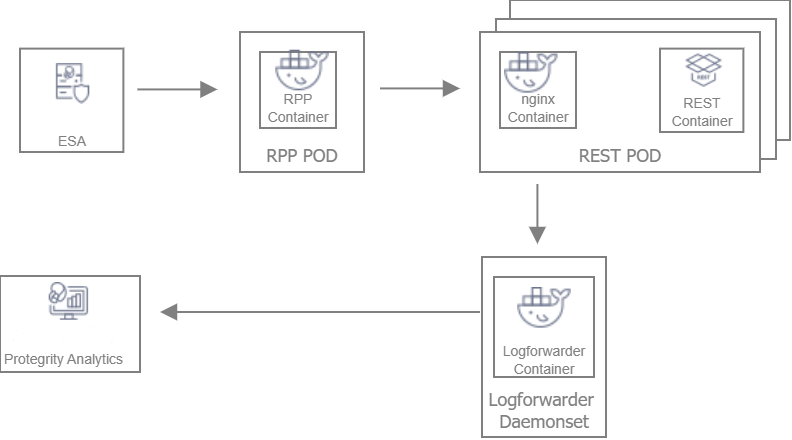
Deployment Steps:
Create the ESA with the policy and datastore.
Deploy the Resilient Package Proxy (RPP) instances with mTLS certificates to communicate with the ESA and to host the proxy endpoint for protectors.
Deploy the REST protector with mTLS certificates to communicate with the RPP. The communication between the RPP and the protector is secured using mTLS.
After the protector instance starts as part of the application POD, the protector sends a request to the RPP instance to retrieve the policy package.
At periodic intervals, the protector tries to pull the new policy package from RPP instance. If the package present on the RPP instance has expired due to cache invalidation policy, the RPP pulls the new package from an upstream RPP or the ESA.
1.2 - Architecture and Components using Static Deployment
Describes the deployment, the individual components, and the workflow of the Protegrity REST Container product integrated with static deployment.
Key features of a Static-based deployment include:
- The deployments can be used in use cases where a fixed policy package is required.
- The policy updates need to be triggered through automation using ConfigMap updates.
For more information about package deployment approaches, refer to Resilient Package Deployment.
The following figure represents the architecture for deploying the REST Container with static deployment on a Kubernetes cluster.
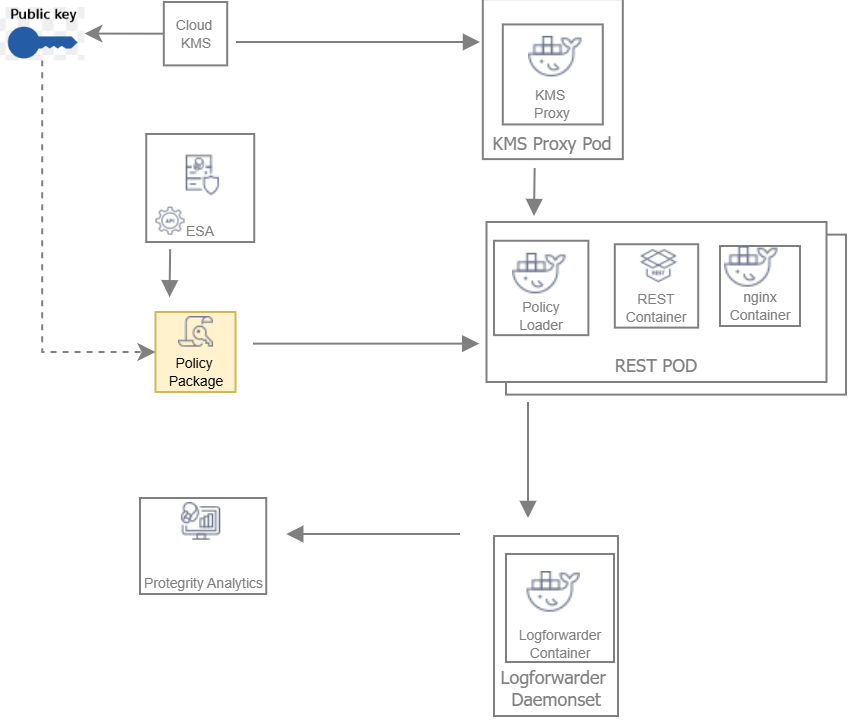
Deployment Steps:
The ESA administrator user pulls the policy package from the ESA and stores it to an Object Store or a Volume Mount.
The Policy Loader sidecar container reads the internal configmap for policy updates.
The sidecar container retrieves the policy package from the Object Store or Volume Mount.
The sidecar container then stores the policy package in the tmpfs directory.
The REST protector reads the policy package from the tmpfs directory.
Based on the values specified in the internal config.ini file, the protector initates the RP Callback REST.
The RP Callback decrypts the Data Encryption Key (DEK) using the KMS Proxy container.
The KMS Proxy container reads the decrypted DEK from the cache, if present.
If the DEK is not present in the cache, the KMS Proxy container uses the KMS Backend to retrieve the DEK from the Cloud KMS and store the decrypted DEK in the cache.
The Protector decrypts the policy package using the DEK and initializes its internal library.
2 - System Requirements
Overview of the system requirements.
This section provides an overview of the software and hardware requirements required for deploying the REST Container.
2.1 - Software Requirements
Software prerequisites for the protector deployment.
Ensure that the following prerequisites are met for deploying the REST Protector package REST_RHUBI-9-64_x86-64_K8S_<Version>.tgz.
ESA prerequisites for EKS, AKS, and OpenShift deployment
Policy – Ensure that you have defined the security policy in the ESA.
For more information about defining a security policy, refer to the section Policy Management.
Datastore - Attach the policy to the default datastore in the ESA or to a range of allowed servers that are added to a datastore.
The IP address range of the allowed servers must be the same as that of the nodes in the Kubernetes cluster where the AP-REST containers have been deployed.
For more information about datastores, refer to the section Data Stores.
ESA user - Create an ESA user that will be used to invoke the RPS REST API for retrieving the security policy and the certificates from the ESA. Ensure that the user is assigned the Export Resilient Package role. This user is used to export the policy in a static-based deployment.
For more information about assigning roles, refer to the section Managing Roles.
Software Requirements for EKS Deployment
The following prerequisites are required for deploying the REST Container on Amazon EKS.
Jump Box Configuration
The Linux instance or the Jump Box can be used to communicate with the Kubernetes cluster. This instance can be on-premise or on AWS. The Jump Box instance is used to execute all the deployment related commands.
Ensure that the following prerequisites are installed on the Jump Box:
- Helm, which is used as the package manager for all the applications.
- Docker to communicate with the Container Registry, where you want to upload the Docker images.
- Kubectl, which is a CLI tool to connect with the Kubernetes cluster.
- eksctl, which is a CLI utility to communicate with Amazon EKS. This is required if you want to install the REST Protector on Amazon EKS.
Cloud or AWS prerequisites
You need access to an AWS account. You also need access to the following AWS resources.
- AWS Elastic File System (EFS), if you want to upload the policy package to AWS EFS instead of AWS S3. You require both read and write permissions. This is required for static-based deployment.
- Install the latest version of the EFS-CSI driver, which is required if you are using AWS EFS as the persistent volume. This is required for statci-based deployment.
For more information about installing the EFS-CSI driver, refer to the Amazon EFS CSI driver documentation.
AWS S3, if you want to use AWS S3 for storing the policy snapshot, instead of AWS EFS. You require both read and write permissions. This is required for static-based deployment.
For more information about the AWS S3-specific permissions, refer to the API Reference document for AWS S3.
IAM User - Required to create the Kubernetes cluster. This user requires the following permissions:
AmazonEC2FullAccess - This is a managed policy by AWS
AmazonEKSClusterPolicy - This is a managed policy by AWS
AmazonEKSServicePolicy - This is a managed policy by AWS
AWSCloudFormationFullAccess - This is a managed policy by AWS
Custom policy that allows the user to perform the following actions:
- Create a new role and an instance profile.
- Retrieve information about a role and an instance profile.
- Attach a policy to the specified IAM role.
The following actions must be permitted on the IAM service:
- GetInstanceProfile
- GetRole
- AddRoleToInstanceProfile
- CreateInstanceProfile
- CreateRole
- PassRole
- AttachRolePolicy
Custom policy that allows the user to perform the following actions:
- Delete a role and an instance profile.
- Detach a policy from a specified role.
- Delete a policy from the specified role.
- Remove an IAM role from the specified EC2 instance profile.
The following actions must be permitted on the IAM service:
- GetOpenIDConnectProvider
- CreateOpenIDConnectProvider
- DeleteInstanceProfile
- DeleteRole
- RemoveRoleFromInstanceProfile
- DeleteRolePolicy
- DetachRolePolicy
- PutRolePolicy
Custom policy that allows the user to manage EKS clusters. The following actions must be permitted on the EKS service:
- ListClusters
- ListNodegroups
- ListTagsForResource
- ListUpdates
- DescribeCluster
- DescribeNodegroup
- DescribeUpdate
- CreateCluster
- CreateNodegroup
- DeleteCluster
- DeleteNodegroup
- UpdateClusterConfig
- UpdateClusterVersion
- UpdateNodegroupConfig
- UpdateNodegroupVersion
For more information about creating an IAM user, refer to the section Creating an IAM User in Your AWS Account in the AWS documentation. Contact your system administrator for creating the IAM users.
For more information about the EKS-specific permissions, refer to the API Reference document for Amazon EKS.
Access to AWS Elastic Container Registry (ECR) to upload the Container images.
Access to Route53 for mapping the hostname of the Elastic Load Balancer to a DNS entry in the Amazon Route53 service. This is required if you are terminating the TLS connection from the client application on the Load Balancer.
Access to AWS KMS. This is required for static-based deployment.
Software requirements for AKS deployment
The following prerequisites are required for deploying the REST Container on Azure AKS.
Jump Box Configuration
The Linux instance or the Jump Box can be used to communicate with the Kubernetes cluster. This instance can be on-premise or on Azure. The Jump Box instance is used to execute all the deployment-related commands.
Ensure that the following prerequisites are installed on the Jump Box:
- Helm, which is used as the package manager for all the applications.
- Docker to communicate with the Container Registry, where you want to upload the Docker images.
- Kubectl, which is a CLI tool to connect with the Kubernetes cluster.
- Azure CLI, which is a CLI utility to communicate with Azure AKS.
Azure prerequisites
You need access to an Azure subscription and a valid Azure Active Directory user for creating the following Azure services:
- Resource Group - Used to organize resources. All the remaining Azure services are created within a Resource Group.
- Azure Storage Account for creating the Azure Storage Container, where the policy package is stored. This is required for static-based deployment.
- Storage Container - Used to store the policy package. This is required for static-based deployment.
- Access to Azure Kubernetes Service (AKS) to create a Kubernetes cluster.
- Access to Azure Container Registry to upload the container images.
Software requirements for OpenShift deployment
The following prerequisites are required for deploying the REST Container on OpenShift.
Jump Box Configuration
The Linux instance or the Jump Box can be used to communicate with the Kubernetes cluster. This instance can be on-premise or on AWS. The Jump Box instance is used to execute all the deployment related commands.
Ensure that the following prerequisites are installed on the Jump Box:
- Helm, which is used as the package manager for all the applications.
- Docker to communicate with the Container Registry, where you want to upload the Docker images.
- oc, which is the OpenShift binary. This is the OpenShift CLI utility to communicate with the OpenShift cluster. This is required if you want to install the REST Container on an OpenShift cluster on AWS.
OpenShift on AWS prerequisites
- Ensure that you have a valid OpenShift account and the following information:
- Login URL for the OpenShift account.
- Authentication credentials for the OpenShift account.
- Ensure that you have access to an AWS account as the OpenShift cluster is deployed on AWS. You also need access to the following AWS resources.
- AWS Elastic File System (EFS), if you want to upload the policy package to AWS EFS instead of AWS S3. You require both read and write permissions. This is required for static-based deployment.
- Install the latest version of the EFS-CSI driver, which is required if you are using AWS EFS as the persistent volume. This is required for static-based deployment.
For more information about installing the EFS-CSI driver, refer to the Amazon EFS CSI driver documentation.
- AWS S3, if you want to use AWS S3 for storing the policy snapshot, instead of AWS EFS. You require both read and write permissions. This is required for static-based deployment.
For more information about the AWS S3-specific permissions, refer to the API Reference document for AWS S3.
- Access to AWS Elastic Container Registry (ECR) to upload the Container images.
- Access to AWS KMS. This is required for static-based deployment.
- Access to Azure Key Vault. This is required for static-based deployment.
2.2 - Hardware Requirements
Lists the recommended minimum hardware configurations.
The following table lists the minimum hardware configuration for each pod where the REST Container is deployed.
| Hardware Components | Configuration |
|---|
| CPU | Depends on the application.
By default, the value is set to:- 1000 millicores or 1 CPU for the REST Container.
- 200 millicores or 0.2 CPU for the Policy Loader container.
- 500 millicores or 0.5 CPU for the NGINX container.
- 500 millicores or 0.5 CPU for the RPProxy container.
- 300 millicores or 0.3 CPU for the Log Forwarder container.
- 500 millicores or 0.5 CPU for the KMS-Proxy container.
For more information about the CPU requirements for each container, refer to the values.yaml file for the corresponding container. |
| RAM | Depends on the workload.
By default, the value is set to:- 3000 MB for the REST Container.
- 512 MB for the Policy Loader container.
- 512 MB for the NGINX container.
- 512 MB for the RPProxy container.
- 328 MB for the Log Forwarder container.
- 512 MB for the KMS-Proxy container.
For more information about the memory requirements for each container, refer to the values.yaml file for the corresponding container. |
The instance type used for the cluster node is t3.2xlarge. The minimum CPU requirement for the node is 8 vCPU and the minimum memory capacity is 32 GiB.
Note: The package size of a policy with 70 thousand users and 26 data elements is 257447563 bytes.
3 - Preparing the Environment
Preparing the environment for deploying the protector.
This section provides an overview of the steps required to prepare the environment for deploying the REST Container product.
3.1 - Initializing the Jump Box
Initialize the Linux instance.
The Linux instance should be connected to the Kubernetes cluster. The following is the minimum system requirements to be configured for a Linux instance.
3.2 - Extracting the Installation Package
Extract the REST Container installation package.
This section describes the steps to download and extract the installation package for the REST protector.
To download the installation package:
Download the REST_RHUBI-9-64_x86-64_K8S_<Version>.tgz file on the Linux instance.
Run the following command to extract the files from the REST_RHUBI-9-64_x86-64_K8S_<Version>.tgz file.
tar -xvf REST_RHUBI-9-64_x86-64_K8S_<Version>.tgz
The signatures directory and the REST_RHUBI-9-64_x86-64_K8S_<Version>.tgz fileare extracted.
Run the following command to extract the files from the REST_RHUBI-9-64_x86-64_K8S_<Version>.tgz file.
tar -xvf REST_RHUBI-9-64_x86-64_K8S_<Version>.tgz
The following directories and files are extracted:
- devops - Helm charts, Dockerfiles, and container images to deploy the REST Container using the Static policy.
- protector - Dockerfiles and container images to create the REST Container.
- dynamic - Helm charts, Dockerfiles, and container images to deploy the REST Container using the Dynamic method.
- common - Helm charts, Dockerfiles, and container images to deploy the Log Forwarder.
- certs - Create certificates required for secure communication.
- HOW-TO-BUILD-DOCKER-IMAGES - Text file specifying how to build the Docker images.
- manifest.json - Metadata file specifying the product version and component names.
The following shows a list of the Helm charts and container images.
| Package Name | Description | Directory |
|---|
| REST_DYNAMIC-HELM_ALL-ALL-ALL_x86-64_K8S_<Version>.tgz | Package containing the Helm chart used to deploy the REST Container. | dynamic |
| RPPROXY_RHUBI-9-64_x86-64_K8S_<Version>.tar.gz | Used to set up the RPProxy container. | dynamic |
| RPPROXY_SRC_<Version>.tgz | Package containing the Dockerfile that can be used to create a custom image for the RPProxy container. | dynamic |
| RPPROXY-HELM_ALL-ALL-ALL_x86-64_K8S_<Version>.tgz | Package containing the Helm chart used to deploy the RPProxy container. | dynamic |
| KMSPROXY_RHUBI-9-64_x86-64_K8S_<Version>.tar.gz | Used to create the KMSProxy container. | devops |
| KMSPROXY_SRC_<Version>.tgz | Package containing the Dockerfile that can be used to create a custom image for the KMSProxy container and the associated binary files. | devops |
| KMSPROXY-HELM_ALL-ALL-ALL_x86-64_K8S_<Version>.tgz | Package containg the Helm chart used to deploy the KMSProxy container. | devops |
| POLICY-LOADER_RHUBI-9-64_x86-64_K8S_<Version>.tar.gz | Used to create the Policy Loader container. | devops |
| POLICY-LOADER_SRC_<Version>.tgz | Package containing the Dockerfile that can be used to create a custom image for the Policy Loader container and the associated binary files. | devops |
| REST_DEVOPS-HELM_ALL-ALL-ALL_x86-64_K8S_<Version>.0.tgz | Package containing the Helm chart used to deploy the REST Container. | devops |
| REST_RHUBI-9-64_x86-64_K8S_<Version>.tar.gz | Used to create the REST Container. | protector |
| REST-Samples_Linux-ALL-ALL_x86-64_<Version>.tgz | Package containing the sample application for testing the REST Containers with sample data. | protector. |
| REST-SRC_<Version>.tgz | Package containg the Dockerfile that can be used to create a custom image for the REST Container and the associate binary files. | protector |
| LOGFORWARDER_RHUBI-9-64_x86-64_K8S_<Version>.tar.gz | Used to create the Log Forwarder container. | common |
| LOGFORWARDER_SRC_<Version>.tgz | Package containg the Dockerfile that can be used to create a custom image for the Log Forwarder container and the associated binary files. | common |
| LOGFORWARDER-HELM_ALL-ALL-ALL_x86-64_K8S_<Version>.tgz | Package containing the Helm chart used to deploy the Log Forwarder container. | common |
3.3 - Creating Certificates
Certificate creation
This section describes the steps to create certificates required for secure communication. These certificates are for secure communication between:
- ESA and the RPP.
- RPP and the protector.
- KMSProxy and the protector.
- REST protector and the curl client.
To download the installation package:
Navigate to the directory where you have extracted the installation package.
Navigate to the certs directory.
The following files are available:
- CertificatesSetup_Linux_x64_<Version>tgz - Download the certificates from the ESA. You can use them as the common certificates in the dynamic deployment between the RPProxy and the ESA, and between the RPProxy and the protector. You can also use these certificates separately as the upstream certificate between the ESA and RPProxy in the dynamic deployment.
- CreateCertificate_Linux_x64_<Version>.tgz - Generate self-signed client and server certificates. In the Dynamic method, these certificates are used for communication between RPProxy and the protector, and the REST protector and the curl client. In the Static policy method, these certificates are used for communication between KMSProxy and the protector, and the REST protector and the curl client. Customers can choose to use their own certificates.
Extract both the packages using the following command.
tar -xvf CertificatesSetup_Linux_x64_<Version>.tgz
tar -xvf CreateCertificate_Linux_x64_<Version>.tgz
The following files are extracted:
- CertificatesSetup_Linux_x64_<Version>.sh
- CreateCertificate_Linux_x64_<Version>.sh
Certificates for communication between the ESA and the RPP
- Run the following command to create ESA certificates for establishing a secure communication between the ESA and the RPP.
./CertificatesSetup_Linux_x64_<Version>.sh (-u <username> -p <password>) [-h <hostname>] [--port <port>] [-d <directory>]

Options:
  -u      User with the Export Certificates role
  -p      Password for user with the Export Certificates role
  -h      Host or IP address of the ESA
  --port  Port number of the ESA
  -d      local directory where certificates are stored
For more information about the command, use the –help parameter as shown in the following command.
./CertificatesSetup_Linux_x64_<Version>.sh --help
The output displays all the options that can be used with the command. It also provides usage examples.
Certificates for client and server communication between RPP and Protector, and KMS-Proxy and Protector
- Run the following command to create server-side certificates.
./CreateCertificate_Linux_x64_<Version>.sh (client | server ) --name <common name> [--dir <directory> ] [--dns <dnsname>] [--ip <ip address>]

Options:
  client        Generate client certificate
  server        Generate server certificate
  --name        Certificate common name.
  --dns         Specify domain names. To specify multiple DNS names, repeat the --dns flag.
  --ip          Specify IP addresses. To specify multiple IP address, repeat the --ip flag.
  --noenc       The certificate key file is not encrypted. No secret.txt file created.
  --dir         Output base directory for certificates.
  --print       Prints OpenSSL configuration files used to generate certificates.
  --help        Print help message.
This command is used to create the certificates for both the Dynamic and Static-based deployments.
For more information about the command, use the –help parameter as shown in the following command.
./CreateCertificate_Linux_x64_<Version>.sh --help
The output displays all the options that can be used with the command. It also provides usage examples.
3.4 - Uploading the Images to the Container Repository
Describes uploading the RPProxy, Policy Loader, KMSProxy, and AP-REST images to the Container Repository.
Before you begin, ensure that you have set up your Container Registry.
To upload the images to the Container Repository:
Install Docker on the Linux instance.
For more information about installing Docker on a Linux machine, refer to the Docker documentation.
Run the following command to authenticate your Docker client to the Container registry.
In case of AWS ECR, run the following command.
aws ecr get-login-password --region <Name of ECR region where you want to upload the container image> | docker login --username AWS --password-stdin <aws_account_id>.dkr.ecr.<Name of ECR region where you want to upload the container image>.amazonaws.com
For more information about authenticating your Docker client to Amazon ECR, refer to the AWS CLI Command Reference documentation.
In case of Azure, run the following command:
docker login <Container Registry Name>.azurecr.io
Extract the installation package.
The AP-REST, RPProxy, Policy Loader, and KMSProxy container images are extracted.
For more information about extracting the installation package, refer to the section Extracting the Installation Package.
Perform the following steps to upload the AP-REST container image to the Container registry.
a. Run the following command to load the AP-REST container image into Docker.
docker load -i REST_RHUBI-9-64_x86-64_K8S_<Version>.tar.gz
b. Run the following command to list the AP-REST container image.
docker images
c. Tag the image to the Container registry by running the following command.
docker tag <Container image>:<Tag> <Container registry path>/<Container image>:<Tag>
For example for AWS ECR:
docker tag ap-rest:AWS <aws_account_id>.dkr.ecr.us-east-1.amazonaws.com/ap-rest:AWS
For more information regarding tagging an image, refer to the section Pushing an image in the AWS documentation.
For example for Azure:
docker tag ap-rest:AZURE <Container Registry Name>.azurecr.io/ap-rest:AZURE
d. Push the tagged image to the Container registry by running the following command.
docker push <Container registry path>/<Container image>:<Tag>
For example for AWS:
docker push <aws_account_id>.dkr.ecr.us-east-1.amazonaws.com/ap-rest:AWS
For example for Azure:
docker push <Container Registry Name>.azurecr.io/ap-rest:AZURE
For more information about creating custom images, refer to the section Using Dockerfiles to Build Custom Images.
Navigate to the directory where you have extracted the Helm charts packages for the AP-REST containers.
In the values.yaml file, update the appropriate path for the iaprestImage setting, along with the tag.
Repeat steps 1 to 6 for uploading the respective images for RPProxy, Policy Loader, and KMSProxy.
3.5 - Creating the AWS Environment
Overview of creating the AWS environment.
This section describes how to create the AWS runtime environment.
Prerequisites
Before creating the runtime environment on AWS, ensure that you have a valid AWS account and the following information:
- Login URL for the AWS account
- Authentication credentials for the AWS account
Audience
It is recommended that you have working knowledge of AWS and knowledge of the following concepts:
- Introduction to AWS S3
- Introduction to AWS Cloud Security
- Introduction to AWS EKS
3.5.1 - Creating the AWS Setup for Static Mode
Overview of creating the AWS setup for static mode.
This section describes how to create the following AWS resources for static mode:
- Data Encryption Key
- AWS S3 bucket
- AWS EFS
3.5.1.1 - Creating an Data Encryption Key (DEK)
This section describes how to create the Data Encryption Key. This key is the AWS customer master key that is used to encrypt the policy package.
To create a Data Encryption Key:
- Log in to the AWS environment.
Navigate to Services.
A list of AWS services appears.
In Security, Identity, & Compliance, click Key Management Service.
The AWS Key Management Service (KMS) console opens. By default, the Customer managed keys screen appears.
Click Create key.
The Configure key screen appears.
In the Key type section, select the Asymmetric option to create a single customer master key that will be used to perform the encrypt and decrypt operations.
In the Key usage section, select the Encrypt and decrypt option.
In the Key spec section, select one option.
For example, select RSA_4096.
In the Advanced options section, select the Single-Region Key option.
Click Next.
The Add labels screen appears.
In the Alias field, specify the display name for the key, and then click Next.
The Review and edit key policy screen appears.
Click Finish.
The Customer managed keys screen appears, displaying the newly created customer master key.
Click the key alias.
A screen specifying the configuration for the selected key appears.
In the General Configuration section, copy the value specified in the ARN field, and save it on your local machine.
You need to attach the key to the KMSDecryptAccess policy. You also need to specify this ARN value in the command for creating a Kubernetes secret for the key.
Navigate to Services > IAM.
Click Policies.
The Policies screen appears.
Select the KMSDecryptAccess policy.
The Permissions tab appears.
Click Edit policy to edit the policy in JSON format.
Modify the policy to add the ARN of the key that you have copied in step 13 to the Resource parameter.
{
    "Version": "2012-10-17",
    "Statement": [
        {
            "Sid": "VisualEditor0",
            "Effect": "Allow",
            "Action": "kms:Decrypt",
            "Resource": [
                "<ARN of the AWS Customer Master Key>"
            ]
        }
    ]
}
Click Review policy, and then click Save changes to save the changes to the policy.
3.5.1.2 - Creating an AWS S3 Bucket
This section describes how to create an AWS S3 bucket.
Important: This procedure is optional, and is required only if you want to use AWS S3 for storing the policy snapshot during static deployment, instead of the persistent volume.
To create an AWS S3 bucket:
- Login to the AWS environment.
Navigate to Services.
A list of AWS services appears.
In Storage, click S3.
The S3 buckets screen appears.
Click Create bucket.
The Create bucket screen appears.
In the General configuration screen, specify the following details.
In the Bucket name field, enter a unique name for the bucket.
In the AWS Region field, choose the same region in which you want to create your EC2 instance.
If you want to configure your bucket or set any specific permissions, then you can specify the required values in the remaining sections of the screen. Otherwise, you can directly go to the next step to create a bucket.
Click Create bucket.
The bucket is created.
3.5.1.3 - Creating an AWS EFS
This section describes how to create an AWS EFS.
Important: This procedure is optional, and is required only if you want to use AWS EFS for storing the policy package during static deployment, instead of AWS S3.
To create an AWS EFS:
- Login to the AWS environment.
Navigate to Services.
A list of AWS services appears.
In Storage, click EFS.
The File Systems screen appears.
Click Create file system.
The Configure network access screen appears.
In the VPC list, select the VPC where you will be creating the Kubernetes cluster.
Click Next Step.
The Configure file system settings screen appears.
Click Next Step.
The Configure client access screen appears.
Click Next Step.
The Review and create screen appears.
Click Create File System.
The file system is created.
Note the value in the File System ID column. You need to specify this value as the value of the volumeHandle parameter in the pv.yaml file in step 10c.
Perform the following steps if you want to use a persistent volume for storing the policy package instead of the AWS S3 bucket.
a. Create a file named storage_class.yaml for creating an AWS EFS storage class.
The following snippet shows the contents of the storage_class.yaml file.
  kind: StorageClass
  apiVersion: storage.k8s.io/v1
  metadata:
    name: efs-sc
  provisioner: efs.csi.aws.com
Important: If you want to copy the contents of the storage_class.yaml file, then ensure that you indent the file as per YAML requirements.
b. Run the following command to provision the AWS EFS using the storage_class.yaml file.
kubectl apply -f storage_class.yaml
An AWS EFS storage class is provisioned.
c. Create a file named pv.yaml for creating a persistent volume resource.
The following snippet shows the contents of the pv.yaml file.
  apiVersion: v1
  kind: PersistentVolume
  metadata:
    name: efs-pv1
    labels:
      purpose: policy-store
  spec:
    capacity:
      storage: 1Gi
    volumeMode: Filesystem
    accessModes:
      - ReadWriteMany
    persistentVolumeReclaimPolicy: Retain
    storageClassName: **efs-sc**
    csi:
      driver: efs.csi.aws.com
      volumeHandle: **fs-618248e2:**/
Important: If you want to copy the contents of the pv.yaml file, then ensure that you indent the file as per YAML requirements.
This persistent volume resource is associated with the AWS EFS storage class that you have created in step 10b.
In the storageClassName parameter, ensure that you specify the same name for the storage class that you specified in the storage_class.yaml file in step 10a.
For example, specify efs-sc as the value of the storageClassName parameter.
d. Run the following command to create the persistent volume resource.
kubectl apply -f pv.yaml
A persistent volume resource is created.
e. Create a file named pvc.yaml for creating a claim on the persistent volume that you have created in step 10d.
The following snippet shows the contents of the pvc.yaml file.
  apiVersion: v1
  kind: PersistentVolumeClaim
  metadata:
    name: efs-claim1
  spec:
    selector:
      matchLabels:
        purpose: "policy-store"
    accessModes:
      - ReadWriteMany
    storageClassName: **efs-sc**
    resources:
      requests:
        storage: 1Gi
Important: If you want to copy the contents of the pvc.yaml file, then ensure that you indent the file as per YAML requirements.
This persistent volume claim is associated with the AWS EFS storage class that you have created in step 10b. The value of the storage parameter in the pvc.yaml defines the storage that is available for saving the policy dump.
In the storageClassName parameter, ensure that you specify the same name for the storage class that you specified in the storage_class.yaml file in step 10a.
For example, specify efs-sc as the value of the storageClassName parameter.
f. Run the following command to create the persistent volume claim.
kubectl apply -f pvc.yaml -n <Namespace>
For example:
kubectl apply -f pvc.yaml -n iap-rest
A persistent volume claim is created. In this example, iap-rest is the namespace where the REST protector will be deployed.
g. On the Linux instance, create a mount point for the AWS EFS by running the following command.
mkdir /efs
This command creates a mount point efs on the file system.
h. Install the Amazon EFS client using the following command.
sudo yum install -y amazon-efs-utils
For more information about installing the EFS client, refer to the section Manually installing the Amazon EFS client in the Amazon Elastic File System User Guide.
i. Run the following mount command to mount the AWS EFS on the directory created in step 10g.
sudo mount -t nfs -o nfsvers=4.1,rsize=1048576,wsize=1048576,hard,timeo=600,retrans=2,noresvport <file-system-id>.efs.<aws-region>.amazonaws.com:/ /efs
For example:
sudo mount -t nfs -o nfsvers=4.1,rsize=1048576,wsize=1048576,hard,timeo=600,retrans=2,noresvport fs-618248e2.efs.<aws-region>.amazonaws.com:/ /efs
Ensure that you set the value of the <file-system-id> parameter to the value of the volumeHandle parameter, as specified in the pv.yaml file in step 10c.
For more information about the permissions required for mounting an AWS EFS, refer to the section Working with Users, Groups, and Permissions at the Network File System (NFS) Level in the AWS documentation.
3.5.2 - Creating a Kubernetes Cluster
This section describes how to create a Kubernetes Cluster on Amazon Elastic Kubernetes Service (EKS) using eksctl, which is a command line tool for creating clusters. The Kubernetes cluster is required for both Dynamic and Static-based deployments.
Note: The steps listed in this section for creating a Kubernetes cluster are for reference use. If you have an existing Kubernetes cluster or want to create a Kubernetes cluster based on your own requirements, then you can directly navigate to step 4 to connect your Kubernetes cluster and the Linux instance. However, you must ensure that your ingress port is enabled on the Network Security group of your VPC.
Important: If you have an existing Kubernetes cluster or want to create a Kubernetes cluster using a different method, then you must install the Kubernetes Metrics Server and Cluster Autoscaler before deploying the Release.
To create a Kubernetes cluster:
Create a key pair for the EC2 instance on which you want to create the Kubernetes cluster.
For more information on creating the key pair, refer to the section Create a key pair for your Amazon EC2 instance in the Amazon EC2 documentation.
After the key pair is created, you need to specify the key pair name in the publicKeyName
field of the createCluster.yaml file, for creating a Kubernetes cluster.
Login to the Linux instance, and create a file named createCluster.yaml to specify the configurations for creating the Kubernetes cluster.
The following snippet displays the contents of the createCluster.yaml file.
apiVersion: eksctl.io/v1alpha5
kind: ClusterConfig
metadata:
  name: <Name of your Kubernetes cluster>
  region: <Region where you want to deploy your Kubernetes cluster>
  version: "<Kubernetes version>"
vpc:
  id: "<ID of the VPC where you want to deploy the Kubernetes cluster>"
  subnets: #In this section specify the subnet region and subnet id accordingly
    private:
      <Availability zone for the region where you want to deploy your Kubernetes cluster>:
          id: "<Subnet ID>"
      <Availability zone for the region where you want to deploy your Kubernetes cluster>
          id: "<Subnet ID>"
nodeGroups:
  - name: <Name of your Node Group>
    instanceType: m5.large
    minSize: 1
    maxSize: 3
    tags:
      k8s.io/cluster-autoscaler/enabled: "true"
      k8s.io/cluster-autoscaler/<Name of your Kubernetes cluster>: "owned"
    privateNetworking: true
    securityGroups:
      withShared: true
      withLocal: true
      attachIDs: ['<Security group linked to your VPC>']
    ssh:
      publicKeyName: '<EC2 keypair>'
    iam:
      attachPolicyARNs:
        - "arn:aws:iam::aws:policy/AmazonEKS_CNI_Policy"
      withAddonPolicies:
        autoScaler: true
Important: If you want to copy the contents of the createCluster.yaml file, then ensure that you indent the file as per YAML requirements.
For more information about the sample configuration file used to create a Kubernetes cluster, refer to the section Create cluster using config file in the eksctl documentation.
In the ssh/publicKeyName parameter, you must specify the value of the key pair that you have created in step 1.
In the iam/attachPolicyARNs parameter, you must specify the following policy ARNs:
ARN of the AmazonEKS_CNI_Policy policy - This is a default AWS policy that enables the Amazon VPC CNI Plugin to modify the IP address configuration on your EKS nodes.
For more information about this policy, refer to the AWS documentation.
You need to sign in to your AWS account to access the AWS documentation for this policy.
The content snippet displays the reference configuration required to create a Kubernetes cluster using a private VPC. If you want to use a different configuration for creating your Kubernetes cluster, then you need to refer to the section Creating and managing clusters in the eksctl documentation.
For more information about creating a configuration file to create a Kubernetes cluster, refer to the section Creating and managing clusters in the eksctl documentation.
Run the following command to create a Kubernetes cluster.
eksctl create cluster -f ./createCluster.yaml
Important: IAM User 1, who creates the Kubernetes cluster, is automatically assigned the cluster-admin role in Kubernetes.
Run the following command to connect your Linux instance to the Kubernetes cluster.
aws eks update-kubeconfig --name <Name of Kubernetes cluster>
Validate whether the cluster is up by running the following command.
kubectl get nodes
The command lists the Kubernetes nodes available in your cluster.
Deploy the Cluster Autoscaler component to enable the autoscaling of nodes in the EKS cluster.
This step is required only if the Cluster Autoscaler component is not installed.
For more information about deploying the Cluster Autoscaler, refer to the section Deploy the Cluster Autoscaler in the Amazon EKS documentation.
Install the Metrics Server to enable the horizontal autoscaling of pods in the Kubernetes cluster.
This step is required only if the Metric Server is not installed.
For more information about installing the Metrics Server, refer to the section Horizontal Pod Autoscaler in the Amazon EKS documentation.
After you have created the Kubernetes cluster, you can deploy the AP-REST container using dynamic or static mode of deployment.
Run following commands to tag the cluster subnets to ensure that the Elastic load balancer can discover them.
aws ec2 create-tags --tags Key=kubernetes.io/cluster/<Cluster Name>,Value=shared --resources <Subnet ID>aws ec2 create-tags --tags Key=kubernetes.io/role/internal-elb,Value=1 --resources <Subnet ID>aws ec2 create-tags --tags Key=kubernetes.io/role/elb,Value=1 --resources <Subnet ID>
Repeat this step for all the cluster subnets.
3.6 - Creating the OpenShift Environment
Overview of creating the OpenShift environment.
This section describes how to create the OpenShift runtime environment.
Prerequisites
Before creating the runtime environment on OpenShift, ensure that you have a valid OpenShift account and the following information:
- Login URL for the OpenShift account
- Authentication credentials for the OpenShift account
Audience
It is recommended that you have working knowledge of OpenShift.
Logging in to the OpenShift environment
This section describes how you can login to the OpenShift environment.
To log in to the OpenShift environment:
Access OpenShift at the following URL:
https://<OpenShift Console URL>/dashboards
Click Sign In to the Console. The Sign in screen appears.
Enter the following details:
Click Log In. After successful authentication, the Dashboard screen appears.
Creating secrets
This section describes how to create the Kubernetes secretes required for the OpenShift deployment.
On the Linux instance, navigate to the location where you have extracted the Helm charts.
Run the following command to create a Kubernetes secret for accessing the image registry using existing Docker credentials.
oc create secret generic regcred --from-file=.dockerconfigjson=<PATH_TO_DOCKER_CONF
IG>/config.json --type=kubernetes.io/dockerconfigjson --namespace <NAMESPACE>
For example:
oc create secret generic regcred --from-file=.dockerconfigjson=<PATH_TO_DOCKER_CONF
IG>/config.json --type=kubernetes.io/dockerconfigjson --namespace iap-rest
- Create a credentials file using the following format and ensure that you specify the required values for accessing the AWS.
[default]

aws_access_key_id = <AWS_ACCESS_KEY_ID>

aws_secret_access_key = <AWS_SECRET_ACCESS_KEY>

aws_session_token = <AWS_SESSION_TOKEN>

region = us-east-1
- Create the Kubernetes secret for accessing the AWS KMS using the credentials file created in step 3.
oc -n <NAMESPACE> create secret generic pty-aws-credentials --from-file=credentials=./credentials
3.7 - Creating the Azure Environment
Overview of creating the Azure environment.
This section describes how to create the Azure runtime environment.
Prerequisites
Before creating the runtime environment on Azure, ensure that you have a valid Azure account and the following information:
- Login URL for the Azure account
- Authentication credentials for the Azure account
Audience
It is recommended that you have working knowledge of Azure and knowledge of the following concepts:
- Introduction to Azure Storage Container and Azure Storage Blob
- Introduction to Azure Cloud Security
- Introduction to Azure AKS
- Introduction to Azure Key Vault
3.7.1 - Creating the Azure Setup for Static Mode
Overview of creating the Azure setup for static mode.
This section describes how to create the following Azure resources for static mode:
- Data Encryption Key
- Azure Storage Container
3.7.1.1 - Creating an Azure Key
This section describes how to create an Azure key, which is used to encrypt the policy package. The policy package is encrypted before it is uploaded to the Azure Storage Container.
Create an Azure Key using the Azure Portal
This section describes how to create an Azure Key using the Azure portal.
To create an Azure Key:
Login to the Azure environment.
Click the Portal menu icon.
The Portal menu appears.
Navigate to All services.
The All services screen appears.
Select Key vaults under the SECURITY section.
The Key vaults screen appears.
Click Add.
The Create key vault screen appears.
On the Basics tab, enter the following details:
| Field | Description |
|---|
| Subscription | By default, Azure Cloud Platform is selected. |
| Resource group | Select the required resource group. |
| Key vault name | Enter a name for your key vault. |
| Region | Select a region where the key vault will be created. |
| Pricing tier | Select a pricing tier. For example, Standard or Premium. |
Click Next to navigate to the Access policy tab.
The Access policy tab appears.
Click Next to navigate to the Virtual network tab.
Click Next to navigate to the Tags tab.
Add tags to the key vault, if required.
Tags are name-value pairs for categorizing the key vault resource.
Click Review + create to validate the key vault configuration.
Azure validates the information that you have entered.
Click Create to create the required key vault.
The key vault is created and the following screen appears.
Click Go to resource.
The Overview screen appears displaying information about the key vault that you have created.
On the left pane, under the Settings section, click Keys.
The Keys screen appears.
Click Generate/Import to create a key.
The Create a key screen appears.
Enter the following details for the key.
| Field | Description |
|---|
| Options | Select Generate to generate the key. |
| Name | Enter the name for your Azure key. |
| Key Type | Specify the key type. Select RSA. |
| RSA Key Size | Specify the key size for RSA. Select the value as 3072. |
| Enabled | Select Yes to enable the key. |
Click Create.
The key is created.
Click the key name.
The Versions screen for the key appears. It lists all the versions for the key.
Click the specific key version.
The Key Version screen appears. This screen displays the properties and settings for the specific key version.
Click the icon next to the Key Identifier field to copy the field value to the clipboard.
A message appears informing that the identifier has been copied.
The following is an example of an Azure key identifier:
https://<Key_Vault_Name>.vault.azure.net/keys/<Key_Name>/0a5e4ea190a24707983ffd0efcc03c8a
You need to paste this identifier as the value of the public key label for encrypting the policy.
For more information about using the public key for encrypting the policy, refer to the section [Retrieving the Policy from the ESA](/docs/rest_container/iap_rest_installation/iap_rest_aws_azure_installation/iap_rest_using_devops/iap_rest_retrieving_package_from_esa/).
- In the Permitted operations section, select the Decrypt check box and clear all the remaining check boxes.
This ensures that only the **Decrypt** operation is permitted for the Azure key.
- Click Save to save the changes.
Creating an Azure Key using the CLI
This section describes how to create an Azure Key using the CLI.
- Run the following command to create the Azure Key Vault.
az keyvault create -g $RG -n $VAULT -l $LOC --enable-rbac-authorization true
In this command:
RG: Environment variable for the Azure Resource Group.VAULT: Environment variable for the Azure Key Vault.LOC: Environment variable for the account default region.
- Run the following command to create the Azure key to be used for encrypting the policy package.
az keyvault key create --vault-name $VAULT --name $KEY --kty RSA --size 2048 --ops decrypt encrypt
- Run the following command to generate the public key.
az keyvault key download \
--vault-name pty-kv-dev-01 \
--name pty-kek \
--file pub.pem

awk 'BEGIN{ORS="\\n"}1' pub.pem
The output displays the Key ID of the public key and the value of the public key in JSON format.
For more information about using the public key for encrypting the policy, refer to the section Retrieving the Policy from the ESA.
3.7.1.2 - Creating an Azure Storage container
This section describes how to create an Azure Storage Container.
Important: This procedure is optional and is required only if you want to use Azure Storage Container for storing the policy snapshot during static deployment.
To create an Azure Storage Container:
Login to the Azure environment.
Click the Portal menu icon.
The Portal menu appears.
Click Storage accounts.
The Storage accounts screen appears.
Click Create.
The Create storage account screen appears. By default, the Basics tab appears.
In the Basics tab, enter the following mandatory details.
| Field | Description |
|---|
| Subscription | By default, this value is set to Azure Cloud Platform. |
| Resource group | Select the required resource group. |
| Region | Select a region where the Azure storage account will be created.
For example, select (US) US East 2. |
Note: Retain the default values for all the remaining tabs on the Create storage account screen.
Click Review + create to validate the entered information.
Azure validates the information that you have entered.
Click Create to create the storage account.
The storage account is created and the following screen appears.
Click Go to resource.
The Overview screen appears, displaying the details of your storage account.
Perform the following steps to create a storage container.
On the left pane, click Data storage > Containers.
The Containers screen appears.
Click Container.
The New Container screen appears.
Specify a name for the container in the Name field.
Retain the default value for the Anonymous access level list.
The default value is set to Private (no anonymous access).
Click OK to create the container.
3.7.2 - Creating a Kubernetes Cluster
This section describes how to create a Kubernetes Cluster on Azure Kubernetes Service (AKS) using Azure CLI, which is a command line tool for creating clusters. The Kubernetes cluster is required for both Dynamic and Static-based deployments.
This section describes how to create a Kubernetes Cluster on Azure.
Note: The steps listed in this procedure for creating a Kubernetes cluster are for reference use. If you have an existing Kubernetes cluster or want to create a Kubernetes cluster based on your requirements, then you can directly navigate to step 9 to connect your Kubernetes cluster and the Linux instance. However, you must ensure that your ingress port is enabled on the Network Security group of your VPC.
To create a Kubernetes cluster:
Login to the Azure environment.
Click the Portal menu icon
The Portal menu appears.
Navigate to All Services > Containers > Kubernetes services.
The Kubernetes services screen appears.
Click Add.
The Create Kubernetes cluster screen appears.
In the Resource group field, select the required resource group.
In the Kubernetes cluster name field, specify a name for your Kubernetes cluster.
Retain the default values for the remaining settings.
Click Review + create to validate the configuration.
Click Create to create the Kubernetes cluster.
The Kubernetes cluster is created.
9. Login to the Linux instance, and run the following command to connect your Linux instance to the Kubernetes cluster.
`az aks get-credentials --resource-group <Name of Resource Group> --name <Name of Kubernetes Cluster>`

The Linux instance is now connected with the Kubernetes cluster. You can now run commands using the Kubernetes command line interface \(kubectl\) to control the nodes on the Kubernetes cluster.
Validate whether the cluster is up by running the following command.
kubectl get nodes
The command lists the Kubernetes nodes available in your cluster.
Run the export command to export the following environment variables.
export RG=<Resource Group Name>
export AKS=<AKS cluster Name>
export NS=<Namespace where protector is deployed>
export LOC=eastus (account default region)
export VAULT=<Azure Key Vault name>
export KEY=<Azure Key Name>
- Run the following commands to enable the OpenID Connect (OIDC) and workload identity on the AKS cluster.
az aks update -g $RG -n $AKS --enable-oidc-issuer --enable-workload-identity
export OIDC=$(az aks show -g $RG -n $AKS --query oidcIssuerProfile.issuerUrl -o tsv)
4 - Installing the Protector
Deploying the REST Container using Static or Dynamic method.
This section provides an overview of the steps required to install the REST Container using either the Static or the Dynamic method.
4.1 - Installing the Protector on Amazon EKS or Azure AKS
Deploying the REST Container on Amazon EKS or Azure AKS using Static or Dynamic method.
This section provides an overview of the steps required to install the REST Container on Amazon EKS or Azure AKS using either the Static or the Dynamic method.
4.1.1 - Deploying REST Container for Dynamic Method
Deploy the REST Container using RPP.
This section describes how to deploy the REST Container integrated with RPP. Deploy in the following order:
- Log Forwarder
- RPP
- REST Container
4.1.1.1 - Deploying Log Forwarder
Describes how to deploy the Log Forwarder.
The Log Forwarder is deployed as a DaemonSet. The following steps describe how to deploy Log Forwarder.
On the Linux instance, run the following command to create the namespace required for Helm deployment.
kubectl create namespace <Namespace name>
For example:
kubectl create namespace iap-rest
On the Linux instance, navigate to the location where you have extracted the Helm charts to deploy the Log Forwarder.
For more information about the extracted Helm charts, refer to the section Extracting the Installation Package.
The logforwarder > values.yaml file contains the default configuration values for deploying the Log Forwarder container on the Kubernetes cluster. The following content shows an extract of the values.yaml file.
 ...

  # - Protegrity PSU(Protegrity Storage Unit)/ESA configuration.
  # Logforwarder will send audit records to below specified hosts/ip.
  # User can specify multiple PSU/ESA distribute the audit records and avoid downtime.
  opensearch:
   # -- specify a given name to uniquely identify PSU/ESA in the deployment.
   - name:
      # -- hostname/ip address of PSU/ESA
      host:
      # -- port address of ESA/PSU
      port: 9200
   # - name: node-2
   #   host: test-insight
   #   port: 9200

  # -- Kubernetes service configuration, represents a TCP endpoint to receive audit records
  # from the protectors.
  service:
    # -- Configure service type: ClusterIP for Logforwarder endpoint.
    type: ClusterIP
    # -- port to accept incoming audit records from the protector
    port: 15780

 ...
Modify the default values in the values.yaml file as required.
| Field | Description |
|---|
| opensearch/name | Specify the unique name for the ESA. |
| opensearch/host | Specify the host name or IP address of the ESA. |
| opensearch/port | Specify the port number of the ESA. The default value is 9200. |
| service/type | Specify the service type for the Log Forwarder. The default value is ClusterIP. |
| service/port | Specify the service port of the Log Forwarder, which receives the audit logs from the protectors.
The default value is 15780. |
- Run the following command to deploy the Log Forwarder on the Kubernetes cluster.
helm install <Release_Name> --namespace <Namespace where you want to deploy the RPP container> <Location of the directory that contains the Helm charts>
For example:
helm install log1 --namespace iap-rest <Custom_path>/commonlogforwarder/
<Custom_path> is the directory where you have extracted the installation package.
- Run the following command to check the status of the pods.
kubectl get pods -n <Namespace>
For example:
kubectl get pods -n iap-rest
NAME                                         READY   STATUS    RESTARTS        AGE

log1-logforwarder-f6gvj                      1/1     Running   0               11h

log1-logforwarder-ls4hn                      1/1     Running   0               11h

log1-logforwarder-phk4t                      1/1     Running   0               11h

log1-logforwarder-z2mz7                      1/1     Running   0               11h
As the Log Forwarder is deployed as a DaemonSet, one instance of Log Forwarder is deployed on each node. In this example, one Log Forwarder pod is deployed per node.
For information about configuring the Log Forwarder, refer to the section Configuration Parameters for Forwarding Audits and Logs.
4.1.1.2 - Deploying Resilient Package Proxy (RPP)
Describes how to deploy the Resilient Package Proxy (RPP).
The following steps describe how to deploy RPP.
Note: Ensure that you have deployed the Log Forwarder before deploying the RPP.
For more information about deploying the Log Forwarder, refer to the section Deploying the Log Forwarder.
- Run the following command on the Jump box to generate the common certificate from the ESA certificates.
CertificatesSetup_Linux_x64_<Version>.sh -u <User> -p <Password> -h <Hostname or IP address of ESA> --port <Port number of ESA> -d <Directory>
For example:
CertificatesSetup_Linux_x64_<Version>.sh -u admin -p admin12345 -h 10.10.10.10 --port 8443 -d rpproxy
For more information about generating the ESA certificates, refer to the section Creating Certificates.
The following files are created:
- CA.pem
- cert.key
- cert.pem
- secret.txt
2. Run the following command to create a Kubernetes secret using the common certificate generated in step 1.
kubectl -n <Namespace> create secret generic common-cert --from-file=CA.pem=./CA.pem --from-file=cert.key=./cert.key --from-file=cert.pem=./cert.pem --from-file=secret.txt=./secret.txt
Specify this secret as the value of the commonCertSecrets parameter in the values.yaml file. In this case, this secret is used in the following ways:
- RPP uses the certificate as an upstream server certificate to download the policy packages from the ESA.
- The protector uses the certificate as a client certificate to download the policy packages from the RPP.
If you do not specify any value for the commonCertSecrets parameter, then you need to specify separate values for the rpp/upstream/certificateSecret and service/certificateSecret parameters.
3. Run the following command on the Jump box to generate the upstream certificate between the ESA and the RPP.
CertificatesSetup_Linux_x64_<Version>.sh -u <User> -p <Password> -h <Hostname or IP address of ESA> --port <Port number of ESA> -d <Directory>
For example:
CertificatesSetup_Linux_x64_<Version>.sh -u admin -p admin12345 -h 10.10.10.10 --port 8443 -d rpproxy
For more information about generating the ESA certificates, refer to the section Creating Certificates.
The following files are created:
- CA.pem
- cert.key
- cert.pem
- secret.txt
Note: This certificate is created only if you are not using the common certificate.
4. Run the following command to create a Kubernetes secret using the upstream certificate generated in step 3.
kubectl -n <Namespace> create secret generic upstream-cert --from-file=CA.pem=./CA.pem --from-file=cert.key=./cert.key --from-file=cert.pem=./cert.pem --from-file=secret.txt=./secret.txt
Note: This secret is created only if you are not using the common certificate.
Specify this secret as the value of the rpp/upstream/certificateSecret parameter in the values.yaml file.
5. Run the following command to generate the service TLS certificate.
CreateCertificate_Linux_x64_<Version>.sh server --name <Directory> --dns <Release_Name>.<namespace>.svc
For example:
CreateCertificate_Linux_x64_<Version>.sh server --name rpproxy --dns rpp.iap-rest.svc
For more information about generating the server certificates, refer to the section Creating Certificates.
The following client certificates files are created in the rpproxy folder:
- cert.pem
- cert.key
- CA.pem
- secret.txt
This certificate is used by the protector as a server certificate to authenticate the RPP to download policy packages.
Ensure that the namespace and release name that you specify in this command are the same names that you specify in step 7 while deploying the RPP Helm chart.
Note: This certificate is created only if you are not using the common certificate.
6. Run the following command to generate the secret for the service TLS certificate.
kubectl -n <Namespace> create secret generic service-certs --from-file=CA.pem=<path-to-CA.pem> --from-file=cert.key=<path-to-cert.key> --from-file=cert.pem=<path-to-cert.pem> --from-file=secret.txt=<path-to-secret.txt>
For more information about generating the client certificates, refer to the section Creating Certificates.
Note: This secret is created only if you are not using the common certificate.
Specify this secret as the value of the service/certificateSecret parameter in the values.yaml file.
7. On the Linux instance, navigate to the location where you have extracted the Helm charts to deploy the RPP.
For more information about the extracted Helm charts, refer to the section Initializing the Linux instance.
The rp-proxy > values.yaml file contains the default configuration values for deploying the RPP container on the Kubernetes cluster.
...

podSecurityContext:
  fsGroup: 1000

...

#-- k8s secret for storing common certificates
# eg. kubectl command:
#     kubectl -n $RPP_NAMESPACE create secret generic common-certs \
#     --from-literal=CA.pem=<path-to-CA.pem> --from-literal=cert.key=<path-to-cert.key> \
#     --from-literal=cert.pem=<path-to-cert.pem> --from-literal=secret.txt=<path-to-secret.txt>
commonCertSecrets:

rpp:
  #-- upstream configuration
  # host: Upstream host to connect
  # port: Upstream port to connect
  upstream:
    host:
    port: 25400
    #-- certificateSecret : k8s secret for storing upstream tls certificates
    # NOTE : Only to be set when not using common certificate secret
    # eg. kubectl command:
    #     kubectl -n $RPP_NAMESPACE create secret generic upstream-certs \
    #     --from-literal=CA.pem=<path-to-CA.pem> --from-literal=cert.key=<path-to-cert.key> \
    #     --from-literal=cert.pem=<path-to-cert.pem> --from-literal=secret.txt=<path-to-secret.txt>
    certificateSecret:

  #-- logging configuration
  # logLevel: Specifies the logging level for rpproxy
  # INFO (default)
  # ERROR
  # WARN
  # DEBUG
  # TRACE
  # logHost: Host to forward the logs (Default : 127.0.0.1)
  # logPort: Port to forward the logs (Default : 15780)
  logging:
    logLevel: "INFO"
    logHost: "127.0.0.1"
    logPort: 15780

  #-- service configuration
  # certificateSecret : k8s secret for storing service tls certificates
  # NOTE : Only to be set when not using common certificate secret
  # eg. kubectl command:
  #     kubectl -n $RPP_NAMESPACE create secret generic service-certs \
  #     --from-literal=CA.pem=<path-to-CA.pem> --from-literal=cert.key=<path-to-cert.key> \
  #     --from-literal=cert.pem=<path-to-cert.pem> --from-literal=secret.txt=<path-to-secret.txt>
  # cacheTTL:
  # TTL sets the duration (in seconds) of which a cached item is considered fresh.
  # When a cached item's TTL expires, the item will be revalidated.
  service:
    certificateSecret:
    cacheTTL: 60

...
- Modify the default values in the values.yaml file as required.
| Field | Description |
|---|
| podSecurityContext | Specify the privilege and access control settings for the pod.
The default values are set as follows:Ensure that you uncomment the field. |
| commonCertSecrets | Specify the Kubernetes secret, which you have created in step 2, for storing the common certificates.
If you specify the value of this parameter, then do not specify the values for the rpp/upstream/certificateSecret and service/certificateSecret parameters. The same common certificate will be used by RPP to download the policy packages from the ESA and by the protector to download the policy packages from the RPP. |
| rpp/upstream/host | Specify the host name or IP address of the upstream server that is providing the policy packages. The upstream server can be another RPP or the ESA. |
| rpp/upstream/port | Specify the port number of the upstream server that is providing the policy packages.
The default value is 25400. |
| rpp/upstream/certificateSecret | Specify the Kubernetes secret, which you have created in step 4, that contains the certificate used to authenticate the ESA.
Note: This certificate is set only if you are not using the commonCertSecrets parameter. |
| logging/logLevel | Specify the details about the application log level during runtime. You can set one of the following values:
The default value is INFO. |
| logging/logHost | Specify the service hostname of the Log Forwarder, where the logs are forwarded.
The default value is <Helm_Installation_Name>-<Helm_Chart_Name>.<Namespace>.svc.
For example, iaplog-logforwarder.iaprest.svc. |
| logging/logPort | Specify the service port of the Log Forwarder, where the logs are forwarded.
The default value is 15780. |
| service/certificateSecret | Specify the Kubernetes secret, which you have created in step 6, that enables the protector to authenticate the RPP.
Note: This certificate is set only if you are not using the commonCertSecrets parameter. |
| service/cacheTTL | Specify the duration to refresh the cache.
When a cache TTL expires, the cache has to be revalidated or updated. This interval controls the refresh time of the policy.
The default value in seconds is 60. |
- Run the following command to deploy the RPP on the Kubernetes cluster.
helm install <Release_Name> --namespace <Namespace where you want to deploy the RPP container> <Location of the directory that contains the Helm charts>
For example:
helm install rpp --namespace iap-rest rpproxy/
Ensure that you specify the same release name and namespace that you have used while creating the service TLS certificate in step 5.
- Run the following command to check the status of the pods.
kubectl get pods -n <Namespace>
For example:
kubectl get pods -n iap-rest
NAME                                         READY   STATUS    RESTARTS        AGE

rpp-rpproxy-5fd7d859b6-p9544                 1/1     Running   0               11h
4.1.1.3 - Deploying the REST Container with Dynamic Method
Describes how to deploy the REST Container using the Dynamic deployment method.
The following steps describe how to deploy the REST Container.
- Run the following command to generate the client certificate for connecting to the RPP.
CreateCertificate_Linux_x64_<Version>.sh client --name <Directory> --dns <Release_Name>.<namespace>.svc
For example:
CreateCertificate_Linux_x64_<Version>.sh client --name rpproxy-client --dns rpp.iap-rest.svc
For more information about generating the client certificates, refer to the section Creating Certificates.
The following client certificates files are created in the rpproxy-client folder:
- cert.pem
- cert.key
- CA.pem
- secret.txt
This certificate is used by the protector as a client certificate to authenticate the RPP to download policy packages.
Ensure that the namespace and release name that you specify in this command are the same names that you specify in step 7 while deploying the RPP Helm chart.
2. Run the following command to generate the secret for the RPP client certificate created in step 1.
kubectl -n <RPP_Namespace> create secret generic rpp-client-certs --from-file=CA.pem=<path-to-CA.pem> --from-file=cert.key=<path-to-cert.key> --from-file=cert.pem=<path-to-cert.pem> --from-file=secret.txt=<path-to-secret.txt>
For more information about generating the client certificates, refer to the section Creating Certificates.
Specify this secret as the value of the protector/policy/certificates parameter in the values.yaml file.
3. Run the following command to generate the TLS certificate for the server that hosts the REST Container endpoint.
CreateCertificate_Linux_x64_<Version>.sh server --name <Directory> --dns <DNS_Name> --noenc
CreateCertificate_Linux_x64_<Version>.sh server --name rest-server --dns test-sampleapp-10-v1.example.com --noenc
The following server certificates files are created in the rest-server folder:
For more information about generating the certificates, refer to step 6 in section Creating Certificates.
4. Run the following command to generate a secret using the server certificate for the REST Container endpoint.
kubectl -n <Namespace> create secret generic pty-rest-server-secret --from-file=CA.pem=<path-to-CA.pem> --from-file=cert.key=<path-to-cert.key> --from-file=cert.pem=<path-to-cert.pem>
For more information about generating the server certificates, refer to the section Creating Certificates.
Specify this secret as the value of the service/certificates parameter in the values.yaml file.
- Run the following command to generate the client certificate for accessing the REST Container endpoint.
CreateCertificate_Linux_x64_<Version>.sh client --name <Directory> --dns <Namespace_name> --noenc
CreateCertificate_Linux_x64_<Version>.sh client --name rest-client --dns test-sampleapp-10-v1.example.com --noenc
The following client certificates files are created in the rest-client folder:
These certificates are used in the curl command for invoking the REST APIs.
For more information about generating the certificates, refer to step 6 in section Creating Certificates
On the Linux instance, navigate to the location where you have extracted the Helm charts to deploy the REST Container.
The dynamic > values.yaml file contains the default configuration values for deploying the RPP container on the Kubernetes cluster.
# specify the image registry credential secret name
# in case if the registry is accessible without any credentials,
# uncomment the square brackets and comment name field.
imagePullSecrets: []
# - name: regcred

nameOverride: ""
fullnameOverride: ""

# REST protector image configuration
iaprestImage:
  # -- rest protector image registry address
  repository:
  # -- rest protector image tag name
  tag:
  # -- The pullPolicy for a container and the tag of the image affect
  # when the kubelet attempts to pull (download) the specified image.
  pullPolicy: IfNotPresent

# Docker Hub Image (Root User): docker.io/nginx:stable
# To use nginx image that runs with non-root permissions
# Ref. https://hub.docker.com/r/nginxinc/nginx-unprivileged
nginxImage:
  # -- nginx image registry address
  repository:
  # -- nginx image tag name
  tag:
  # -- The pullPolicy for a container and the tag of the image affect
  # when the kubelet attempts to pull (download) the specified image.
  pullPolicy: IfNotPresent

# specify CPU and memory requirement of REST protector container
iaprestResources:
  limits:
    cpu: 1000m
    memory: 3000Mi
  requests:
    cpu: 500m
    memory: 800Mi

# specify CPU and memory requirement of nginx proxy container
nginxResources:
  limits:
    cpu: 500m
    memory: 512Mi
  requests:
    cpu: 200m
    memory: 200Mi

...

## -- pod service account to be used
## leave the field empty if not applicable
serviceAccount:
  # The name of the service account to use.
  name:

# Specify any additional annotation to be associated with pod
podAnnotations:
  checksum/nginx-config: '{{ include (print $.Template.BasePath "/nginx-configmap.yaml") . | sha256sum }}'
  checksum/rest-config: '{{ include (print $.Template.BasePath "/rest-configmap.yaml") . | sha256sum }}'


## set the Pod's security context object
## leave the field empty if not applicable
#---Uncomment the fsGroup setting if deploying on AWS EKS
podSecurityContext:
  #fsGroup: 1000

## set the iapRest Container's security context object
## leave the field empty if not applicable
iaprestContainerSecurityContext:
  capabilities:
    drop:
    - ALL
  allowPrivilegeEscalation: false
  privileged : false
  runAsNonRoot : true
  readOnlyRootFilesystem: true
  seccompProfile:
    type: RuntimeDefault

## set the nginx Container's security context object
## leave the field empty if not applicable
nginxContainerSecurityContext:
  capabilities:
    drop:
    - ALL
  allowPrivilegeEscalation: false
  privileged : false
  runAsNonRoot : true
  readOnlyRootFilesystem: true
  seccompProfile:
    type: RuntimeDefault

# protector configuration
protector:
  # Policy information for the protector initialization
  policy:
    # Cadence determines how often the protector connects with ESA / proxy to
    # fetch the policy updates in background. Default is 60 seconds.
    # So by default, every 60 seconds protector tries to fetch the policy updates.
    # If the cadence is set to "0", then the protector will get the policy only
    # once, which is not recommended.
    #
    # Default 60.
    cadence: 60

    # -- Host/IP to the service providing Resilient Packages either rpproxy
    # service or ESA.
    host:

    # -- certificates used to communicate with service providing Resilient packages.
    # specify certificate secret name.
    # -- TLS certificate rp-proxy service.
    # kubectl -n $NAMESPACE create secret generic pty-rpp-tls \
    #   --from-file=cert.pem=./certs/cert.pem \
    #   --from-file=cert.key=./certs/cert.key \
    #   --from-file=CA.pem=./ca/CA.pem \
    #   --from-file=secret.txt=./certs/secret.txt
    certificates:

  # Logforwarder configuration
  logs:
    # -- In case that connection to fluent-bit is lost, set how audits/logs are handled
    #
    # drop  : Protector throws logs away if connection to the fluentbit is lost.
    # error : (default) Protector returns error without protecting/unprotecting
    #         data if connection to the fluentbit is lost.
    mode: error

    # -- Host/IP to fluent-bit where audits/logs will be forwarded from the protector
    #
    # Default localhost
    host:

# nginx configuration
nginx:
  # configure audit records generate by nginx service.
  # The generated records are sent to stdout.
  # Error logs are enabled by default.
  logs:
    # -- configure http client request access logs, by default the records
    # are sent to stdout
    request_logs: false
    # -- configure kubelet health check probe access logs, by default the records
    # are sent to stdout.
    probe_logs: false

# -- specify the initial no. of rest Pod replicas
replicaCount: 1

# HPA configuration
autoScaling:
  # -- lower limit on the number of replicas to which the autoscaler
  # can scale down to.
  minReplicas: 1
  # -- upper limit on the number of replicas to which
  # the autoscaler can scale up. It cannot be less that minReplicas.
  maxReplicas: 10
  # -- CPU utilization threshold which triggers the autoscaler
  targetCPU: 70

# Kubernetes service configuration, represents a HTTP service to host
# REST protector endpoint.
service:
  # -- Configure service type: LoadBalancer or ClusterIP for rest protector
  # endpoint
  type: ClusterIP
  port: 443

  # -- secret name containing server TLS certificates to host
  # rest protector endpoint.
  # kubectl -n $NAMESPACE create secret generic pty-rest-tls \
  #   --from-file=cert.pem=./certs/cert.pem \
  #   --from-file=cert.key=./certs/cert.key \
  #   --from-file=CA.pem=./ca/CA.pem
  certificates:

  # -- Specify k8s service related annotations
  # annotation can configure internal load balancer
  # AWS internal load balancer
  #service.beta.kubernetes.io/aws-load-balancer-internal: "true"
  # AZURE internal load balancer
  #service.beta.kubernetes.io/azure-load-balancer-internal: "true"
  # GCP internal load balancer
  #networking.gke.io/load-balancer-type: "Internal"
  annotations:
    #service.beta.kubernetes.io/aws-load-balancer-internal: "true"
    #service.beta.kubernetes.io/azure-load-balancer-internal: "true"
    #networking.gke.io/load-balancer-type: "Internal"
- Modify the default values in the values.yaml file as required.
| Field | Description |
|---|
| iaprestImage | Specify the repository and tag details for the REST Container image. |
| nginxImage | Specify the repository and tag details for the NGINX image.
For example:
- nginxImage.repository=“nginxinc/nginx-unprivileged
- nginxImage.tag=“1.25.2”
|
| iaprestResources | Specify the CPU and memory requirements for the REST Container. |
| nginxResources | Specify the CPU and memory requirements for the NGINIX container. |
| serviceAccount/name | Specify the name of the pod service account. Leave the field empty if it is not applicable. |
| podSecurityContext | Specify the privilege and access control settings for the pod.
The default values are set as follows:Ensure that you uncomment the field. |
Container Security Context:- iaprestContainerSecurityContext
- nginxContainerSecurityContext
| Specify the privilege and access control settings for the REST Container and the NGINX containers respectively. |
| protector/policy/cadence | Specify the time interval in seconds after which the protector connects with the RPProxy to retrieve the policy package.
By default, the value is set to 60.
Ensure that the value is note set to 0. Else, the protector will retrieve the policy only once. |
| protector/policy/host | Specify the host name or IP address of the RPProxy. |
| protector/policy/certificates | Specify the name of the secret for the certificate, which you have created in step 2 that is used to authenticate the RPProxy for downloading the policy package. |
| protector/logs/mode | Specify one of the following options in case the connection to the Log Forwarder is lost:- drop - The protector deletes the logs.
- error - The protector returns an error without protecting or unprotecting the data.
By default, the value is set to error. |
| protector/logs/host | Specify the service hostname of the Log Forwarder, where the logs are forwarded.
The default value is <Helm_Installation_Name>-<Helm_Chart_Name>.<Namespace>.svc.
For example, iaplog-logforwarder.iaprest.svc. |
| nginx/logs/request_logs | Specify whether to enable or disable the HTTP client request access logs.
By default, the value is set to False. |
| nginx/logs/probe_logs | Specify whether to enable or disable the Kubelet health check probe access logs.
By default, the value is set to False. |
| replicaCount | Specify the initial number of the REST pod replicas. |
| autoScaling | Specify the configurations required for the Horizontal Pod Autoscaling. |
| service/type | Specify the service type for the REST Container.
By default, this value is set to ClusterIP.
Change this value to LoadBalancer to send an HTTPS request to the REST Container pod from outside the cluster. |
| service/port | Specify the service port number for the REST container.
By default, the value is set to 443. |
| service/certificates | Specify the name of the secret, which you have created in step 4 that contains the server TLS certificates to the host the REST protector endpoint. |
| service/annotations | Specify the annotations for the respective Cloud platforms if you want to use the internal load balancer instead of the NGINX ingress. By default, this value is left blank. |
- Run the following command to deploy the REST Container on the Kubernetes cluster.
helm install <Release_Name> --namespace <Namespace where you want to deploy the REST container> <Location of the directory that contains the Helm charts>
For example:
helm install iap-rest-dynamic --namespace iap-rest dynamic/
- Run the following command to check the status of the pods.
kubectl get pods -n <Namespace>
For example:
kubectl get pods -n iap-rest
NAME                                         READY   STATUS    RESTARTS        AGE

iap-rest-iap-rest-dynamic-7b97d5dff7-grqph   2/2     Running   0               11h

log1-logforwarder-f6gvj                      1/1     Running   0               11h

log1-logforwarder-ls4hn                      1/1     Running   0               11h

log1-logforwarder-phk4t                      1/1     Running   0               11h

log1-logforwarder-z2mz7                      1/1     Running   0               11h

rpp-rpproxy-5fd7d859b6-p9544                 1/1     Running   0               11h
4.1.1.4 - Uninstalling the Protector in Dynamic Method
Describes steps to uninstall the REST container in dynamic method.
To uninstall the Protector:
- Run the following command to uninstall the Log Forwarder from the Kubernetes cluster.
helm uninstall <Release_Name> --namespace <Namespace where the Log Forwarder is deployed>
For example:
helm uninstall log1 --namespace iap-rest
- Run the following command to uninstall the RPP from the Kubernetes cluster.
helm uninstall <Release_Name> --namespace <Namespace where RPP is deployed>
For example:
helm uninstall rpp --namespace iap-rest
- Run the following command to uninstall the REST Container from the Kubernetes cluster.
helm uninstall <Release_Name> --namespace <Namespace where the REST Container is deployed>
For example:
helm uninstall iap-rest-dynamic --namespace iap-rest
- Run the following command to delete the Kubernetes secrets.
kubectl delete secret <Secret_Name> --namespace <Namespace where the REST Container is deployed>
For example:
kubectl delete secret common-cert --namespace iap-rest
Repeat this step to delete all the secrets that you have created while deploying the RPP and the REST Container:
- common-cert
- upstream-cert
- service-certs
- rpp-client-certs
- pty-rest-server-secret
- regcred
- Run the following command to delete the Kubernetes namespace.
helm delete namespace <Namespace where the REST Container is deployed>
For example:
helm delete namespace iap-rest
4.1.2 - Deploying REST Container in Static Mode
Deploy the REST Container in static mode.
This section describes how to deploy the REST Container in static mode.
4.1.2.1 - Retrieving the Policy Package from the ESA
Use the RPS API to retrieve the policy package from the ESA.
This section describes how to invoke the RPS APIs to retrieve the policy package using the ESA.
Note: Ensure that the Export Resilient Package permission is granted to the role that is assigned to the user exporting the package from the ESA.
Warning: Do not modify the package that has been exported using the RPS Service API.
To retrieve the policy package from the ESA:
Download the policy package from the ESA and encrypt the policy package using a KMS with the RPS API.
If you are using 10.1 ESA, then refer to the section Using the Encrypted Resilient Package REST APIs for more information about the RPS API.
If you are using 10.2 ESA, then refer to the section Using the Encrypted Resilient Package REST APIs for more information about the RPS API.
If you are using Protegrity Provisioned Cluster, then navigate to Protegrity Product Documentation. Then, navigate to Edition > AI Team Edition > Infrastructure > Protegrity REST APIs > Using the Encrypted Resilient Package REST APIs for more information about the RPS API.
The policy package is downloaded to your machine.
Copy the policy package file to an AWS S3 bucket or AWS EFS, as required.
4.1.2.2 - Deploying Log Forwarder
Describes how to deploy the Log Forwarder.
The Log Forwarder is deployed as a DaemonSet. The following steps describe how to deploy Log Forwarder.
On the Linux instance, run the following command to create the namespace required for Helm deployment.
kubectl create namespace <Namespace name>
For example:
kubectl create namespace iap-rest
On the Linux instance, navigate to the location where you have extracted the Helm charts to deploy the Log Forwarder.
For more information about the extracted Helm charts, refer to the section Extracting the Installation Package.
The logforwarder > values.yaml file contains the default configuration values for deploying the Log Forwarder container on the Kubernetes cluster. The following content shows an extract of the values.yaml file.
 ...

  # - Protegrity PSU(Protegrity Storage Unit)/ESA configuration.
  # Logforwarder will send audit records to below specified hosts/ip.
  # User can specify multiple PSU/ESA distribute the audit records and avoid downtime.
  opensearch:
   # -- specify a given name to uniquely identify PSU/ESA in the deployment.
   - name:
      # -- hostname/ip address of PSU/ESA
      host:
      # -- port address of ESA/PSU
      port: 9200
   # - name: node-2
   #   host: test-insight
   #   port: 9200

  # -- Kubernetes service configuration, represents a TCP endpoint to receive audit records
  # from the protectors.
  service:
    # -- Configure service type: ClusterIP for Logforwarder endpoint.
    type: ClusterIP
    # -- port to accept incoming audit records from the protector
    port: 15780

 ...
Modify the default values in the values.yaml file as required.
| Field | Description |
|---|
| opensearch/name | Specify the unique name for the ESA. |
| opensearch/host | Specify the host name or IP address of the ESA. |
| opensearch/port | Specify the port number of the ESA. The default value is 9200. |
| service/type | Specify the service type for the Log Forwarder. The default value is ClusterIP. |
| service/port | Specify the service port of the Log Forwarder, which receives the audit logs from the protectors.
The default value is 15780. |
- Run the following command to deploy the Log Forwarder on the Kubernetes cluster.
helm install <Release_Name> --namespace <Namespace where you want to deploy the RPP container> <Location of the directory that contains the Helm charts>
For example:
helm install log1 --namespace iap-rest <Custom_path>/commonlogforwarder/
<Custom_path> is the directory where you have extracted the installation package.
- Run the following command to check the status of the pods.
kubectl get pods -n <Namespace>
For example:
kubectl get pods -n iap-rest
NAME                                         READY   STATUS    RESTARTS        AGE

log1-logforwarder-f6gvj                      1/1     Running   0               11h

log1-logforwarder-ls4hn                      1/1     Running   0               11h

log1-logforwarder-phk4t                      1/1     Running   0               11h

log1-logforwarder-z2mz7                      1/1     Running   0               11h
As the Log Forwarder is deployed as a DaemonSet, one instance of Log Forwarder is deployed on each node. In this example, one Log Forwarder pod is deployed per node.
For information about configuring the Log Forwarder, refer to the section Configuration Parameters for Forwarding Audits and Logs.
4.1.2.3 - Deploying KMSProxy Container
Describes how to deploy the KMSProxy container.
Prerequisites for AWS deployment
Note: This section is applicable only if you are deploying the KMSProxy Container to AWS EKS.
Perform the following steps to ensure that the KMSProxy pods have access to the AWS KMS to access the keys created in the AWS KMS.
- Run the following command to create an IAM OpenID Connect (OIDC) provider for your cluster.
eksctl utils associate-iam-oidc-provider --cluster <Name of EKS Cluster> --approve
- Run the following command to create a service account that will provide the KMSProxy pods access to the AWS KMS.
eksctl create iamserviceaccount --name <Name of service account> --namespace <Namespace where the protector is deployed> --cluster <Name of EKS Cluster> --attach-policy-arn arn:aws:iam::<aws_account_id>:policy/KMSDecryptAccess --approve
Specify the name of the service account as the value of the serviceAccount/name parameter in step 4 of the section Deploy KMSProxy Container.
Prerequisites for Azure deployment
Note: This section is applicable only if you are deploying the KMSProxy Container to Azure AKS.
Perform the following steps to ensure that the KMSProxy pods have access to the Azure Key Vault to access the keys created in the Key Vault.
- Run the following command to create a user-assigned identity, and then grant the identity access to the Azure Key Vault.
az identity create -g $RG -n pty-kms-mi
export MI_CLIENT_ID=$(az identity show -g $RG -n pty-kms-mi --query clientId -o tsv)
az role assignment create --assignee $MI_CLIENT_ID --role "Key Vault Crypto User" --scope $VAULT_ID
- Run the following command to federate the user-assigned identity to a service account.
az identity federated-credential create --name pty-kms-fed --identity-name pty-kms-mi -g $RG \
--issuer $(az aks show -g $RG -n $AKS --query oidcIssuerProfile.issuerUrl -o tsv) \
--subject system:serviceaccount:$NS:<Name of service account> --audience api://AzureADTokenExchange
Specify the name of the service account as the value of the serviceAccount/name parameter in step 4 of the section Deploy KMSProxy Container.
In this command:
- RG: Environment variable for the Resource Group Name.
- AKS: Environment variable for AKS cluster name.
- NS: Environment variable for the Namespace where the protector is deployed.
- Run the following command to create and annotate the Kubernetes service account.
kubectl -n $NS create serviceaccount <Name of service account>
kubectl -n $NS annotate serviceaccount <Name of service account> azure.workload.identity/client-id=$MI_CLIENT_ID
Deploy KMSProxy Container
The following steps describe how to deploy the KMSProxy container.
- Run the following command to generate the TLS server certificate for the KMS-Proxy service.
CreateCertificate_Linux_x64_<Version>.sh server --name <Directory> --dns <Release_Name>.<namespace>.svc
For example:
CreateCertificate_Linux_x64_<Version>.sh server --name kms-proxy-server --dns kms-proxy.<namespace>.svc
For more information about generating the client certificates, refer to the section Creating Certificates.
The following server certificates files are created in the kms-proxy-server folder:
- cert.pem
- cert.key
- CA.pem
- secret.txt
These certificates are used by the protector as a server certificate to authenticate the KMS-Proxy service.
Ensure that the namespace and release name that you specify in this command are the same names that you specify in step 5 while deploying the KMS-Proxy Helm chart.
For more information about the data encryption key used in the AWS KMS, refer to the section Creating an Data Encryption Key (DEK).
2. Run the following command to generate the secret for the KMS-Proxy server certificate.
kubectl -n <KMS-Proxy_Namespace> create secret generic service-certs --from-file=CA.pem=<path-to-CA.pem> --from-file=cert.key=<path-to-cert.key> --from-file=cert.pem=<path-to-cert.pem> --from-file=secret.txt=<path-to-secret.txt>
For more information about generating the client certificates, refer to the section Creating Certificates.
Specify this secret as the value of the service/certificateSecret parameter in the values.yaml file.
On the Linux instance, navigate to the location where you have extracted the Helm charts to deploy the KMSProxy container.
For more information about the extracted Helm charts, refer to the section Extracting the Installation Package.
The kms-proxy > values.yaml file contains the default configuration values for deploying the RPP container on the Kubernetes cluster.
...

# -- service account must be linked to a cloud role to access appropriate KMS keyid.
# the cloud role must have decrypt permission on keyid
serviceAccount:
  # The name of the service account to use.
  name:

# Specify any additional annotation to be associated with pod
podAnnotations:
  checksum/kmsproxy-config: '{{ include (print $.Template.BasePath "/configmap.yaml") . | sha256sum }}'

# -- Specify any additional labels to be associated with the pod.
# Cloud agnostic: leave empty for AWS/GCP.
# For Azure Workload Identity (secret-less access to Azure Key Vault), set:
#   azure.workload.identity/use: "true"
# and set serviceAccount.name to the workload-identity annotated service account
# (leave kms.credentials empty so no client-secret file is mounted).
podLabels: {}
  #azure.workload.identity/use: "true"

## set the Pod's security context object
#---Uncomment the fsGroup setting if deploying on AWS EKS or Azure AKS
podSecurityContext:
  #fsGroup: 1000

## set the Container's security context object
#---Uncomment the runAsUser setting if deploying on AWS EKS
securityContext:
  capabilities:
    drop:
    - ALL
  readOnlyRootFilesystem: true
  runAsNonRoot: true
  #runAsUser: 1000
  allowPrivilegeEscalation: false
  seccompProfile:
    type: RuntimeDefault

#-- cloud kms related configuration
kms:
  # -- Specify Cloud KMS vendor
  # expected values are: AWS, AZURE
  vendor: ""

  # -- Use the below setting when deploying on Openshift platform.
  # -- specify the credentials secret name to access cloud KMS.
  # kubectl -n $NAMESPACE create secret generic pty-kms-credentials \
  #   --from-file=credentials=./credentials
  credentials:

  #--- specify identifier for RSA key hosted by the cloud KMS.
  # In case of AWS identifier is the key ARN (Amazon resource identifier)
  # In case of AZURE identifier is the Key Vault key URL, for example:
  #   https://<vault-name>.vault.azure.net/keys/<key-name>/<key-version>
  # The key version is optional; omit it to use the latest version.
  keyid: ""

# kms-proxy service configuration
application:
  # -- The cache will keep the content(decrypted KEK) for the specified TTL(time to live)
  # duration in seconds. Once the TTL expires the value from the cache is cleared.
  # Based on amount of time require to update/install the protector deployment, update
  # the ttl. Default is 1200 seconds(20 minutes)
  ttl: 1200

  # -- By default, log level for the application is set to INFO.
  # available logging levels ares INFO, DEBUG, TRACE
  # to enable http access log set the logLevel to TRACE
  logLevel: INFO

# Kubernetes service configuration, represents a HTTP service to host
# kms proxy endpoint.
service:
  # -- Configure service type: ClusterIP for kms-proxy endpoint
  type: ClusterIP
  port: 443
  # -- TLS certificate of kms-proxy service.
  # kubectl -n $NAMESPACE create secret generic pty-kms-proxy-tls \
  #   --from-file=cert.pem=./certs/cert.pem \
  #   --from-file=cert.key=./certs/cert.key \
  #   --from-file=CA.pem=./ca/CA.pem \
  #   --from-file=secret.txt=./certs/secret.txt
  certificates:
- Modify the default values in the values.yaml file as required.
| Field | Description |
|---|
| serviceAccount/name | - For AWS: Specify the name of the service account that is linked to a role having access to the Key ID of the respective cloud.
Ensure that the role has decrypt permissions on the Key ID. - For Azure: Specify the name of the workload-identity annotated service account.
|
| podLabels | Enable Azure Workload Identity. Delete the curly braces and uncomment the value of the podLabel parameter. Set the value to azure.workload.identity/use: “true”.
This parameter is applicable only if you are deploying the KMSProxy Container to Azure AKS. |
| podSecurityContext | Specify the privilege and access control settings for the pod.
The default values are set as follows:Ensure that you uncomment the field. |
| Container Security Context | Specify the privilege and access control settings for the KMS Container.
The default values are set as follows:Ensure that you uncomment the field. |
| kms/vendor | Specify the cloud vendor. For example, AWS, Azure, or GCP. |
| kms/keyid | - AWS - Specify the key Amazon Resource Name (ARN) for AWS.
- Azure - Specify the URL for the Azure Key Vault key. For example, specify
https://<vault-name>.vault.azure.net/keys/<key-name>/<key-version>.
|
| application/ttl | Specify the time to live in seconds till which the KMSProxy cache retains the decrypted KEK.
The default value is 1200, which equals 20 minutes. |
| application/logLevel | Specify the log level for the application. The following values are applicable:The default value is INFO.
Set this value to TRACE to enable HTTP access log. |
| service/type | Specify the HTTP service type to host the KMSProxy endpoint.
The default value is ClusterIP. |
| service/port | Specify the port number for the KMSProxy end point.
The default value is 443. |
| service/certificates | Specify the secret value of the TLS certificate for the KMS Proxy service that you have created in step 2. |
5. Run the following command to deploy the KMSProxy container on the Kubernetes cluster.
helm install <Release_Name> --namespace <Namespace to deploy KMSProxy container> <Location of the directory containing Helm charts>
For example:
helm install kmsproxy --namespace iap-rest kms-proxy/
- Run the following command to check the status of the pods.
kubectl get pods -n <Namespace>
For example:
kubectl get pods -n iap-rest
NAME                                         READY   STATUS    RESTARTS        AGE

kms-10-v1-kms-proxy-7b97d5dff7-grqph         2/2     Running   0               11h

log1-logforwarder-f6gvj                      1/1     Running   0               11h

log1-logforwarder-ls4hn                      1/1     Running   0               11h

log1-logforwarder-phk4t                      1/1     Running   0               11h

log1-logforwarder-z2mz7                      1/1     Running   0               11h
Troubleshooting
KMSProxy Pod unable to connect to the Azure Key Vault
Issue: The Azure Key Vault is inaccessible to the KMSProxy pod.
Workaround: Add a network rule to the cluster subnet using the following command.
az keyvault network-rule add \
  --subscription <Azure subscription> \
  -n <Azure Key Vault name> -g <Resource_Group> \
  --subnet /subscriptions/<Azure_subscription>/resourceGroups/IT-RESOURCE-GROUP/providers/Microsoft.Network/virtualNetworks/<Azure_Virtual_network>/subnets/kubernetes
4.1.2.4 - Deploying REST Container Using Static Method
Describes how to deploy the REST container using the Static deployment method.
Prerequisites for AWS deployment
Note: This section is applicable only if you are deploying the protector to AWS EKS.
Perform the following steps to ensure that the policy loader pods have access to the cloud storage to download the policy package.
- Run the following command to create an IAM OpenID Connect (OIDC) provider for your cluster. Ignore this step if you have already run this command earlier while deploying the KMSProxy pod.
eksctl utils associate-iam-oidc-provider --cluster <Name of EKS Cluster> --approve
- Run the following command to create a service account that will provide the Policy Loader pods access to the object storage for downloading the policy package.
eksctl create iamserviceaccount --name <Name of service account> --namespace <Namespace where the protector is deployed> --cluster <Name of EKS Cluster> --attach-policy-arn arn:aws:iam::aws:policy/AmazonS3ReadOnlyAccess --approve
Prerequisites for Azure Deployment
Note: This section is applicable only if you are deploying the protector to Azure AKS.
Perform the following steps to ensure that the policy loader pods have access to the Azure Store Blob to download the policy package.
- Run the following command to create a user-assigned identity for the policy loader pod.
az identity create -g $RG -n pty-policy-loader-mi
export MI_CLIENT_ID=$(az identity show -g $RG -n pty-policy-loader-mi --query clientId -o tsv)
- Run the following command to grant the user-assigned identity, which was created in step 1, the read access on the Azure Storage Blob containing the policy package.
az role assignment create \
--assignee $MI_CLIENT_ID \
--role "Storage Blob Data Reader" \
--scope "/subscriptions/$SUB/resourceGroups/$RG/providers/Microsoft.Storage/storageAccounts/$ACCT"
- Run the following command to federate the user-assigned identity to a service account.
az identity federated-credential create \
--name pty-policy-loader-fed \
--identity-name pty-policy-loader-mi -g $RG \
--issuer $OIDC \
--subject system:serviceaccount:$NS:pty-policy-loader \
--audience api://AzureADTokenExchange
Specify the name of the service account as the value of the serviceAccount/name parameter in step 7 of the section Deploy REST Container.
- Run the following command to create and annotate the Kubernetes service account.
kubectl -n $NS create serviceaccount pty-policy-loader
kubectl -n $NS annotate serviceaccount pty-policy-loader azure.workload.identity/client-id=$MI_CLIENT_ID
Deploy REST Container
The following steps describe how to deploy the REST Container.
- Run the following command to generate the client certificate to authenticate with the KMS-Proxy service.
CreateCertificate_Linux_x64_<Version>.sh client --name <Directory> --dns <Release_Name>.<namespace>.svc
For example:
CreateCertificate_Linux_x64_<Version>.sh client --name kms-client --dns kms-proxy.<namespace>.svc
For more information about generating the client certificates, refer to the section Creating Certificates.
The following client certificates files are created in the kms-client folder:
- cert.pem
- cert.key
- CA.pem
- secret.txt
This certificate is used by the protector as a client certificate to authenticate the protector with the KMS-Proxy service.
Ensure that the namespace and release name that you specify in this command are the same names that you specify in step 5 while deploying the KMS-Proxy Helm chart.
2. Run the following command to generate the secret for the KMS-Proxy client certificate created in step 1.
kubectl -n <KMS-Proxy_Namespace> create secret generic service-certs --from-file=CA.pem=<path-to-CA.pem> --from-file=cert.key=<path-to-cert.key> --from-file=cert.pem=<path-to-cert.pem> --from-file=secret.txt=<path-to-secret.txt>
For more information about generating the client certificates, refer to the section Creating Certificates.
Specify this secret as the value of the kms/certificates parameter in the values.yaml file.
- Run the following command to generate the TLS certificate for the server that hosts the REST Container endpoint.
CreateCertificate_Linux_x64_<Version>.sh server --name <Directory> --dns <DNS_Name> --noenc
CreateCertificate_Linux_x64_<Version>.sh server --name rest-server --dns test-sampleapp-10-v1.example.com --noenc
The following server certificates files are created in the rest-server folder:
For more information about generating the certificates, refer to the section Creating Certificates.
4. Run the following command to generate a secret using the server certificate for the REST Container endpoint.
kubectl -n <Namespace> create secret generic pty-rest-server-secret --from-file=CA.pem=<path-to-CA.pem> --from-file=cert.key=<path-to-cert.key> --from-file=cert.pem=<path-to-cert.pem>
For more information about generating the server certificates, refer to the section Creating Certificates.
Specify this secret as the value of the service/certificates parameter in the values.yaml file.
- Run the following command to generate the client secret for accessing the REST Container endpoint.
CreateCertificate_Linux_x64_<Version>.sh client --name <Directory> --dns <Namespace_name> --noenc
CreateCertificate_Linux_x64_<Version>.sh client --name rest-client --dns test-sampleapp-10-v1.example.com --noenc
The following client certificates files are created in the rest-client folder:
These certificates are used in the curl command for invoking the REST APIs.
For more information about generating the certificates, refer to the section Creating Certificates.
On the Linux instance, navigate to the location where you have extracted the Helm charts to deploy the REST Container.
The devops > values.yaml file contains the default configuration values for deploying the RPP container on the Kubernetes cluster.
## -- create image pull secrets and specify the name here.
## remove the [] after 'imagePullSecrets:' once you specify the secrets
imagePullSecrets: []
# - name: regcred

nameOverride: ""
fullnameOverride: ""

# REST protector image configuration
iaprestImage:
  # -- rest protector image registry address
  repository:
  # -- rest protector image tag name
  tag:
  # -- The pullPolicy for a container and the tag of the image affect
  # when the kubelet attempts to pull (download) the specified image.
  pullPolicy: IfNotPresent

# policy loader sidecar image configuration
policyLoaderImage:
  # -- policy loader sidecar container image registry address
  repository:
  # -- policy loader sidecar container image tag name
  tag:
  # -- The pullPolicy for a container and the tag of the image affect
  # when the kubelet attempts to pull (download) the specified image.
  pullPolicy: IfNotPresent

# Docker Hub Image (Root User): docker.io/nginx:stable
# To use nginx image that runs with non-root permissions
# Ref. https://hub.docker.com/r/nginxinc/nginx-unprivileged
nginxImage:
  # -- nginx image registry address
  repository:
  # -- nginx image tag name
  tag:
  # -- The pullPolicy for a container and the tag of the image affect
  # when the kubelet attempts to pull (download) the specified image.
  pullPolicy: IfNotPresent

# specify CPU and memory requirement of REST protector container
iaprestResources:
  limits:
    cpu: 1000m
    memory: 3000Mi
  requests:
    cpu: 500m
    memory: 800Mi

# specify CPU and memory requirement of policy loader container
policyLoaderResources:
  limits:
    cpu: 200m
    memory: 512Mi
  requests:
    cpu: 100m
    memory: 200Mi

# specify CPU and memory requirement of nginx proxy container
nginxResources:
  limits:
    cpu: 500m
    memory: 512Mi
  requests:
    cpu: 200m
    memory: 200Mi

...

# -- pod service account to be used.
# A k8s service account can be linked to cloud identity to allow pod to access
# cloud services like Object storage solutions.
serviceAccount:
  # The name of the service account to use.
  name:

# Specify any additional annotation to be associated with pod
podAnnotations:
  checksum/nginx-config: '{{ include (print $.Template.BasePath "/nginx-configmap.yaml") . | sha256sum }}'
  checksum/rest-config: '{{ include (print $.Template.BasePath "/rest-configmap.yaml") . | sha256sum }}'

# -- Specify any additional labels to be associated with the pod.
# Cloud agnostic: leave empty for AWS/GCP.
# For Azure Workload Identity (secret-less policy fetch from Azure Blob), set:
#   azure.workload.identity/use: "true"
# and set serviceAccount.name to the workload-identity annotated service account
# (leave policyPuller.credentials empty so no client-secret file is mounted).
podLabels: {}
  #azure.workload.identity/use: "true"

# set the Pod's security context object.
#---Uncomment the runAsUser,runAsGroup,fsGroup setting if deploying on AWS EKS or Azure AKS
podSecurityContext:
  #runAsUser: 1000
  #runAsGroup: 1000
  #fsGroup: 1000

# set the iapRest Container's security context object
iaprestContainerSecurityContext:
  capabilities:
    drop:
    - ALL
  readOnlyRootFilesystem: true
  runAsNonRoot: true
  allowPrivilegeEscalation: false
  privileged : false
  seccompProfile:
    type: RuntimeDefault

# -- set the policy loader sidecar Container's security context object
# leave the field empty if not applicable
policyLoaderContainerSecurityContext:
  capabilities:
    drop:
    - ALL
  readOnlyRootFilesystem: true
  runAsNonRoot: true
  allowPrivilegeEscalation: false
  privileged : false
  seccompProfile:
    type: RuntimeDefault

# -- set the nginx Container's security context object.
# leave the field empty if not applicable
nginxContainerSecurityContext:
  capabilities:
    drop:
    - ALL
  readOnlyRootFilesystem: true
  runAsNonRoot: true
  allowPrivilegeEscalation: false
  privileged : false
  seccompProfile:
    type: RuntimeDefault

# protector configuration
protector:
  # Policy information for the protector initialization
  # Note: Policy update is control by policy puller sidecar, Below configuration
  # are for protector to refresh policy once it is updated by policy puller sidecar.
  policy:
    # -- Cadence determines how often the protector connects local filesystem
    # to fetch the policy updates in background. Default is 60 seconds.
    # So by default, every 60 seconds protector tries to fetch the policy updates.
    # If the cadence is set to "0", then the protector will get the policy only
    # once, which is not recommended.
    cadence: 60

  # KMS proxy service configuration
  kms:
    # -- kms proxy service hostname.
    # kms proxy service helps protector to decrypt resilient policy package.
    host:

    # -- certificates to authenticate with kms proxy service.
    # Specify certificate secret name.
    # kubectl -n $NAMESPACE create secret generic pty-kms-proxy-tls \
    #   --from-file=cert.pem=./certs/cert.pem \
    #   --from-file=cert.key=./certs/cert.key \
    #   --from-file=CA.pem=./ca/CA.pem \
    #   --from-file=secret.txt=./certs/secret.txt
    certificates:

  # Logforwarder configuration
  logs:
    # -- specify log levels.
    # In case that connection to fluent-bit is lost, set how audits/logs are handled
    #
    # drop  : Protector throws logs away if connection to the fluentbit is lost
    # error : (default) Protector returns error without protecting/unprotecting
    #         data if connection to the fluentbit is lost
    mode: error

    # -- Host/IP of Logforwarder service where audits/logs are forwarded by the
    # REST protector
    host:

# nginx configuration
nginx:
  # control audit records generate by nginx proxy.
  # the generated records are sent to stdout.
  # error logs are enabled by default.
  logs:
    # -- configure http client request access logs, by default the records
    # are sent to stdout
    request_logs: false
    # -- configure kubelet health check probe access logs, by default the records
    # are sent to stdout.
    probe_logs: false

# policy puller sidecar configuration
policyPuller:
   # -- Use the below setting when deploying on Openshift platform.
  # -- specify the credentials secret name to access cloud KMS.
  # kubectl -n $NAMESPACE create secret generic pty-kms-credentials \
  #   --from-file=credentials=./credentials
  credentials:

  policy:
    # -- Control how often the sidecar application will read the configuration
    # file for policy update information.
    # Interval is reset when previous pull operation is completed.
    # IMPORTANT: do not set interval to 0.
    interval: 30

    # -- If using VolumeMount as storage destination for policy package
    # specify the persistent volume claim name to be used to mount the volume.
    pvcName:

    # -- Path to KMS encrypted Resilient policy package. Specify an URL encoded
    # path to package file. Here are few examples,
    # If stored in S3 then, s3://[s3 bucket name]/[to]/<[policy]>/<[package]>
    # If stored in Azure Blob storage then, https://[storage account].blob.core.windows.net/[to]/<[policy]>/<[package]>
    # If stored in GCS then, gs://[bucket name]/[to]/<[policy]>/<[package]>
    # If stored in local filesystem (VolumeMount) then, [to]/<[policy]>/<[package]>
    # Important: updating it will not trigger pod restart.
    path:

  logs:
    # -- control policy puller log level
    # logs are forwarded to stdout
    # Supported Values
    # INFO - default
    # DEBUG
    level: INFO


# -- specify the initial no. of rest Pod replicas
replicaCount: 1

# HPA configuration
autoScaling:
  # -- lower limit on the number of replicas to which the autoscaler
  # can scale down to.
  minReplicas: 1
  # -- upper limit on the number of replicas to which
  # the autoscaler can scale up. It cannot be less that minReplicas.
  maxReplicas: 10
  # -- CPU utilization threshold which triggers the autoscaler
  targetCPU: 70

# specify service type for rest container.
service:
  # -- Configure service type: LoadBalancer or ClusterIP for rest protector
  # endpoint
  type: ClusterIP
  port: 443

  # -- secret name containing server TLS certificates to host
  # rest protector endpoint.
  # kubectl -n $NAMESPACE create secret generic pty-rest-tls \
  #   --from-file=cert.pem=./certs/cert.pem \
  #   --from-file=cert.key=./certs/cert.key \
  #   --from-file=CA.pem=./ca/CA.pem
  certificates:

  # -- Specify k8s service related annotations
  # annotation can configure internal load balancer
  # AWS internal load balancer
  #service.beta.kubernetes.io/aws-load-balancer-internal: "true"
  # AZURE internal load balancer
  #service.beta.kubernetes.io/azure-load-balancer-internal: "true"
  # GCP internal load balancer
  #networking.gke.io/load-balancer-type: "Internal"
  annotations:
    #service.beta.kubernetes.io/aws-load-balancer-internal: "true"
    #service.beta.kubernetes.io/azure-load-balancer-internal: "true"
    #networking.gke.io/load-balancer-type: "Internal"
- Modify the default values in the values.yaml file as required.
| Field | Description |
|---|
| iaprestImage | Specify the repository and tag details for the REST Container image. |
| policyLoaderImage | Specify the repository and tag details for the Policy Loader image. |
| nginxImage | Specify the repository and tag details for the NGINX image. |
| iaprestResources | Specify the CPU and memory requirements for the REST Container. |
| policyLoaderResources | Specify the CPU and memory requirements for the Policy Loader container. |
| nginxResources | Specify the CPU and memory requirements for the NGINIX container. |
| serviceAccount/name | - For AWS: Specify the name of the service account that enables you to access the Object storage solutions of AWS.
- For Azure: Specify the name of the service account that enables you to access the Azure Storage Container.
|
| podLabels | Enable Azure Workload Identity. Delete the curly braces and uncomment the value of the podLabel parameter. Set the value to azure.workload.identity/use: “true”.
This parameter is applicable only if you are deploying the KMSProxy Container to Azure AKS. |
| podSecurityContext | Specify the privilege and access control settings for the pod.
The default values are set as follows:- runAsUser - 1000
- runAsGroup - 1000
- fsGroup - 1000
Ensure that you uncomment the values. |
Container Security Context:- iaprestContainerSecurityContext
- policyLoaderSecurityContext
- nginxContainerSecurityContext
| Specify the privilege and access control settings for the REST Container, Policy Loader container, and the NGINX containers respectively. Ensure that you uncomment the field. |
| protector/policy/cadence | Specify the time interval in seconds after which the protector retrieves the policy that has been updated by the Policy Loader container.
By default, the value is set to 60.
Ensure that the value is not set to 0. Else, the protector will retrieve the policy only once. |
| protector/kms/host | Specify the host name of the KMS Proxy service that is used to decrypt the policy package. |
| protector/kms/certificates | Specify the name of the secret for the certificate that is used to authenticate with the KMS Proxy service, which you have created in step 2. |
| protector/logs/mode | Specify one of the following options in case the connection to the Log Forwarder is lost:- drop - The protector deletes the logs.
- error - The protector returns an error without protecting or unprotecting the data.
By default, the value is set to error. |
| protector/logs/host | Specify the service hostname of the Log Forwarder, where the logs are forwarded.
The default value is <Helm_Installation_Name>-<Helm_Chart_Name>..svc.
For example, iaplog-logforwarder.iaprest.svc. |
| nginx/logs/request_logs | Specify whether to enable or disable the HTTP client request access logs.
By default, the value is set to False. |
| nginx/logs/probe_logs | Specify whether to enable or disable the Kubelet health check probe access logs.
By default, the value is set to False. |
| policyPuller/policy/interval | Specify the time interval in seconds after which the Policy Loader sidecar container will retrieve the policy package from the specified path.
By default, the value is set to 30.
Ensure that the interval is not set to 0. Else, the Policy Loader container will not retrieve the updated policy package. |
| policyPuller/path | Specify the path where the encrypted policy package has been uploaded.
For example, if the package is stored in an AWS S3 bucket, then you need to specify the following path: s3://[s3 bucket name]/[to]/<[policy]>/<[package].
If the package is stored in a Azure Storage Container, then you need to specify the following path: https://[storage account].blob.core.windows.net/[to]/<[policy]>/<[package]>.
If the package is stored in local filesystem VolumeMount, then you need to specify the following path: [to]/<[policy]>/<[package]>. |
| policyPuller/logs/level | Specify the log level of the Policy Loader container.
By default, the value is set to INFO. |
| replicaCount | Specify the initial number of the REST pod replicas. |
| autoScaling | Specify the configurations required for the Horizontal Pod Autoscaling. |
| service/type | Specify the service type for the REST Container.
By default, this value is set to ClusterIP.
Change this value to LoadBalancer to send an HTTPS request to the REST Container pod from outside the cluster. |
| service/port | Specify the service port number for the REST container.
By default, the value is set to 443. |
| service/certificates | Specify the name of the secret that contains the server TLS certificates to the host the REST protector endpoint, which you have created in step 4. |
| service/annotations | Specify the annotations for the respective Cloud platforms if you want to use the internal load balancer instead of the NGINX ingress. By default, this value is left blank. |
- Run the following command to deploy the REST Container on the Kubernetes cluster.
helm install <Release_Name> --namespace <Namespace where you want to deploy the REST container> <Location of the directory that contains the Helm charts>
For example:
helm install iap-rest-devops --namespace iap-rest devops/
- Run the following command to check the status of the pods.
kubectl get pods -n <Namespace>
For example:
kubectl get pods -n iap-rest
NAME                                         READY   STATUS    RESTARTS        AGE

kms-10-v1-kms-proxy-7b97d5dff7-grqph         2/2     Running   0               11h

log1-logforwarder-f6gvj                      1/1     Running   0               11h

log1-logforwarder-ls4hn                      1/1     Running   0               11h

log1-logforwarder-phk4t                      1/1     Running   0               11h

log1-logforwarder-z2mz7                      1/1     Running   0               11h

iap-rest-iap-rest-devops-5fd7d859b6-p9544    1/1     Running   0               11h
Alternatively, if you do not want to modify the values.yaml file, you can use set arguments to update the values during runtime.
For more information about deploying containers using set arguments, refer to the section Appendix - Deploying the Helm Charts by Using the Set Argument.
The test user can run the REST version API to verify the version of the REST protector.
4.1.2.5 - Updating the Policy Package
Describes how to update the policy or the policy path.
The following steps describe how to update the policy or the policy path.
Modify the policy or the location where the policy has been uploaded.
Run the helm upgrade command to update the policy package or the policy package path.
For example, the line --set policyPuller.policy.path="s3://restcontainer/static-iap-rest-rel-a/try/Sample_App_Policy.tgz" in the following code block indicates that the path where the policy package is stored has changed.
   helm -n devops-10-v2 upgrade test-sampleapp-10-v1 iap-rest-devops/ \

  --set imagePullSecrets[0].name="regcred" \

  --set iaprestImage.repository="<Account_ID>.dkr.ecr.<region_name>.amazonaws.com/container" \

  --set iaprestImage.tag="REST_RHUBI-9-64_x86-64_K8S_10.0.0.16.6a3a67.tgz" \

  --set policyLoaderImage.repository="<Account_ID>.dkr.ecr.<region_name>.amazonaws.com/container" \

  --set policyLoaderImage.tag="POLICY-LOADER_RHUBI-9-64_x86-64_K8S_1.0.0.11.bc1967.tgz" \

  --set nginxImage.repository="nginxinc/nginx-unprivileged" \

  --set nginxImage.tag="1.25.2" \

  --set serviceAccount.name="s3-v1-sa" \

  --set protector.kms.host="test-kms-10-v1-kms-proxy.devops-10-v2.svc" \

  --set protector.kms.certificates="pty-certs-cli-secret" \

  --set protector.logs.mode="error" \

  --set protector.logs.host="test-devops-logforwarder10-v1.devops-10-v2.svc" \

  --set nginx.logs.request_logs="false" \

  --set nginx.logs.probe_logs="false" \

  --set policyPuller.policy.interval="30" \

  --set policyPuller.logs.level="DEBUG" \

  --set protector.policy.cadence="60"\

  --set policyPuller.policy.path="s3://restcontainer/static-iap-rest-rel-a/try/Sample_App_Policy.tgz" \

  --set service.certificates="pty-rest-devops-secret"
For more information about using set arguments to deploy the Protector, refer to the section Appendix - Deploying the Helm Charts by Using the Set Argument.
- Run the following command to check the status of the pods.
kubectl get pods -n <Namespace>
For example:
kubectl get pods -n iap-rest
NAME                                                   READY   STATUS    RESTARTS        AGE

test-devops-logforwarder10-v1-2m49b                     1/1     Running   0          163m
test-devops-logforwarder10-v1-wwjzh                     1/1     Running   0          165m
test-kms-10-v1-kms-proxy-687657cff9-dlzdz               1/1     Running   0          161m
test-sampleapp-10-v1-iap-rest-devops-54668997cf-kw628   3/3     Running   0          5m11s
- Run the following command to check the logs.
kubectl logs <Pod_name> -n <Namespace> -f
For example:
kubectl logs test-sampleapp-10-v1-iap-rest-devops-54668997cf-kw628 -n iap-rest -f
The following logs appear on the console output. The line [INFO ] 2025/10/29 11:47:19.335550 runner.go:226: New Policy source path s3://restcontainers/new-10-49-7-212/new/policy-sample-app-10-49-7-212-v1.json indicates that the policy package path has been updated.
Defaulted container "policy-loader" out of: policy-loader, iap-rest-devops, nginx

[INFO ] 2025/10/29 11:45:16.090634 runner.go:104: starting policy loader with version: 1.0.0+13.e0beab

Starting Health Server.

[INFO ] 2025/10/29 11:45:16.090811 runner.go:187: fetching policy from storage media, AWS_S3

[INFO ] 2025/10/29 11:45:16.313683 runner.go:196: Loading policy from source path s3://restcontainers/new-10-49-7-212/policy-v1-10-49-7-212.json

[root@ip-10-49-5-222 ~]# kubectl logs test-sampleapp-10-v1-iap-rest-devops-7f4f9b9cc4-zbbkg -n devops-10-v6 -f

Defaulted container "policy-loader" out of: policy-loader, iap-rest-devops, nginx

[INFO ] 2025/10/29 11:45:16.090634 runner.go:104: starting policy loader with version: 1.0.0+13.e0beab

Starting Health Server.

[INFO ] 2025/10/29 11:45:16.090811 runner.go:187: fetching policy from storage media, AWS_S3

[INFO ] 2025/10/29 11:45:16.313683 runner.go:196: Loading policy from source path s3://restcontainers/new-10-49-7-212/policy-v1-10-49-7-212.json

[INFO ] 2025/10/29 11:45:48.914901 runner.go:220: fetching policy from storage media, AWS_S3

[INFO ] 2025/10/29 11:45:48.914935 runner.go:242: Policy source path is same. Checking based on timestamp.

[INFO ] 2025/10/29 11:45:49.057011 runner.go:250: Policy source is not modified since last fetch. Skipping policy load operation.

[INFO ] 2025/10/29 11:46:19.057887 runner.go:220: fetching policy from storage media, AWS_S3

[INFO ] 2025/10/29 11:46:19.057916 runner.go:242: Policy source path is same. Checking based on timestamp.

[INFO ] 2025/10/29 11:46:19.201224 runner.go:250: Policy source is not modified since last fetch. Skipping policy load operation.

[INFO ] 2025/10/29 11:46:49.201456 runner.go:220: fetching policy from storage media, AWS_S3

[INFO ] 2025/10/29 11:46:49.201485 runner.go:242: Policy source path is same. Checking based on timestamp.

[INFO ] 2025/10/29 11:46:49.335206 runner.go:250: Policy source is not modified since last fetch. Skipping policy load operation.

[INFO ] 2025/10/29 11:47:19.335501 runner.go:220: fetching policy from storage media, AWS_S3

[INFO ] 2025/10/29 11:47:19.335536 runner.go:224: Policy source path is modified. Triggering policy load operation.

[INFO ] 2025/10/29 11:47:19.335545 runner.go:225: Old Policy source path s3://restcontainers/new-10-49-7-212/policy-v1-10-49-7-212.json.

[INFO ] 2025/10/29 11:47:19.335550 runner.go:226: New Policy source path s3://restcontainers/new-10-49-7-212/new/policy-sample-app-10-49-7-212-v1.json
4.1.2.6 - Uninstalling the Protector in Static Method
Describes steps to uninstall the REST container in static method.
To uninstall the Protector:
- Run the following command to uninstall the Log Forwarder from the Kubernetes cluster.
helm uninstall <Release_Name> --namespace <Namespace where the Log Forwarder is deployed>
For example:
helm uninstall log1 --namespace iap-rest
- Run the following command to uninstall the KMSProxy container from the Kubernetes cluster.
helm uninstall <Release_Name> --namespace <Namespace where KMSProxy container is deployed>
For example:
helm uninstall kmsproxy --namespace iap-rest
- Run the following command to uninstall the REST Container from the Kubernetes cluster.
helm uninstall <Release_Name> --namespace <Namespace where the REST Container is deployed>
For example:
helm uninstall iap-rest-devops --namespace iap-rest
- Run the following command to delete the Kubernetes secrets.
kubectl delete secret <Secret_Name> --namespace <Namespace where the REST Container is deployed>
For example:
kubectl delete secret service-certs --namespace iap-rest
Repeat this step to delete all the secrets that you have created while deploying the KMSProxy container and the REST Container:
- Run the following command to delete the Kubernetes namespace.
helm delete namespace <Namespace where the REST Container is deployed>
For example:
helm delete namespace iap-rest
4.2 - Installing the Protector on OpenShift
Deploying the REST Container on OpenShift using Static or Dynamic method.
This section provides an overview of the steps required to install the REST Container on OpenShift using either the Static or the Dynamic method.
4.2.1 - Deploying REST Container for Dynamic Method
Deploy the REST Container using RPP.
This section describes how to deploy the REST Container integrated with RPP. Deploy in the following order:
- Log Forwarder
- RPP
- REST Container
4.2.1.1 - Deploying Log Forwarder
Describes how to deploy the Log Forwarder.
The Log Forwarder is deployed as a DaemonSet. The following steps describe how to deploy Log Forwarder.
On the Linux instance, run the following command to create the namespace required for Helm deployment.
kubectl create namespace <Namespace name>
For example:
kubectl create namespace iap-rest
On the Linux instance, navigate to the location where you have extracted the Helm charts to deploy the Log Forwarder.
For more information about the extracted Helm charts, refer to the section Extracting the Installation Package.
The logforwarder > values.yaml file contains the default configuration values for deploying the Log Forwarder container on the Kubernetes cluster. The following content shows an extract of the values.yaml file.
 ## create image pull secrets and specify the name here.
 ## remove the [] after 'imagePullSecrets:' once you specify the secrets
 imagePullSecrets:
 - name: regcred

 ...
 ...

  # - Protegrity PSU(Protegrity Storage Unit)/ESA configuration.
  # Logforwarder will send audit records to below specified hosts/ip.
  # User can specify multiple PSU/ESA distribute the audit records and avoid downtime.
  opensearch:
   # -- specify a given name to uniquely identify PSU/ESA in the deployment.
   - name:
      # -- hostname/ip address of PSU/ESA
      host:
      # -- port address of ESA/PSU
      port: 9200
   # - name: node-2
   #   host: test-insight
   #   port: 9200

  # -- Kubernetes service configuration, represents a TCP endpoint to receive audit records
  # from the protectors.
  service:
    # -- Configure service type: ClusterIP for Logforwarder endpoint.
    type: ClusterIP
    # -- port to accept incoming audit records from the protector
    port: 15780

 ...
Modify the default values in the values.yaml file as required.
| Field | Description |
|---|
| imagePullSecrets/regred | Specify the Kubernetes secret for accessing the image registry. The registry credential secret is created using existing Docker credentials. |
| opensearch/name | Specify the unique name for the ESA. |
| opensearch/host | Specify the host name or IP address of the ESA. |
| opensearch/port | Specify the port number of the ESA. The default value is 9200. |
| service/type | Specify the service type for the Log Forwarder. The default value is ClusterIP. |
| service/port | Specify the service port of the Log Forwarder, which receives the audit logs from the protectors.
The default value is 15780. |
- Run the following command to deploy the Log Forwarder on the Kubernetes cluster.
helm install <Release_Name> --namespace <Namespace where you want to deploy the RPP container> <Location of the directory that contains the Helm charts>
For example:
helm install log1 --namespace iap-rest <Custom_path>/commonlogforwarder/
<Custom_path> is the directory where you have extracted the installation package.
- Run the following command to check the status of the pods.
oc get pods -n <Namespace>
For example:
NAME                                         READY   STATUS    RESTARTS        AGE

log1-logforwarder-f6gvj                      1/1     Running   0               11h

log1-logforwarder-ls4hn                      1/1     Running   0               11h

log1-logforwarder-phk4t                      1/1     Running   0               11h

log1-logforwarder-z2mz7                      1/1     Running   0               11h
As the Log Forwarder is deployed as a DaemonSet, one instance of Log Forwarder is deployed on each node. In this example, one Log Forwarder pod is deployed per node.
For information about configuring the Log Forwarder, refer to the section Configuration Parameters for Forwarding Audits and Logs.
4.2.1.2 - Deploying Resilient Package Proxy (RPP)
Describes how to deploy the Resilient Package Proxy (RPP).
The following steps describe how to deploy RPP.
Note: Ensure that you have deployed the Log Forwarder before deploying the RPP.
For more information about deploying the Log Forwarder, refer to the section Deploying the Log Forwarder.
- Run the following command on the Jump box to generate the common certificate from the ESA certificates.
CertificatesSetup_Linux_x64_<Version>.sh -u <User> -p <Password> -h <Hostname or IP address of ESA> --port <Port number of ESA> -d <Directory>
For example:
CertificatesSetup_Linux_x64_<Version>.sh -u admin -p admin12345 -h 10.10.10.10 --port 8443 -d rpproxy
For more information about generating the ESA certificates, refer to the section Creating Certificates.
The following files are created:
- CA.pem
- cert.key
- cert.pem
- secret.txt
2. Run the following command to create a Kubernetes secret using the common certificate generated in step 1.
oc -n <Namespace> create secret generic common-cert --from-file=CA.pem=./CA.pem --from-file=cert.key=./cert.key --from-file=cert.pem=./cert.pem --from-file=secret.txt=./secret.txt
Specify this secret as the value of the commonCertSecrets parameter in the values.yaml file. In this case, this secret is used in the following ways:
- RPP uses the certificate as an upstream server certificate to download the policy packages from the ESA.
- The protector uses the certificate as a client certificate to download the policy packages from the RPP.
If you do not specify any value for the commonCertSecrets parameter, then you need to specify separate values for the rpp/upstream/certificateSecret and service/certificateSecret parameters.
3. Run the following command on the Jump box to generate the upstream certificate between the ESA and the RPP.
CertificatesSetup_Linux_x64_<Version>.sh -u <User> -p <Password> -h <Hostname or IP address of ESA> --port <Port number of ESA> -d <Directory>
For example:
CertificatesSetup_Linux_x64_<Version>.sh -u admin -p admin12345 -h 10.10.10.10 --port 8443 -d rpproxy
For more information about generating the ESA certificates, refer to the section Creating Certificates.
The following files are created:
- CA.pem
- cert.key
- cert.pem
- secret.txt
Note: This certificate is created only if you are not using the common certificate.
4. Run the following command to create a Kubernetes secret using the upstream certificate generated in step 3.
oc -n <Namespace> create secret generic upstream-cert --from-file=CA.pem=./CA.pem --from-file=cert.key=./cert.key --from-file=cert.pem=./cert.pem --from-file=secret.txt=./secret.txt
Note: This secret is created only if you are not using the common certificate.
Specify this secret as the value of the rpp/upstream/certificateSecret parameter in the values.yaml file.
5. Run the following command to generate the service TLS certificate.
CreateCertificate_Linux_x64_<Version>.sh server --name <Directory> --dns <Release_Name>.<namespace>.svc
For example:
CreateCertificate_Linux_x64_<Version>.sh server --name rpproxy --dns rpp.iap-rest.svc
For more information about generating the server certificates, refer to the section Creating Certificates.
The following client certificates files are created in the rpproxy folder:
- cert.pem
- cert.key
- CA.pem
- secret.txt
These certificate is used by the protector as a server certificate to authenticate the RPP to download policy packages.
Ensure that the namespace and release name that you specify in this command are the same names that you specify in step 7 while deploying the RPP Helm chart.
Note: This certificate is created only if you are not using the common certificate.
6. Run the following command to generate the secret for the service TLS certificate.
oc -n <Namespace> create secret generic service-certs --from-file=CA.pem=<path-to-CA.pem> --from-file=cert.key=<path-to-cert.key> --from-file=cert.pem=<path-to-cert.pem> --from-file=secret.txt=<path-to-secret.txt>
For more information about generating the client certificates, refer to the section Creating Certificates.
Note: This secret is created only if you are not using the common certificate.
Specify this secret as the value of the service/certificateSecret parameter in the values.yaml file.
7. On the Linux instance, navigate to the location where you have extracted the Helm charts to deploy the RPP.
For more information about the extracted Helm charts, refer to the section Initializing the Linux instance.
The rp-proxy > values.yaml file contains the default configuration values for deploying the RPP container on the Kubernetes cluster.
...

podSecurityContext:
  fsGroup: 1000

...

#-- k8s secret for storing common certificates
# eg. kubectl command:
#     kubectl -n $RPP_NAMESPACE create secret generic common-certs \
#     --from-literal=CA.pem=<path-to-CA.pem> --from-literal=cert.key=<path-to-cert.key> \
#     --from-literal=cert.pem=<path-to-cert.pem> --from-literal=secret.txt=<path-to-secret.txt>
commonCertSecrets:

rpp:
  #-- upstream configuration
  # host: Upstream host to connect
  # port: Upstream port to connect
  upstream:
    host:
    port: 25400
    #-- certificateSecret : k8s secret for storing upstream tls certificates
    # NOTE : Only to be set when not using common certificate secret
    # eg. kubectl command:
    #     kubectl -n $RPP_NAMESPACE create secret generic upstream-certs \
    #     --from-literal=CA.pem=<path-to-CA.pem> --from-literal=cert.key=<path-to-cert.key> \
    #     --from-literal=cert.pem=<path-to-cert.pem> --from-literal=secret.txt=<path-to-secret.txt>
    certificateSecret:

  #-- logging configuration
  # logLevel: Specifies the logging level for rpproxy
  # INFO (default)
  # ERROR
  # WARN
  # DEBUG
  # TRACE
  # logHost: Host to forward the logs (Default : 127.0.0.1)
  # logPort: Port to forward the logs (Default : 15780)
  logging:
    logLevel: "INFO"
    logHost: "127.0.0.1"
    logPort: 15780

  #-- service configuration
  # certificateSecret : k8s secret for storing service tls certificates
  # NOTE : Only to be set when not using common certificate secret
  # eg. kubectl command:
  #     kubectl -n $RPP_NAMESPACE create secret generic service-certs \
  #     --from-literal=CA.pem=<path-to-CA.pem> --from-literal=cert.key=<path-to-cert.key> \
  #     --from-literal=cert.pem=<path-to-cert.pem> --from-literal=secret.txt=<path-to-secret.txt>
  # cacheTTL:
  # TTL sets the duration (in seconds) of which a cached item is considered fresh.
  # When a cached item's TTL expires, the item will be revalidated.
  service:
    certificateSecret:
    cacheTTL: 60

...
- Modify the default values in the values.yaml file as required.
| Field | Description |
|---|
| imagePullSecrets/regred | Specify the Kubernetes secret for accessing the image registry. The registry credential secret is created using existing Docker credentials. |
| commonCertSecrets | Specify the Kubernetes secret, which you have created in step 2, for storing the common certificates.
If you specify the value of this parameter, then do not specify the values for the rpp/upstream/certificateSecret and service/certificateSecret parameters. The same common certificate will be used by RPP to download the policy packages from the ESA and by the protector to download the policy packages from the RPP. |
| rpp/upstream/host | Specify the host name or IP address of the upstream server that is providing the policy packages. The upstream server can be another RPP or the ESA. |
| rpp/upstream/port | Specify the port number of the upstream server that is providing the policy packages.
The default value is 25400. |
| rpp/upstream/certificateSecret | Specify the Kubernetes secret, which you have created in step 4, that contains the certificate used to authenticate the ESA.
Note: This certificate is set only if you are not using the commonCertSecrets parameter. |
| logging/logLevel | Specify the details about the application log level during runtime. You can set one of the following values:
The default value is INFO. |
| logging/logHost | Specify the service hostname of the Log Forwarder, where the logs are forwarded.
The default value is <Helm_Installation_Name>-<Helm_Chart_Name>.<Namespace>.svc.
For example, iaplog-logforwarder.iaprest.svc. |
| logging/logPort | Specify the service port of the Log Forwarder, where the logs are forwarded.
The default value is 15780. |
| service/certificateSecret | Specify the Kubernetes secret, which you have created in step 6, that enables the protector to authenticate the RPP.
Note: This certificate is set only if you are not using the commonCertSecrets parameter. |
| service/cacheTTL | Specify the duration to refresh the cache.
When a cache TTL expires, the cache has to be revalidated or updated. This interval controls the refresh time of the policy.
The default value in seconds is 60. |
- Run the following command to deploy the RPP on the Kubernetes cluster.
helm install <Release_Name> --namespace <Namespace where you want to deploy the RPP container> <Location of the directory that contains the Helm charts>
For example:
helm install rpp --namespace iap-rest rpproxy/
Ensure that you specify the same release name and namespace that you have used while creating the service TLS certificate in step 5.
- Run the following command to check the status of the pods.
oc get pods -n <Namespace>
For example:
NAME                                         READY   STATUS    RESTARTS        AGE

rpp-rpproxy-5fd7d859b6-p9544                 1/1     Running   0               11h
4.2.1.3 - Deploying the REST Container with Dynamic Method
Describes how to deploy the REST Container using the Dynamic deployment method.
The following steps describe how to deploy the REST Container.
- Run the following command to generate the client certificate for connecting to the RPP.
CreateCertificate_Linux_x64_<Version>.sh client --name <Directory> --dns <Release_Name>.<namespace>.svc
For example:
CreateCertificate_Linux_x64_<Version>.sh client --name rpproxy-client --dns rpp.iap-rest.svc
For more information about generating the client certificates, refer to the section Creating Certificates.
The following client certificates files are created in the rpproxy-client folder:
- cert.pem
- cert.key
- CA.pem
- secret.txt
This certificate is used by the protector as a client certificate to authenticate the RPP to download policy packages.
Ensure that the namespace and release name that you specify in this command are the same names that you specify in step 7 while deploying the RPP Helm chart.
2. Run the following command to generate the secret for the RPP client certificate created in step 1.
oc -n <RPP_Namespace> create secret generic rpp-client-certs --from-file=CA.pem=<path-to-CA.pem> --from-file=cert.key=<path-to-cert.key> --from-file=cert.pem=<path-to-cert.pem> --from-file=secret.txt=<path-to-secret.txt>
For more information about generating the client certificates, refer to the section Creating Certificates.
Specify this secret as the value of the protector/policy/certificates parameter in the values.yaml file.
3. Run the following command to generate the TLS certificate for the server that hosts the REST Container endpoint.
CreateCertificate_Linux_x64_<Version>.sh server --name <Directory> --dns <DNS_Name> --noenc
CreateCertificate_Linux_x64_<Version>.sh server --name rest-server --dns test-sampleapp-10-v1.example.com --noenc
The following server certificates files are created in the rest-server folder:
For more information about generating the certificates, refer to step 6 in section Creating Certificates.
4. Run the following command to generate a secret using the server certificate for the REST Container endpoint.
oc -n <Namespace> create secret generic pty-rest-server-secret --from-file=CA.pem=<path-to-CA.pem> --from-file=cert.key=<path-to-cert.key> --from-file=cert.pem=<path-to-cert.pem>
For more information about generating the server certificates, refer to the section Creating Certificates.
Specify this secret as the value of the service/certificates parameter in the values.yaml file.
- Run the following command to generate the client certificate for accessing the REST Container endpoint.
CreateCertificate_Linux_x64_<Version>.sh client --name <Directory> --dns <Namespace_name> --noenc
CreateCertificate_Linux_x64_<Version>.sh client --name rest-client --dns test-sampleapp-10-v1.example.com --noenc
The following client certificates files are created in the rest-client folder:
These certificates are used in the curl command for invoking the REST APIs.
For more information about generating the certificates, refer to step 6 in section Creating Certificates.
On the Linux instance, navigate to the location where you have extracted the Helm charts to deploy the REST Container.
The dynamic > values.yaml file contains the default configuration values for deploying the RPP container on the Kubernetes cluster.
# -- create image pull secrets and specify the name here.
# remove the [] after 'imagePullSecrets:' once you specify the secrets
imagePullSecrets:
- name: regcred

nameOverride: ""
fullnameOverride: ""

# REST protector image configuration
iaprestImage:
  # -- rest protector image registry address
  repository:
  # -- rest protector image tag name
  tag:
  # -- The pullPolicy for a container and the tag of the image affect
  # when the kubelet attempts to pull (download) the specified image.
  pullPolicy: IfNotPresent

# Docker Hub Image (Root User): docker.io/nginx:stable
# To use nginx image that runs with non-root permissions
# Ref. https://hub.docker.com/r/nginxinc/nginx-unprivileged
nginxImage:
  # -- nginx image registry address
  repository:
  # -- nginx image tag name
  tag:
  # -- The pullPolicy for a container and the tag of the image affect
  # when the kubelet attempts to pull (download) the specified image.
  pullPolicy: IfNotPresent

# specify CPU and memory requirement of REST protector container
iaprestResources:
  limits:
    cpu: 1000m
    memory: 3000Mi
  requests:
    cpu: 500m
    memory: 800Mi

# specify CPU and memory requirement of nginx proxy container
nginxResources:
  limits:
    cpu: 500m
    memory: 512Mi
  requests:
    cpu: 200m
    memory: 200Mi

...

## -- pod service account to be used
## leave the field empty if not applicable
serviceAccount:
  # The name of the service account to use.
  name:

# Specify any additional annotation to be associated with pod
podAnnotations:
  checksum/nginx-config: '{{ include (print $.Template.BasePath "/nginx-configmap.yaml") . | sha256sum }}'
  checksum/rest-config: '{{ include (print $.Template.BasePath "/rest-configmap.yaml") . | sha256sum }}'

## set the Pod's security context object
## leave the field empty if not applicable
podSecurityContext:
  fsGroup: 1000

## set the iapRest Container's security context object
## leave the field empty if not applicable
iaprestContainerSecurityContext:
  capabilities:
    drop:
    - ALL
  allowPrivilegeEscalation: false
  privileged : false
  runAsNonRoot : true
  readOnlyRootFilesystem: true
  seccompProfile:
    type: RuntimeDefault

## set the nginx Container's security context object
## leave the field empty if not applicable
nginxContainerSecurityContext:
  capabilities:
    drop:
    - ALL
  allowPrivilegeEscalation: false
  privileged : false
  runAsNonRoot : true
  readOnlyRootFilesystem: true
  seccompProfile:
    type: RuntimeDefault

# protector configuration
protector:
  # Policy information for the protector initialization
  policy:
    # Cadence determines how often the protector connects with ESA / proxy to
    # fetch the policy updates in background. Default is 60 seconds.
    # So by default, every 60 seconds protector tries to fetch the policy updates.
    # If the cadence is set to "0", then the protector will get the policy only
    # once, which is not recommended.
    #
    # Default 60.
    cadence: 60

    # -- Host/IP to the service providing Resilient Packages either rpproxy
    # service or ESA.
    host:

    # -- certificates used to communicate with service providing Resilient packages.
    # specify certificate secret name.
    # -- TLS certificate rp-proxy service.
    # kubectl -n $NAMESPACE create secret generic pty-rpp-tls \
    #   --from-file=cert.pem=./certs/cert.pem \
    #   --from-file=cert.key=./certs/cert.key \
    #   --from-file=CA.pem=./ca/CA.pem \
    #   --from-file=secret.txt=./certs/secret.txt
    certificates:

  # Logforwarder configuration
  logs:
    # -- In case that connection to fluent-bit is lost, set how audits/logs are handled
    #
    # drop  : Protector throws logs away if connection to the fluentbit is lost.
    # error : (default) Protector returns error without protecting/unprotecting
    #         data if connection to the fluentbit is lost.
    mode: error

    # -- Host/IP to fluent-bit where audits/logs will be forwarded from the protector
    #
    # Default localhost
    host:

# nginx configuration
nginx:
  # configure audit records generate by nginx service.
  # The generated records are sent to stdout.
  # Error logs are enabled by default.
  logs:
    # -- configure http client request access logs, by default the records
    # are sent to stdout
    request_logs: false
    # -- configure kubelet health check probe access logs, by default the records
    # are sent to stdout.
    probe_logs: false

# -- specify the initial no. of rest Pod replicas
replicaCount: 1

# HPA configuration
autoScaling:
  # -- lower limit on the number of replicas to which the autoscaler
  # can scale down to.
  minReplicas: 1
  # -- upper limit on the number of replicas to which
  # the autoscaler can scale up. It cannot be less that minReplicas.
  maxReplicas: 10
  # -- CPU utilization threshold which triggers the autoscaler
  targetCPU: 70

# Kubernetes service configuration, represents a HTTP service to host
# REST protector endpoint.
service:
  # -- Configure service type: LoadBalancer or ClusterIP for rest protector
  # endpoint
  type: ClusterIP
  port: 443

  # -- secret name containing server TLS certificates to host
  # rest protector endpoint.
  # kubectl -n $NAMESPACE create secret generic pty-rest-tls \
  #   --from-file=cert.pem=./certs/cert.pem \
  #   --from-file=cert.key=./certs/cert.key \
  #   --from-file=CA.pem=./ca/CA.pem
  certificates:

  # -- Specify k8s service related annotations
  # annotation can configure internal load balancer
  # AWS internal load balancer
  #service.beta.kubernetes.io/aws-load-balancer-internal: "true"
  # AZURE internal load balancer
  #service.beta.kubernetes.io/azure-load-balancer-internal: "true"
  # GCP internal load balancer
  #networking.gke.io/load-balancer-type: "Internal"
  annotations:
    #service.beta.kubernetes.io/aws-load-balancer-internal: "true"
    #service.beta.kubernetes.io/azure-load-balancer-internal: "true"
    #networking.gke.io/load-balancer-type: "Internal"
- Modify the default values in the values.yaml file as required.
| Field | Description |
|---|
| imagePullSecrets/regred | Specify the Kubernetes secret for accessing the image registry. The registry credential secret is created using existing Docker credentials. |
| iaprestImage | Specify the repository and tag details for the REST Container image. |
| nginxImage | Specify the repository and tag details for the NGINX image.
For example:
- nginxImage.repository=“nginxinc/nginx-unprivileged
- nginxImage.tag=“1.25.2”
|
| iaprestResources | Specify the CPU and memory requirements for the REST Container. |
| nginxResources | Specify the CPU and memory requirements for the NGINIX container. |
| serviceAccount/name | Specify the name of the pod service account. Leave the field empty if it is not applicable. |
| podSecurityContext | Specify the privilege and access control settings for the pod.
The default values are set as follows: |
Container Security Context:- iaprestContainerSecurityContext
- nginxContainerSecurityContext
| Specify the privilege and access control settings for the REST Container and the NGINX containers respectively. |
| protector/policy/cadence | Specify the time interval in seconds after which the protector connects with the RPProxy to retrieve the policy package.
By default, the value is set to 60.
Ensure that the value is note set to 0. Else, the protector will retrieve the policy only once. |
| protector/policy/host | Specify the host name or IP address of the RPProxy. |
| protector/policy/certificates | Specify the name of the secret for the certificate, which you have created in step 2 that is used to authenticate the RPProxy for downloading the policy package. |
| protector/logs/mode | Specify one of the following options in case the connection to the Log Forwarder is lost:- drop - The protector deletes the logs.
- error - The protector returns an error without protecting or unprotecting the data.
By default, the value is set to error. |
| protector/logs/host | Specify the service hostname of the Log Forwarder, where the logs are forwarded.
The default value is <Helm_Installation_Name>-<Helm_Chart_Name>.<Namespace>.svc.
For example, iaplog-logforwarder.iaprest.svc. |
| nginx/logs/request_logs | Specify whether to enable or disable the HTTP client request access logs.
By default, the value is set to False. |
| nginx/logs/probe_logs | Specify whether to enable or disable the Kubelet health check probe access logs.
By default, the value is set to False. |
| replicaCount | Specify the initial number of the REST pod replicas. |
| autoScaling | Specify the configurations required for the Horizontal Pod Autoscaling. |
| service/type | Specify the service type for the REST Container.
By default, this value is set to ClusterIP.
Change this value to LoadBalancer to send an HTTPS request to the REST Container pod from outside the cluster. |
| service/port | Specify the service port number for the REST container.
By default, the value is set to 443. |
| service/certificates | Specify the name of the secret, which you have created in step 4 that contains the server TLS certificates to the host the REST protector endpoint. |
| service/annotations | Specify the annotations for the respective Cloud platforms if you want to use the internal load balancer instead of the NGINX ingress. By default, this value is left blank. |
- Run the following command to deploy the REST Container on the Kubernetes cluster.
helm install <Release_Name> --namespace <Namespace where you want to deploy the REST container> <Location of the directory that contains the Helm charts>
For example:
helm install iap-rest-dynamic --namespace iap-rest dynamic/
- Run the following command to check the status of the pods.
oc get pods -n <Namespace>
For example:
NAME                                         READY   STATUS    RESTARTS        AGE

iap-rest-iap-rest-dynamic-7b97d5dff7-grqph   2/2     Running   0               11h

log1-logforwarder-f6gvj                      1/1     Running   0               11h

log1-logforwarder-ls4hn                      1/1     Running   0               11h

log1-logforwarder-phk4t                      1/1     Running   0               11h

log1-logforwarder-z2mz7                      1/1     Running   0               11h

rpp-rpproxy-5fd7d859b6-p9544                 1/1     Running   0               11h
4.2.1.4 - Uninstalling the Protector in Dynamic Method
Describes steps to uninstall the REST container in dynamic method.
To uninstall the Protector:
- Run the following command to uninstall the Log Forwarder from the Kubernetes cluster.
helm uninstall <Release_Name> --namespace <Namespace where the Log Forwarder is deployed>
For example:
helm uninstall log1 --namespace iap-rest
- Run the following command to uninstall the RPP from the Kubernetes cluster.
helm uninstall <Release_Name> --namespace <Namespace where RPP is deployed>
For example:
helm uninstall rpp --namespace iap-rest
- Run the following command to uninstall the REST Container from the Kubernetes cluster.
helm uninstall <Release_Name> --namespace <Namespace where the REST Container is deployed>
For example:
helm uninstall iap-rest-dynamic --namespace iap-rest
- Run the following command to delete the Kubernetes secrets.
oc delete secret <Secret_Name> --namespace <Namespace where the REST Container is deployed>
For example:
oc delete secret common-cert --namespace iap-rest
Repeat this step to delete all the secrets that you have created while deploying the RPP and the REST Container:
- common-cert
- upstream-cert
- service-certs
- rpp-client-certs
- regcred
- Run the following command to delete the Kubernetes namespace.
helm delete namespace <Namespace where the REST Container is deployed>
For example:
helm delete namespace iap-rest
4.2.2 - Deploying REST Container in Static Mode
Deploy the REST Container in static mode.
This section describes how to deploy the REST Container in static mode.
4.2.2.1 - Retrieving the Policy Package from the ESA
Use the RPS API to retrieve the policy package from the ESA.
This section describes how to invoke the RPS APIs to retrieve the policy package using the ESA.
Note: Ensure that the Export Resilient Package permission is granted to the role that is assigned to the user exporting the package from the ESA.
Warning: Do not modify the package that has been exported using the RPS Service API.
To retrieve the policy package from the ESA:
Download the policy package from the ESA and encrypt the policy package using a KMS with the RPS API.
If you are using 10.1 ESA, then refer to the section Using the Encrypted Resilient Package REST APIs for more information about the RPS API.
If you are using 10.2 ESA, then refer to the section Using the Encrypted Resilient Package REST APIs for more information about the RPS API.
If you are using Protegrity Provisioned Cluster, then navigate to Protegrity Product Documentation. Then, navigate to Edition > AI Team Edition > Infrastructure > Protegrity REST APIs > Using the Encrypted Resilient Package REST APIs for more information about the RPS API.
The policy package is downloaded to your machine.
Copy the policy package file to an AWS S3 bucket or AWS EFS, as required.
4.2.2.2 - Deploying Log Forwarder
Describes how to deploy the Log Forwarder.
The Log Forwarder is deployed as a DaemonSet. The following steps describe how to deploy Log Forwarder.
On the Linux instance, run the following command to create the namespace required for Helm deployment.
kubectl create namespace <Namespace name>
For example:
kubectl create namespace iap-rest
On the Linux instance, navigate to the location where you have extracted the Helm charts to deploy the Log Forwarder.
For more information about the extracted Helm charts, refer to the section Extracting the Installation Package.
The logforwarder > values.yaml file contains the default configuration values for deploying the Log Forwarder container on the Kubernetes cluster. The following content shows an extract of the values.yaml file.
 ## create image pull secrets and specify the name here.
 ## remove the [] after 'imagePullSecrets:' once you specify the secrets
 imagePullSecrets:
 - name: regcred

 ...
 ...

  # - Protegrity PSU(Protegrity Storage Unit)/ESA configuration.
  # Logforwarder will send audit records to below specified hosts/ip.
  # User can specify multiple PSU/ESA distribute the audit records and avoid downtime.
  opensearch:
   # -- specify a given name to uniquely identify PSU/ESA in the deployment.
   - name:
      # -- hostname/ip address of PSU/ESA
      host:
      # -- port address of ESA/PSU
      port: 9200
   # - name: node-2
   #   host: test-insight
   #   port: 9200

  # -- Kubernetes service configuration, represents a TCP endpoint to receive audit records
  # from the protectors.
  service:
    # -- Configure service type: ClusterIP for Logforwarder endpoint.
    type: ClusterIP
    # -- port to accept incoming audit records from the protector
    port: 15780

 ...
Modify the default values in the values.yaml file as required.
| Field | Description |
|---|
| imagePullSecrets/regred | Specify the Kubernetes secret for accessing the image registry. The registry credential secret is created using existing Docker credentials. |
| opensearch/name | Specify the unique name for the ESA. |
| opensearch/host | Specify the host name or IP address of the ESA. |
| opensearch/port | Specify the port number of the ESA. The default value is 9200. |
| service/type | Specify the service type for the Log Forwarder. The default value is ClusterIP. |
| service/port | Specify the service port of the Log Forwarder, which receives the audit logs from the protectors.
The default value is 15780. |
- Run the following command to deploy the Log Forwarder on the Kubernetes cluster.
helm install <Release_Name> --namespace <Namespace where you want to deploy the RPP container> <Location of the directory that contains the Helm charts>
For example:
helm install log1 --namespace iap-rest <Custom_path>/commonlogforwarder/
<Custom_path> is the directory where you have extracted the installation package.
- Run the following command to check the status of the pods.
oc get pods -n <Namespace>
For example:
NAME                                         READY   STATUS    RESTARTS        AGE

log1-logforwarder-f6gvj                      1/1     Running   0               11h

log1-logforwarder-ls4hn                      1/1     Running   0               11h

log1-logforwarder-phk4t                      1/1     Running   0               11h

log1-logforwarder-z2mz7                      1/1     Running   0               11h
As the Log Forwarder is deployed as a DaemonSet, one instance of Log Forwarder is deployed on each node. In this example, one Log Forwarder pod is deployed per node.
For information about configuring the Log Forwarder, refer to the section Configuration Parameters for Forwarding Audits and Logs.
4.2.2.3 - Deploying KMSProxy Container
Describes how to deploy the KMSProxy container.
The following steps describe how to deploy the KMSProxy container.
- Run the following command to generate the TLS server certificate for the KMS-Proxy service.
CreateCertificate_Linux_x64_<Version>.sh server --name <Directory> --dns <Release_Name>.<namespace>.svc
For example:
CreateCertificate_Linux_x64_<Version>.sh server --name kms-proxy-server --dns kms-proxy.<namespace>.svc
For more information about generating the client certificates, refer to the section Creating Certificates.
The following server certificates files are created in the kms-proxy-server folder:
- cert.pem
- cert.key
- CA.pem
- secret.txt
These certificates are used by the protector as a server certificate to authenticate the KMS-Proxy service.
Ensure that the namespace and release name that you specify in this command are the same names that you specify in step 5 while deploying the KMS-Proxy Helm chart.
For more information about the data encryption key used in the AWS KMS, refer to the section Creating an Data Encryption Key (DEK).
2. Run the following command to generate the secret for the KMS-Proxy server certificate.
oc -n <KMS-Proxy_Namespace> create secret generic service-certs --from-file=CA.pem=<path-to-CA.pem> --from-file=cert.key=<path-to-cert.key> --from-file=cert.pem=<path-to-cert.pem> --from-file=secret.txt=<path-to-secret.txt>
For more information about generating the client certificates, refer to the section Creating Certificates.
Specify this secret as the value of the service/certificateSecret parameter in the values.yaml file.
On the Linux instance, navigate to the location where you have extracted the Helm charts to deploy the KMSProxy container.
For more information about the extracted Helm charts, refer to the section Extracting the Installation Package.
The kms-proxy > values.yaml file contains the default configuration values for deploying the RPP container on the Kubernetes cluster.
    # -- create image pull secrets and specify the name here.
    # remove the [] after 'imagePullSecrets:' once you specify the secrets
    imagePullSecrets:
    - name: regcred


...
...

    # -- service account must be linked to a cloud role to access appropriate KMS keyid.
    # the cloud role must have decrypt permission on keyid
    serviceAccount:
    # The name of the service account to use.
      name:

    # Specify any additional annotation to be associated with pod
    podAnnotations:
      checksum/kmsproxy-config: '{{ include (print $.Template.BasePath "/configmap.yaml") . | sha256sum }}'

    ## set the Pod's security context object
    #---Uncomment the fsGroup setting if deploying on AWS EKS
    podSecurityContext:
    #fsGroup: 1000

    ## set the Container's security context object
    #---Uncomment the runAsUser setting if deploying on AWS EKS
    securityContext:
      capabilities:
        drop:
        - ALL
      readOnlyRootFilesystem: true
      runAsNonRoot: true
      #runAsUser: 1000
      allowPrivilegeEscalation: false
      seccompProfile:
        type: RuntimeDefault

    #-- cloud kms related configuration
    kms:
      # -- Specify Cloud KMS vendor
      # expected values are: AWS
      vendor: ""

      # -- Use the below setting when deploying on Openshift platform.
      # -- specify the credentials secret name to access cloud KMS.
      # kubectl -n $NAMESPACE create secret generic pty-kms-credentials \
      #   --from-file=credentials=./credentials
      credentials:

      #--- specify identifier for RSA key hosted by the cloud KMS.
      # In case of AWS identifier is the key ARN (Amazon resource identifier)
      keyid: ""

    # kms-proxy service configuration
    application:
    # -- The cache will keep the content(decrypted KEK) for the specified TTL(time to live)
    # duration in seconds. Once the TTL expires the value from the cache is cleared.
    # Based on amount of time require to update/install the protector deployment, update
    # the ttl. Default is 1200 seconds(20 minutes)
    ttl: 1200

    # -- By default, log level for the application is set to INFO.
    # available logging levels ares INFO, DEBUG, TRACE
    # to enable http access log set the logLevel to TRACE
    logLevel: INFO

    # Kubernetes service configuration, represents a HTTP service to host
    # kms proxy endpoint.
    service:
      # -- Configure service type: ClusterIP for kms-proxy endpoint
      type: ClusterIP
      port: 443
      # -- TLS certificate of kms-proxy service.
      # kubectl -n $NAMESPACE create secret generic pty-kms-proxy-tls \
      #   --from-file=cert.pem=./certs/cert.pem \
      #   --from-file=cert.key=./certs/cert.key \
      #   --from-file=CA.pem=./ca/CA.pem \
     #   --from-file=secret.txt=./certs/secret.txt
      certificates:
- Modify the default values in the values.yaml file as required.
| Field | Description |
|---|
| imagePullSecrets/regred | Specify the Kubernetes secret for accessing the image registry. The registry credential secret is created using existing Docker credentials. |
| serviceAccount/name | Specify the name of the service account that is linked to a role having access to the Key ID of the respective cloud.
Ensure that the role has decrypt permissions on the Key ID. |
| kms/vendor | Specify the cloud vendor. For example, AWS, Azure, or GCP. |
| kms/credentials | Specify the credentials secret name to access the cloud KMS. |
| kms/keyid | Specify the key Amazon Resource Name (ARN) for AWS. |
| application/ttl | Specify the time to live in seconds till which the KMSProxy cache retains the decrypted KEK.
The default value is 1200, which equals 20 minutes. |
| application/logLevel | Specify the log level for the application. The following values are applicable:The default value is INFO.
Set this value to TRACE to enable HTTP access log. |
| service/type | Specify the HTTP service type to host the KMSProxy endpoint.
The default value is ClusterIP. |
| service/port | Specify the port number for the KMSProxy end point.
The default value is 443. |
| service/certificates | Specify the secret value of the TLS certificate for the KMS Proxy service that you have created in step 2. |
5. Run the following command to deploy the KMSProxy container on the Kubernetes cluster.
helm install <Release_Name> --namespace <Namespace to deploy KMSProxy container> <Location of the directory containing Helm charts>
For example:
helm install kmsproxy --namespace iap-rest kms-proxy/
- Run the following command to check the status of the pods.
oc get pods -n <Namespace>
For example:
NAME                                         READY   STATUS    RESTARTS        AGE

kms-10-v1-kms-proxy-7b97d5dff7-grqph         2/2     Running   0               11h

log1-logforwarder-f6gvj                      1/1     Running   0               11h

log1-logforwarder-ls4hn                      1/1     Running   0               11h

log1-logforwarder-phk4t                      1/1     Running   0               11h

log1-logforwarder-z2mz7                      1/1     Running   0               11h
4.2.2.4 - Deploying REST Container Using Static Method
Describes how to deploy the REST container using the Static deployment method.
The following steps describe how to deploy the REST Container.
- Run the following command to generate the client certificate to authenticate with the KMS-Proxy service.
CreateCertificate_Linux_x64_<Version>.sh client --name <Directory> --dns <Release_Name>.<namespace>.svc
For example:
CreateCertificate_Linux_x64_<Version>.sh client --name kms-client --dns kms-proxy.<namespace>.svc
For more information about generating the client certificates, refer to the section Creating Certificates.
The following client certificates files are created in the kms-client folder:
- cert.pem
- cert.key
- CA.pem
- secret.txt
This certificate is used by the protector as a client certificate to authenticate the protector with the KMS-Proxy service.
Ensure that the namespace and release name that you specify in this command are the same names that you specify in step 5 while deploying the KMS-Proxy Helm chart.
2. Run the following command to generate the secret for the KMS-Proxy client certificate created in step 1.
oc -n <KMS-Proxy_Namespace> create secret generic service-certs --from-file=CA.pem=<path-to-CA.pem> --from-file=cert.key=<path-to-cert.key> --from-file=cert.pem=<path-to-cert.pem> --from-file=secret.txt=<path-to-secret.txt>
For more information about generating the client certificates, refer to the section Creating Certificates.
Specify this secret as the value of the kms/certificates parameter in the values.yaml file.
- Run the following command to generate the TLS certificate for the server that hosts the REST Container endpoint.
CreateCertificate_Linux_x64_<Version>.sh server --name <Directory> --dns <DNS_Name> --noenc
CreateCertificate_Linux_x64_<Version>.sh server --name rest-server --dns test-sampleapp-10-v1.example.com --noenc
The following server certificates files are created in the rest-server folder:
For more information about generating the certificates, refer to the section Creating Certificates
4. Run the following command to generate a secret using the server certificate for the REST Container endpoint.
oc -n <Namespace> create secret generic pty-rest-server-secret --from-file=CA.pem=<path-to-CA.pem> --from-file=cert.key=<path-to-cert.key> --from-file=cert.pem=<path-to-cert.pem>
For more information about generating the server certificates, refer to the section Creating Certificates.
Specify this secret as the value of the service/certificates parameter in the values.yaml file.
- Run the following command to generate the client secret for accessing the REST Container endpoint.
CreateCertificate_Linux_x64_<Version>.sh client --name <Directory> --dns <Namespace_name> --noenc
CreateCertificate_Linux_x64_<Version>.sh client --name rest-client --dns test-sampleapp-10-v1.example.com --noenc
The following client certificates files are created in the rest-client folder:
These certificates are used in the curl command for invoking the REST APIs.
For more information about generating the certificates, refer to the section Creating Certificates.
On the Linux instance, navigate to the location where you have extracted the Helm charts to deploy the REST Container.
The devops > values.yaml file contains the default configuration values for deploying the RPP container on the Kubernetes cluster.
## -- create image pull secrets and specify the name here.
## remove the [] after 'imagePullSecrets:' once you specify the secrets
imagePullSecrets: []
# - name: regcred

nameOverride: ""
fullnameOverride: ""

# REST protector image configuration
iaprestImage:
  # -- rest protector image registry address
  repository:
  # -- rest protector image tag name
  tag:
  # -- The pullPolicy for a container and the tag of the image affect
  # when the kubelet attempts to pull (download) the specified image.
  pullPolicy: IfNotPresent

# policy loader sidecar image configuration
policyLoaderImage:
  # -- policy loader sidecar container image registry address
  repository:
  # -- policy loader sidecar container image tag name
  tag:
  # -- The pullPolicy for a container and the tag of the image affect
  # when the kubelet attempts to pull (download) the specified image.
  pullPolicy: IfNotPresent

# Docker Hub Image (Root User): docker.io/nginx:stable
# To use nginx image that runs with non-root permissions
# Ref. https://hub.docker.com/r/nginxinc/nginx-unprivileged
nginxImage:
  # -- nginx image registry address
  repository:
  # -- nginx image tag name
  tag:
  # -- The pullPolicy for a container and the tag of the image affect
  # when the kubelet attempts to pull (download) the specified image.
  pullPolicy: IfNotPresent

# specify CPU and memory requirement of REST protector container
iaprestResources:
  limits:
    cpu: 1000m
    memory: 3000Mi
  requests:
    cpu: 500m
    memory: 800Mi

# specify CPU and memory requirement of policy loader container
policyLoaderResources:
  limits:
    cpu: 200m
    memory: 512Mi
  requests:
    cpu: 100m
    memory: 200Mi

# specify CPU and memory requirement of nginx proxy container
nginxResources:
  limits:
    cpu: 500m
    memory: 512Mi
  requests:
    cpu: 200m
    memory: 200Mi

...

# -- pod service account to be used.
# A k8s service account can be linked to cloud identity to allow pod to access
# cloud services like Object storage solutions.
serviceAccount:
  # The name of the service account to use.
  name:

# Specify any additional annotation to be associated with pod
podAnnotations:
  checksum/nginx-config: '{{ include (print $.Template.BasePath "/nginx-configmap.yaml") . | sha256sum }}'
  checksum/rest-config: '{{ include (print $.Template.BasePath "/rest-configmap.yaml") . | sha256sum }}'

# set the Pod's security context object.
#---Uncomment the runAsUser,runAsGroup,fsGroup setting if deploying on AWS EKS
podSecurityContext:
  #runAsUser: 1000
  #runAsGroup: 1000
  #fsGroup: 1000

# set the iapRest Container's security context object
iaprestContainerSecurityContext:
  capabilities:
    drop:
    - ALL
  readOnlyRootFilesystem: true
  runAsNonRoot: true
  allowPrivilegeEscalation: false
  privileged : false
  seccompProfile:
    type: RuntimeDefault

# -- set the policy loader sidecar Container's security context object
# leave the field empty if not applicable
policyLoaderContainerSecurityContext:
  capabilities:
    drop:
    - ALL
  readOnlyRootFilesystem: true
  runAsNonRoot: true
  allowPrivilegeEscalation: false
  privileged : false
  seccompProfile:
    type: RuntimeDefault

# -- set the nginx Container's security context object.
# leave the field empty if not applicable
nginxContainerSecurityContext:
  capabilities:
    drop:
    - ALL
  readOnlyRootFilesystem: true
  runAsNonRoot: true
  allowPrivilegeEscalation: false
  privileged : false
  seccompProfile:
    type: RuntimeDefault

# protector configuration
protector:
  # Policy information for the protector initialization
  # Note: Policy update is control by policy puller sidecar, Below configuration
  # are for protector to refresh policy once it is updated by policy puller sidecar.
  policy:
    # -- Cadence determines how often the protector connects local filesystem
    # to fetch the policy updates in background. Default is 60 seconds.
    # So by default, every 60 seconds protector tries to fetch the policy updates.
    # If the cadence is set to "0", then the protector will get the policy only
    # once, which is not recommended.
    cadence: 60

  # KMS proxy service configuration
  kms:
    # -- kms proxy service hostname.
    # kms proxy service helps protector to decrypt resilient policy package.
    host:

    # -- certificates to authenticate with kms proxy service.
    # Specify certificate secret name.
    # kubectl -n $NAMESPACE create secret generic pty-kms-proxy-tls \
    #   --from-file=cert.pem=./certs/cert.pem \
    #   --from-file=cert.key=./certs/cert.key \
    #   --from-file=CA.pem=./ca/CA.pem \
    #   --from-file=secret.txt=./certs/secret.txt
    certificates:

  # Logforwarder configuration
  logs:
    # -- specify log levels.
    # In case that connection to fluent-bit is lost, set how audits/logs are handled
    #
    # drop  : Protector throws logs away if connection to the fluentbit is lost
    # error : (default) Protector returns error without protecting/unprotecting
    #         data if connection to the fluentbit is lost
    mode: error

    # -- Host/IP of Logforwarder service where audits/logs are forwarded by the
    # REST protector
    host:

# nginx configuration
nginx:
  # control audit records generate by nginx proxy.
  # the generated records are sent to stdout.
  # error logs are enabled by default.
  logs:
    # -- configure http client request access logs, by default the records
    # are sent to stdout
    request_logs: false
    # -- configure kubelet health check probe access logs, by default the records
    # are sent to stdout.
    probe_logs: false

# policy puller sidecar configuration
policyPuller:
  # -- Use the below setting when deploying on Openshift platform.
  # -- specify the credentials secret name to access cloud KMS.
  # kubectl -n $NAMESPACE create secret generic pty-kms-credentials \
  #   --from-file=credentials=./credentials
  credentials:

  policy:
    # -- Control how often the sidecar application will read the configuration
    # file for policy update information.
    # Interval is reset when previous pull operation is completed.
    # IMPORTANT: do not set interval to 0.
    interval: 30

    # -- If using VolumeMount as storage destination for policy package
    # specify the persistent volume claim name to be used to mount the volume.
    pvcName:

    # -- Path to KMS encrypted Resilient policy package. Specify an URL encoded
    # path to package file. Here are few examples,
    # If stored in S3 then, s3://[s3 bucket name]/[to]/<[policy]>/<[package]>
    # If stored in Azure Blob storage then, https://[storage account].blob.core.windows.net/[to]/<[policy]>/<[package]>
    # If stored in GCS then, gs://[bucket name]/[to]/<[policy]>/<[package]>
    # If stored in local filesystem (VolumeMount) then, [to]/<[policy]>/<[package]>
    # Important: updating it will not trigger pod restart.
    path:

  logs:
    # -- control policy puller log level
    # logs are forwarded to stdout
    # Supported Values
    # INFO - default
    # DEBUG
    level: INFO


# -- specify the initial no. of rest Pod replicas
replicaCount: 1

# HPA configuration
autoScaling:
  # -- lower limit on the number of replicas to which the autoscaler
  # can scale down to.
  minReplicas: 1
  # -- upper limit on the number of replicas to which
  # the autoscaler can scale up. It cannot be less that minReplicas.
  maxReplicas: 10
  # -- CPU utilization threshold which triggers the autoscaler
  targetCPU: 70

# specify service type for rest container.
service:
  # -- Configure service type: LoadBalancer or ClusterIP for rest protector
  # endpoint
  type: ClusterIP
  port: 443

  # -- secret name containing server TLS certificates to host
  # rest protector endpoint.
  # kubectl -n $NAMESPACE create secret generic pty-rest-tls \
  #   --from-file=cert.pem=./certs/cert.pem \
  #   --from-file=cert.key=./certs/cert.key \
  #   --from-file=CA.pem=./ca/CA.pem
  certificates:

  # -- Specify k8s service related annotations
  # annotation can configure internal load balancer
  # AWS internal load balancer
  #service.beta.kubernetes.io/aws-load-balancer-internal: "true"
  # AZURE internal load balancer
  #service.beta.kubernetes.io/azure-load-balancer-internal: "true"
  # GCP internal load balancer
  #networking.gke.io/load-balancer-type: "Internal"
  annotations:
    #service.beta.kubernetes.io/aws-load-balancer-internal: "true"
    #service.beta.kubernetes.io/azure-load-balancer-internal: "true"
    #networking.gke.io/load-balancer-type: "Internal"
- Modify the default values in the values.yaml file as required.
| Field | Description |
|---|
| imagePullSecrets/regred | Specify the Kubernetes secret for accessing the image registry. The registry credential secret is created using existing Docker credentials. |
| iaprestImage | Specify the repository and tag details for the REST Container image. |
| policyLoaderImage | Specify the repository and tag details for the Policy Loader image. |
| nginxImage | Specify the repository and tag details for the NGINX image. |
| iaprestResources | Specify the CPU and memory requirements for the REST Container. |
| policyLoaderResources | Specify the CPU and memory requirements for the Policy Loader container. |
| nginxResources | Specify the CPU and memory requirements for the NGINIX container. |
| serviceAccount/name | Specify the name of the service account that enables you to access the Object storage solutions of the Cloud service. |
Container Security Context:- iaprestContainerSecurityContext
- policyLoaderSecurityContext
- nginxContainerSecurityContext
| Specify the privilege and access control settings for the REST Container, Policy Loader container, and the NGINX containers respectively. |
| protector/policy/cadence | Specify the time interval in seconds after which the protector retrieves the policy that has been updated by the Policy Loader container.
By default, the value is set to 60.
Ensure that the value is not set to 0. Else, the protector will retrieve the policy only once. |
| protector/kms/host | Specify the host name of the KMS Proxy service that is used to decrypt the policy package. |
| protector/kms/certificates | Specify the name of the secret for the certificate that is used to authenticate with the KMS Proxy service, which you have created in step 2. |
| protector/logs/mode | Specify one of the following options in case the connection to the Log Forwarder is lost:- drop - The protector deletes the logs.
- error - The protector returns an error without protecting or unprotecting the data.
By default, the value is set to error. |
| protector/logs/host | Specify the service hostname of the Log Forwarder, where the logs are forwarded.
The default value is <Helm_Installation_Name>-<Helm_Chart_Name>..svc.
For example, iaplog-logforwarder.iaprest.svc. |
| nginx/logs/request_logs | Specify whether to enable or disable the HTTP client request access logs.
By default, the value is set to False. |
| nginx/logs/probe_logs | Specify whether to enable or disable the Kubelet health check probe access logs.
By default, the value is set to False. |
| policyPuller/credentials | Specify the credentials secret name to access the cloud KMS. |
| policyPuller/policy/interval | Specify the time interval in seconds after which the Policy Loader sidecar container will retrieve the policy package from the specified path.
By default, the value is set to 30.
Ensure that the interval is not set to 0. Else, the Policy Loader container will not retrieve the updated policy package. |
| policyPuller/path | Specify the path where the encrypted policy package has been uploaded.
For example, if the package is stored in an AWS S3 bucket, then you need to specify the following path: s3://[s3 bucket name]/[to]/<[policy]>/<[package].
If the package is stored in local filesystem VolumeMount, then you need to specify the following path: [to]/<[policy]>/<[package]>. |
| policyPuller/logs/level | Specify the log level of the Policy Loader container.
By default, the value is set to INFO. |
| replicaCount | Specify the initial number of the REST pod replicas. |
| autoScaling | Specify the configurations required for the Horizontal Pod Autoscaling. |
| service/type | Specify the service type for the REST Container.
By default, this value is set to ClusterIP.
Change this value to LoadBalancer to send an HTTPS request to the REST Container pod from outside the cluster. |
| service/port | Specify the service port number for the REST container.
By default, the value is set to 443. |
| service/certificates | Specify the name of the secret that contains the server TLS certificates to the host the REST protector endpoint, which you have created in step 4. |
| service/annotations | Specify the annotations for the respective Cloud platforms if you want to use the internal load balancer instead of the NGINX ingress. By default, this value is left blank. |
- Run the following command to deploy the REST Container on the Kubernetes cluster.
helm install <Release_Name> --namespace <Namespace where you want to deploy the REST container> <Location of the directory that contains the Helm charts>
For example:
helm install iap-rest-devops --namespace iap-rest devops/
- Run the following command to check the status of the pods.
oc get pods -n <Namespace>
For example:
NAME                                         READY   STATUS    RESTARTS        AGE

kms-10-v1-kms-proxy-7b97d5dff7-grqph         2/2     Running   0               11h

log1-logforwarder-f6gvj                      1/1     Running   0               11h

log1-logforwarder-ls4hn                      1/1     Running   0               11h

log1-logforwarder-phk4t                      1/1     Running   0               11h

log1-logforwarder-z2mz7                      1/1     Running   0               11h

iap-rest-iap-rest-devops-5fd7d859b6-p9544    1/1     Running   0               11h
Alternatively, if you do not want to modify the values.yaml file, you can use set arguments to update the values during runtime.
For more information about deploying containers using set arguments, refer to the section Appendix - Deploying the Helm Charts by Using the Set Argument.
The test user can run the REST version API to verify the version of the REST protector.
4.2.2.5 - Updating the Policy Package
Describes how to update the policy or the policy path.
The following steps describe how to update the policy or the policy path.
Modify the policy or the location where the policy has been uploaded.
Run the helm upgrade command to update the policy package or the policy package path.
For example, the line --set policyPuller.policy.path="s3://restcontainer/static-iap-rest-rel-a/try/Sample_App_Policy.tgz" in the following code block indicates that the path where the policy package is stored has changed.
   helm -n devops-10-v2 upgrade test-sampleapp-10-v1 iap-rest-devops/ \

  --set imagePullSecrets[0].name="regcred" \

  --set iaprestImage.repository="<Account_ID>.dkr.ecr.<region_name>.amazonaws.com/container" \

  --set iaprestImage.tag="REST_RHUBI-9-64_x86-64_K8S_10.0.0.16.6a3a67.tgz" \

  --set policyLoaderImage.repository="<Account_ID>.dkr.ecr.<region_name>.amazonaws.com/container" \

  --set policyLoaderImage.tag="POLICY-LOADER_RHUBI-9-64_x86-64_K8S_1.0.0.11.bc1967.tgz" \

  --set nginxImage.repository="nginxinc/nginx-unprivileged" \

  --set nginxImage.tag="1.25.2" \

  --set serviceAccount.name="s3-v1-sa" \

  --set protector.kms.host="test-kms-10-v1-kms-proxy.devops-10-v2.svc" \

  --set protector.kms.certificates="pty-certs-cli-secret" \

  --set protector.logs.mode="error" \

  --set protector.logs.host="test-devops-logforwarder10-v1.devops-10-v2.svc" \

  --set nginx.logs.request_logs="false" \

  --set nginx.logs.probe_logs="false" \

  --set policyPuller.policy.interval="30" \

  --set policyPuller.logs.level="DEBUG" \

  --set protector.policy.cadence="60"\

  --set policyPuller.policy.path="s3://restcontainer/static-iap-rest-rel-a/try/Sample_App_Policy.tgz" \

  --set service.certificates="pty-rest-devops-secret"
For more information about using set arguments to deploy the Protector, refer to the section Appendix - Deploying the Helm Charts by Using the Set Argument.
- Run the following command to check the status of the pods.
oc get pods -n <Namespace>
For example:
NAME                                                   READY   STATUS    RESTARTS        AGE

test-devops-logforwarder10-v1-2m49b                     1/1     Running   0          163m
test-devops-logforwarder10-v1-wwjzh                     1/1     Running   0          165m
test-kms-10-v1-kms-proxy-687657cff9-dlzdz               1/1     Running   0          161m
test-sampleapp-10-v1-iap-rest-devops-54668997cf-kw628   3/3     Running   0          5m11s
- Run the following command to check the logs.
oc logs <Pod_name> -n <Namespace> -f
For example:
oc logs test-sampleapp-10-v1-iap-rest-devops-54668997cf-kw628 -n iap-rest -f
The following logs appear on the console output. The line [INFO ] 2025/10/29 11:47:19.335550 runner.go:226: New Policy source path s3://restcontainers/new-10-49-7-212/new/policy-sample-app-10-49-7-212-v1.json indicates that the policy package path has been updated.
Defaulted container "policy-loader" out of: policy-loader, iap-rest-devops, nginx

[INFO ] 2025/10/29 11:45:16.090634 runner.go:104: starting policy loader with version: 1.0.0+13.e0beab

Starting Health Server.

[INFO ] 2025/10/29 11:45:16.090811 runner.go:187: fetching policy from storage media, AWS_S3

[INFO ] 2025/10/29 11:45:16.313683 runner.go:196: Loading policy from source path s3://restcontainers/new-10-49-7-212/policy-v1-10-49-7-212.json

[root@ip-10-49-5-222 ~]# oc logs test-sampleapp-10-v1-iap-rest-devops-7f4f9b9cc4-zbbkg -n devops-10-v6 -f

Defaulted container "policy-loader" out of: policy-loader, iap-rest-devops, nginx

[INFO ] 2025/10/29 11:45:16.090634 runner.go:104: starting policy loader with version: 1.0.0+13.e0beab

Starting Health Server.

[INFO ] 2025/10/29 11:45:16.090811 runner.go:187: fetching policy from storage media, AWS_S3

[INFO ] 2025/10/29 11:45:16.313683 runner.go:196: Loading policy from source path s3://restcontainers/new-10-49-7-212/policy-v1-10-49-7-212.json

[INFO ] 2025/10/29 11:45:48.914901 runner.go:220: fetching policy from storage media, AWS_S3

[INFO ] 2025/10/29 11:45:48.914935 runner.go:242: Policy source path is same. Checking based on timestamp.

[INFO ] 2025/10/29 11:45:49.057011 runner.go:250: Policy source is not modified since last fetch. Skipping policy load operation.

[INFO ] 2025/10/29 11:46:19.057887 runner.go:220: fetching policy from storage media, AWS_S3

[INFO ] 2025/10/29 11:46:19.057916 runner.go:242: Policy source path is same. Checking based on timestamp.

[INFO ] 2025/10/29 11:46:19.201224 runner.go:250: Policy source is not modified since last fetch. Skipping policy load operation.

[INFO ] 2025/10/29 11:46:49.201456 runner.go:220: fetching policy from storage media, AWS_S3

[INFO ] 2025/10/29 11:46:49.201485 runner.go:242: Policy source path is same. Checking based on timestamp.

[INFO ] 2025/10/29 11:46:49.335206 runner.go:250: Policy source is not modified since last fetch. Skipping policy load operation.

[INFO ] 2025/10/29 11:47:19.335501 runner.go:220: fetching policy from storage media, AWS_S3

[INFO ] 2025/10/29 11:47:19.335536 runner.go:224: Policy source path is modified. Triggering policy load operation.

[INFO ] 2025/10/29 11:47:19.335545 runner.go:225: Old Policy source path s3://restcontainers/new-10-49-7-212/policy-v1-10-49-7-212.json.

[INFO ] 2025/10/29 11:47:19.335550 runner.go:226: New Policy source path s3://restcontainers/new-10-49-7-212/new/policy-sample-app-10-49-7-212-v1.json
4.2.2.6 - Uninstalling the Protector in Static Method
Describes steps to uninstall the REST container in static method.
To uninstall the Protector:
- Run the following command to uninstall the Log Forwarder from the Kubernetes cluster.
helm uninstall <Release_Name> --namespace <Namespace where the Log Forwarder is deployed>
For example:
helm uninstall log1 --namespace iap-rest
- Run the following command to uninstall the KMSProxy container from the Kubernetes cluster.
helm uninstall <Release_Name> --namespace <Namespace where RPP is deployed>
For example:
helm uninstall kmsproxy --namespace iap-rest
- Run the following command to uninstall the REST Container from the Kubernetes cluster.
helm uninstall <Release_Name> --namespace <Namespace where the REST Container is deployed>
For example:
helm uninstall iap-rest-devops --namespace iap-rest
- Run the following command to delete the Kubernetes secrets.
oc delete secret <Secret_Name> --namespace <Namespace where the REST Container is deployed>
For example:
oc delete secret service-certs --namespace iap-rest
Repeat this step to delete all the secrets that you have created while deploying the KMSProxy container and the REST Container:
- Run the following command to delete the Kubernetes namespace.
helm delete namespace <Namespace where the REST Container is deployed>
For example:
helm delete namespace iap-rest
5 - Application Protector API on REST
Describes the AP REST protector APIs that are available for protection and unprotection of data.
This section describes the AP REST APIs available for protection and unprotection of data:
- Version 4 API specification
- Version 1 API specification
5.1 - Version 4 (V4) Application Protector API on REST
Describes the Version 4 AP REST protector APIs that are available for protection and unprotection of data.
5.1.1 - List of REST APIs
Lists the AP REST APIs.
This section describes the AP REST APIs available for protection and unprotection of data.
5.1.1.1 - HTTP GET version
This API displays the version of the product being used.
- URI
https://hostname/v4/version- Method
- GET
- Parameters
- Hostname: Host name of the endpoint, as defined in the AP-REST deployment
Resource: The resource to be used, which is /v4/version
- Result
- This function returns the current version of the AP REST protector API.
Response
| Status | Response |
|---|
| 200 | {"version":"10.0.0+25.4af059","components":{"jcoreVersion":"10.0.1+12.g0eb7","coreVersion":"2.1.1+20.g78ac6ac.2.1"}} |
Example
$ curl 'https://<HostName>/v4/version' --cacert iap-rest-ca.crt --cert iap-rest-client.crt --key iap-rest-client.key
5.1.1.2 - HTTP POST protect
This API returns protected data.
- URI
https://hostname/v4/protect- Method
- POST
- Parameters
- Hostname: Host name of the endpoint, as defined in the AP-REST deployment.
Resource: The resource to be used, which is /v4/protect.
Request Body
- User: Name of the user executing the API. The user must be present in the policy.
- Payload:
- dataElement: Name of the data element used to protect the data. This field is mandatory.
- data: Data to be protected. This field is mandatory.
- externalIv: External Initialization Vector (IV) used for protecting the data.
- externaltweak: External tweak used for protecting the data.
- Result
- This API returns protected data.
Example 1
Without external IV and external tweak
$ curl --location --request POST 'https://<hostname>/v4/protect' \
--header 'Content-Type: application/json' \
--header 'X-Correlation-ID: k81d1fae-7dec-41g0-a765-90a0c31e6wf5' \
--data '{"payload":[{"id":1,"dataElement":"TE_A_N_S13_L0R0_Y_ST","data":["bG9jaGFu"],"encoding":"base64"}],"user":"user1"}'
--cacert iap-rest-ca.crt --cert iap-rest-client.crt  --key iap-rest-client.key
Response 1
Without external IV and external tweak
The following response appears for the status code 200, if the API is invoked successfully.
    {
  "errorCount": 0,
  "results": [
    {
      "id": 1,
      "encoding": "base64",
      "data": [
        "cEJPM2pF"
      ],
      "returnCode": 6
    }
  ]
}
Example 2
With external IV
$ curl --location --request POST 'https://<hostname>/v4/protect' \
--header 'Content-Type: application/json' \
--header 'X-Correlation-ID: k81d1fae-7dec-41g0-a765-90a0c31e6wf5' \
--data '{"payload":[{"id":1,"dataElement":"TE_A_N_S13_L0R0_Y_ST","data":["bG9jaGFu"],"externalIv":"cHJvdGVncml0eQ==","encoding":"base64"}],"user":"user1"}'
--cacert iap-rest-ca.crt --cert iap-rest-client.crt  --key iap-rest-client.key
Response 2
With external IV
The following response appears for the status code 200, if the API is invoked successfully.
    {
  "errorCount": 0,
  "results": [
    {
      "id": 1,
      "encoding": "base64",
      "data": [
        "b2Rnb1ky"
      ],
      "returnCode": 6
    }
  ]
}
Example 3
With external tweak
$ curl --location --request POST 'https://<hostname>/v4/protect' \
--header 'Content-Type: application/json' \
--header 'X-Correlation-ID: k81d1fae-7dec-41g0-a765-90a0c31e6wf5' \
--data '{"payload":[{"id":1,"dataElement":"FPE_FF1_LA_APIP_L0R0_ASTNI_M2.UTF8","data":["bG9jaGFu"],"external_tweak_":"eIvJdGKncnl8eS==","encoding":"base64"}],"user":"user1"}'
--cacert iap-rest-ca.crt --cert iap-rest-client.crt  --key iap-rest-client.key
Response 3
With external tweak
The following response appears for the status code 200, if the API is invoked successfully.
    {
  "errorCount": 0,
  "results": [
    {
      "id": 1,
      "encoding": "base64",
      "data": [
        "b2Rnb1ky"
      ],
      "returnCode": 6
    }
  ]
}
5.1.1.3 - HTTP POST unprotect
This API unprotects the protected data.
- URI
https://hostname/v4/unprotect- Method
- POST
- Parameters
- Hostname: Host name of the endpoint, as defined in the AP-REST deployment.
Resource: The resource to be used, which is /v4/unprotect.
Request Body
- User: Name of the user executing the API.
- Payload:
- dataElement: Name of the data element used to unprotect the data. This field is mandatory.
- data: Data to be unprotected. This field is mandatory.
- externalIv: External Initialization Vector (IV) used for unprotecting the data.
- externaltweak: External tweak used for unprotecting the data.
- Result
- This API returns unprotected data.
Example 1
Without external IV and external tweak
$ curl --location --request POST 'https://<hostname>/v4/unprotect' \
--header 'Content-Type: application/json' \
--header 'X-Correlation-ID: k81d1fae-7dec-41g0-a765-90a0c31e6wf5' \
--data '{"payload":[{"id":1,"dataElement":"TE_A_N_S13_L0R0_Y_ST","data":["cEJPM2pF"],"encoding":"base64"}],"user":"user1"}'
--cacert iap-rest-ca.crt --cert iap-rest-client.crt  --key iap-rest-client.key
Response 1
Without external IV and external tweak
The following response appears for the status code 200, if the API is invoked successfully.
    {
  "errorCount": 0,
  "results": [
    {
      "id": 1,
      "encoding": "base64",
      "data": [
        "bG9jaGFu"
      ],
      "returnCode": 8
    }
  ]
}
Example 2
With external IV
$ curl --location --request POST 'https://<hostname>/v4/unprotect' \
--header 'Content-Type: application/json' \
--header 'X-Correlation-ID: k81d1fae-7dec-41g0-a765-90a0c31e6wf5' \
--data '{"payload":[{"id":1,"dataElement":"TE_A_N_S13_L0R0_Y_ST","data":["b2Rnb1ky"],"externalIv":"cHJvdGVncml0eQ==","encoding":"base64"}],"user":"user1"}'
--cacert iap-rest-ca.crt --cert iap-rest-client.crt  --key iap-rest-client.key
Response 2
With external IV
The following response appears for the status code 200, if the API is invoked successfully.
    {
  "errorCount": 0,
  "results": [
    {
      "id": 1,
      "encoding": "base64",
      "data": [
        "bG9jaGFu"
      ],
      "returnCode": 8
    }
  ]
}
Example 3
With external tweak
$ curl --location --request POST 'https://<hostname>/v4/unprotect' \
--header 'Content-Type: application/json' \
--header 'X-Correlation-ID: k81d1fae-7dec-41g0-a765-90a0c31e6wf5' \
--data '{"payload":[{"id":1,"dataElement":"FPE_FF1_LA_APIP_L0R0_ASTNI_M2.UTF8","data":["b2Rnb1ky"],"external_tweak_":"eIvJdGKncnl8eS==","encoding":"base64"}],"user":"user1"}'
--cacert iap-rest-ca.crt --cert iap-rest-client.crt  --key iap-rest-client.key
Response 3
With external tweak
The following response appears for the status code 200, if the API is invoked successfully.
    {
  "errorCount": 0,
  "results": [
    {
      "id": 1,
      "encoding": "base64",
      "data": [
        "bG9jaGFu"
      ],
      "returnCode": 8
    }
  ]
}
5.1.1.4 - HTTP POST reprotect
This API reprotects the data.
- URI
https://hostname/v4/reprotect- Method
- POST
- Parameters
- Hostname: Host name of the endpoint, as defined in the AP-REST deployment.
Resource: The resource to be used, which is /v4/reprotect.
Request Body
- User: Name of the user executing the API.
- Payload:
- dataElement: Name of the data element used to initially protect the data. This field is mandatory.
- newDataElement: Name of the data element used to reprotect the data. This field is mandatory.
- data: Data to be protected. This field is mandatory.
- externalIv: External Initialization Vector (IV) used for initially protecting the data.
- newExternalIv: External IV used for reprotecting the data.
- externaltweak: External tweak used for initially protecting the data.
- newExternaltweak: External tweak used for reprotecting the data.
- Result
- This API reprotects the data.
Example 1
Without external IV and external tweak
$ curl --location --request POST 'https://<hostname>/v4/reprotect' \
--header 'Content-Type: application/json' \
--header 'X-Correlation-ID: k81d1fae-7dec-41g0-a765-90a0c31e6wf5' \
--data '{"payload":[{"id":1,"dataElement":"TE_A_N_S13_L0R0_Y_ST",newDataElement: TE_A_N_S13_L1R3_N,"data":["cEJPM2pF"],"encoding":"base64"}],"user":"user1"}'
--cacert iap-rest-ca.crt --cert iap-rest-client.crt  --key iap-rest-client.key
Response 1
Without external IV and external tweak
The following response appears for the status code 200, if the API is invoked successfully.
    {
  "errorCount": 0,
  "results": [
    {
      "id": 1,
      "encoding": "base64",
      "data": [
        "bDlrdGhhbg=="
      ],
      "returnCode": 50
    }
  ]
}
Example 2
With external IV
$ curl --location --request POST 'https://<hostname>/v4/reprotect' \
--header 'Content-Type: application/json' \
--header 'X-Correlation-ID: k81d1fae-7dec-41g0-a765-90a0c31e6wf5' \
--data '{"payload":[{"id":1,"dataElement":"TE_A_N_S13_L0R0_Y_ST",newDataElement: TE_A_N_S13_L1R3_N,"data":["cEJPM2pF"],"externalIv":"cHJvdGVncml0eQ==","newExternalIv":"dJvKdGWndnM0eP==","encoding":"base64"}],"user":"user1"}'
--cacert iap-rest-ca.crt --cert iap-rest-client.crt  --key iap-rest-client.key
Response 2
With external IV
The following response appears for the status code 200, if the API is invoked successfully.
   {
 "errorCount": 0,
 "results": [
   {
     "id": 1,
     "encoding": "base64",
     "data": [
       "c2Snd1mz"
     ],
     "returnCode": 50
   }
 ]
}
Example 3
With external tweak
$ curl --location --request POST 'https://<hostname>/v4/reprotect' \
--header 'Content-Type: application/json' \
--header 'X-Correlation-ID: k81d1fae-7dec-41g0-a765-90a0c31e6wf5' \
--data '{"payload":[{"id":1,"dataElement":"FPE_FF1_LA_APIP_L0R0_ASTNI_M2.UTF8",newDataElement: FPE_FF1_LA_APIP_L1R1_ASTNI_M2.UTF8,"data":["cEJPM2pF"],"externaltweak":"eIvJdGKncnl8eS==","newExternaltweak_":"eKwLeHXoepN0fQ==","encoding":"base64"}],"user":"user1"}'
--cacert iap-rest-ca.crt --cert iap-rest-client.crt  --key iap-rest-client.key
Response 3
With external tweak
The following response appears for the status code 200, if the API is invoked successfully.
    {
  "errorCount": 0,
  "results": [
    {
      "id": 1,
      "encoding": "base64",
      "data": [
        "d2Tmd1nz"
      ],
      "returnCode": 50
    }
  ]
}
5.1.1.5 - HTTP GET doc
This API returns the document specifications.
- URI
https://hostname/v4/doc- Method
- GET
- Parameters
- Hostname: Host name of the endpoint, as defined in the AP-REST deployment.
Resource: The resource to be used, which is /v4/doc.
- Result
- This API returns the document specification.
Example
$ curl --location --request GET 'https://<hostname>/v4/doc' \
--header 'Content-Type: application/json' \
--header 'X-Correlation-ID: k81d1fae-7dec-41g0-a765-90a0c31e6wf5' \
 --cacert iap-rest-ca.crt --cert iap-rest-client.crt  --key iap-rest-client.key
Response
The API returns the OpenAPI specifications YAML file.
5.1.1.6 - HTTP Headers
Overview about HTTP headers.
The client should send the required HTTP headers to the server to specify the type of data being sent in the payload. The content type also specifies the type of result being sent by the server to the client.
To send a JSON request and get a JSON response, specify the following HTTP header:
Content-Type: application/json
Only the Content-Type: application/json value is supported. It is mandatory to specify this value in the HTTP header.
To uniquely identify each HTTP request, specify the correlation ID in the HTTP header:
X-Correlation-ID: <Correlation ID>
Correlation ID is used in audit logs. This is an optional value.
5.1.2 - V4 AP REST HTTP Response Codes
Lists the response codes generated for the HTTP REST requests sent to the v4 AP REST APIs. It also specifies the corresponding audit code generated in the logs.
| Error Messages | Operation | Audit Code in Logs | HTTP Response Code |
|---|
| Failed to decode Base64 | - Protect
- Unprotect
- Reprotect
| No audit code generated | 400 |
| The content of the input data is not valid | - Protect
- Unprotect
- Reprotect
| 44 | 400 |
| Unsupported algorithm or unsupported action for the specific data element | - Protect
- Unprotect
- Reprotect
| 26 | 400 |
| Data is too long to be protected/unprotected | - Protect
- Unprotect
- Reprotect
| 23 | 400 |
| Data is too short to be protected/unprotected | - Protect
- Unprotect
- Reprotect
| 22 | 400 |
| The user does not have the appropriate permissions to perform the requested operation | - Protect
- Unprotect
- Reprotect
| 3 | 400 |
| The data element could not be found in the policy | - Protect
- Unprotect
- Reprotect
| 1 | 401 |
| The username could not be found in the policy | - Protect
- Unprotect
- Reprotect
| 2 | 400 |
| Data unprotect operation failed. with correlationId <CorrelationID> | Unprotect | 9 | 400 |
| Tweak input is too long. with correlationId <Correlation ID> | - Protect
- Unprotect
- Reprotect
| 15 | 200 |
| Failed to send logs, connection refused ! with correlationId <Correlation ID> | - Protect
- Unprotect
- Reprotect
| 51 | 400 |
| Policy not available with correlationId <Correlation ID> | - Protect
- Unprotect
- Reprotect
| 31 | 400 |
The Correlation ID appears in the error message only if it has been specified in the HTTP header.
5.2 - Version 1 (V1) Application Protector API on REST
Describes the Version 1 AP REST protector APIs that are available for protection and unprotection of data. It also lists the error handling capabilities provided by the AP API on REST.
5.2.1 - List of REST APIs
Lists the AP REST APIs.
This section describes the AP REST APIs available for protection and unprotection of data.
5.2.1.1 - HTTP GET version
This API displays the version of the AP REST protector API being used.
- URI
https://hostname/rest-v1/version- Method
- GET
- Parameters
- Hostname: Host name of the endpoint, as defined in the AP-REST deployment
Resource: The resource to be used, which is /rest-v1/version
- Result
- This function returns the current version of the AP REST protector API.
Response
| Status | Response |
|---|
| 200 | {"version":"10.0.0.0.13","components":{"jpepVersion":"10.0.0.0.15","coreVersion":"1.1.0+76.ge82e5.1.1"}} |
Example
$ curl 'https://<HostName>/rest-v1/version' --cacert iap-rest-ca.crt --cert iap-rest-client.crt --key iap-rest-client.key
5.2.1.2 - HTTP POST protect
This API returns protected data.
- URI
https://hostname/rest-v1/protect- Method
- POST
- Parameters
- Hostname: Host name of the endpoint, as defined in the AP-REST deployment
Resource: The resource to be used, which is /rest-v1/protect
- Result
- This API returns protected data.
The input data must always be Base64 encoded.
Example 1 - without external IV and external tweak
$ curl --location --request POST 'https://<hostname>/rest-v1/protect' \
--connect-to  "<hostname>:443:<AWS LoadBalancer>:443"  \
--header 'Content-Type: application/json' \
 --cacert iap-rest-ca.crt --cert iap-rest-client.crt  --key iap-rest-client.key  --data '{
  "protect": {
    "policyusername": "Uername",
    "dataelementname": "DataElement1",
    "bulk":{
      "id": 1,
      "data": [
        {
          "id": 1,
          "content": "AFAAcgBvAHQAZQBnAHIAaQB0AHkAMQAyADMANA=="
        },
                {
          "id": 2,
          "content": "AFAAcgBvAHQAZQBnAHIAaQB0AHkAMQAyADMANA=="
        }
      ]
    }
  }
}'
- Response 1 - without external IV and external tweak
- The following response appears for the status code 200, if the API is invoked successfully.
{
   "protect":{
      "bulk":{
         "id":1,
         "returntype":"success",
         "data":[
            {
               "id":1,
               "returncode":"/rest-v1/returncodes/id/6",
               "returntype":"success",
               "content":"AGoAZABzAHIAdQBlAGMAagBaAEMAMQAyADMANA=="
            },
            {
               "id":2,
               "returncode":"/rest-v1/returncodes/id/6",
               "returntype":"success",
               "content":"AGoAZABzAHIAdQBlAGMAagBaAEMAMQAyADMANA=="
            }
         ]
      }
   }
}
Example 2 - with external IV
$ curl --location --request POST 'https://<hostname>/rest-v1/protect' \
--connect-to  "<hostname>:443:<AWS LoadBalancer>:443"  \
--header 'Content-Type: application/json' \
 --cacert iap-rest-ca.crt --cert iap-rest-client.crt  --key iap-rest-client.key  --data '{
  "protect": {
    "policyusername": "Uername",
    "dataelementname": "DataElement1",
    "externaliv": "ZXh0ZXJuYWpdg=="
    "bulk":{
      "id": 1,
      "data": [
        {
          "id": 1,
          "content": "RW5eEN2RGZZaw=="
        },
                {
          "id": 2,
          "content": "cmZBcnJTRg=="
        }
      ]
    }
  }
}'
- Response 2 - with external IV
- The following response appears for the status code 200, if the API is invoked successfully.
{
   "protect":{
      "bulk":{
         "id":1,
         "returntype":"success",
         "data":[
            {
               "id":1,
               "returncode":"/rest-v1/returncodes/id/6",
               "returntype":"success",
               "content":"OG8xZW0QlQ3MQ=="
            },
            {
               "id":2,
               "returncode":"/rest-v1/returncodes/id/6",
               "returntype":"success",
               "content":"blg2Qm5Ddg=="
            }
         ]
      }
   }
}
Example 3 - with external tweak
$ curl --location --request POST 'https://<hostname>/rest-v1/protect' \
--connect-to  "<hostname>:443:<AWS LoadBalancer>:443"  \
--header 'Content-Type: application/json' \
 --cacert iap-rest-ca.crt --cert iap-rest-client.crt  --key iap-rest-client.key  --data '{
  "protect": {
    "policyusername": "Uername",
    "dataelementname": "DataElement2_FPE",
    "externaltweak": "ZXh0ZXJuYWpdg=="
    "bulk":{
      "id": 1,
      "data": [
        {
          "id": 1,
          "content": "RW5eEN2RGZZaw=="
        },
                {
          "id": 2,
          "content": "cmZBcnJTRg=="
        }
      ]
    }
  }
}'
- Response 3 - with external tweak
- The following response appears for the status code 200, if the API is invoked successfully.
{
   "protect":{
      "bulk":{
         "id":1,
         "returntype":"success",
         "data":[
            {
               "id":1,
               "returncode":"/rest-v1/returncodes/id/6",
               "returntype":"success",
               "content":"MHM4OVpsRndIbA=="
            },
            {
               "id":2,
               "returncode":"/rest-v1/returncodes/id/6",
               "returntype":"success",
               "content":"VzFsNmd1Ng=="
            }
         ]
      }
   }
}
5.2.1.3 - HTTP POST unprotect
This API unprotects the protected data.
- URI
https://hostname/rest-v1/unprotect- Method
- POST
- Parameters
- Hostname: Host name of the endpoint, as defined in the AP-REST deployment
Resource: The resource to be used, which is /rest-v1/unprotect
- Result
- This API returns unprotected data.
The input data must always be Base64 encoded.
Example 1 - without external IV and external tweak
$ curl --request POST 'https://<hostname>/rest-v1/unprotect' \
--connect-to  "<hostname>:443:<AWS LoadBalancer>:443"  \
--header 'Content-Type: application/json' \
 --cacert iap-rest-ca.crt --cert iap-rest-client.crt  --key iap-rest-client.key  --data '{
  "unprotect": {
    "policyusername": "UserName",
    "dataelementname": "DataElement1",
    "bulk":{
      "id": 1,
      "data": [
        {
          "id": 1,
          "content": "AFAAcgBvAHQAZQBnAHIAaQB0AHkAMQAyADMANA=="
        },
                {
          "id": 2,
          "content": "AFAAcgBvAHQAZQBnAHIAaQB0AHkAMQAyADMANA=="
        }
      ]
    }
  }
}'
- Response 1 - without external IV and external tweak
- The following response appears for the status code 200, if the API is invoked successfully.
{
   "unprotect":{
      "bulk":{
         "id":1,
         "returntype":"success",
         "data":[
            {
               "id":1,
               "returncode":"/rest-v1/returncodes/id/8",
               "returntype":"success",
               "content":"AGwATgBWAEwATAByAFIAUAB2AGcAMQAyADMANA=="
            },
            {
               "id":2,
               "returncode":"/rest-v1/returncodes/id/8",
               "returntype":"success",
               "content":"AGwATgBWAEwATAByAFIAUAB2AGcAMQAyADMANA=="
            }
         ]
      }
   }
}
Example 2 - with external IV
$ curl --request POST 'https://<hostname>/rest-v1/unprotect' \
--connect-to  "<hostname>:443:<AWS LoadBalancer>:443"  \
--header 'Content-Type: application/json' \
 --cacert iap-rest-ca.crt --cert iap-rest-client.crt  --key iap-rest-client.key  --data '{
  "unprotect": {
    "policyusername": "UserName",
    "dataelementname": "DataElement1",
    "externaliv": "ZXh0ZXJuYWpdg=="
    "bulk":{
      "id": 1,
      "data": [
        {
          "id": 1,
          "content": "OG8xZW0QlQ3MQ=="
        },
                {
          "id": 2,
          "content": "blg2Qm5Ddg=="
        }
      ]
    }
  }
}'
- Response 2 - with external IV
- The following response appears for the status code 200, if the API is invoked successfully.
{
   "unprotect":{
      "bulk":{
         "id":1,
         "returntype":"success",
         "data":[
            {
               "id":1,
               "returncode":"/rest-v1/returncodes/id/8",
               "returntype":"success",
               "content":"RW5eEN2RGZZaw=="
            },
            {
               "id":2,
               "returncode":"/rest-v1/returncodes/id/8",
               "returntype":"success",
               "content":"cmZBcnJTRg=="
            }
         ]
      }
   }
}
Example 3 - with external tweak
$ curl --request POST 'https://<hostname>/rest-v1/unprotect' \
--connect-to  "<hostname>:443:<AWS LoadBalancer>:443"  \
--header 'Content-Type: application/json' \
 --cacert iap-rest-ca.crt --cert iap-rest-client.crt  --key iap-rest-client.key  --data '{
  "unprotect": {
    "policyusername": "UserName",
    "dataelementname": "DataElement2_FPE",
    "externaltweak": "ZXh0ZXJuYWpdg=="
    "bulk":{
      "id": 1,
      "data": [
        {
          "id": 1,
          "content": "MHM4OVpsRndIbA=="
        },
                {
          "id": 2,
          "content": "VzFsNmd1Ng=="
        }
      ]
    }
  }
}'
- Response - with external tweak
- The following response appears for the status code 200, if the API is invoked successfully.
{
   "unprotect":{
      "bulk":{
         "id":1,
         "returntype":"success",
         "data":[
            {
               "id":1,
               "returncode":"/rest-v1/returncodes/id/8",
               "returntype":"success",
               "content":"RW5eEN2RGZZaw=="
            },
            {
               "id":2,
               "returncode":"/rest-v1/returncodes/id/8",
               "returntype":"success",
               "content":"cmZBcnJTRg=="
            }
         ]
      }
   }
}
5.2.1.4 - HTTP POST reprotect
This API reprotects the data.
- URI
https://hostname/rest-v1/reprotect- Method
- POST
- Parameters
- Hostname: Host name of the endpoint, as defined in the AP-REST deployment
Resource: The resource to be used, which is /rest-v1/reprotect
- Result
- This API reprotects the data.
The input data must always be Base64 encoded.
Example 1 - without external IV and external tweak
$ curl --request POST 'https://<hostname>/rest-v1/reprotect' \
--connect-to  "<hostname>:443:<AWS LoadBalancer>:443"  \
--header 'Content-Type: application/json' \
 --cacert iap-rest-ca.crt --cert iap-rest-client.crt  --key iap-rest-client.key  --data '{
  "reprotect": {
    "policyusername": "UserName",
    "olddataelementname": "DataElement1", "newdataelementname": "DataElement2",
    "bulk":{
      "id": 1,
      "data": [
        {
          "id": 1,
          "content": "AFAAcgBvAHQAZQBnAHIAaQB0AHkAMQAyADMANA=="
        },
                {
          "id": 2,
          "content": "AFAAcgBvAHQAZQBnAHIAaQB0AHkAMQAyADMANA=="
        }
      ]
    }
  }
}'
- Response 1 - without external IV and external tweak
- The following response appears for the status code 200, if the API is invoked successfully.
{
   "reprotect":{
      "bulk":{
         "id":1,
         "returntype":"success",
         "data":[
            {
               "id":1,
               "returncode":"/rest-v1/returncodes/id/6",
               "returntype":"success",
               "content":"AFAAcgBvAHQAZQBnAHIAaQB0AHkAMQAyADMANA=="
            },
            {
               "id":2,
               "returncode":"/rest-v1/returncodes/id/6",
               "returntype":"success",
               "content":"AFAAcgBvAHQAZQBnAHIAaQB0AHkAMQAyADMANA=="
            }
         ]
      }
   }
}
Example 2 - with external IV
curl --location --request POST 'https://<hostname>/rest-v1/reprotect' \
--connect-to  "<hostname>:443:<AWS LoadBalancer>:443"  \
--header 'Content-Type: application/json' \
 --cacert iap-rest-ca.crt --cert iap-rest-client.crt --key iap-rest-client.key  --data '{
  "reprotect": {
    "policyusername": "UserName",
    "olddataelementname": "DataElement1",
    "newdataelementname": "DataElement2","oldexternaliv":"MTIzNDVhYmNzIyQlXiM2Nzg5MFMrTlNBQkNTRA=","newexternaliv":"MTIzNDVhYmNzIyQlXiM2Nzg5MFMrTlNBQkNTRA="
    "bulk":{
      "id": 1,
      "data": [
        {
          "id": 1,
          "content": "MTA1MTYwNTk1MjE5OTY3OTU="
        },
                {
          "id": 2,
          "content": "MTA1MTYwNTk1MjE5OTY3OTU="
        }
      ]
    }
  }
}'
- Response 2 - with external IV
- The following response appears for the status code 200, if the API is invoked successfully.
{
   "reprotect":{
      "bulk":{
         "id":1,
         "returntype":"success",
         "data":[
            {
               "id":1,
               "returncode":"/rest-v1/returncodes/id/6",
               "returntype":"success",
               "content":"Q09udGFpbmVyVGVhbTEyMzQ1Njc="
            },
            {
               "id":2,
               "returncode":"/rest-v1/returncodes/id/6",
               "returntype":"success",
               "content":"AFAAcgBvAHQAZQBnAHIAaQB0AHkAMQAyADMANAA1"
            }
         ]
      }
   }
}
Example 3 - with external tweak
curl --location --request POST 'https://<hostname>/rest-v1/reprotect' \
--header 'Host: <hostname>' \
--connect-to  "<hostname>:443:<AWS LoadBalancer>:443"  \
--header 'Content-Type: application/json' \
 --cacert iap-rest-ca.crt --cert iap-rest-client.crt --key iap-rest-client.key  --data '{
  "reprotect": {
    "policyusername": "UserName",
    "olddataelementname": "DataElement1",
    "newdataelementname": "DataElement2","oldexternaltweak":"MTIzNDVhYmNzIyQlXiM2Nzg5MFMrTlNBQkNTRA=","newexternaltweak":"MTIzNDVhYmNzIyQlXiM2Nzg5MFMrTlNBQkNTRA="
    "bulk":{
      "id": 1,
      "data": [
        {
          "id": 1,
          "content": "MTA1MTYwNTk1MjE5OTY3OTU="
        },
                {
          "id": 2,
          "content": "MTA1MTYwNTk1MjE5OTY3OTU="
        }
      ]
    }
  }
}'
- Response 3 - with external tweak
- The following response appears for the status code 200, if the API is invoked successfully.
{
   "reprotect":{
      "bulk":{
         "id":1,
         "returntype":"success",
         "data":[
            {
               "id":1,
               "returncode":"/rest-v1/returncodes/id/6",
               "returntype":"success",
               "content":"AFAAYQByAGgAbQBoAFAAawBMAGcAZQBaAFgAaABtAGEAcg"
            },
            {
               "id":2,
               "returncode":"/rest-v1/returncodes/id/6",
               "returntype":"success",
               "content":"ADEAMgAzADQANQA2ADcAOAA5ADA"
            }
         ]
      }
   }
}
5.2.1.5 - HTTP Headers
Overview about HTTP headers.
The client should send the required HTTP headers to the server to specify the type of data being sent in the payload. The content type also specifies the type of result being sent by the server to the client.
To send a JSON request and get a JSON response, specify the following HTTP header:
Content-Type: application/json
5.2.2 - Error Handling for v1 API
For record error handling, the bulk id and data id fields are used, which enable tracking of the errors from the client side.
The following table lists the record error handling status codes, which are sent from the server to the client.
| Status Code | Responses |
| Success | {
"bulk":{
"id":1,
"returntype":"success",
"data":[
{
"id":1,
"returncode":"/rest-v1/returncodes/id/6",
"returntype":"success",
"content":"AGoAZABzAHIAdQBlAGMAagBaAEMAMQAyADMANA=="
},
{
"id":2,
"returncode":"/rest-v1/returncodes/id/6",
"returntype":"success",
"content":"AGoAZABzAHIAdQBlAGMAagBaAEMAMQAyADMANA=="
}
]
}
}
|
| Success, with warning | {
"bulk":{
"id":1,
"returntype":"warning",
"data":[
{
"id":1,
"returntype":"warning",
"content":null
},
{
"id":2,
"returntype":"warning",
"content":null
}
]
}
}
|
| Error type of log return code | {
"bulk":{
"id":1,
"returntype":"error",
"data":[
{
"id":1,
"message":"Data is too short to be protected/unprotected.",
"returncode":"/rest-v1/returncodes/id/22",
"returntype":"error"
},
{
"id":2,
"message":"Data is too short to be protected/unprotected.",
"returncode":"/rest-v1/returncodes/id/22",
"returntype":"error"
}
]
}
}
|
| Error type of log return code (different) | {
"bulk":{
"id":1,
"returntype":"error",
"data":[
{
"id":1,
"message":"Data is too short to be protected/unprotected.",
"returncode":"/rest-v1/returncodes/id/22",
"returntype":"error"
},
{
"id":2,
"returncode":"/rest-v1/returncodes/id/6",
"returntype":"success",
"content":"AGoAZABzAHIAdQBlAGMAagBaAEMAMQAyADMANA=="
}
]
}
}
|
For more information about the Log Return codes, refer to the section Log return codes.
5.2.3 - V1 AP REST HTTP Response Codes
Lists the response codes generated for the HTTP REST requests sent to the v1 AP REST APIs. It also specifies the corresponding audit code generated in the logs.
| Error Messages | Operation | Audit Code in Logs | HTTP Response Code |
|---|
| Failed to decode Base64 | - Protect
- Unprotect
- Reprotect
| No audit code generated | 400 |
| The content of the input data is not valid | - Protect
- Unprotect
- Reprotect
| 44 | 400 |
| Unsupported algorithm or unsupported action for the specific data element | - Protect
- Unprotect
- Reprotect
| 26 | 400 |
| Data is too long to be protected/unprotected | - Protect
- Unprotect
- Reprotect
| 23 | 400 |
| Data is too short to be protected/unprotected | - Protect
- Unprotect
- Reprotect
| 22 | 400 |
| The user does not have the appropriate permissions to perform the requested operation | - Protect
- Unprotect
- Reprotect
| 3 | 400 |
| The data element could not be found in the policy | - Protect
- Unprotect
- Reprotect
| 1 | 401 |
| The username could not be found in the policy | - Protect
- Unprotect
- Reprotect
| 2 | 400 |
| Data unprotect operation failed. with correlationId <CorrelationID> | Unprotect | 9 | 400 |
| Tweak input is too long. with correlationId <Correlation ID> | - Protect
- Unprotect
- Reprotect
| 15 | 200 |
| Failed to send logs, connection refused ! with correlationId <Correlation ID> | - Protect
- Unprotect
- Reprotect
| 51 | 400 |
| Policy not available with correlationId <Correlation ID> | - Protect
- Unprotect
- Reprotect
| 31 | 400 |
6 - Using Samples
Explains details and usage of the components included in the REST-Samples_Linux-ALL-ALL_x86-64_<AP-REST_version>.tgz archive.
Protegrity delivers a sample application as part of the REST Container installation package. The sample application consists of the following items:
- Policy package.
- Sample Postman collection (to test AP-REST Container Pods serving deployed IMP).
- Autoscaling script (to push more load to the Kubernetes cluster to force autoscaling of the AP-REST Container Pods).
Run this sample application end-to-end, as a sanity test. This will enable them to confirm that the installation was completed accurately. In this section are details on the exact steps a customer must follow to run the sample application end-to-end. Those details explain usage of the components included in REST-Samples_Linux-ALL-ALL_x86-64_<AP-REST_version>.tgz archive.
The following components are included in the REST-Samples_Linux-ALL-ALL_x86-64_<AP-REST_version>.tgz archive.
- Policy Sample: Sample_App_Policy.tgz.
This component consists of the sample policy that can be imported on the ESA 10.0.x for getting started with the AP-REST Containers use case. The following are the details for the policy.
Policy Name - Sample_policy
| Token Type | Data Element Name |
|---|
| Alphanumeric | Alphanum |
| Alphanumeric | Alphanum1 |
Autoscaling Script: Sample_App_autoscale.sh
Script for making 10,000 REST calls to AP-REST. This script can be triggered to test the autoscaling of the pods.
PostMan Collection: Sample_App_PostMan_Collection_V4.json
This collection can be used to make v4 REST calls to AP-REST for protecting the data. The JSON file contains the following collections:
- Release 10 protect request
- Release 10 unprotect request
- Release 10 reprotect request
Release 10 protect request
Post Request Path: - https://{{host}}/v4/protect
Release 10 unprotect request
Post Request Path: - https://{{host}}/v4/unprotect
Release 10 protect request
Post Request Path: - https://{{host}}/v4/reprotect
Ensure that you create the host environment variable and specify the value of the hostname in the variable.
- PostMan Collection: Sample_App_PostMan_Collection.json
This collection can be used to make v1 REST calls to AP-REST for protecting the data. The JSON file contains the following collections:
- Release 1 protect request
- Release 1 unprotect request
- Release 1 reprotect request
Release 1 protect request
Post Request Path: - https://{{host}}/rest-v1/protect
Release 1 unprotect request
Post Request Path: - https://{{host}}/rest-v1/unprotect
Release 1 protect request
Post Request Path: - https://{{host}}/rest-v1/reprotect
Ensure that you create the host environment variable and specify the value of the hostname in the variable.
Running the Samples
- Ensure that the prerequisites mentioned in the section Software Requirements are followed.
- A Kubernetes environment is created. For more information about creating the cloud runtime environment, refer to the section Creating the AWS Environment.
The user must perform the following tasks.
Importing Policy Sample on the ESA
The user needs to perform the following steps to import the Sample_App_Policy.tgz file on the ESA.
To import policy sample on the ESA:
Login to the ESA as admin.
Navigate to Settings > Network > Web Settings.
In the General Settings section, change the Max File Upload Size value to the maximum value.
In the Session Management section, change the Session Timeout value to the maximum value.
Click Update.
Navigate to Settings > System > File Upload.
Click Choose File to select the Sample_App_Policy.tgz file that you want to upload.
Enter the administrator password and click Import.
After successful import, the Sample_policy should be available in the Policies section.
Importing Certificates to the Postman Client
This section describes the steps to import the CA certificate, the client certificates, and keys to the Postman client, if you want to ensure secure communication between the Postman client and the NGINX container using TLS.
To import certificates to the Postman client:
Open the Postman client.
In the header of the Postman client, click the Wrench icon, and then select Settings.
The SETTINGS dialog box appears.
Navigate to the Certificates tab.
In the CA Certificates section, click Select File and browse for the iap-ca.crt file in the iap-certs directory that you have created in the section Creating Certificates.
In the Client Certificates section, click Add Certificate.
The Add Certificate screen appears.
In the Host field, specify the value as prod.example.com.
You need to specify the ingress port number, which is 8443 by default.
In the CRT file field, click Select File to browse for the iap-client.crt file in the iap-certs directory.
In the KEY file field, click Select File to browse for the iap-client.key file in the iap-certs directory.
Click Add to add the client certificate and key to the Postman client.
Repeat steps 5 to 9 for adding client certificates for the host staging.example.com.
Running the Postman Collection
This section describes the steps for protecting data using the following Postman collections:
- Sample_App_PostMan_Collection_V4.json: Protecting data with v4 REST APIs.
- Sample_App_PostMan_Collection.json: Protecting data with v1 REST APIs.
The component consists of the Postman JSON file to generate the REST request for protecting data.
For protecting data with v4 REST APIs
Import the Postman collection Sample_App_PostMan_Collection_V4.json.
After import, the following four collections should be available:
- Release 10 protect request
- Release 10 unprotect request
- Release 10 reprotect request
Select Release 10 protect request in AP_REST SAMPLE and click Send.
The user should get response as successful 200 OK and receive protected data.
Select Release 10 unprotect request in AP_REST SAMPLE and click Send.
The user should get response as successful 200 OK and receive unprotected data.
Select Release 10 reprotect request in AP_REST SAMPLE and click Send.
The user should get response as successful 200 OK and receive reprotected data.
For protecting data with v1 REST APIs
Import the Postman collection Sample_App_PostMan_Collection.json.
After import, the following four collections should be available:
- Release 1 protect request
- Release 1 unprotect request
- Release 1 reprotect request
In the Postman collections, the name of the policy user has been incorrectly specified as policyuser. Change the name of the policy user to user1 before executing the collection.
In the Postman collections, the name of the reprotect data element has been incorrectly specified as Alphanum1. Change the name of the reprotect data element to Alphanum_1 before executing the collection.
Select Release 1 protect request in AP_REST SAMPLE and click Send.
The user should get response as successful 200 OK and receive protected data.
Select Release 1 unprotect request in AP_REST SAMPLE and click Send.
The user should get response as successful 200 OK and receive unprotected data.
Select Release 1 reprotect request in AP_REST SAMPLE and click Send.
The user should get response as successful 200 OK and receive reprotected data.
7 - Running the Autoscaling Script
Provides an overview on the Autoscaling script.
The Autoscaling script is used to issue continuous requests on the AP-REST containers. When the number of REST requests hitting the container are increased, with Horizontal Pod Autoscaling, Kubernetes automatically scales the number of pods based on the CPU utilization observed.
The user can run the autoscaling script from any Linux node, which can connect the external IP for the deployment.
Usage
./Sample_App_autoscale.sh <Ingress address> <CA certificate path> <Client certificate path> <Client key path> <version_endpoint>
After running this script, the user can observe that new pods are created to handle to the incoming traffic.
8 - Upgrading the Protector from Version 9.x to 10.x
Explains how to upgrade the protector from version 9.x to 10.x.
This section explains the steps and procedure to upgrade the REST Container protector from version 9.x to 10.x. This method is used for a major release upgrade. For example, this upgrade procedure is used in case of architectural changes.
Upgrade Approach
The 9.x and 10.x versions include different components and resource requirements as part of the deployment. As a result, the approach uses the following steps:
- Create a 10.x setup in a different namespace.
- Run test traffic to the 10.x setup to verify that the security operations are working.
- Stop the traffic to the 9.x setup and make changes to point the traffic to the 10.x setup.
- Switch the production traffic from the 9.x deployment to the 10.x deployment.
Before you begin
- Ensure that you have access to the Kubernetes cluster with appropriate permissions. For more information about the required permissions, refer to the section Software Requirements.
- Ensure that you have a separate directory structure for the 9.x and 10.x deployments.
- Ensure that your container logs are accessible. These can be used to verify the deployment.
- Ensure that the Container images for 10.x version are uploaded in the Container registry.
- Ensure that the protector pods for the 9.x version are running and are in a healthy state.
- Ensure that the required security policy is available on the 10.x ESA.
Upgrading the Protector in Dynamic Mode
Perform the following steps to upgrade the protector from 9.x to 10.x in dynamic mode.
- Install 10.x Log Forwarder.
helm -n test-v1 install test-rpp-logforwarder-v1 logforwarder/ \
--set imagePullSecrets[0].name="regcred" \
--set image.repository="<AWS_ID>.dkr.ecr.us-east-1.amazonaws.com/container" \
--set image.tag="LOGFORWARDER_RHUBI-9-64_x86-64_K8S_10.0.1.6.019e32.tgz" \
--set service.port=15780 \
--set opensearch[0].name="node-1" \
--set opensearch[0].host="10.49.7.212" \
--set opensearch[0].port="9200"
Ensure that the set image.tag and set image.repository fields are assigned the appropriate values.
For more information about installing Log Forwarder, refer to the section Installing the Protector.
- Install 10.x RPP.
helm -n rpp-v1 install test-rpp-v1 rpproxy/ \
--set imagePullSecrets[0].name="regcred" \
--set image.repository="<AWS_ID >.dkr.ecr.us-east-1.amazonaws.com/container" \
--set image.tag="RPPROXY_RHUBI-9-64_x86-64_K8S_1.8.1.8.0bba4b.tgz" \
--set commonCertSecrets="common-certs-v1" \
--set rpp.upstream.host="10.49.7.212" \
--set rpp.upstream.port="25400" \
--set rpp.logging.logLevel="DEBUG" \
--set rpp.logging.logHost="test-rpp-logforwarder-v1.rpp-v1.svc" \
--set rpp.logging.logPort="15780" \
--set rpp.service.cacheTTL="60"
Ensure that the set image.tag and set image.repository fields are assigned the appropriate values.
For more information about installing RPP, refer to the section Installing the Protector.
Validate the RPP pod details on the ESA after installation.
a. Log in to the ESA and navigate to Audit Store > Dashboard.
b. Navigate to Logs > Eventexplorer.
c. Change the logs search to DQL and change the filter to pty_insights_analytics*troubleshooting_*.
d. Search for <RPP pod name>.
The origin IP mentioned should be updated to the latest pod after the pod upgrade.
e. To get the pod IP , run the following command.
kubectl get pods -n <namespace> -o wide
Install 10.x Protector using the following command.
helm -n rpp-v1 install test-dynamic-10-v1 iap-rest-dynamic/ \
--set iaprestImage.repository="<AWS_ID>.dkr.ecr.us-east-1.amazonaws.com/container" \
--set iaprestImage.tag="REST_RHUBI-9-64_x86-64_K8S_10.0.0.34.22f868.tgz" \
--set nginxImage.repository="<AWS_ID>.dkr.ecr.us-east-1.amazonaws.com/container" \
--set nginxImage.tag="nginx-unprivileged-1.28" \
--set protector.policy.cadence="60" \
--set protector.policy.host="test-rpp-v1-rpproxy.rpp-v1.svc" \
--set protector.policy.certificates="common-certs-v1" \
--set protector.logs.mode="error" \
--set protector.logs.host="test-rpp-logforwarder-v1.rpp-v1.svc" \
--set service.certificates="pty-secret" \
--set service.type="LoadBalancer" \
--set service.port="443" \
--set service.annotations."service\.beta\.kubernetes\.io\/aws-load-balancer-internal"=\"true\"
- Run the following command to check the status of the pods.
kubectl get pods -n <Namespace>
For example:
kubectl get pods -n iap-rest
The following output appears.
NAME                                         READY   STATUS    RESTARTS        AGE

iap-rest-dynamic-7b97d5dff7-grqph            2/2     Running   0               11h

log1-logforwarder-f6gvj                      1/1     Running   0               11h

log1-logforwarder-ls4hn                      1/1     Running   0               11h

log1-logforwarder-phk4t                      1/1     Running   0               11h

log1-logforwarder-z2mz7                      1/1     Running   0               11h

rpp-rpproxy-5fd7d859b6-p9544                 1/1     Running   0               11h
- Run the following command to obtain the service details.
kubectl get svc -n <Namespace>
For example:
kubectl get svc -n iap-rest
The following output appears.
NAME              TYPE           CLUSTER-IP      EXTERNAL-IP                                        PORT(S)     AGE
logforwarder      ClusterIP      172.20.14.88    <none>                                        15780/TCP   2m37s
rpproxy           ClusterIP      172.20.181.92   <none>                                             25400/TCP   113s
iap-rest-dynamic  LoadBalancer   172.20.60.61    internal-a70jkfsdf98908.us-east-1.elb.amazonaws.com        8080:30746/TCP    24s
Use the DNS name of the load balancer that appears in the EXTERNAL-IP column while running the security operations.
For more information about running security operations, refer to the section Application Protector API on REST.
Run the following command to obtain the IP address of the Load Balancer.
ping <DNS of Load Balancer>
For example:
ping internal-b70jkfs23423jg8.us-east-1.elb.amazonaws.com
The following output appears that displays the IP address of the Load Balancer.
PING internal-b70jkfs23423jg8.us-east-1.elb.amazonaws.com (10.49.5.152) 56(84) bytes of data.
64 bytes from ip-10-49-5-152.ec2.internal (10.49.5.152): icmp_seq=1 ttl=255 time=0.831 ms
64 bytes from ip-10-49-5-152.ec2.internal (10.49.5.152): icmp_seq=2 ttl=255 time=0.262 ms
Use this IP address while running the security operations.
Validate the service of pod as mentioned below
kubectl get endpoints <service-name> -n <namespace>
For example:
kubectl get endpoints test-sampleapp-10-v1-iap-rest -n 10-v2
Warning: v1 Endpoints is deprecated in v1.33+; use discovery.k8s.io/v1 EndpointSlice
NAME                             ENDPOINTS         AGE
test-sampleapp-10-v1-iap-rest   10.49.6.229:8443   9m7s
Verify that the IP address mentioned in the output is the same one that you get after running the kubectl get pods command.
- Run test protect and unprotect operations and verify functionality.
For more information about running security operations, refer to the section Application Protector API on REST.
- Validate the Audit logs on the ESA.
a. Login to ESA and navigate to Audit Store > Dashboard.
b. Navigate to Logs > Eventexplorer.
c. Change the logs search to DQL.
d. Refresh the page to sync up the logs.
e. Verify that the logs for the security operations performed in step 10 are displayed.
- If the 10.x deployment is working, then switch the production traffic to 10.x and monitor the traffic and scaling pods. If everything is working, then bring down the 9.x deployment.
Upgrading the Protector in Static Mode
Perform the following steps to upgrade the protector from 9.x to 10.x in static mode.
- Install 10.x Log Forwarder.
helm -n test-v1 install test-rpp-logforwarder-v1 logforwarder/ \
--set imagePullSecrets[0].name="regcred" \
--set image.repository="<AWS_ID>.dkr.ecr.us-east-1.amazonaws.com/container" \
--set image.tag="LOGFORWARDER_RHUBI-9-64_x86-64_K8S_10.0.1.6.019e32.tgz" \
--set service.port=15780 \
--set opensearch[0].name="node-1" \
--set opensearch[0].host="10.49.7.212" \
--set opensearch[0].port="9200"
Ensure that the set image.tag and set image.repository fields are assigned the appropriate values.
For more information about installing Log Forwarder, refer to the section Installing the Protector.
- Install the KMS Pod using the following command.
helm -n devops-10-v2 install test-kms-10-v1 kms-proxy/ \
--set imagePullSecrets[0].name="regcred" \
--set image.repository="<AWS_ID>.dkr.ecr.us-east-1.amazonaws.com/container" \
--set image.tag="KMSPROXY_RHUBI-9-64_x86-64_K8S_1.0.0.11.31d6f0.tgz" \
--set serviceAccount.name="kms-v1-sa" \
--set kms.vendor="AWS" \
--set kms.keyid="arn:aws:kms:us-east-1:<AWS_ID>:key/c4be5e1a-fbdd-4a8e-aed6-0202d806274f" \
--set kms.ttl="1200" \
--set application.logLevel="INFO" \
--set service.certificates="pty-certs-secret
For more information about installing the KMS Proxy Container, refer to the section Installing the Protector.
- Install 10.x Protector using the following command.
helm -n v1 install test-dynamic-10-v1 iap-rest-dynamic/ \
--set iaprestImage.repository="<AWS_ID>.dkr.ecr.us-east-1.amazonaws.com/container" \
--set iaprestImage.tag="REST_RHUBI-9-64_x86-64_K8S_10.0.0.34.22f868.tgz" \
--set nginxImage.repository="<AWS_ID>.dkr.ecr.us-east-1.amazonaws.com/container" \
--set nginxImage.tag="nginx-unprivileged-1.28" \
--set protector.policy.cadence="60" \
--set protector.policy.host="test-rpp-v1-rpproxy.rpp-v1.svc" \
--set protector.policy.certificates="common-certs-v1" \
--set protector.logs.mode="error" \
--set protector.logs.host="test-rpp-logforwarder-v1.rpp-v1.svc" \
--set service.certificates="pty-secret" \
--set service.type="LoadBalancer" \
--set service.port="443" \
--set service.annotations."service\.beta\.kubernetes\.io\/aws-load-balancer-internal"=\"true\"
- Run the following command to check the status of the pods.
kubectl get pods -n <Namespace>
For example:
kubectl get pods -n iap-rest
NAME                                         READY   STATUS    RESTARTS        AGE

iap-rest-static-7b97d5dff7-grqph             2/2     Running   0               11h

log1-logforwarder-f6gvj                      1/1     Running   0               11h

log1-logforwarder-ls4hn                      1/1     Running   0               11h

log1-logforwarder-phk4t                      1/1     Running   0               11h

log1-logforwarder-z2mz7                      1/1     Running   0               11h

kms-proxy-5fd7d859b6-p9544                   1/1     Running   0               11h
- Run the following command to obtain the service details.
kubectl get svc -n <Namespace>
For example:
kubectl get svc -n iap-rest
The following output appears.
NAME              TYPE           CLUSTER-IP      EXTERNAL-IP                                        PORT(S)     AGE
logforwarder      ClusterIP      172.20.14.88    <none>                                        15780/TCP   2m37s
kms-proxy         ClusterIP      172.20.181.92   <none>                                             443/TCP   113s
iap-rest-dynamic  LoadBalancer   172.20.60.61    internal-a70jkfsdf98908.us-east-1.elb.amazonaws.com        8080:30746/TCP    24s
Use the DNS name of the load balancer that appears in the EXTERNAL-IP column while running the security operations.
For more information about running security operations, refer to the section Application Protector API on REST.
Run the following command to obtain the IP address of the Load Balancer.
ping <DNS of Load Balancer>
For example:
ping internal-b70jkfs23423jg8.us-east-1.elb.amazonaws.com
The following output appears and displays the IP address of the Load Balancer.
PING internal-b70jkfs23423jg8.us-east-1.elb.amazonaws.com (10.49.5.152) 56(84) bytes of data.
64 bytes from ip-10-49-5-152.ec2.internal (10.49.5.152): icmp_seq=1 ttl=255 time=0.831 ms
64 bytes from ip-10-49-5-152.ec2.internal (10.49.5.152): icmp_seq=2 ttl=255 time=0.262 ms
Use this IP address while running the security operations.
Run the following command to validate the service of the pod.
kubectl get endpoints <service-name> -n <namespace>
For example:
kubectl get endpoints test-rest-10-v1-iap-rest -n 10-v2
The following output appears.
Warning: v1 Endpoints is deprecated in v1.33+; use discovery.k8s.io/v1 EndpointSlice
NAME                                          ENDPOINTS          AGE
test-rest-10-v1-iap-rest   10.49.6.229:8443   9m7s
Verify that the IP address mentioned in the output is the same one that you get after running the kubectl get pods command.
- Run test protect and unprotect operations and verify functionality.
For more information about running security operations, refer to the section Application Protector API on REST.
- Validate the Audit logs on the ESA.
a. Login to ESA and navigate to Audit Store > Dashboard.
b. Navigate to Logs > Eventexplorer.
c. Change the logs search to DQL.
d. Refresh the page to sync up the logs.
e. Verify that the logs for the security operations performed in step 10 are displayed.
- If the 10.x deployment is working, then switch the production traffic to 10.x and monitor the traffic and scaling pods. If everything is working, then bring down the 9.x deployment.
Rolling Back the Upgrade Procedure
Perform the following steps to roll back any failed upgrade procedure:
Ensure the 9.x deployment is running succesfully.
Ensure that the IP address of the 9.x service is updated in the hosts file or the Client configuration and switch the traffic back to 9.x.
Delete the failing 10.x deployment.
9 - Upgrading the Protector from Version 10.x to 10.y
Explains how to perform rolling upgrades and roll backs for the REST container.
This section explains the steps and procedure for performing a rolling upgrade and roll back on a Kubernetes deployment consisting of pods. This method is useful for maintenance releases such as bug fixes and CVE updates. In this method, the protector is upgraded from version 10.x to version 10.y.
Before you begin
- Ensure that you have access to the Kubernetes cluster with appropriate permissions. For more information about the required permissions, refer to the section Software Requirements.
- Ensure that you have a separate directory structure for the 10.x and 10.y deployments.
- Ensure that your container logs are accessible. These can be used to verify the deployment.
- Ensure that the Container images for 10.y version are uploaded in the Container registry.
- Ensure that the protector pods for the 10.x version are running and are in a healthy state.
- Ensure that the required security policy is available on the 10.y ESA.
Rolling Upgrade Steps for Dynamic Deployment
This section explains how to perform a rolling upgrade for dynamic deployment.
Perform the following steps to upgrade the Log Forwarder.
i. Run the following command to check the 10.x Log Forwarder pods running on each node.
ii. Navigate to the 10.y directory and run the following command to upgrade the Log Forwarder pod.
helm -n v1 upgrade test-logforwarder-v1 logforwarder/ \
--atomic --timeout 2m \
--set imagePullSecrets[0].name="regcred" \
--set image.repository="<aws_account_id>.dkr.ecr.us-east-1.amazonaws.com/container" \
--set image.tag="LOGFORWARDER_RHUBI-9-64_x86-64_K8S_10.0.1.6.019e32.tgz" \
--set service.port=15780 \
--set opensearch[0].name="node-1" \
--set opensearch[0].host="10.49.7.212" \
--set opensearch[0].port="9200"
Ensure that the fields image.tag and image.repository are assigned appropriate values.
iii. Run the following command to get the daemonset value.
kubectl get daemonset -n v1
The following output appears.
NAME                       DESIRED   CURRENT   READY   UP-TO-DATE   AVAILABLE   NODE SELECTOR   AGE
test-logforwarder-v1   2         2         2       2            2           <none>          5h27m
iv. Run the following command to verify the rollout status.
kubectl rollout status daemonset test-logforwarder-v1 -n v1
The following output appears.
daemon set "test-logforwarder-v1" successfully rolled out
v. Run the following command to validate the pod status.
kubectl get pods -n <namespace>
The following output appears.
NAME                                READY    STATUS    RESTARTS   AGE
test-logforwarder-v1-6nc8m           1/1     Running   0          8h
test-logforwarder-v1-pms6f           1/1     Running   0          8h
Additionally, you can run kubectl describe pod to check the version from the latest image. After the upgrade is completed, validate that the logs are appearing on the Audit Store in the ESA.
Perform the following steps to upgrade the RPP pod.
i. Run the following command to upgrade the RPP pod.
helm -n v1 upgrade test-rpp-v1 rpproxy/ \
--atomic --timeout 2m \
--set imagePullSecrets[0].name="regcred" \
--set image.repository="<aws_account_id>.dkr.ecr.us-east-1.amazonaws.com/container" \
--set image.tag="RPPROXY_RHUBI-9-64_x86-64_K8S_1.8.1.8.0bba4b.tgz" \
--set commonCertSecrets="common-certs-v1" \
--set rpp.upstream.host="10.49.7.212" \
--set rpp.upstream.port="25400" \
 --set rpp.logging.logLevel="DEBUG" \
 --set rpp.logging.logHost="test-rpp-logforwarder-v1.v1.svc" \
 --set rpp.logging.logPort="15780" \
 --set rpp.service.cacheTTL="60"
Ensure that the fields image.tag and image.repository are assigned appropriate values.
ii. Run the following command to get the deployment value.
For example:
kubectl get deployment -n v1
The following output appears.
NAME                                       READY   UP-TO-DATE   AVAILABLE   AGE
test-rpp-v1-rpproxy                        1/1     1            1           25h\
iii. Run the following command to verify the rollout status.
kubectl rollout status deployment test-rest-dynamic-10-v1-iap-rest-dynamic -n v1
The following output appears.
deployment "test-rest-dynamic-10-v1-iap-rest-dynamic" successfully rolled out
iv. Run the following command to get the pod details.
kubectl get pods -n <namespace>
The following output appears.
NAME                                                        READY   STATUS    RESTARTS   AGE
test-rpp-logforwarder-v1-6nc8m                              1/1     Running   0          8h
test-rpp-logforwarder-v1-pms6f                              1/1     Running   0          8h
test-rpp-v1-rpproxy-5f78d4f9f4-dnndb                        1/1     Running   0          8h
v. Run the following command to validate the RPP pod details on the ESA after the upgrade procedure.
a. Log in to the ESA and navigate to Audit Store > Dashboard.
b. Navigate to Logs > Eventexplorer.
c. Change the logs search to DQL and change the filter to pty_insights_analytics*troubleshooting_*.
d. Search for <RPP Pod name>.
The origin IP mentioned should be updated to the latest pod after pod upgrade.
e. To get the pod IP, run the following command.
kubectl get pods -n <namespace> -o wide
Perform the following steps to upgrade the Protector pod.
i. Run the following command to upgrade the Protector pod.
helm -n v1 upgrade test-dynamic-10-v1 iap-rest-dynamic/ \
--atomic --timeout 2m \
--set iaprestImage.repository="<AWS_ID>.dkr.ecr.us-east-1.amazonaws.com/container" \
--set iaprestImage.tag="REST_RHUBI-9-64_x86-64_Generic.K8S.JRE-1.8_10.1.0+4.2e1243.tgz" \
--set protector.policy.cadence="60" \
--set protector.policy.host="test-rpp-v1-rpproxy.v1.svc" \
--set protector.policy.certificates="common-certs-v1" \
--set protector.logs.mode="error" \
--set protector.logs.host="test-rpp-logforwarder-v1.svc" \
--set service.type="LoadBalancer" \
--set iaprestService.type="LoadBalancer"
--set iaprestService.annotations."service\.beta\.kubernetes\.io\/aws-load-balancer-internal"=\"true\"
ii. Run the following command to get the deployment details.
kubectl get deployment -n v1
The following output appears.
NAME                                       READY   UP-TO-DATE   AVAILABLE   AGE
test-dynamic-10-v1-iap-rest-dynamic        1/1     1            1           25h
test-rpp-v1-rpproxy                        1/1     1            1           25h
iii. Run the following command to get the rollout status.
kubectl rollout status deployment test-dynamic-10-v1-iap-rest-dynamic -n v1
The following output appears.
deployment "test-dynamic-10-v1-iap-rest-dynamic" successfully rolled out
iv. Run the following command to get the pod details.
kubectl get pods -n <namespace>
The following output appears.
NAME                                                  READY   STATUS    RESTARTS   AGE
test-dynamic-10-v1-iap-rest-dynamic-6dcfd46c8d-dgqfv  2/2     Running   0          8h
test-logforwarder-v1-6nc8m                            1/1     Running   0          8h
test-logforwarder-v1-pms6f                            1/1     Running   0          8h
test-v1-rpproxy-5f78d4f9f4-dnndb                      1/1     Running   0          8h
Perform the following steps to verify the rollout upgrade.
i. Run the following command to verify that all the pods are running the new version.
kubectl get pods -n <namespace>
The following output appears.
NAME                                                    READY   STATUS    RESTARTS   AGE
test-dynamic-10-v1-iap-rest-dynamic-6dcfd46c8d-dgqfv    2/2     Running   0          8h
test-logforwarder-v1-6nc8m                              1/1     Running   0          8h
test-logforwarder-v1-pms6f                              1/1     Running   0          8h
test-v1-rpproxy-5f78d4f9f4-dnndb                        1/1     Running   0          8h
ii. Run the following command to verify the updated image tag.
kubectl describe pod <pod name> -n <namespace>
The following output appears.
Type     Reason      Age                 From               Message
----     ------      ----                ----               -------
Normal   Scheduled   46m                 default-scheduler  Successfully assigned rpp-v1/test-rpp-v1-rpproxy-5f78d4f9f4-cphhh to ip-10-49-5-188.ec2.internal
Normal   Pulling     46m                 kubelet            Pulling image "<AWS_ID>.dkr.ecr.us-east-1.amazonaws.com/container:RPPROXY_RHUBI-9-64_x86-64_K8S_1.9.3.8.ec81ce.tgz"
Normal   Pulled      46m                 kubelet            Successfully pulled image "<AWS_ID>.dkr.ecr.us-east-1.amazonaws.com/container:RPPROXY_RHUBI-9-64_x86-64_K8S_1.9.3.8.ec81ce.tgz" in 3.612s (3.612s including waiting). Image size: 40588092 bytes.
Normal   Created     46m                 kubelet            Created container: pty-rpproxy
Normal   Started     46m                 kubelet            Started container pty-rpproxy
iii. Run the following command to view the rollout history.
helm history <deploymentname> -n <namespace>
The following output appears.
REVISION        UPDATED                         STATUS          CHART           APP VERSION     DESCRIPTION
1               Mon Dec  1 09:58:30 2025        superseded      rpproxy-1.0.0   1.9.3.8.xxxxxx  Install complete
2               Mon Dec  1 10:15:01 2025        deployed      rpproxy-1.0.0   1.9.3.8.xxxxxx  Upgrade complete
iv. Run the following command to get the service details.
kubectl get svc -n <Namespace>
For example:
kubectl get svc -n iap-rest
The following output appears.
NAME                          TYPE           CLUSTER-IP      EXTERNAL-IP                                        PORT(S)     AGE
logforwarder                  ClusterIP       172.20.14.88    <none>                                        15780/TCP   2m37s
rpproxy                       ClusterIP      172.20.181.92   <none>                                             443/TCP   113s
test-rest-10-v1-iap-rest LoadBalancer   172.20.60.61    internal-a70jkfsdf98908.us-east-1.elb.amazonaws.com        8080:30746/TCP    24s
v. Run the following command to validate the service of the pod.
kubectl get endpoints <service-name> -n <namespace>
For example:
kubectl get endpoints test-rest-10-v1-iap-rest -n 10-v2
The following output appears.
NAME                ENDPOINTS           AGE
test-rest-10-v1-iap-rest    10.49.10.xxx:9080   22h
Rolling Upgrade Steps for Static Deployment
This section explains how to perform rolling upgrade for static deployment.
Perform the following steps to upgrade the Log Forwarder.
i. Run the following command to check the Log Forwarder pods running on each node.
ii. Run the following command to upgrade the Log Forwarder pod.
helm -n v1 upgrade test-logforwarder-v1 logforwarder/ \
--atomic --timeout 2m \
--set imagePullSecrets[0].name="regcred" \
--set image.repository="<aws_account_id>.dkr.ecr.us-east-1.amazonaws.com/container" \
--set image.tag="LOGFORWARDER_RHUBI-9-64_x86-64_K8S_10.0.1.6.019e32.tgz" \
--set service.port=15780 \
--set opensearch[0].name="node-1" \
--set opensearch[0].host="10.49.7.212" \
--set opensearch[0].port="9200"
Ensure that the fields image.tag and image.repository are assigned appropriate values.
iii. Run the following command to get the daemonset value.
kubectl get daemonset -n v1
The following output appears.
NAME                       DESIRED   CURRENT   READY   UP-TO-DATE   AVAILABLE   NODE SELECTOR   AGE
test-logforwarder-v1   2         2         2       2            2           <none>          5h27m
iv. Run the following command to verify the rollout status.
kubectl rollout status daemonset test-logforwarder-v1 -n v1
The following output appears.
daemon set "test-logforwarder-v1" successfully rolled out
v. Run the following command to validate the pod status.
kubectl get pods -n <namespace>
The following output appears.
NAME                                                    READY   STATUS    RESTARTS   AGE
test-logforwarder-v1-6nc8m                              1/1     Running   0          8h
test-logforwarder-v1-pms6f                              1/1     Running   0          8h
Additionally, you can run kubectl describe pod to check the version from the latest image. After the upgrade is completed, validate that the logs are appearing on the Audit Store in the ESA.
Perform the following steps to upgrade the KMS-Proxy pod.
i. Run the following command to upgrade the KMS-Proxy pod.
helm -n devops-10-v2 upgrade test-kms-10-v1 kms-proxy/ \
--atomic --timeout 2m \
--set imagePullSecrets[0].name="regcred" \
--set image.repository="<AWS_ID>.dkr.ecr.us-east-1.amazonaws.com/container" \
--set image.tag="KMSPROXY_RHUBI-9-64_x86-64_K8S_1.0.0.11.31d6f0.tgz" \
--set serviceAccount.name="kms-v1-sa" \
--set kms.vendor="AWS" \
--set kms.keyid="arn:aws:kms:us-east-1:<AWS_ID>:key/c4be5e1a-fbdd-4a8e-aed6-0202d806274f" \
--set kms.ttl="1200" \
--set application.logLevel="INFO" \
--set service.certificates="pty-certs-secret"
Ensure that the fields image.tag and image.repository are assigned appropriate values.
ii. Run the following command to get the deployment details.
kubectl get deployment -n 10-v1
The following output appears.
NAME                                   READY   UP-TO-DATE   AVAILABLE   AGE
test-kms-10-v1-kms-proxy               1/1     1            1           18d
iii. Run the following command to check the rollout status.
kubectl rollout status deployment test-kms-10-v1-kms-proxy -n 10-v1
The following output appears.
deployment "test-kms-10-v1-kms-proxy" successfully rolled out
iv. Run the following command to validate the pod status.
kubectl get pods -n <namespace>
Perform the following steps to upgrade the Protector pod.
i. Run the following command to upgrade the Protector pod.
helm -n v1 upgrade test-static-10-v1 iap-rest-static/ \
--atomic --timeout 2m \
--set iaprestImage.repository="<AWS_ID>.dkr.ecr.us-east-1.amazonaws.com/container" \
--set iaprestImage.tag="REST_RHUBI-9-64_x86-64_Generic.K8S.JRE-1.8_10.1.0+4.2e1243.tgz" \
--set protector.policy.cadence="60" \
--set protector.policy.host="test-kms-v1-kmsproxy.v1.svc" \
--set protector.policy.certificates="common-certs-v1" \
--set protector.logs.mode="error" \
--set protector.logs.host="test-kms-logforwarder-v1.v1.svc" \
--set service.type="LoadBalancer" \
--set iaprestService.type="LoadBalancer"
--set iaprestService.annotations."service\.beta\.kubernetes\.io\/aws-load-balancer-internal"=\"true\"
ii. Run the following command to get the deployment details.
kubectl get deployment -n v1
The following output appears.
NAME                                       READY   UP-TO-DATE   AVAILABLE   AGE
test-static-10-v1-iap-rest-static          1/1     1            1           25h
test-kms-v1-kmsproxy                       1/1     1            1           25h
iii. Run the following command to get the rollout status.
kubectl rollout status deployment test-dynamic-10-v1-iap-rest-dynamic -n v1
The following output appears.
deployment "test-static-10-v1-iap-rest-static" successfully rolled out
iv. Run the following command to get the pod details.
kubectl get pods -n <namespace>
The following output appears.
NAME                                                   READY   STATUS    RESTARTS   AGE
test-static-10-v1-iap-rest-static-6dcfd46c8d-dgqfv     2/2     Running   0          8h
test-logforwarder-v1-6nc8m                             1/1     Running   0          8h
test-logforwarder-v1-pms6f                             1/1     Running   0          8h
test-v1-kmsproxy-5f78d4f9f4-dnndb                      1/1     Running   0          8h
Perform the following steps to verify the rollout upgrade.
i. Run the following command to verify that all the pods are running the new version.
kubectl get pods -n <namespace>
The following output appears.
NAME                                                   READY   STATUS    RESTARTS   AGE
test-static-10-v1-iap-rest-static-6dcfd46c8d-dgqfv     2/2     Running   0          8h
test-logforwarder-v1-6nc8m                             1/1     Running   0          8h
test-logforwarder-v1-pms6f                             1/1     Running   0          8h
test-v1-kmsproxy-5f78d4f9f4-dnndb                      1/1     Running   0          8h
ii. Run the following command to verify the updated image tag.
kubectl describe pod <pod name> -n <namespace>
The following output appears.
Type     Reason    Age                 From               Message
----     ------    ----                ----               -------
Normal   Scheduled 46m                 default-scheduler  Successfully assigned v1/test-kms-v1-kmsproxy-5f78d4f9f4-cphhh to ip-10-49-5-188.ec2.internal
Normal   Pulling                          46m                 kubelet            Pulling image "<AWS_ID>.dkr.ecr.us-east-1.amazonaws.com/container:KMSPROXY_RHUBI-9-64_x86-64_K8S_1.9.3.8.ec81ce.tgz"
Normal   Pulled    46m                 kubelet            Successfully pulled image "<AWS_ID>.dkr.ecr.us-east-1.amazonaws.com/container:KMSPROXY_RHUBI-9-64_x86-64_K8S_1.9.3.8.ec81ce.tgz" in 3.612s (3.612s including waiting). Image size: 40588092 bytes.
Normal   Created   46m                 kubelet            Created container: pty-kmsproxy
Normal   Started   46m                 kubelet            Started container pty-kmsproxy
iii. Run the following command to view the rollout history.
helm history <deploymentname> -n <namespace>
The following output appears.
REVISION        UPDATED                         STATUS          CHART           APP VERSION     DESCRIPTION
1               Mon Dec  1 09:58:30 2025        superseded      kmsproxy-1.0.0   1.9.3.8.xxxxxx  Install complete
2               Mon Dec  1 10:15:01 2025        deployed        kmsproxy-1.0.0   1.9.3.8.xxxxxx  Upgrade complete
iv. Run the following command to get the service details.
kubectl get svc -n <Namespace>
For example:
kubectl get svc -n iap-rest
The following output appears.
NAME                                TYPE           CLUSTER-IP      EXTERNAL-IP                                        PORT(S)     AGE
logforwarder                        ClusterIP      172.20.14.88    <none>                                        15780/TCP   2m37s
kmsproxy                            ClusterIP      172.20.181.92   <none>                                             443/TCP   113s
test-static-10-v1-iap-rest-static  LoadBalancer   172.20.60.61    internal-a70jkfsdf98908.us-east-1.elb.amazonaws.com        8080:30746/TCP    24s
v. Run the following command to validate the service of the pod.
kubectl get endpoints <service-name> -n <namespace>
For example:
kubectl get endpoints test-static-10-v1-iap-rest-static -n 10-v2
The following output appears.
NAME                                 ENDPOINTS           AGE
test-static-10-v1-iap-rest-static    10.49.10.xxx:9080   22h
Rollback Steps
This section explains how to roll back the upgrade.
Order of Rollback
This section explains the order of rolling back an upgrade in case of dynamic and static deployments.
Roll back the Dynamic Deployment
Perform the following steps to roll back a dynamic deployment.
Roll back the Protector deployment.
Roll back the RPP deployment.
Roll back the Log Forwarder deployment.
Roll back the Static Deployment
Perform the following steps to roll back a static deployment.
Roll back the Protector deployment.
Roll back the KMS-Proxy deployment.
Roll back the Log Forwarder deployment.
Rolling Back a Deployment
If any deployment fails during the upgrade process, then the --atomic flag ensures that the deployment is automatically rolled back to the previous deployment.
If the deployment is successful but you still want to rollback, then perform the following steps to roll back the deployment. You can use these steps to roll back the Protector, RPP, KMS-Proxy, and Log Forwarder deployments.
- Run the following command to obtain the revision number of the deployment to which you want to roll back your current deployment.
helm history <deployment name> -n <namespace>
The following output appears.
REVISION        UPDATED                         STATUS          CHART           APP VERSION     DESCRIPTION
1               Mon Dec  1 09:58:30 2025        superseded      rpproxy-1.0.0   1.9.3.8.xxxxxx  Install complete
2               Mon Dec  1 10:15:01 2025        deployed      rpproxy-1.0.0   1.9.3.8.xxxxxx  Upgrade complete
Note down the revision number of the deployment to which you want to roll back.
- Run the following command to roll back to the specific revision number.
helm rollback <deployment name> <revision-number> -n <namespace>
- Run the following command to verify that the deployment has been rolled back to the specified revision number.
helm history <deploymentname> -n <namespace>
The following output appears.
REVISION        UPDATED                         STATUS          CHART           APP VERSION     DESCRIPTION
1               Mon Dec  1 09:58:30 2025        superseded      rpproxy-1.0.0   1.9.3.8.xxxxxx  Install complete
2               Mon Dec  1 10:15:01 2025        superseded      rpproxy-1.0.0   1.9.3.8.xxxxxx  Upgrade complete
3               Tue Dec  2 12:04:43 2025        deployed        rpproxy-1.0.0   1.9.3.8.xxxxxx  Rollback to 1
Perform the following steps to verify the deployment after rollback.
i. Run the following command to ensure that all the pods are running the previous stable version.
kubectl get pods -n <namespace>
The following output appears for the dynamic deployment.
NAME                                                    READY   STATUS    RESTARTS   AGE
test-dynamic-10-v1-iap-rest-dynamic-6dcfd46c8d-dgqfv    2/2     Running   0          8h
test-logforwarder-v1-6nc8m                              1/1     Running   0          8h
test-logforwarder-v1-pms6f                              1/1     Running   0          8h
test-v1-rpproxy-5f78d4f9f4-dnndb                        1/1     Running   0          8h
The following output appears for the static deployment.
NAME                                                    READY   STATUS    RESTARTS   AGE
test-static-10-v1-iap-rest-static-6dcfd46c8d-dgqfv      2/2     Running   0          8h
test-logforwarder-v1-6nc8m                              1/1     Running   0          8h
test-logforwarder-v1-pms6f                              1/1     Running   0          8h
test-v1-kmsproxy-5f78d4f9f4-dnndb                       1/1     Running   0          8h
ii. Run the following command to verify the pod details.
kubectl describe pod <pod name> -n <namespace>
The following output appears if you run the kubectl describe pod command for dynamic deployment.
iaprest-dynamic:
    Container ID:    containerd://37855b0e6dc0387215b03d3aeac6676479225cbb1b5a84556c41e160743145eb
    Image:           <aws_account_id>.dkr.ecr.us-east-1.amazonaws.com/container:REST_RHUBI-10-v10-1-5
The following output appears if you run the kubectl describe pod command for static deployment.
iaprest-devops:
    Container ID:    containerd://37855b0e6dc0387215b03d3aeac6676479225cbb1b5a84556c41e160743145eb
    Image:           <aws_account_id>.dkr.ecr.us-east-1.amazonaws.com/container:REST_RHUBI-10-v10-1-5
10 - Using Dockerfiles to Build Custom Images
Explains how to use the Dockerfiles to build a custom image for the AP-REST container.
Protegrity base images use the default RHEL Universal Base Image. Using Dockerfiles, you can use a base image of your choice.
To create custom image:
Download the installation package.
For more information about downloading the installation package, refer to the section Extracting the Installation Package.
Important: The dependency packages required for building the Docker images are specified in the HOW-TO-BUILD file, which is a part of the installation package. You must ensure that these dependency packages can be downloaded either from the Internet or from your internal repository.
Perform the following steps to build a Docker image for the REST container.
Run the following command to extract the files from the REST-SRC_<version_number>.tgz file to a directory.
tar -C <dir> REST-SRC_<version_number>.tgz
The following files are extracted:
- ImmutableApplicationProtectorRESTLinux_x64_<version_number>.tgz
- REST_RHUBI_DOCKERFILE_<version_number>
- docker-entrypoint.sh
- Run the following command in the directory where you have extracted the contents of the REST-SRC_<version_number>.tgz file.
docker build --build-arg BUILDER_IMAGE=<Repository location of rhel ubi 9 base image> \
         --build-arg BASE_MICRO_IMAGE=<Repository location of rhel ubi 9 micro base image> \
         -t <image-name>:<image-tag> -f REST_RHUBI_DOCKERFILE_<version_number> .
For more information the Docker build command, refer to the Docker documentation.
For more information about tagging an image, refer to the AWS documentation.
- Run the following command to list the REST container image.
- Push the REST container image to your preferred Container Repository.
For more information about pushing an image to the repository, refer to the section Uploading the Images to the Container Repository.
- Repeat step 2 - 6 for creating custom images for the RPProxy, KMSProxy, and Log Forwarder containers.
Each extracted source package contains the corresponding Dockerfile. The steps to create custom images using the Dockerfile are same for all the images.
11 - Appendix - Deploying the Helm Charts by Using the Set Argument
You can deploy the Helm charts by using the set argument at runtime instead of manually updating the Helm chart.
To deploy Helm charts using the set argument:
- Navigate to the directory where you have stored the values.yaml file for deploying the corresponding Helm chart.
- Deploy the Helm chart using the following command.
   helm install <name for this helm deployment> <Location of the directory that contains the Helm chart> -n <Namespace>
   --set <tag 1>="Value 1"
   --set <tag 2>="Value 2"
   --set <tag 3>="Value 3"
   --set <tag 4>="Value 4"
For example:
   helm -n devops-10-v2 install test-sampleapp-10-v1 iap-rest-devops/
   --set imagePullSecrets[0].name="regcred"
   --set iaprestImage.repository="<AWS_ID>.dkr.ecr.us-east-1.amazonaws.com/container"
   --set iaprestImage.tag="REST_RHUBI-9-64_x86-64_K8S_10.0.0.18.6a3a67.tgz"
   --set policyLoaderImage.repository="<AWS_ID>.dkr.ecr.us-east-1.amazonaws.com/container"
   --set policyLoaderImage.tag="POLICY-LOADER_RHUBI-9-64_x86-64_K8S_1.0.0.11.bc1967.tgz"
   --set nginxImage.repository="nginxinc/nginx-unprivileged"
   --set nginxImage.tag="1.25.2" --set serviceAccount.name="s3-v1-sa"
   --set protector.kms.host="test-kms-10-v1-kms-proxy.devops-10-v2.svc"
   --set protector.kms.certificates="pty-certs-cli-secret"
   --set protector.logs.mode="error"
   --set protector.logs.host="test-devops-logforwarder10-v1.devops-10-v2.svc"
   --set nginx.logs.request_logs="false"
   --set nginx.logs.probe_logs="false"
   --set policyPuller.policy.interval="30"
   --set policyPuller.logs.level="DEBUG"
   --set protector.policy.cadence="60"
   --set policyPuller.policy.path="s3://restcontainer/devops-iap-rest-rel-a/new-esa-10.1.0-2467/policy-py-10.1.0-2467-v1.json"
   --set service.certificates="pty-rest-devops-secret"
Use the set arguments for deploying any Helm chart.